The creativity with which counterparts at other firms have tackled challenges in their own models can give you the strength and hope needed to push ahead with your own puzzles. Setting overrides By Linked View The next option is By linked view, which allows you to set the aforementioned properties to remain defined as they were created in the original Linked model. This will give you the option to select, from a pull-down menu, any view from the linked model whose properties you want shown in your current view. For an MEP firm, you may wish to link the architect’s model to the f loor plan view (the one placed on their sheet for printing). Which of the views this is, however, is not always obvious. The architect may have created in his or her model several views for each level of the project. These views may be named similarly and may not clearly identify their purpose. In these instances it is helpful to open the model directly and manually verify to which view you should link. It should be noted that the views listed in the drop-down menu are only those views from the linked model that are of a similar “type” to the view in which you are currently working. For example, if you are in a Ceiling Plan view, you will only see Ceiling Plan views from the linked model in the drop-down list.
feature focus
Cross-Discipline
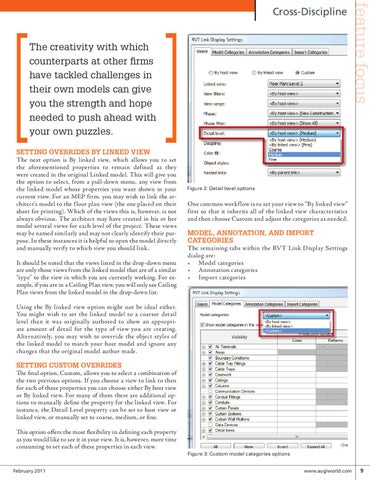
Figure 2: Detail level options
One common workf low is to set your view to “By linked view” first so that it inherits all of the linked view characteristics and then choose Custom and adjust the categories as needed.
Model, Annotation, and Import Categories The remaining tabs within the RVT Link Display Settings dialog are: • Model categories • Annotation categories • Import categories
Using the By linked view option might not be ideal either. You might wish to set the linked model to a coarser detail level than it was originally authored to show an appropriate amount of detail for the type of view you are creating. Alternatively, you may wish to override the object styles of the linked model to match your host model and ignore any changes that the original model author made.
Setting Custom overrides The final option, Custom, allows you to select a combination of the two previous options. If you choose a view to link to then for each of these properties you can choose either By host view or By linked view. For many of them there are additional options to manually define the property for the linked view. For instance, the Detail Level property can be set to host view or linked view, or manually set to coarse, medium, or fine. This option offers the most flexibility in defining each property as you would like to see it in your view. It is, however, more time consuming to set each of these properties in each view. Figure 3: Custom model categories options February 2011
www.augiworld.com 9