feature focus
Architecture The three boxes on the left are the model tree, the views (if any have been predefined), and the properties, which will be displayed when an object is selected in the model or in the tree. Interact with your model as you would most other 3D programs: Scroll your mouse wheel to zoom in and out, left click and move your mouse left, right, up, and down to move the model. For other controls and to modify the model, there is a toolbar floating above the 3D model box. These tools allow you to change the appearance of your model. You can select predefined views, change the rendering mode, change the lighting used in the model, change the background color, and cut cross sections through the model. Interacting with the model in the PDF has been much more intuitive for my clients. The limited number of tools and menus, as well as the ability to work in a program with which they are familiar makes them feel comfortable, confident, and more willing to interact with the model.
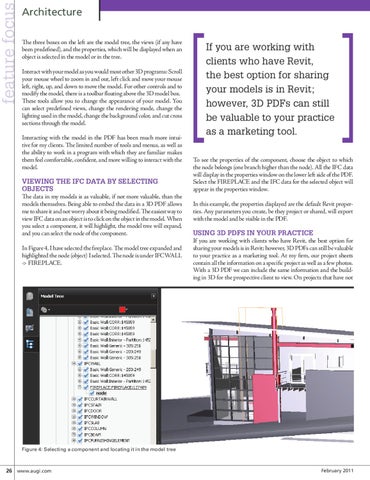
Viewing the IFC data by selecting objects The data in my models is as valuable, if not more valuable, than the models themselves. Being able to embed the data in a 3D PDF allows me to share it and not worry about it being modified. The easiest way to view IFC data on an object is to click on the object in the model. When you select a component, it will highlight, the model tree will expand, and you can select the node of the component. In Figure 4, I have selected the fireplace. The model tree expanded and highlighted the node (object) I selected. The node is under IFCWALL -> FIREPLACE.
If you are working with clients who have Revit, the best option for sharing your models is in Revit; however, 3D PDFs can still be valuable to your practice as a marketing tool. To see the properties of the component, choose the object to which the node belongs (one branch higher than the node). All the IFC data will display in the properties window on the lower left side of the PDF. Select the FIREPLACE and the IFC data for the selected object will appear in the properties window. In this example, the properties displayed are the default Revit properties. Any parameters you create, be they project or shared, will export with the model and be visible in the PDF.
Using 3D PDFs in your practice If you are working with clients who have Revit, the best option for sharing your models is in Revit; however, 3D PDFs can still be valuable to your practice as a marketing tool. At my firm, our project sheets contain all the information on a specific project as well as a few photos. With a 3D PDF we can include the same information and the building in 3D for the prospective client to view. On projects that have not
Figure 4: Selecting a component and locating it in the model tree
26 www.augi.com
February 2011