Architecture
Revit to PDF: An Interactive Model Viewer
➲
I
n my work as an educational facility planner, I use Autodesk® Revit® to draw floor plans and to create 3D models of the facilities on which I am working. The information contained in the models is used to create the facility master plan. While the master plan is valuable, I have been looking for a way to share the models and the information they contain in digital form with my clients. The easy answer is to submit my Revit files; however, my clients have no need for a full version of Revit nor do they have the expertise to use it. My solution has been to submit my models as a 3D PDF. By exporting my Revit models to IFC, I am able to import both the geometry of the model as well as the data contained in the model in to an interactive PDF file that can be viewed from the free Acrobat Reader. In this article, I will show how a 3D PDF can be used as a viewer for Revit models and offer some suggestions on how to expand their use in your practice.
model, so a capture may not be the right choice. The simplest option is to create a PDF from a blank file. To import your IFC model, go to Tools -> Multimedia -> 3D Tool and draw a box on the blank page. After drawing the box, you will be presented with a window asking for the location of the IFC file as well as some options for displaying your model.
feature focus
by: Paul Crickard III
From RVT to IFC, then PDF Once you have completed your Revit model, the first step in creating a 3D PDF is to export the model using the IFC option.
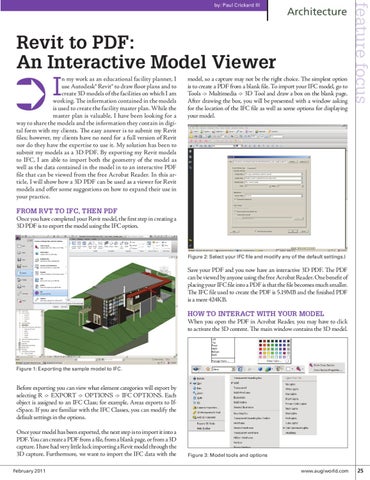
Figure 2: Select your IFC file and modify any of the default settings.)
Save your PDF and you now have an interactive 3D PDF. The PDF can be viewed by anyone using the free Acrobat Reader. One benefit of placing your IFC file into a PDF is that the file becomes much smaller. The IFC file used to create the PDF is 5.19MB and the finished PDF is a mere 424KB.
How to interact with your model When you open the PDF in Acrobat Reader, you may have to click to activate the 3D content. The main window contains the 3D model.
Figure 1: Exporting the sample model to IFC.
Before exporting you can view what element categories will export by selecting R -> EXPORT -> OPTIONS -> IFC OPTIONS. Each object is assigned to an IFC Class; for example, Areas exports to IfcSpace. If you are familiar with the IFC Classes, you can modify the default settings in the options. Once your model has been exported, the next step is to import it into a PDF. You can create a PDF from a file, from a blank page, or from a 3D capture. I have had very little luck importing a Revit model through the 3D capture. Furthermore, we want to import the IFC data with the February 2011
Figure 3: Model tools and options
www.augiworld.com 25