feature focus
Civil Engineering Tool 4 – Source Drawing Queries
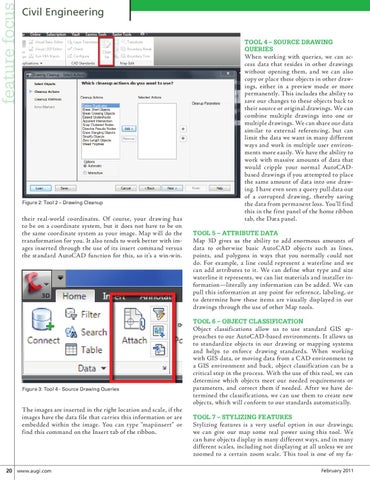
Figure 2: Tool 2 – Drawing Cleanup
their real-world coordinates. Of course, your drawing has to be on a coordinate system, but it does not have to be on the same coordinate system as your image. Map will do the transformation for you. It also tends to work better with images inserted through the use of its insert command versus the standard AutoCAD function for this, so it’s a win-win.
When working with queries, we can access data that resides in other drawings without opening them, and we can also copy or place these objects in other drawings, either in a preview mode or more permanently. This includes the ability to save our changes to these objects back to their source or original drawings. We can combine multiple drawings into one or multiple drawings. We can share our data similar to external referencing, but can limit the data we want in many different ways and work in multiple user environments more easily. We have the ability to work with massive amounts of data that would cripple your normal AutoCADbased drawings if you attempted to place the same amount of data into one drawing. I have even seen a query pull data out of a corrupted drawing, thereby saving the data from permanent loss. You’ll find this in the first panel of the home ribbon tab, the Data panel. Tool 5 – Attribute Data
Map 3D gives us the ability to add enormous amounts of data to otherwise basic AutoCAD objects such as lines, points, and polygons in ways that you normally could not do. For example, a line could represent a waterline and we can add attributes to it. We can define what type and size waterline it represents, we can list materials and installer information—literally any information can be added. We can pull this information at any point for reference, labeling, or to determine how these items are visually displayed in our drawings through the use of other Map tools. Tool 6 – Object Classification
Figure 3: Tool 4 - Source Drawing Queries
The images are inserted in the right location and scale, if the images have the data file that carries this information or are embedded within the image. You can type “mapiinsert” or find this command on the Insert tab of the ribbon.
20 www.augi.com
Object classifications allow us to use standard GIS approaches to our AutoCAD-based environments. It allows us to standardize objects in our drawing or mapping systems and helps to enforce drawing standards. When working with GIS data, or moving data from a CAD environment to a GIS environment and back, object classification can be a critical step in the process. With the use of this tool, we can determine which objects meet our needed requirements or parameters, and correct them if needed. After we have determined the classifications, we can use them to create new objects, which will conform to our standards automatically. Tool 7 – Stylizing features
Stylizing features is a very useful option in our drawings; we can give our map some real power using this tool. We can have objects display in many different ways, and in many different scales, including not displaying at all unless we are zoomed to a certain zoom scale. This tool is one of my faFebruary 2011