the proper procedures for creating the content they need. Using generic models may seem like a quick solution to a problem, but it often leads to much more work in the long run. Using Model In-place families of the proper category when you need to create a quick one-off element will allow that element’s visibility to be controlled by the category to which it belongs. You can further control the visibility of category elements by creating subcategories from the Object Styles dialog box.
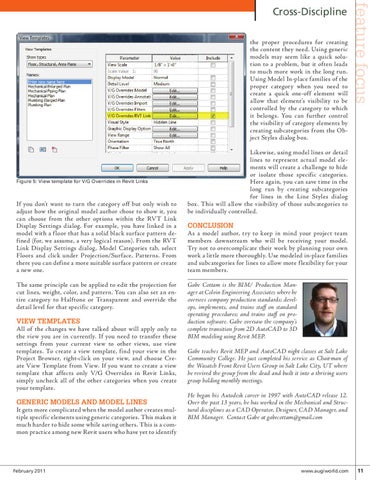
Figure 5: View template for V/G Overrides in Revit Links
If you don’t want to turn the category off but only wish to adjust how the original model author chose to show it, you can choose from the other options within the RVT Link Display Settings dialog. For example, you have linked in a model with a f loor that has a solid black surface pattern defined (for, we assume, a very logical reason). From the RVT Link Display Settings dialog, Model Categories tab, select Floors and click under Projection/Surface, Patterns. From there you can define a more suitable surface pattern or create a new one. The same principle can be applied to edit the projection for cut lines, weight, color, and pattern. You can also set an entire category to Halftone or Transparent and override the detail level for that specific category.
View templates All of the changes we have talked about will apply only to the view you are in currently. If you need to transfer these settings from your current view to other views, use view templates. To create a view template, find your view in the Project Browser, right-click on your view, and choose Create View Template from View. If you want to create a view template that affects only V/G Overrides in Revit Links, simply uncheck all of the other categories when you create your template. Generic models and model lines It gets more complicated when the model author creates multiple specific elements using generic categories. This makes it much harder to hide some while saving others. This is a common practice among new Revit users who have yet to identify
February 2011
feature focus
Cross-Discipline
Likewise, using model lines or detail lines to represent actual model elements will create a challenge to hide or isolate those specific categories. Here again, you can save time in the long run by creating subcategories for lines in the Line Styles dialog box. This will allow the visibility of those subcategories to be individually controlled.
Conclusion As a model author, try to keep in mind your project team members downstream who will be receiving your model. Try not to overcomplicate their work by planning your own work a little more thoroughly. Use modeled in-place families and subcategories for lines to allow more f lexibility for your team members. Gabe Cottam is the BIM/ Production Manager at Colvin Engineering Associates where he oversees company production standards; develops, implements, and trains staff on standard operating procedures; and trains staff on production software. Gabe oversaw the company’s complete transition from 2D AutoCAD to 3D BIM modeling using Revit MEP. Gabe teaches Revit MEP and AutoCAD night classes at Salt Lake Community College. He just completed his service as Chairman of the Wasatch Front Revit Users Group in Salt Lake City, UT where he revived the group from the dead and built it into a thriving users group holding monthly meetings. He began his Autodesk career in 1997 with AutoCAD release 12. Over the past 13 years, he has worked in the Mechanical and Structural disciplines as a CAD Operator, Designer, CAD Manager, and BIM Manager. Contact Gabe at gabecottam@gmail.com
www.augiworld.com 11