

Wits ICT
How to reset your staff password.
Wits ICT - Using password self-service
Important information:

To make use of the password self-service, you must first register.

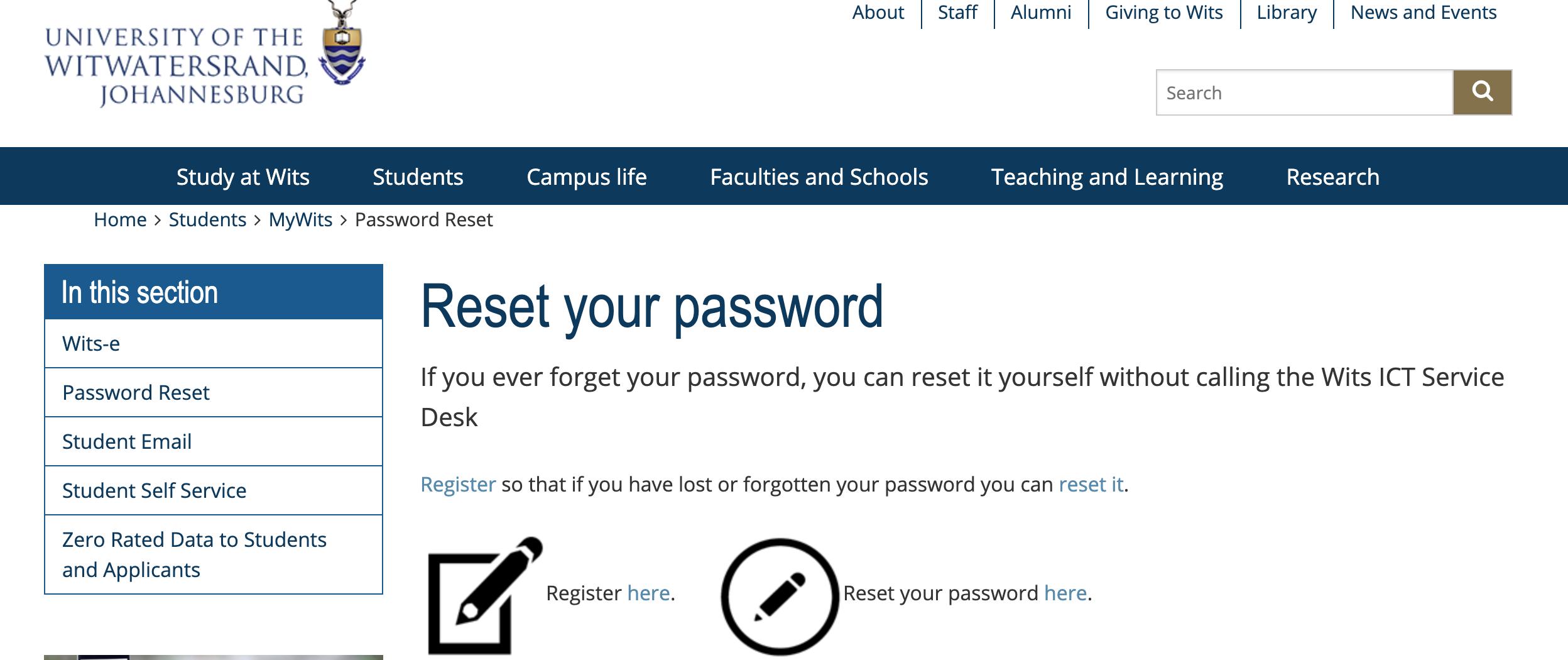
Click on the link below to start the registration process https://www.wits.ac.za/mywits/password-reset/ It’s ok to do this more than once, so if you are not sure if you have done it before you can go ahead and do it again to make sure.
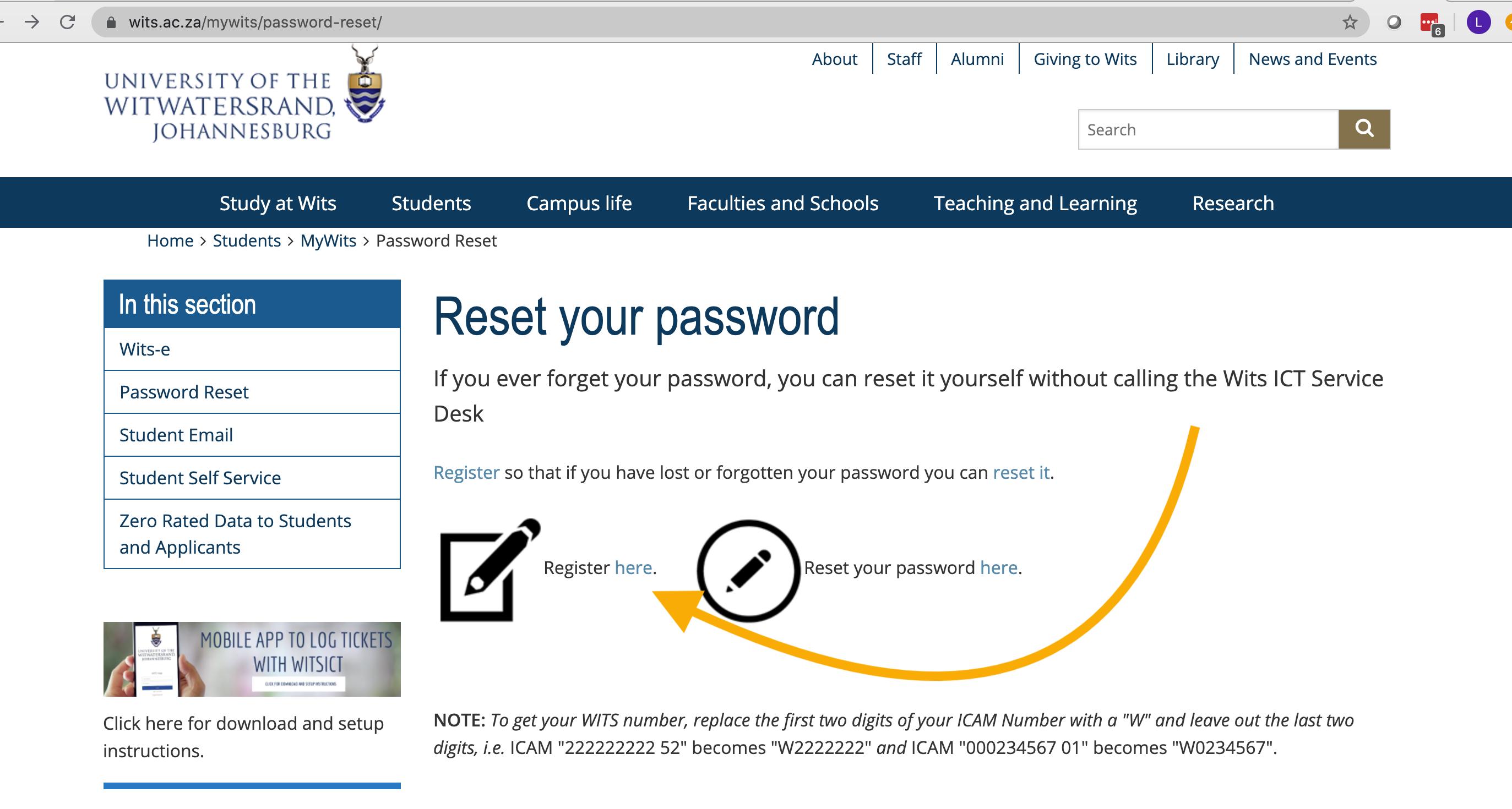
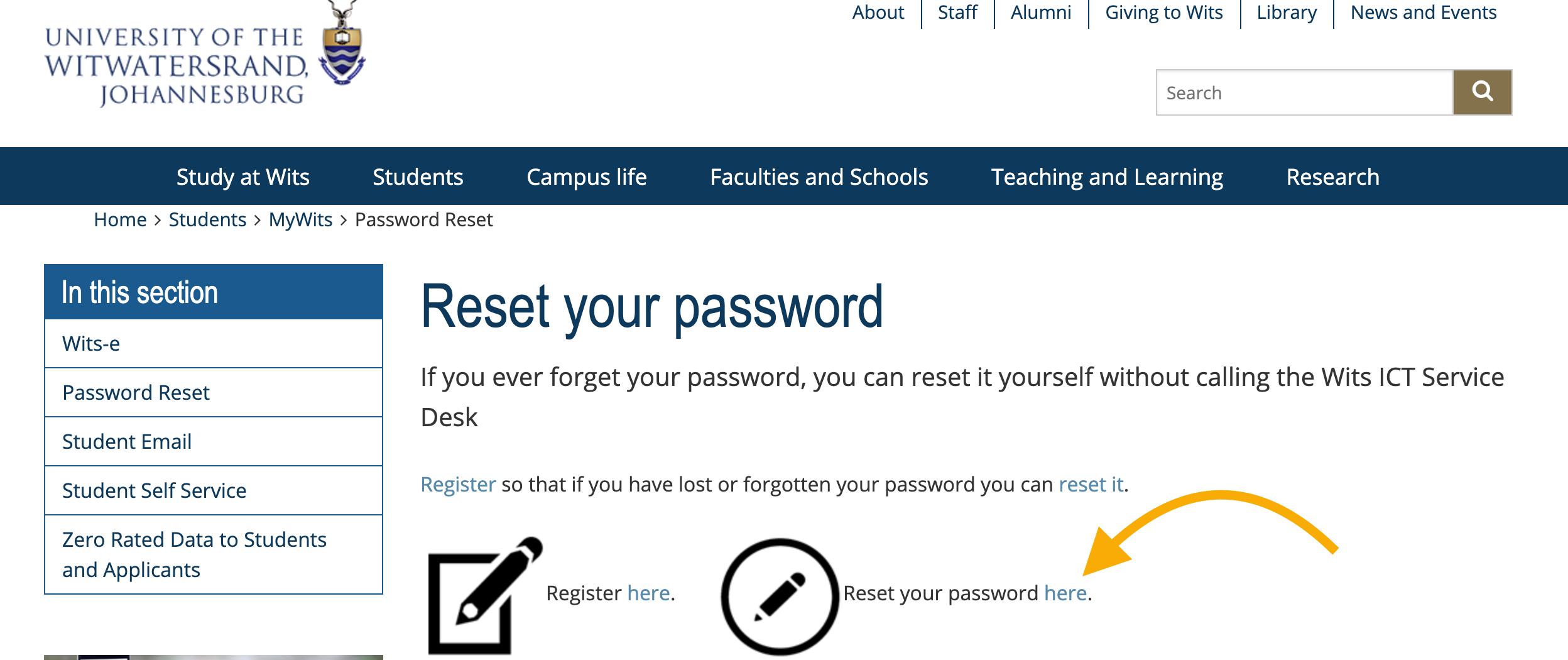
Click on the Register here link as shown here.
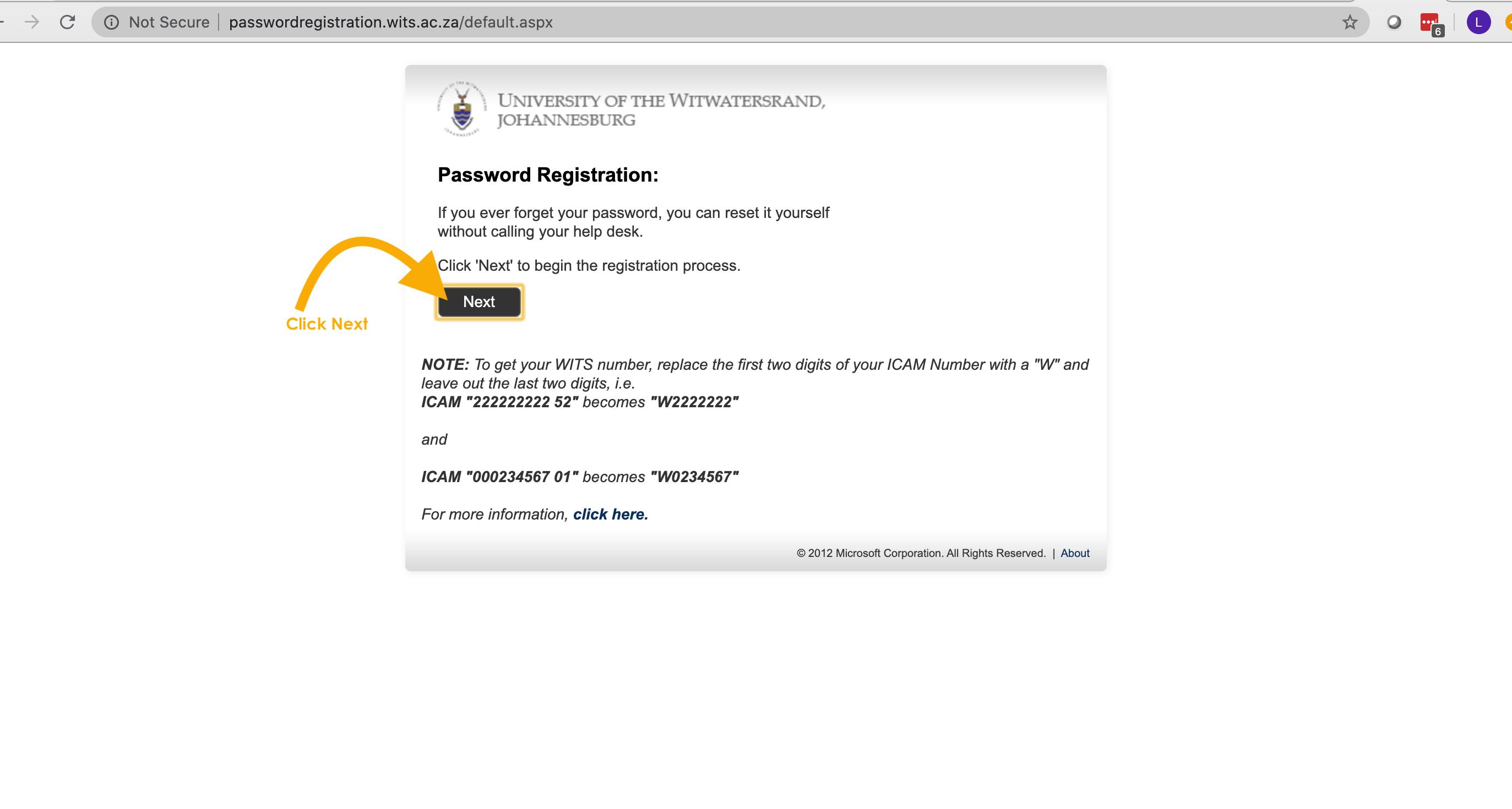
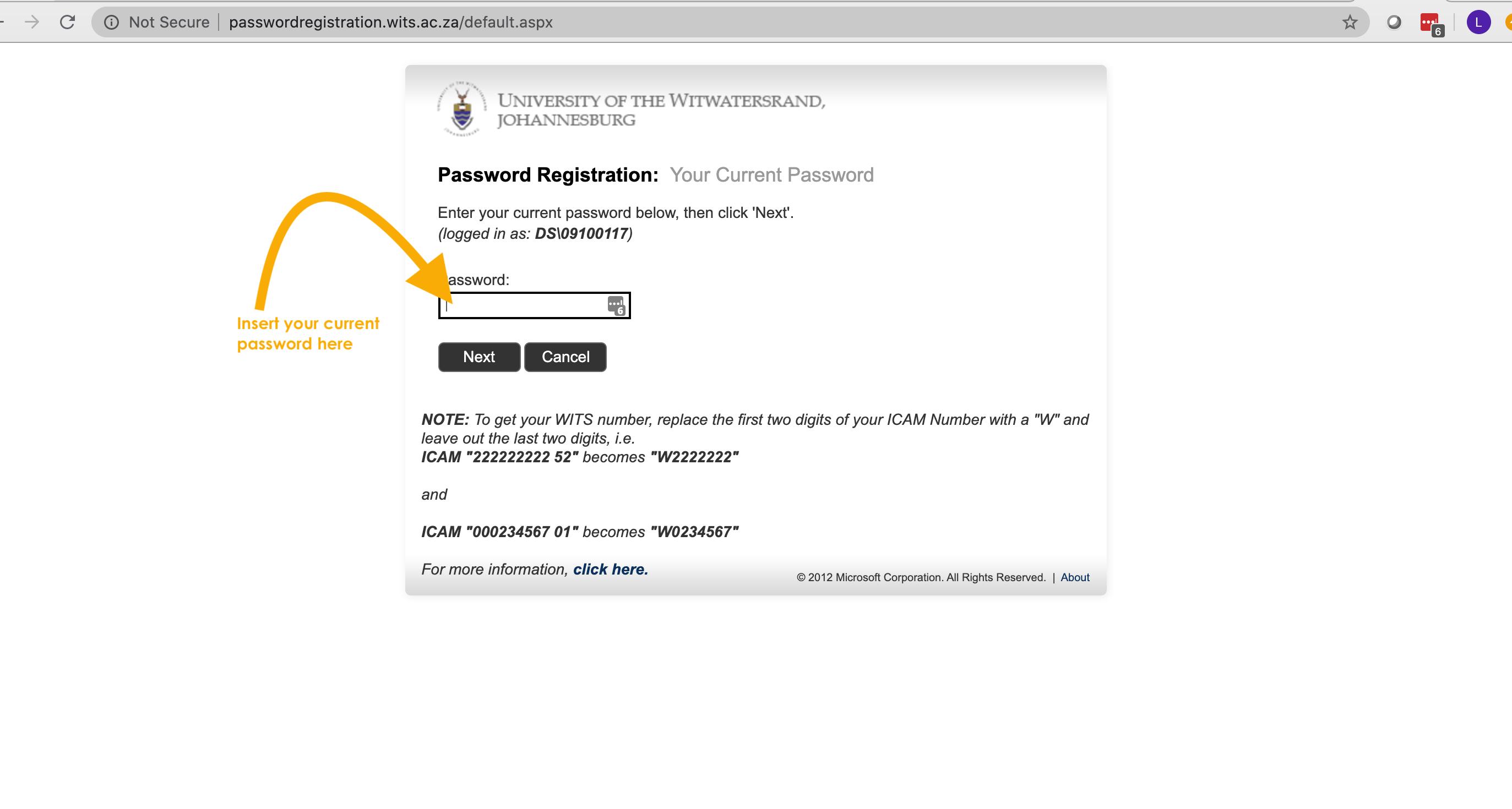
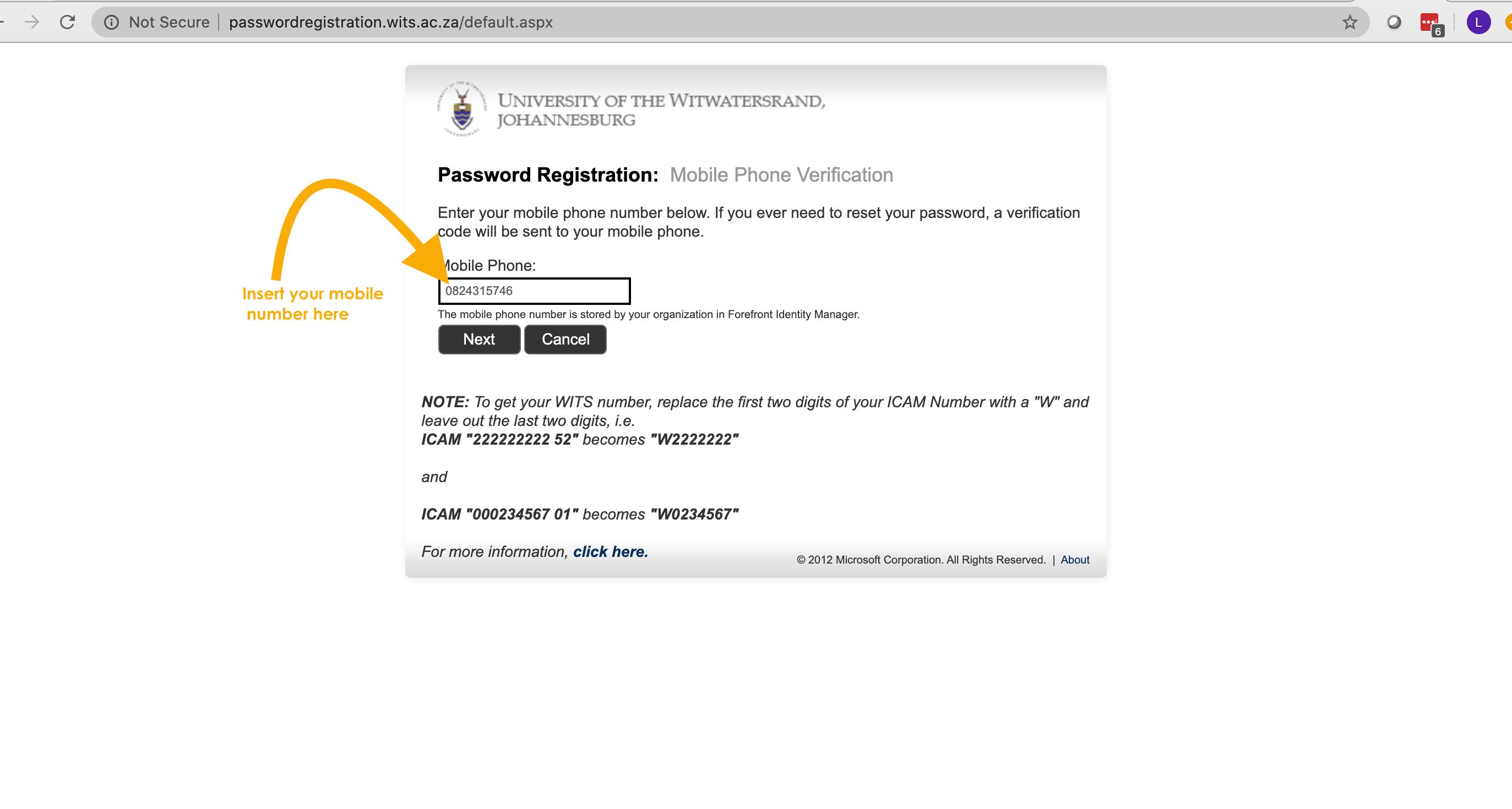
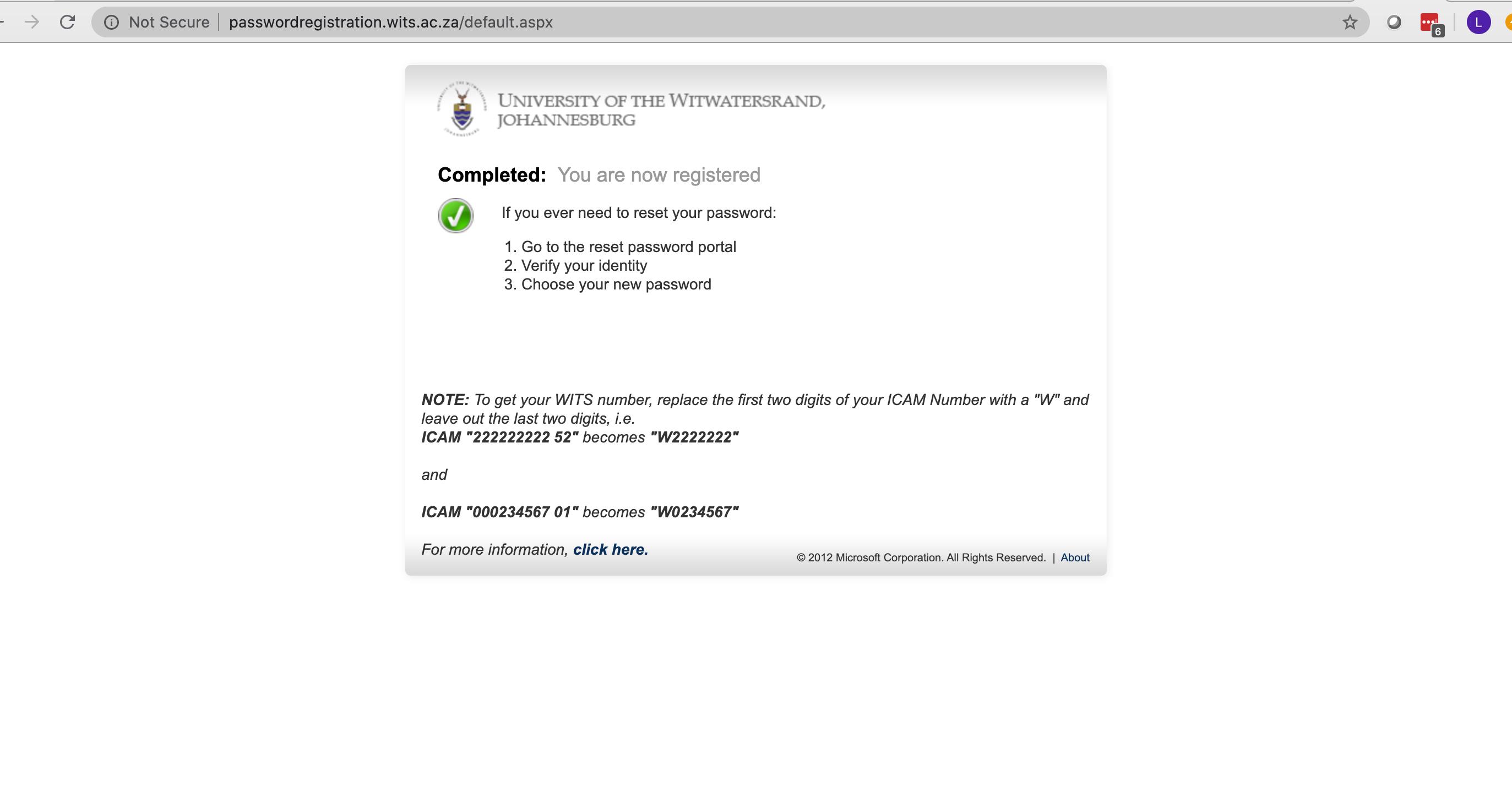
https://www.wits.ac.za/mywits/password-reset/
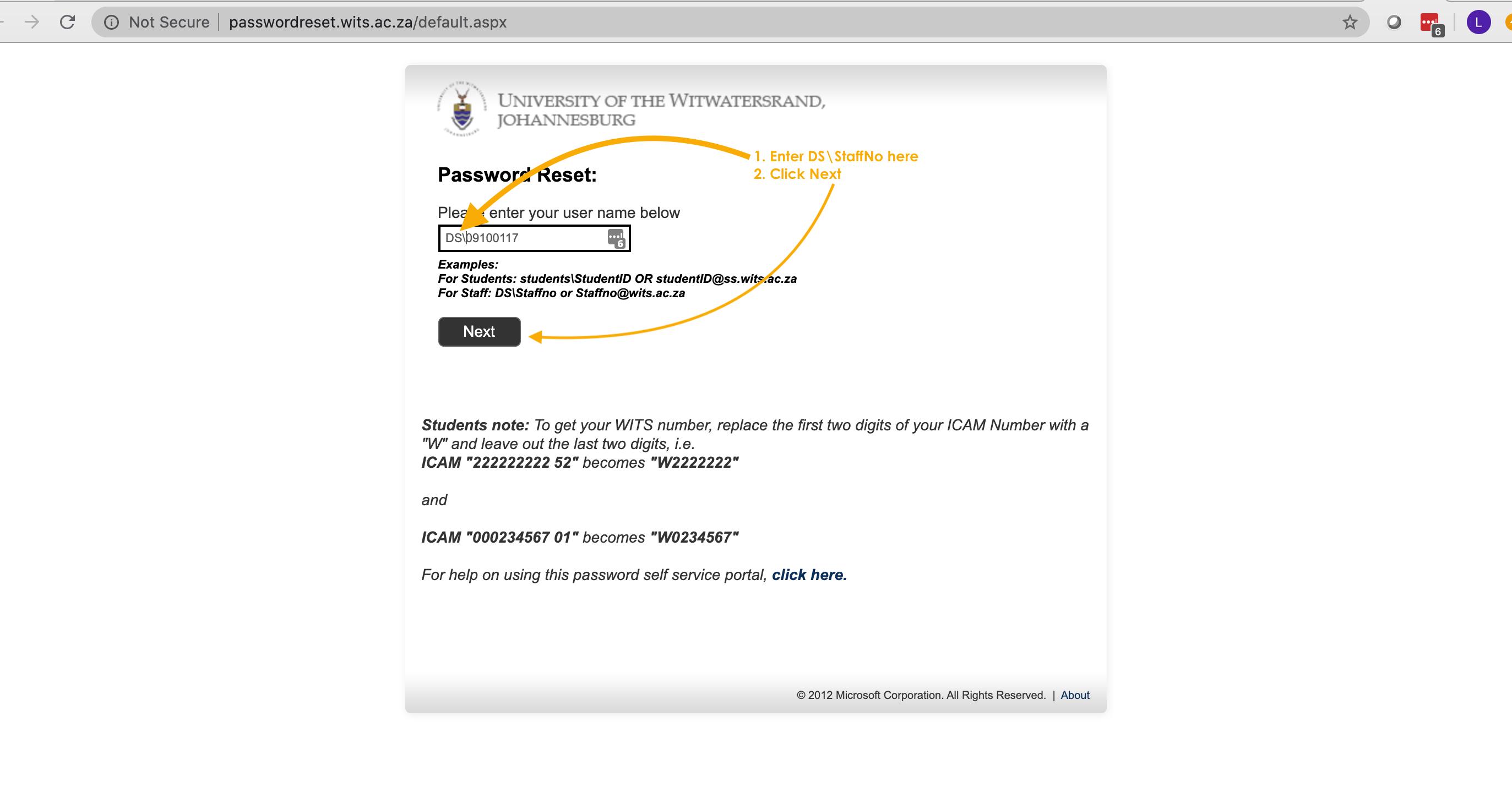
Insert DS\StaffNo in the user name box. E.g. DS\A1234567
Then click Next.
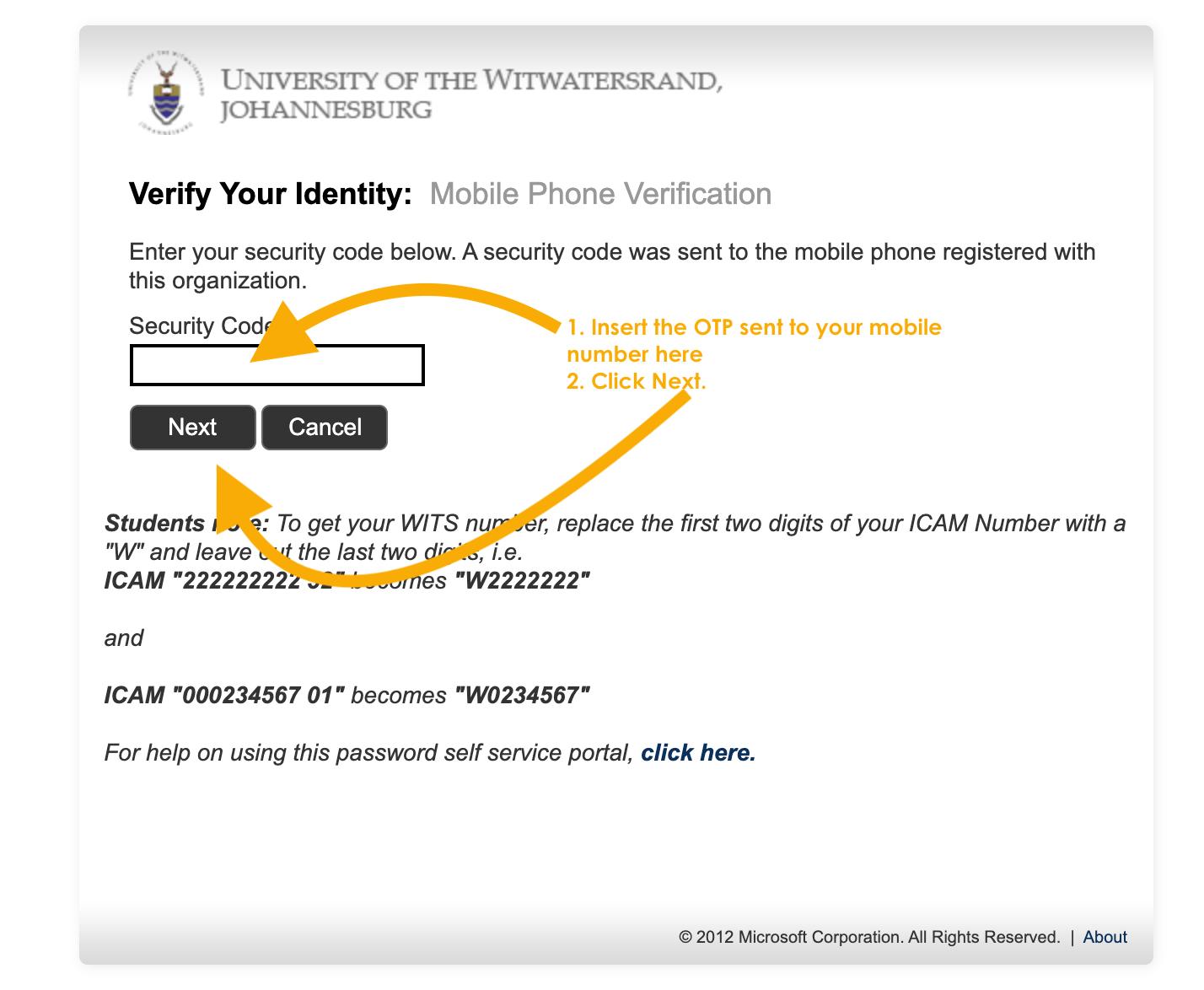
Please wait for the OTP!
A OTP will be sent to your mobile number. When you receive it please insert it in the Security Code box and click Next.
Please be patient as it may take a few minutes for the OTP to be delivered.
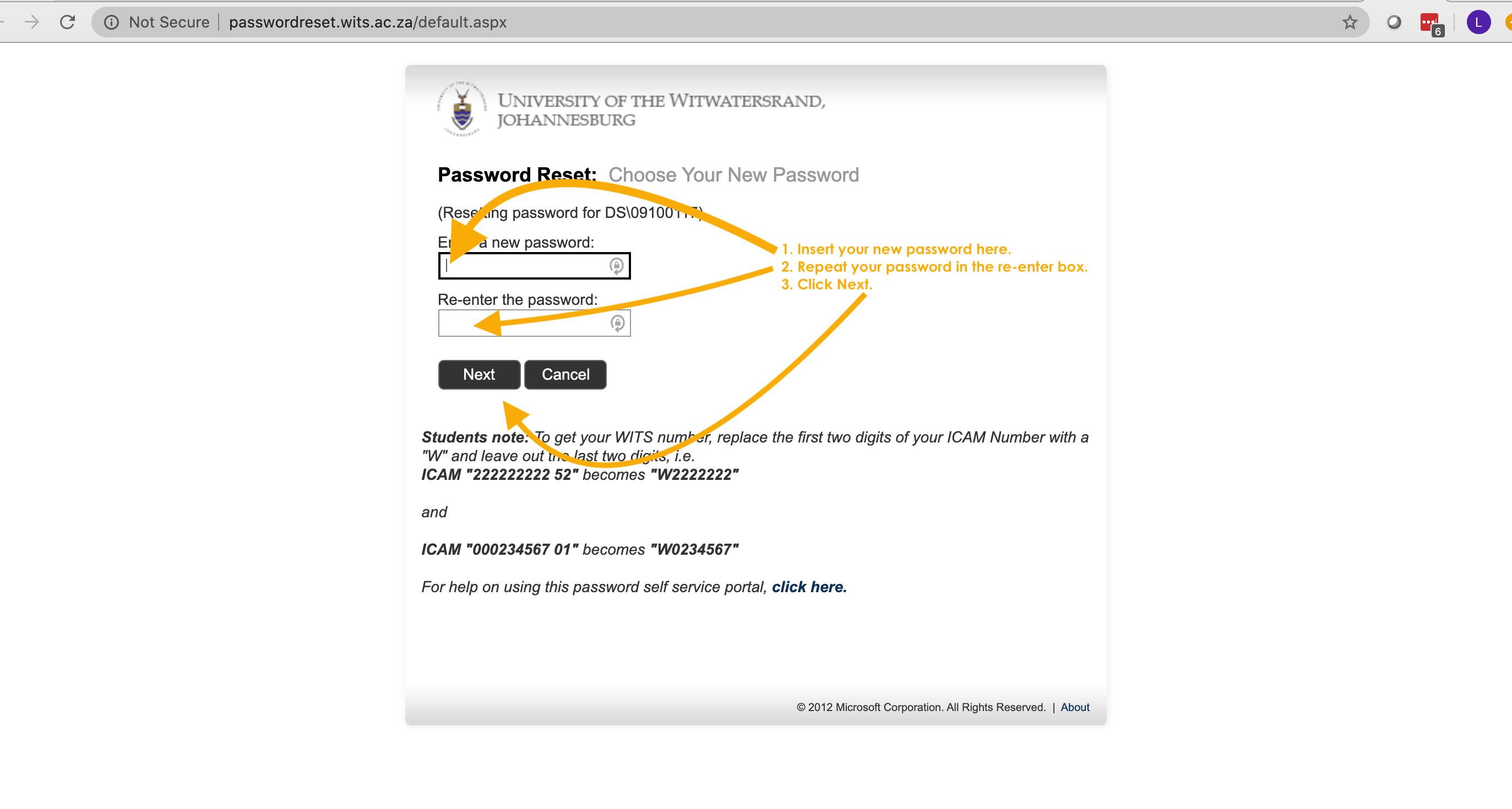
Enter your new password in the new password box.
Re-type it in the re-enter the password box. Click Next.
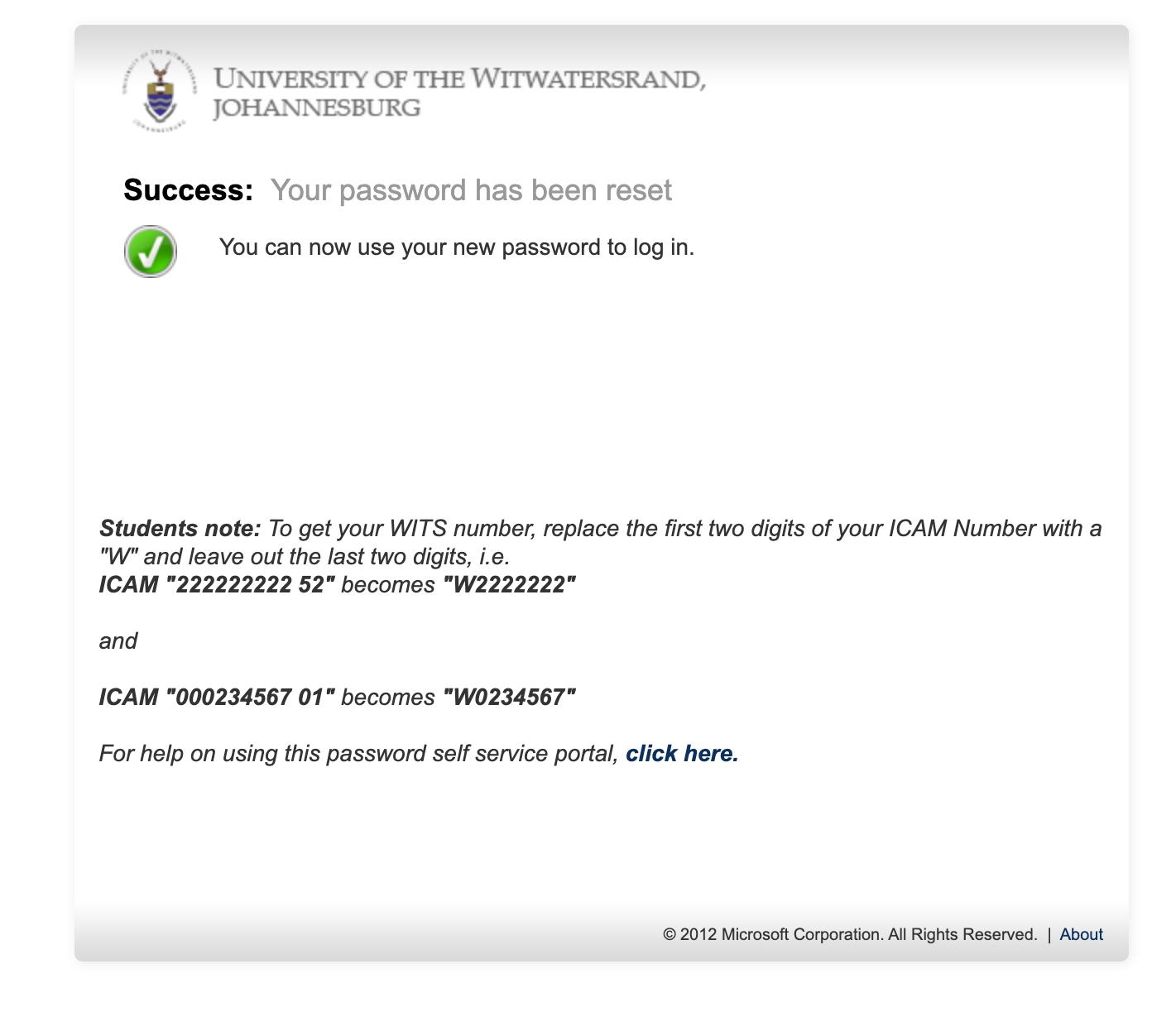
Please wait for 5 minutes before you use your new password to access University applications. Please allow 15 minutes for the changes to be affected on iWits.wits.ac.za
Wits ICT - Password Policy and Info
THE PASSWORD POLICY IS AS FOLLOWS:
1. Must be at least 8 characters long
2. Cannot be one of the last 24 passwords you have previously used
3. Must be changed every 30 days.
The The complexity of the password is comprised of the following.
1. Must be alphanumeric.
2. Must contain at least 1 Special character.
3. Must contain at least 1 Capital letter.
4. Cannot be the same as user’s name.
5. Cannot be blank.
6. Cannot be a sequence (i.e. 2006.Jan, 2006.Feb, etc)
Of the 1st three rules, only two have to be complied with for the password to be complex.