How to create a bubble sheet assignment for an MCQ test in Gradescope
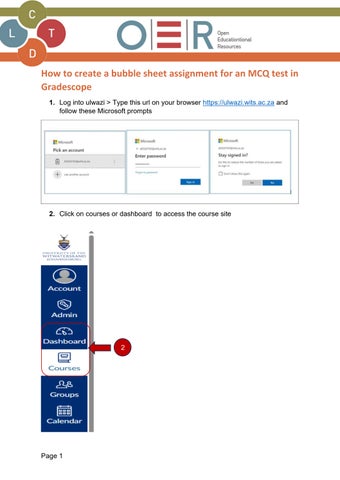
1. Log into ulwazi > Type this url on your browser https://ulwazi.wits.ac.za and follow these Microsoft prompts
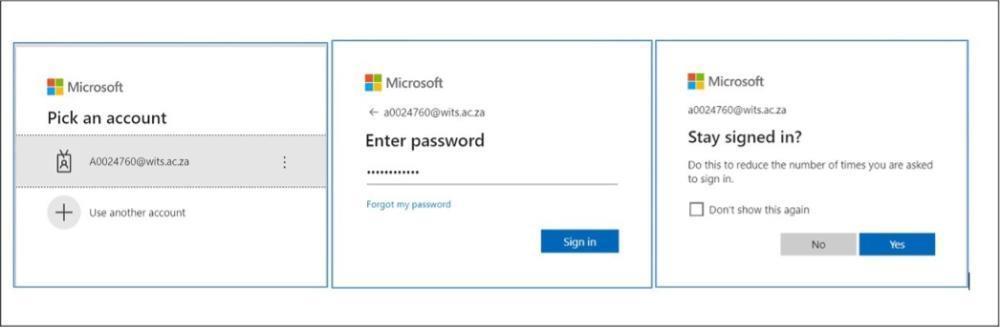
2. Click on courses or dashboard to access the course site

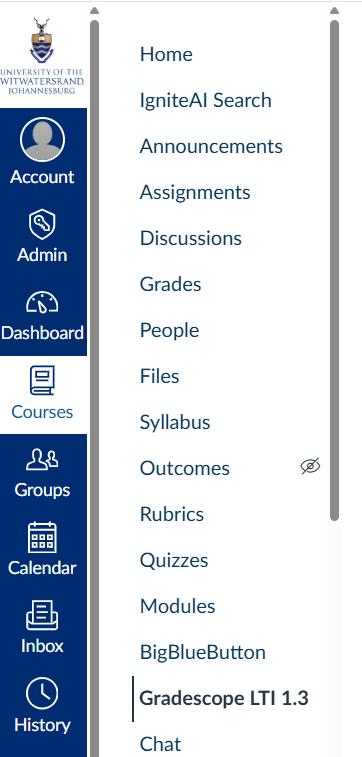
3. On the course tool list, Click on Gradescope LTI 1.3
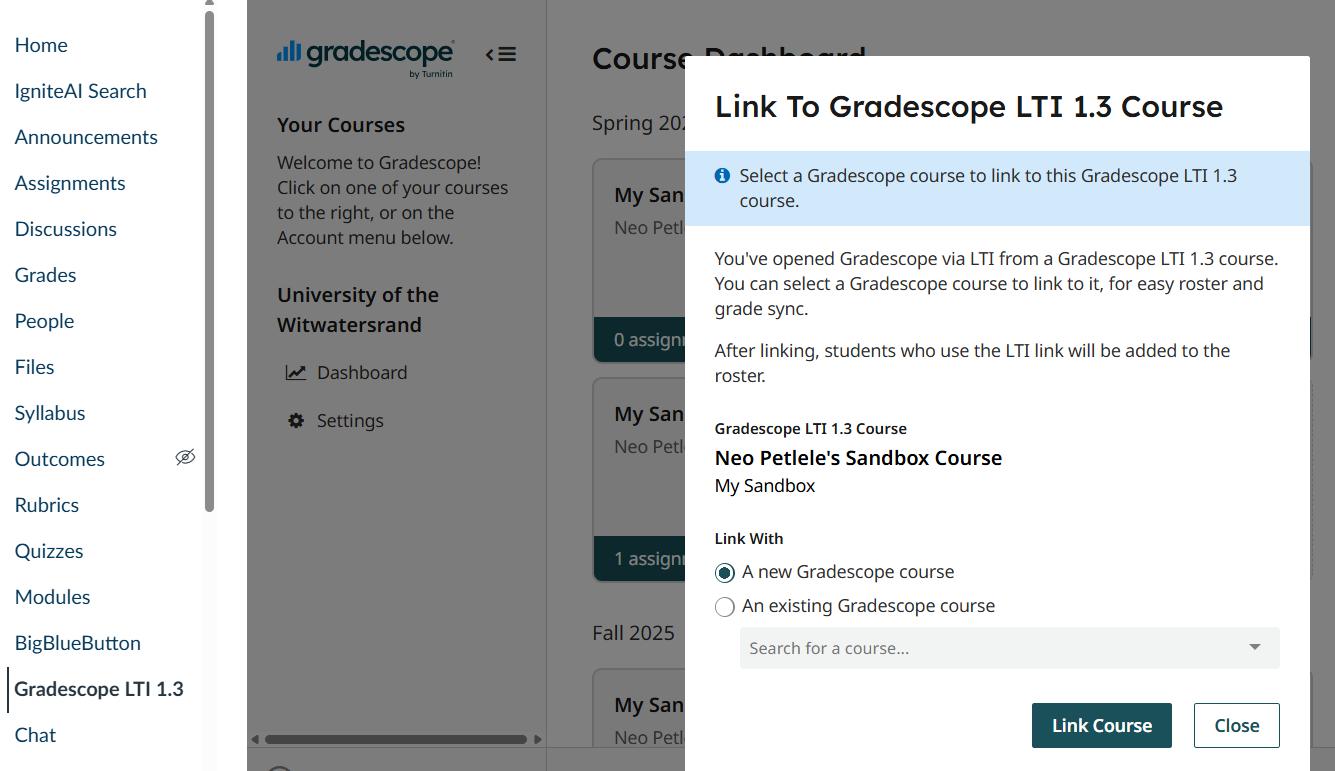
4. Select “A new Gradescope course then click link the course
5. Course settings – you can edit the course with selecting the current year and term
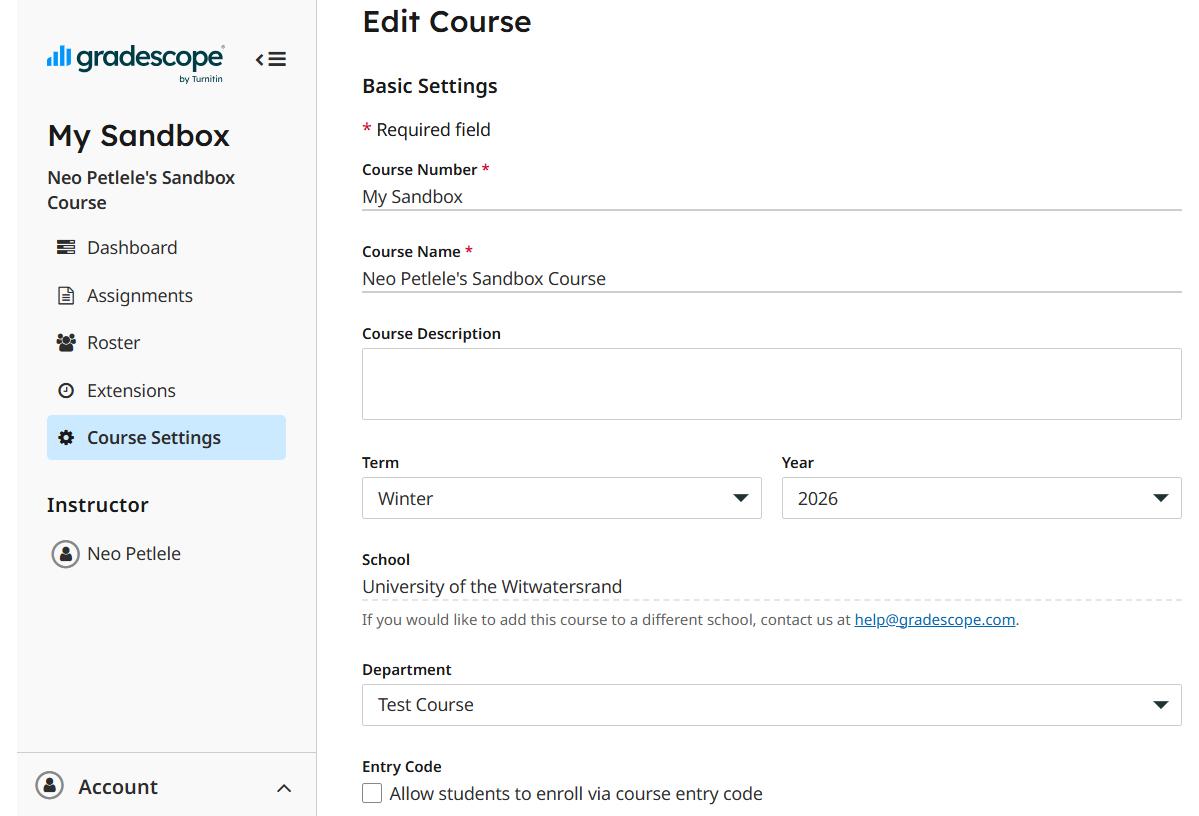
6. Click on Roster then select “Sync Gradescope LTI 1.3 Royster
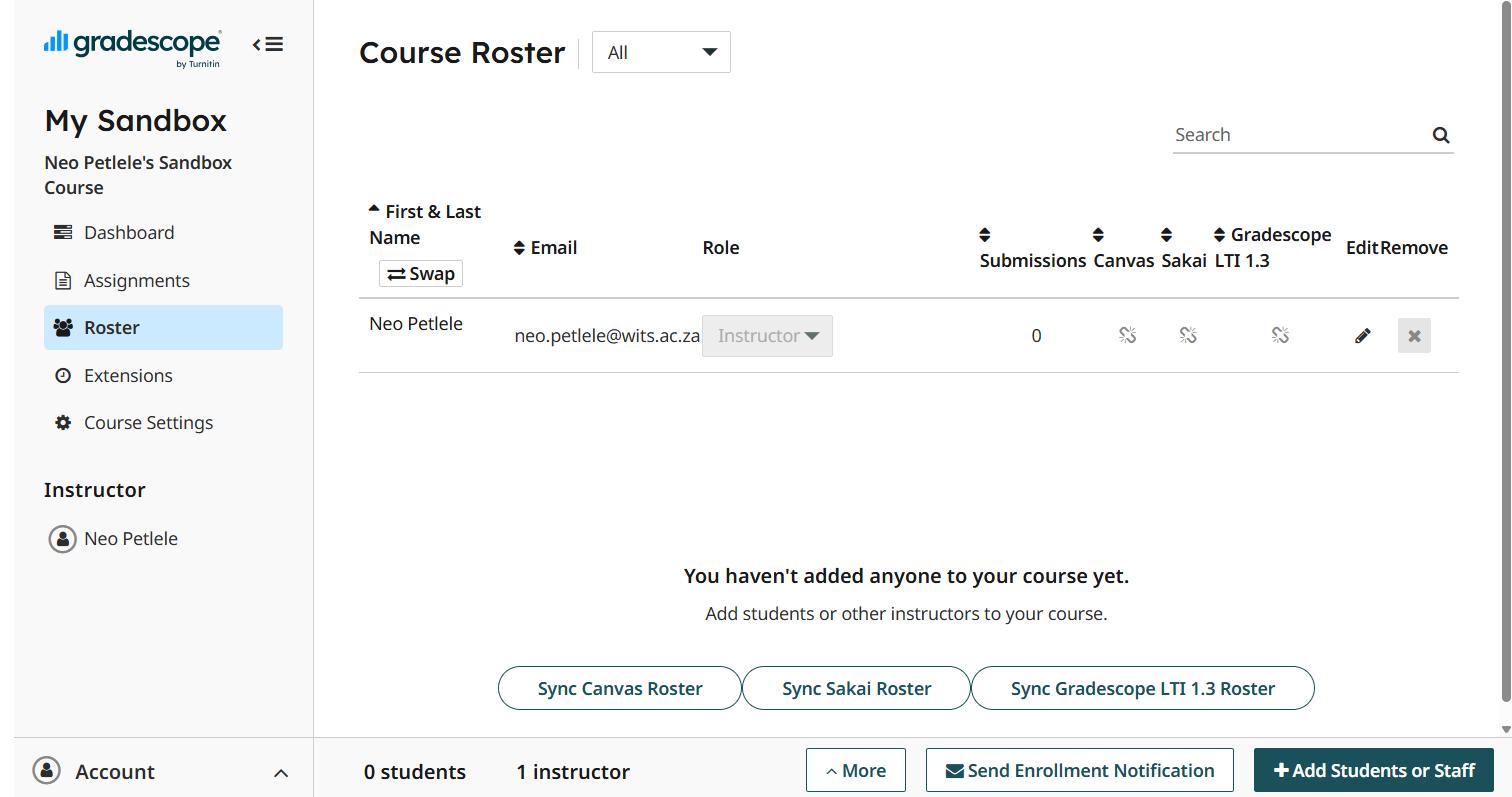
7. Select synch roster to start the synch process.
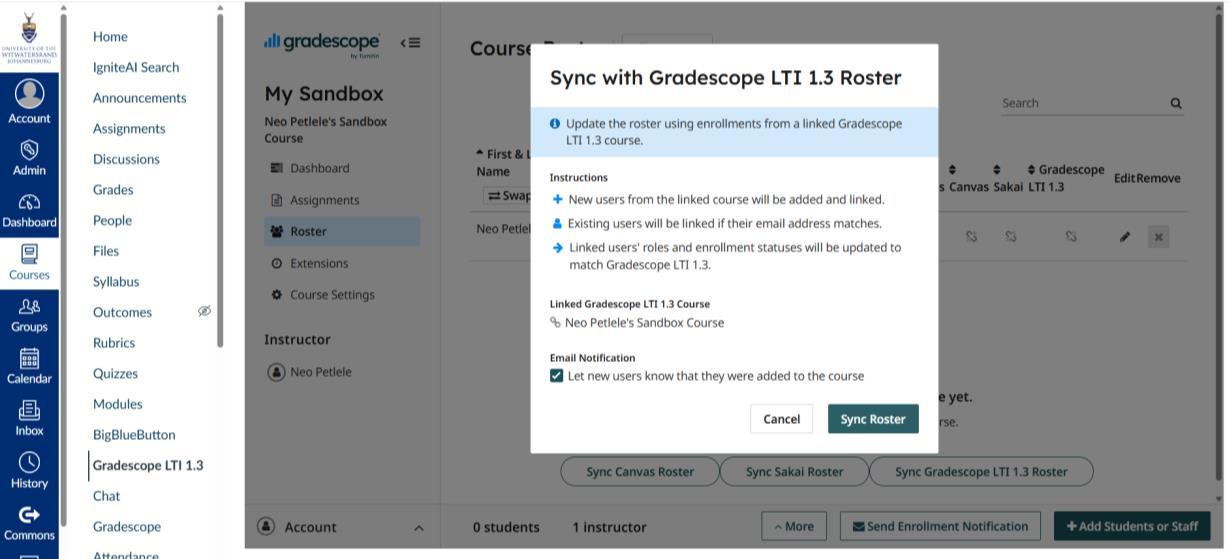
8. Once successfully synch, the users should be visible with the role –student/Teacher or TA
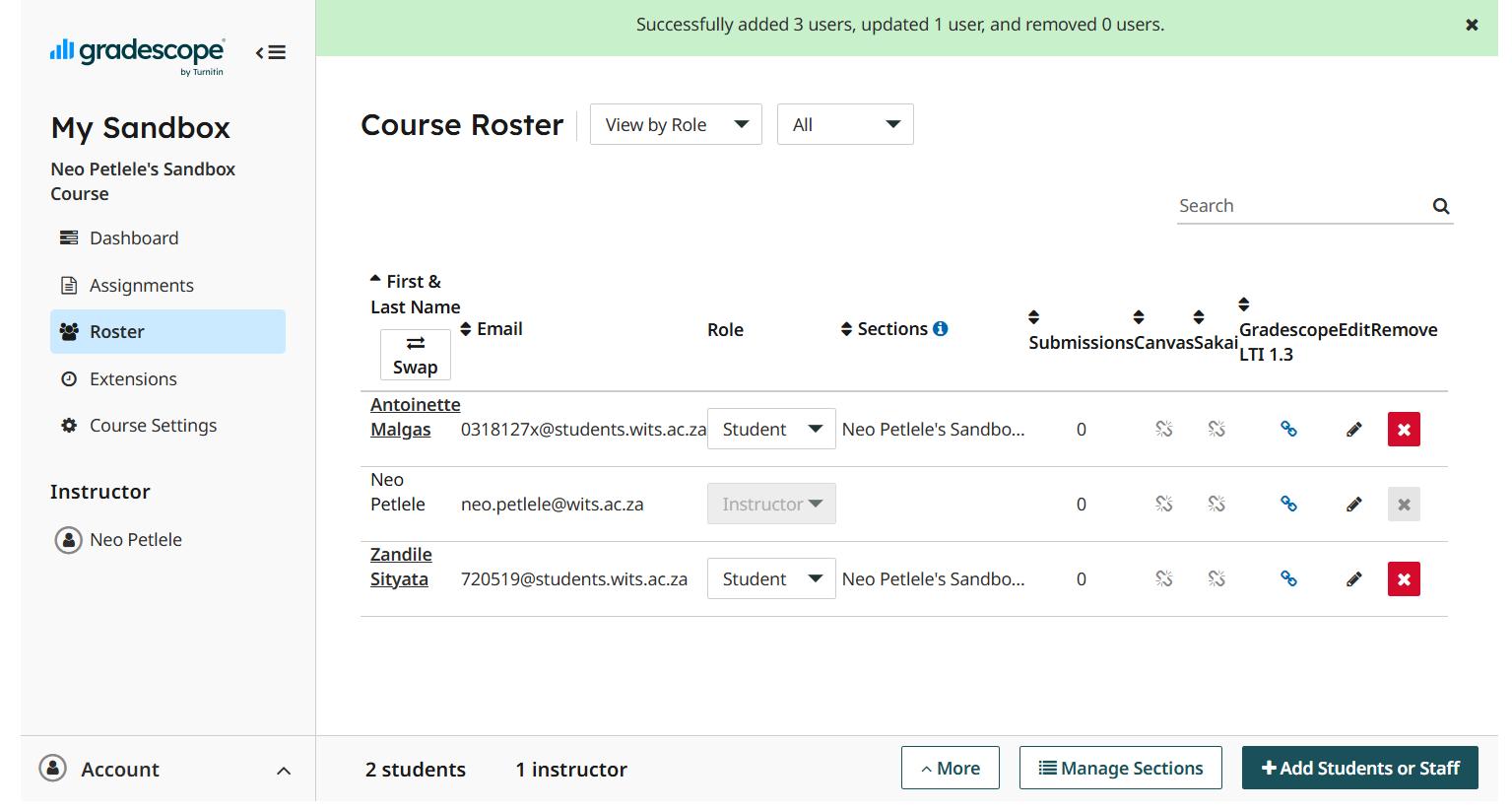
Now that you have synched the users , next step is to create a submission link to submit the scanned bubble sheet templates under the Assignment tool.
9. Click on the Assignment tool , then click the assignment settings to select Gradescope LTI 1.3
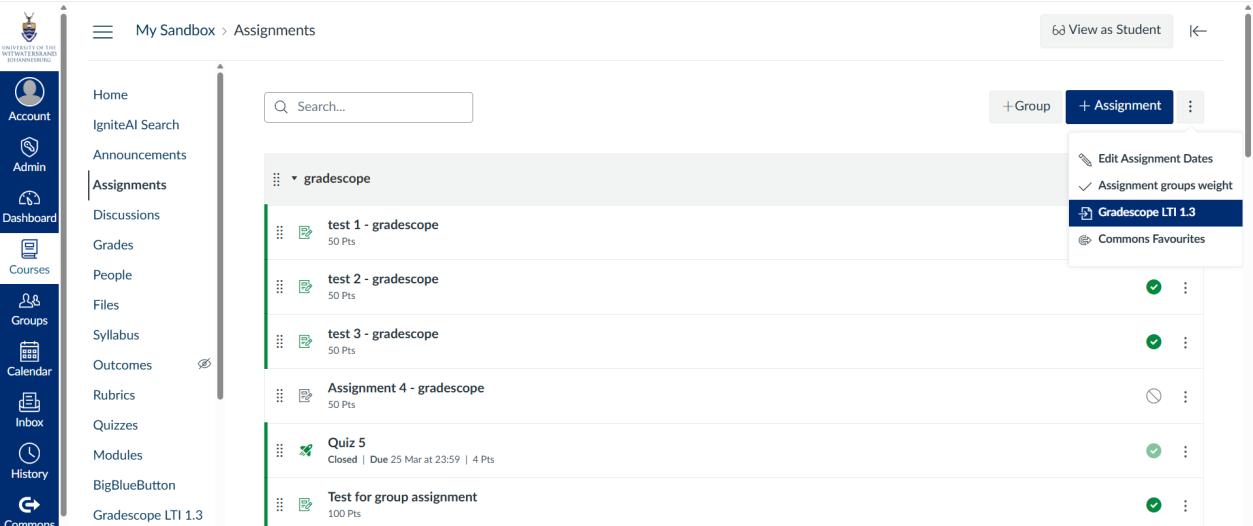
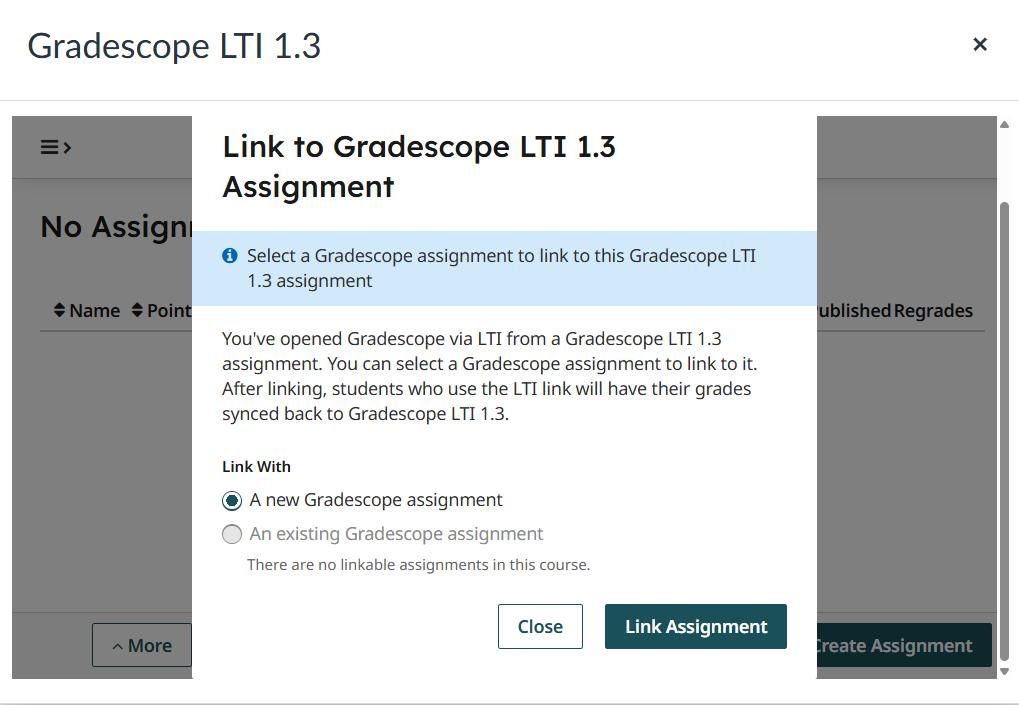
10. select “A new Gradescope” option then click assignment
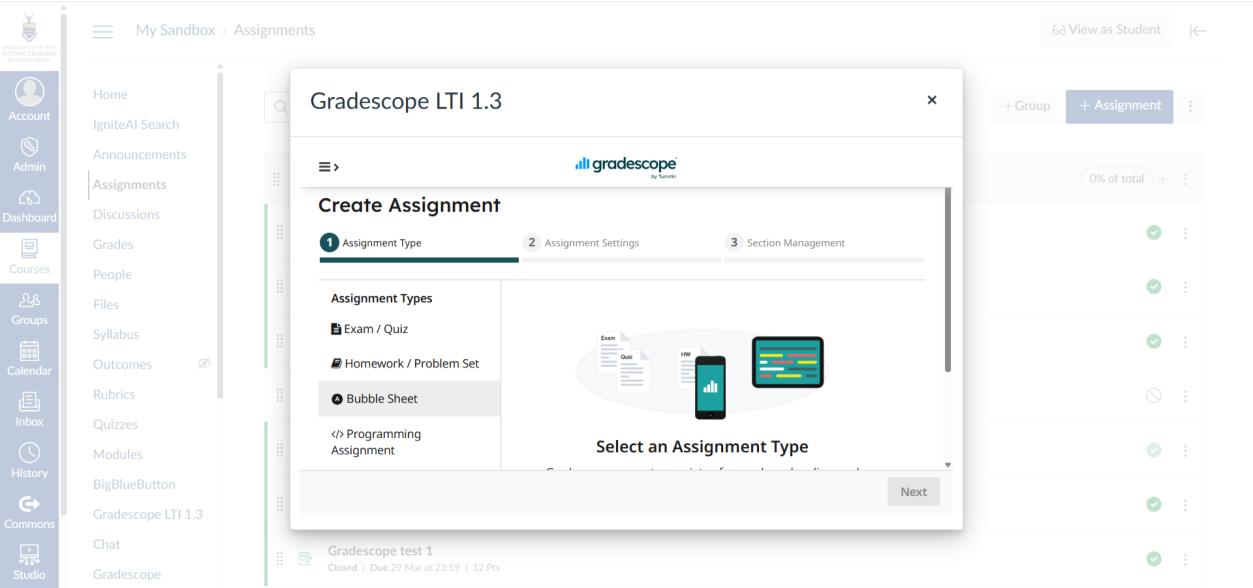
11. Select Bubble Sheet assignment type.
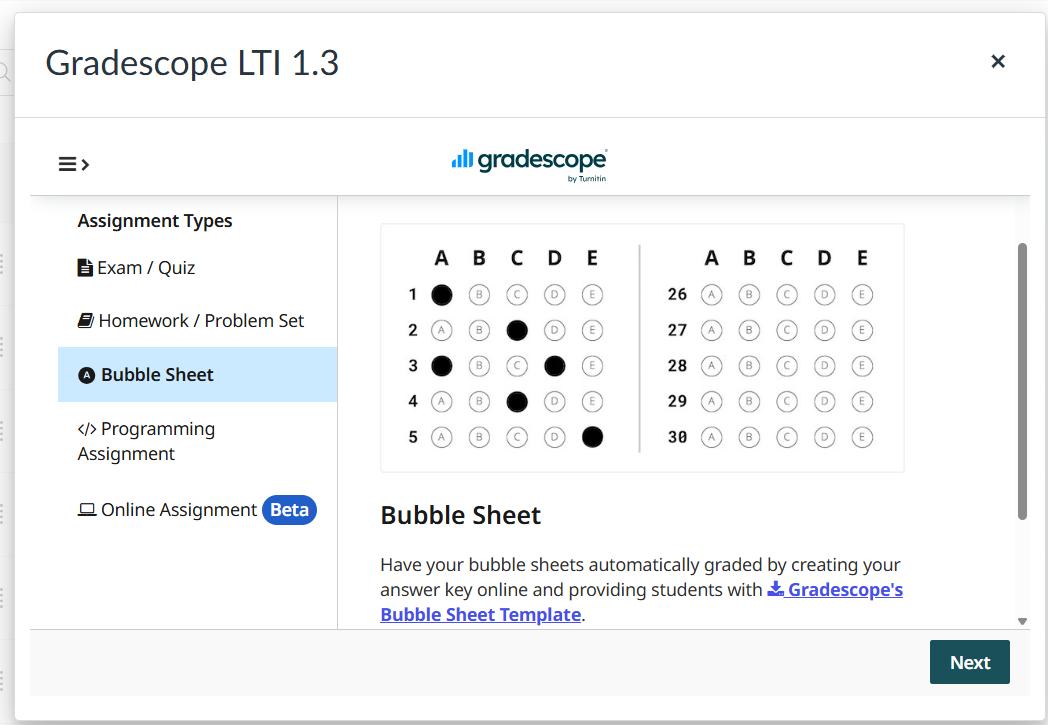
12. To download the bubble sheet template, Click on the “Gradescope bubble sheet template” The bubble sheet template will be printed for students to complete the MCQ. Click next to proceed.
13. Type in the Assignment name .
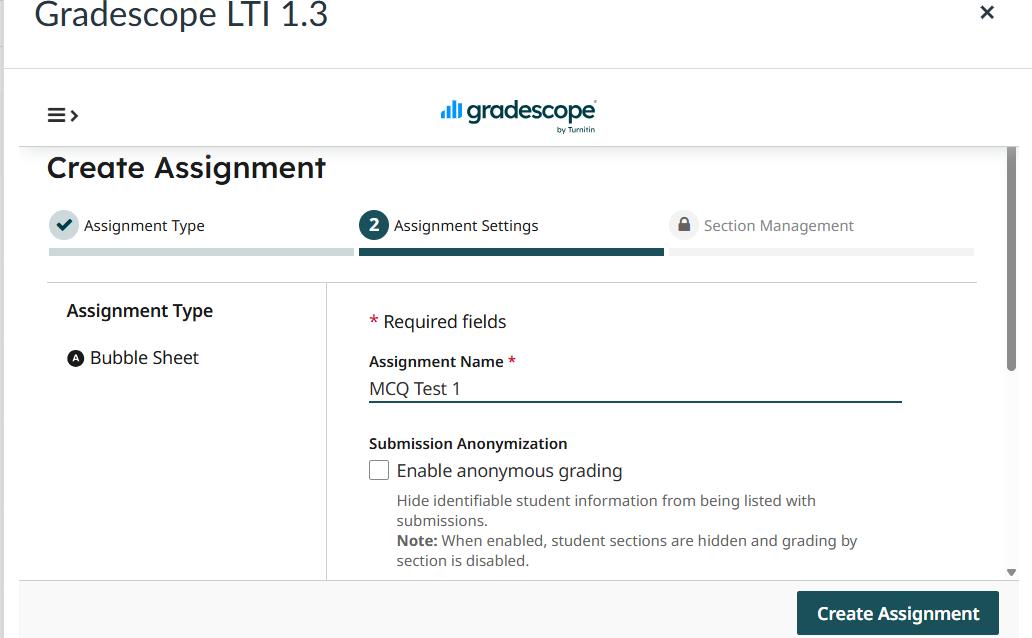
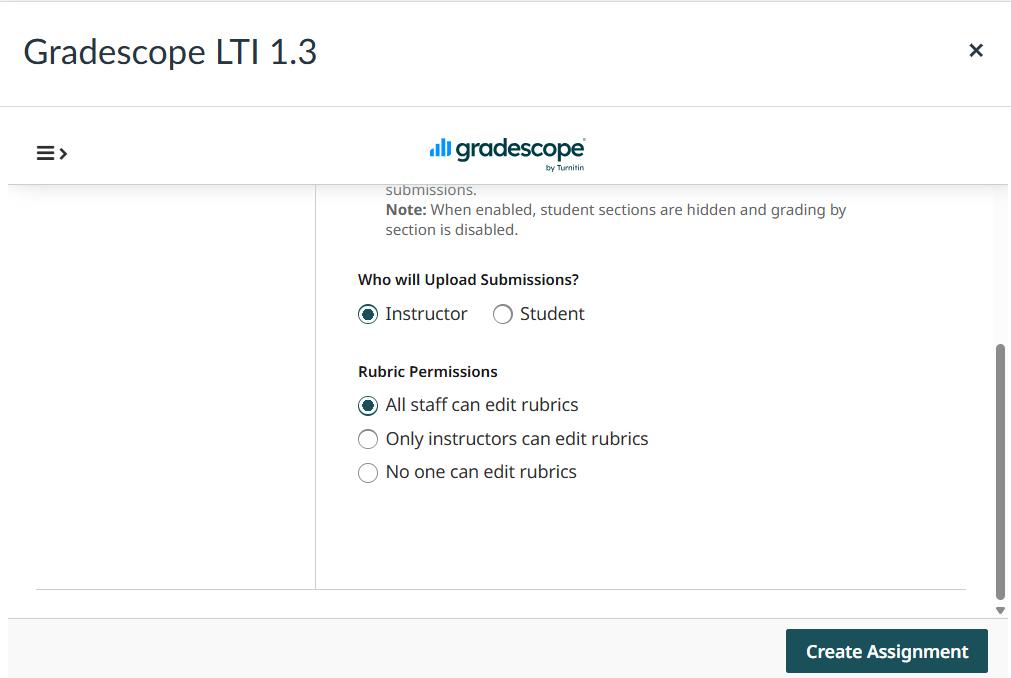
14.The instruct is selected as a default to upload the submission. click on create assignment.
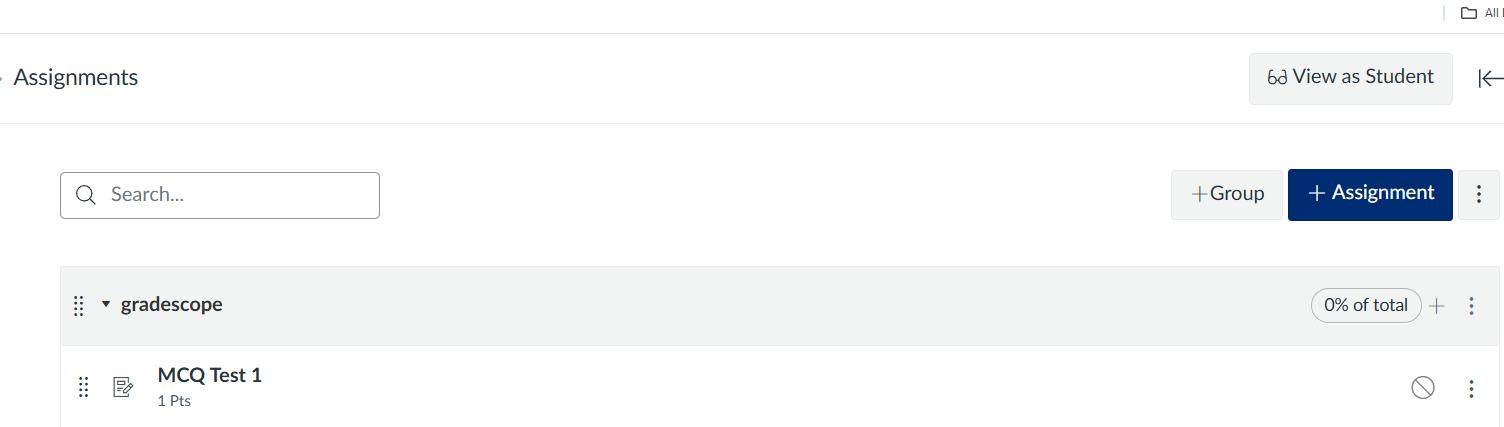
15. The assignment link has been created under the assignment group category.
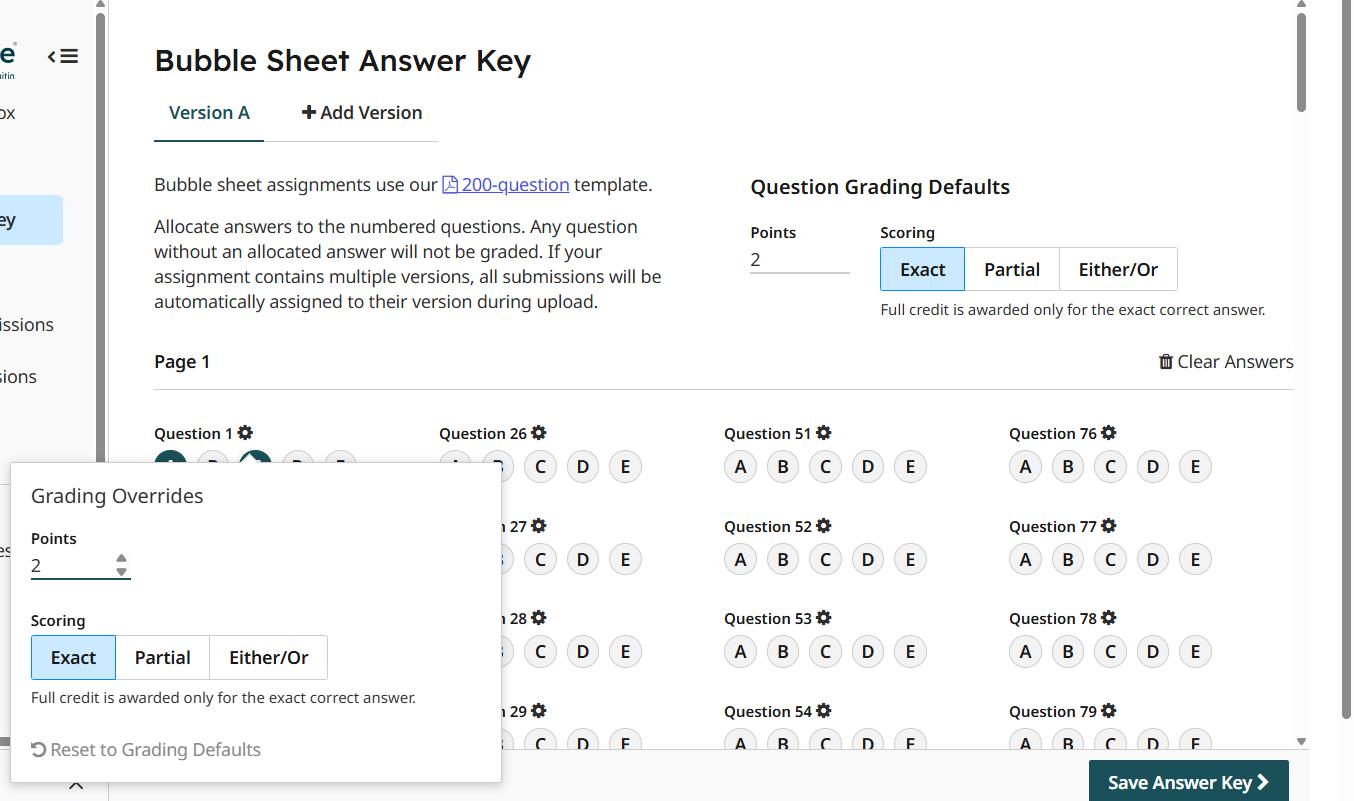
16. Next step is setting up answer key: Select the Version for the template, then select the correct answer for each question for single or multiple correct answer. For each question, select the points. Make sure to click “save answer key” once done.
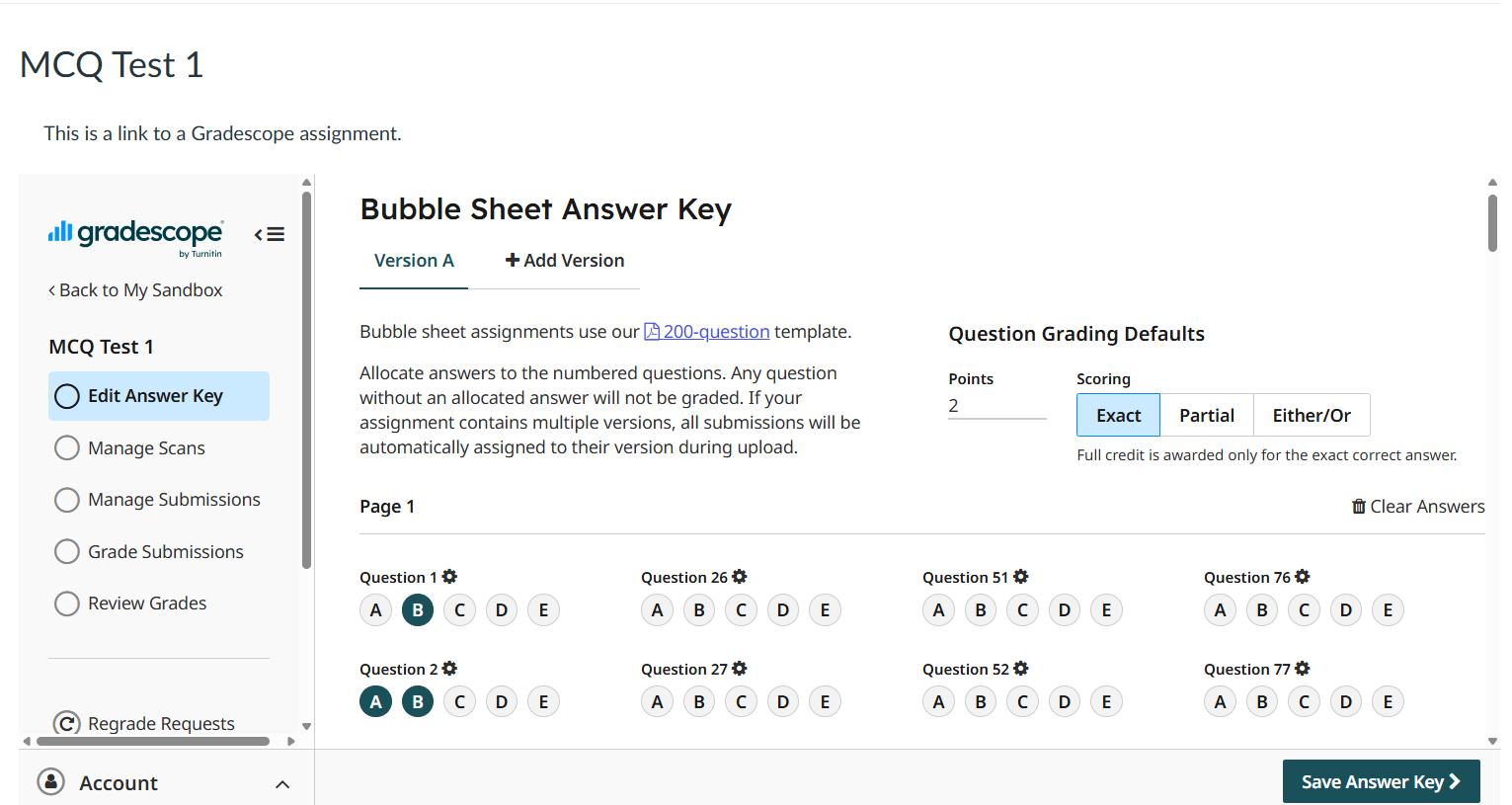
17. For each question, click on the grading point setting to set the point and scoring default. If all the questions have the same point and scoring then it can be set under the question grading default.
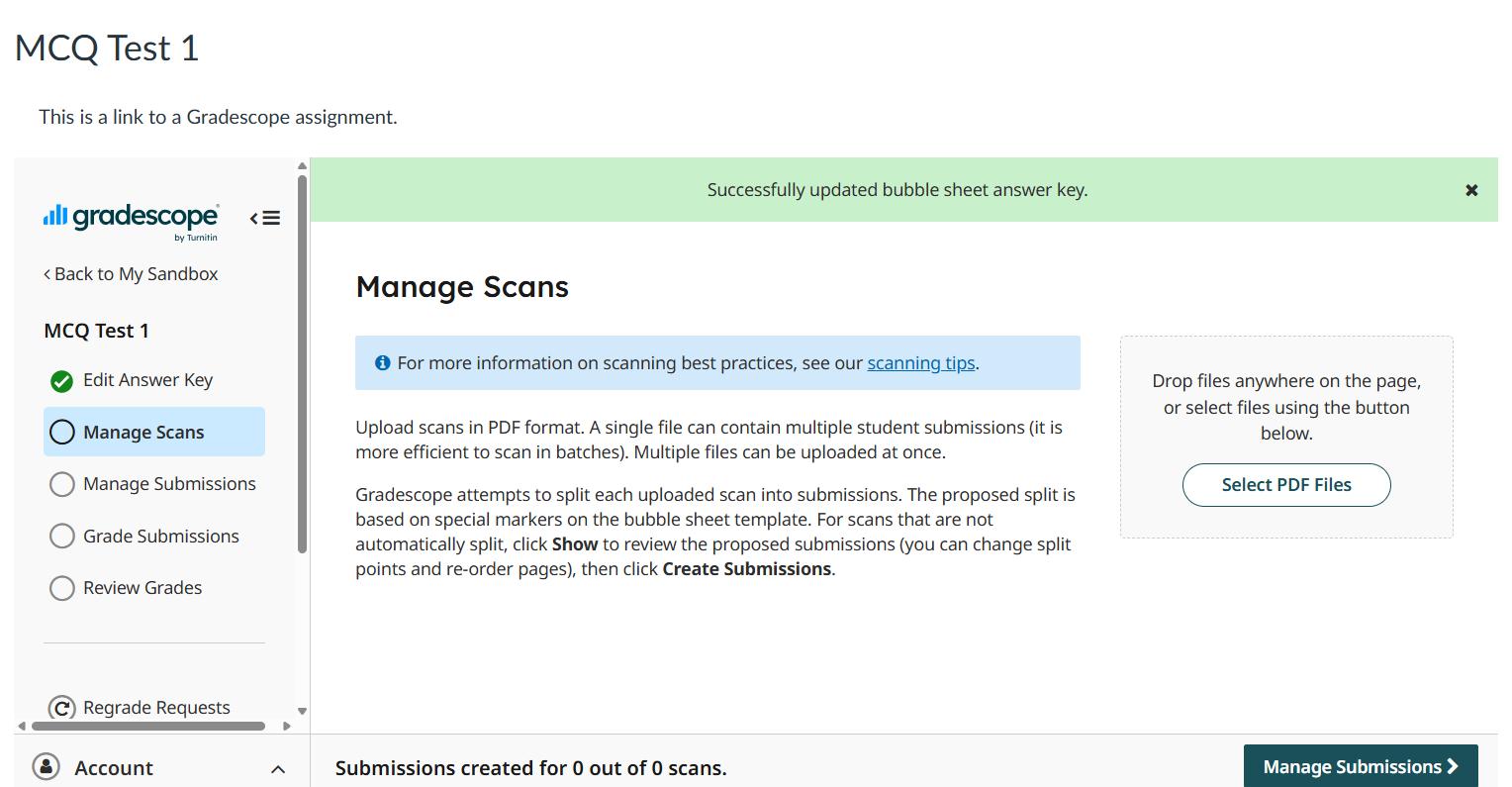
18. next step is to upload the scanned templates Click on the select pdf files and upload the scanned templates.
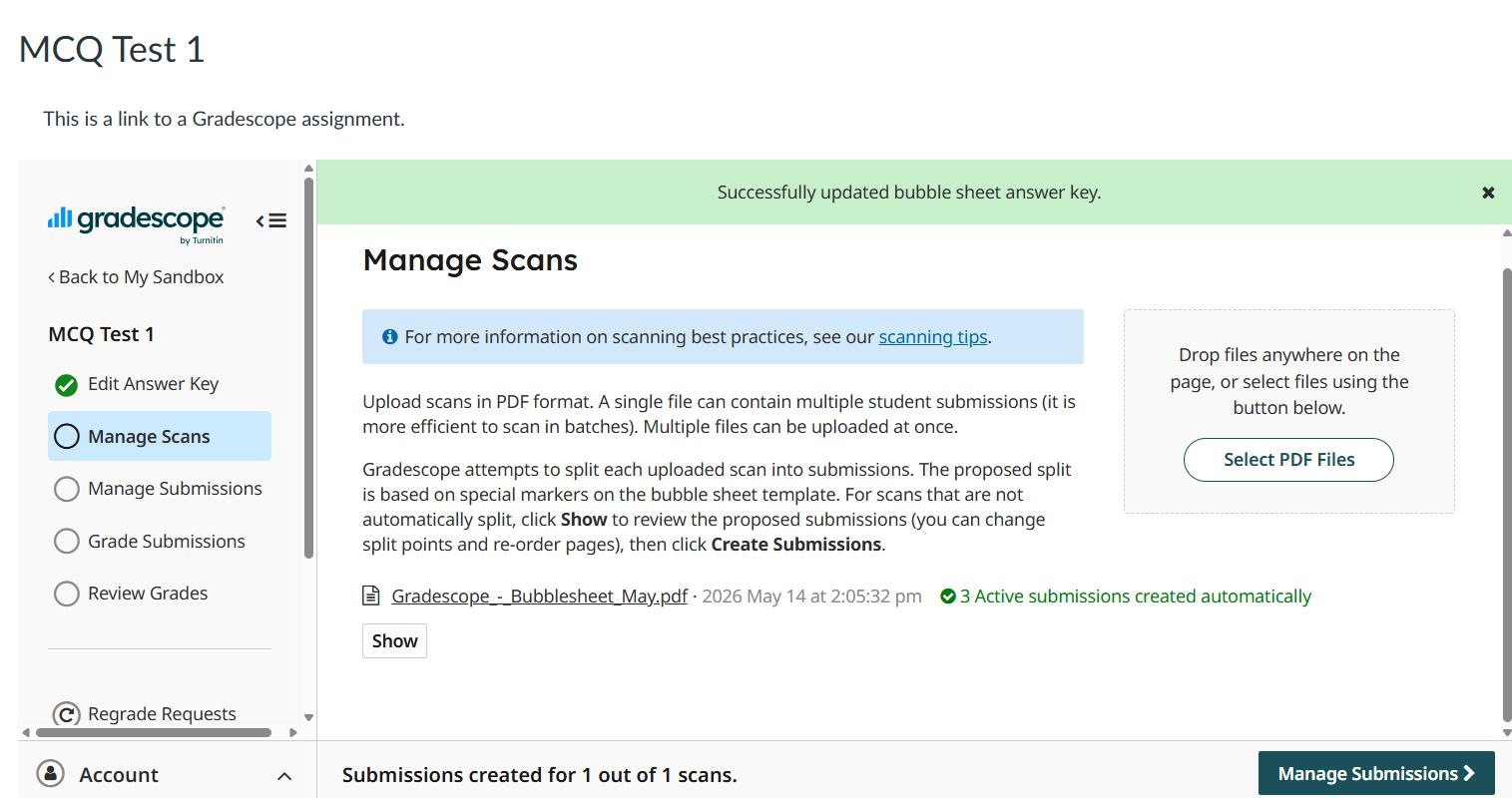
19.Once successfully uploaded then click manage submission.
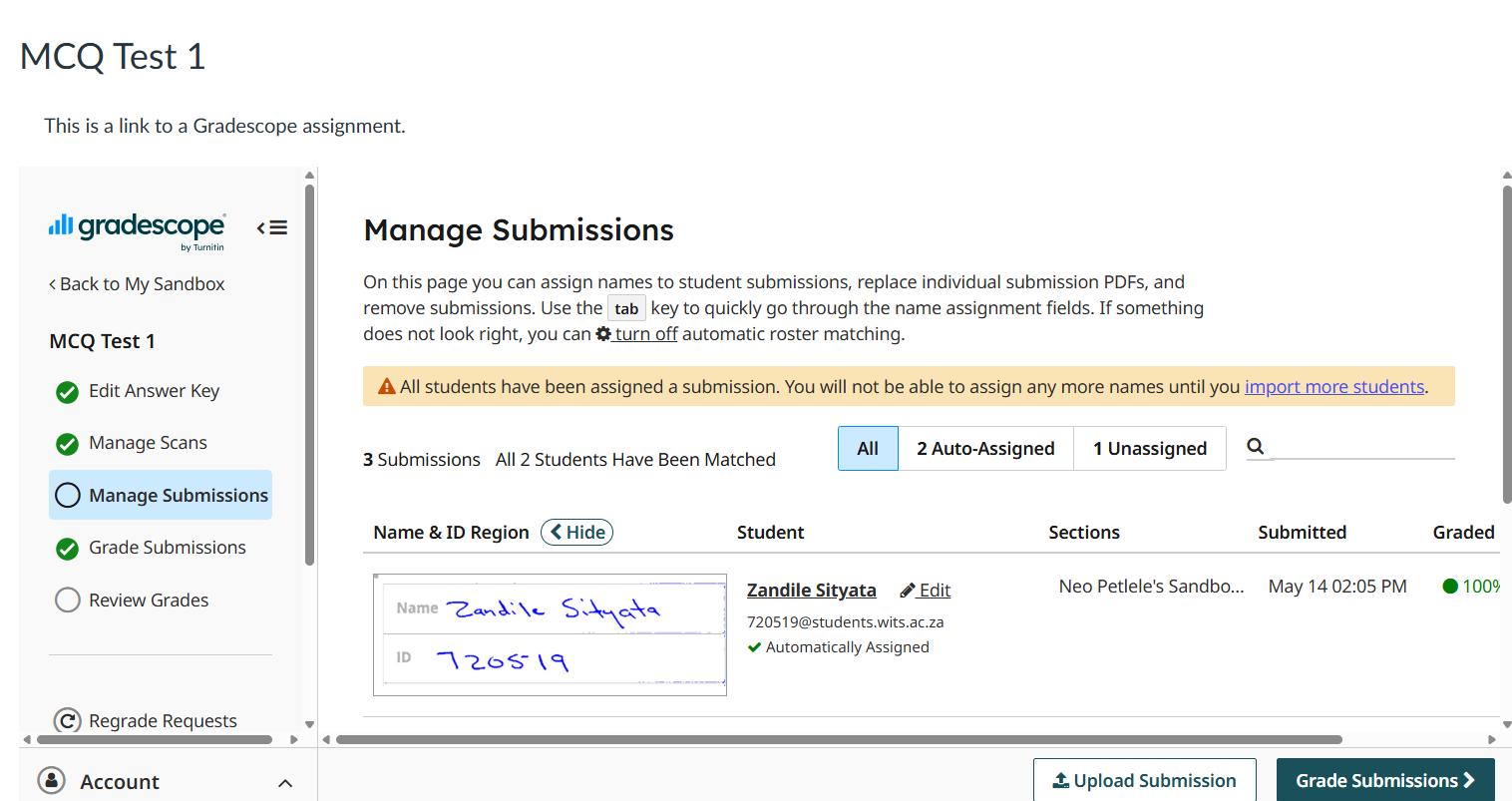
20. Under Manage submission, the number of submissions matched to students is stated as well as the number of assigned and unassigned submissions. next step is so proceed to “Grade submissions”
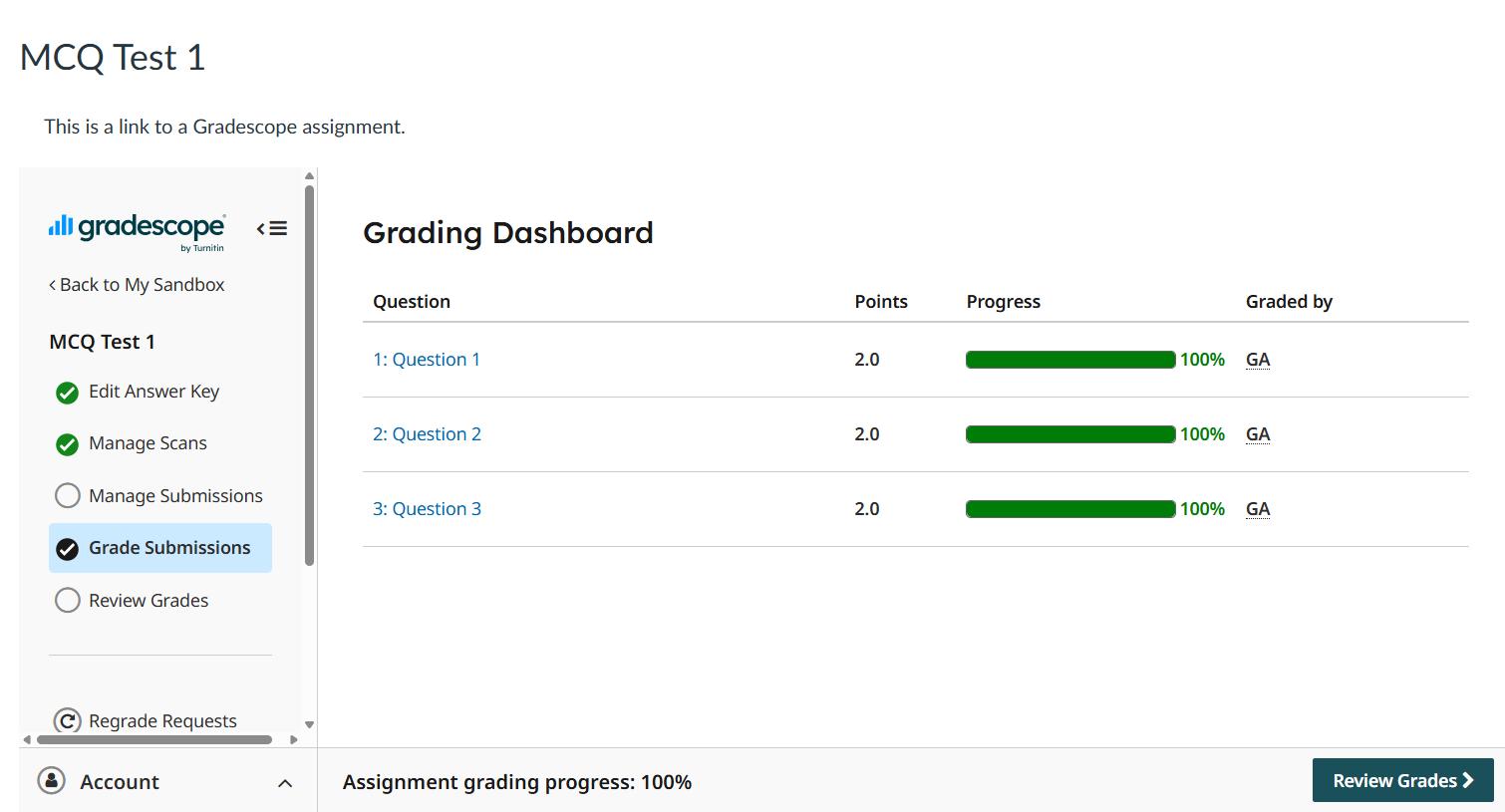
21. Grade submissions: You can view questions and progress for each question. Next step, is to proceed to “Review grades”
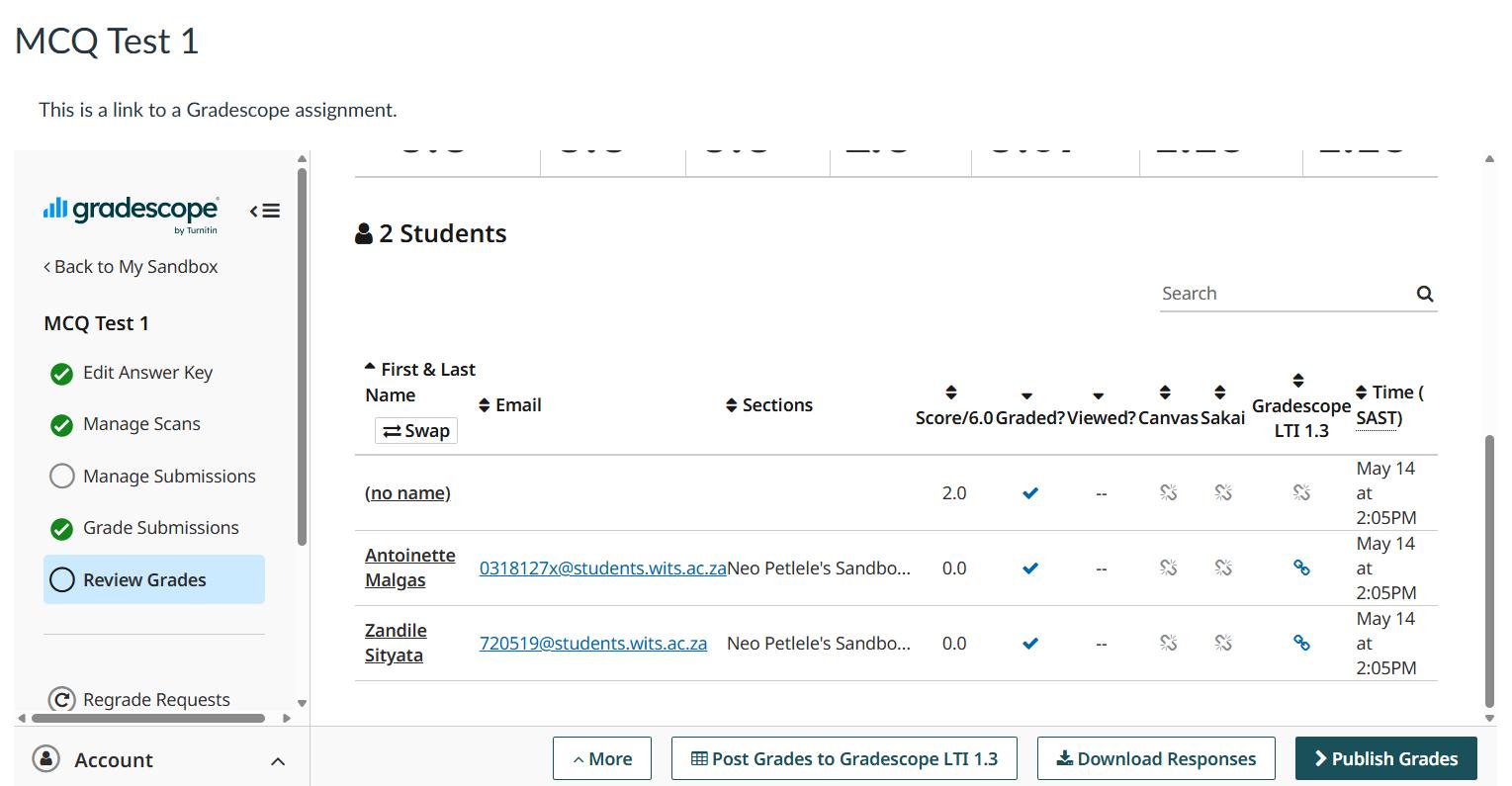
21. Review grades: You can view each student’s score and once you are ready to release the grade, then click publish grades as well as post grade to Gradescope LTI 1.3. N.B, ensure that the assignment is published to post to grades into gradebook.
Petlele, N.2026.How to create a bubble sheet assignment for an MCQ test in Gradescope University of the Witwatersrand.
Contact: Neo Petlele neo.petlele@wits.ac.za