WIKI / ERGOGEAR BUYER’S FIELD GUIDE / NOVEMBER 2026
Best Trackball Mice Thumb control, finger control and precision workflows
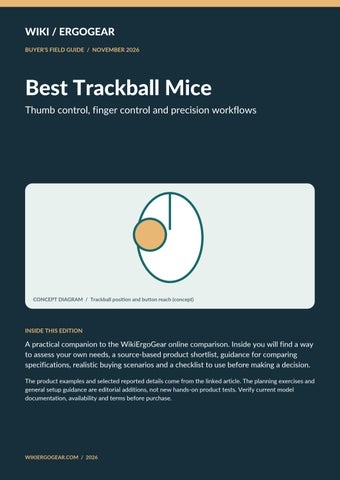
CONCEPT DIAGRAM / Trackball position and button reach (concept)
INSIDE THIS EDITION
A practical companion to the WikiErgoGear online comparison. Inside you will find a way to assess your own needs, a source-based product shortlist, guidance for comparing specifications, realistic buying scenarios and a checklist to use before making a decision. The product examples and selected reported details come from the linked article. The planning exercises and general setup guidance are editorial additions, not new hands-on product tests. Verify current model documentation, availability and terms before purchase.
WIKIERGOGEAR.COM / 2026
WIKI / ERGOGEAR • FIELD GUIDES
INPUT DEVICES
Choose which fingers do the work A trackball controls the pointer by rotating a ball while the main body of the device stays on the desk. It does not require the same horizontal movement area as a conventional mouse. That can be useful on a narrow keyboard tray, near a laptop or in a workspace with limited room. It also changes which parts of the hand produce repeated movement. The choice is therefore a question of task and personal fit rather than an automatic upgrade for everyone. A thumb-operated trackball usually resembles a mouse with a ball placed near the thumb. The fingers operate buttons in a relatively familiar arrangement. A finger-operated model places the ball centrally or toward the front so one or several fingers can rotate it. Some central layouts can be used with either hand, although button placement and the software's ability to remap functions still matter. Compare the exact design rather than assuming every centrally positioned ball is equally suitable for left-handed use. Think about your dominant tasks. Editing text involves selection and cursor placement, while photo work may require repeated fine movements. Large spreadsheets may make scrolling particularly important. A device that feels convenient for browsing might be less suitable for detailed dragging. The useful test is an ordinary task repeated with each design, not a short demonstration that only measures pointer speed.
WIKIERGOGEAR.COM / NOVEMBER 2026
02 / 08
WIKI / ERGOGEAR • FIELD GUIDES
INPUT DEVICES
Measure fit and operating space Record hand length and the comfortable distance between your resting fingers and thumb. These measurements are starting points, not universal sizing formulas. Compare the actual shell width and button positions, and consider where the hand will contact the device. A large housing can be comfortable for one user and awkward for another if the ball requires stretching a finger away from its natural resting position. Measure the usable desk area, including space for the keyboard and any numeric keypad. A trackball body stays in one place, but the device still needs a stable platform and access to all controls. If a detachable palm rest is included, add its footprint to the drawing. A tall trackball may affect the working height of the hand relative to the keyboard; avoid assuming that a small base always means a good fit. Review connectivity and software compatibility for every computer you intend to use. A wired model avoids charging but needs a suitable port and cable route. Wireless models may use Bluetooth or a dedicated receiver. Confirm whether your employer allows the device's configuration software. A programmable button may not offer its expected functions on a restricted work computer, and a multi-device feature is useful only if the actual switching process suits your routine.
WIKIERGOGEAR.COM / NOVEMBER 2026
03 / 08
WIKI / ERGOGEAR • FIELD GUIDES
INPUT DEVICES
Use the published comparison The article lists seven trackballs, covering thumb layouts, central finger controls, different ball sizes and adjustable grip angles. The product details in the table are reported characteristics, not independent speed or accuracy measurements for this publication. Check the exact model and connection options before purchase. A large ball or a high button count may be helpful for particular tasks but does not establish which model will suit an individual hand. MODEL
REPORTED FEATURE / SPECIFICATION
Logitech MX Ergo S
Thumb-operated; 20-degree tilt
Kensington Orbit
Ambidextrous finger control; scroll ring
Kensington Expert K64325
55 mm ball; four customizable buttons
ProtoArc EM01 NL
0–20 degree adjustable tilt
Logitech Ergo M575S
Thumb-operated; AA battery
ELECOM Huge M-HT1DRBK
52 mm ball; eight buttons
Nulea M501
Rechargeable thumb control; three-device connection
Source: WikiErgoGear online comparison. Confirm the exact model and current specifications.
Decision worksheet Create a small evaluation table with four ordinary tasks: select a word, drag a file, scroll through a long page and move the pointer across the entire display. Try the tasks with the current mouse first, then with a candidate trackball if you can access one. Note ease of reaching controls, unwanted movement and whether you need to reposition the hand to press a button. Repeat with a moderate pointer speed before deciding that a control type is unsuitable. For a central trackball, include left-hand or right-hand use as applicable and test the actual button assignment. For a thumb model, note whether the ball can be moved without stretching the thumb away from its comfortable range. Compare the device's software requirements with your employer's rules before assigning advanced shortcuts. This exercise is not a medical or laboratory test; it is a practical way to determine whether a new pointing device fits the specific work you want to do.
WIKIERGOGEAR.COM / NOVEMBER 2026
04 / 08
WIKI / ERGOGEAR • FIELD GUIDES
INPUT DEVICES
Tune the pointer for actual tasks Pointer speed is affected by both device settings and operating system settings. A very fast pointer can feel convenient when crossing a wide monitor, but it may make small selections difficult. A low speed may help detailed editing but require additional ball movement. Begin with a moderate setting and adjust only one variable at a time. Test across the full screen, then try selecting a word or moving a small window. Check the scrolling method. Some trackballs use a conventional scroll wheel; others provide a ring or another input around the ball. Learn how the design performs vertical scrolling and whether horizontal scrolling is supported by the device and your software. For long documents, the quality of scrolling can matter as much as the ball itself. If you use shortcuts frequently, map only functions you understand and can activate without reaching awkwardly. Maintenance is another consideration. Dust and debris can accumulate around the ball and its support points, affecting motion. Follow the exact cleaning instructions, and do not use lubricants or solvents that are not approved by the manufacturer. Compare whether the ball can be removed for cleaning and whether spare parts are available. Keep the device on a stable, clean surface so the body does not slide when buttons are pressed.
WIKIERGOGEAR.COM / NOVEMBER 2026
05 / 08
WIKI / ERGOGEAR • FIELD GUIDES
INPUT DEVICES
Compare a spreadsheet desk and a design desk A spreadsheet user working on a narrow tray might value a compact thumb trackball because it leaves more area for the keyboard. Begin with the actual hand fit and the scroll controls. If the thumb has to extend uncomfortably to reach the ball, a central finger layout may be more appropriate. Try selecting several cells and moving between rows rather than judging the device only by ordinary web browsing. A graphic designer might prioritize controlled cursor movement and access to customizable buttons. A larger finger-operated ball could be worth investigating, but the interaction between ball movement and button presses should be tested using the designer's normal application. Try dragging a small object while holding a button, then attempt a precise selection. A device that requires an awkward grip during these operations may not be suitable even when pointer accuracy appears good. For a shared workstation, ambidextrous geometry and easily reversible button assignments may be more useful than a sculpted shell for a single hand. Check whether separate user profiles preserve preferences. A second device may be a reasonable alternative if the users have very different requirements. The objective is an efficient and comfortable workflow, not using the same device in every possible situation.
WIKIERGOGEAR.COM / NOVEMBER 2026
06 / 08
WIKI / ERGOGEAR • FIELD GUIDES
INPUT DEVICES
A gradual learning plan At first, keep your previous pointing device available. Begin with a familiar low-pressure task, such as browsing a document, then practice selecting and dragging objects. Compare thumb or finger movement, button access and the ability to keep the hand in a comfortable position. If the pointer feels unpredictable, adjust its speed rather than immediately adopting a tense grip to compensate. Over subsequent sessions, practice the specific actions you use every day. Record any operation that remains inconvenient and consider whether it can be improved by an approved setting or button assignment. Do not change every setting at once. If the device is uncomfortable, switch back and reassess the fit. There is no required adjustment period that makes every design suitable for every user. Evaluate the purchase before the return deadline. Check that the trackball works with the required applications and that cleaning and charging are practical. If you develop persistent discomfort, pain or numbness, seek appropriate professional advice. A trackball may change your interaction pattern, but it is not a treatment for a medical condition. Keep the configuration notes and manual for future troubleshooting. Read the full comparison on WikiErgoGear
WIKIERGOGEAR.COM / NOVEMBER 2026
07 / 08
WIKI / ERGOGEAR • FIELD GUIDES
INPUT DEVICES
Before you buy Use this checklist to record the measurements and decisions that matter for your own workspace. Keep the exact product model and applicable instructions; treat unspecified requirements as open questions rather than confirmed features. Compare hand fit and control style. Measure the usable input area. Check buttons, scrolling and OS support. Confirm the connection and charging method. Try normal selection and drag tasks. Inspect the cleaning and warranty instructions.
Frequently asked questions Does a trackball require a large mouse pad? Usually the body is stationary, but it needs a stable usable surface.
Is thumb control better than finger control? Neither is universally better; compare fit and task performance.
Do all central trackballs work left-handed? Check shell shape, controls and remapping.
Can I clean the ball? Follow the manufacturer's instructions for the specific model. SOURCE AND FURTHER READING
See the original product comparison, selection criteria and buying information: https://wikiergogear.com/best-trackball-mice/ Disclosure: WikiErgoGear is reader-supported and may earn affiliate commissions. General product information only; no new testing or medical outcome is claimed.
WIKIERGOGEAR.COM / NOVEMBER 2026
08 / 08