WIKI / ERGOGEAR FIELD GUIDE / NOVEMBER 2026
Best Split Keyboards Separation, tenting, switches and learning curves
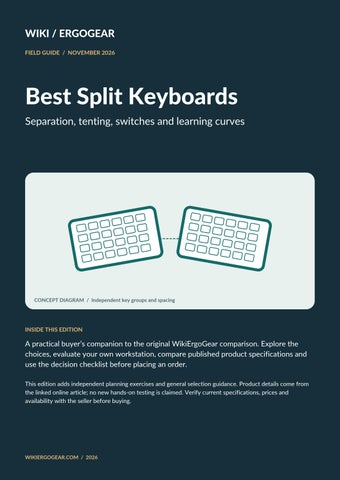
CONCEPT DIAGRAM / Independent key groups and spacing
INSIDE THIS EDITION
A practical buyer’s companion to the original WikiErgoGear comparison. Explore the choices, evaluate your own workstation, compare published product specifications and use the decision checklist before placing an order. This edition adds independent planning exercises and general selection guidance. Product details come from the linked online article; no new hands-on testing is claimed. Verify current specifications, prices and availability with the seller before buying.
WIKIERGOGEAR.COM / 2026
INPUT DEVICES / BUYER’S FIELD GUIDE
Decide what you want the keyboard to change A split keyboard changes the spatial relationship between the left and right key groups. A fixed split places those groups at predetermined angles in one housing; a fully separated design lets the user choose the spacing and direction of each half. These choices affect how the keyboard fits the body and how much space remains for other equipment. They also influence the habits required to type accurately. Before shopping, observe your existing typing position without attempting to make it look a particular way. Notice whether the hands naturally approach the keyboard from different angles, whether the mouse occupies a distant position and whether the desk height makes the shoulders rise. A keyboard layout cannot solve every workstation problem. It is useful to separate issues related to the input device from those related to the chair, desk and screen. Define the practical goals in order. A person who wants a modest change with minimal retraining may prefer a familiar layout in a curved body. A person who needs independent positioning may prioritize two separate halves. A heavy typist who enjoys customization may accept a longer learning period. The best match is not necessarily the most elaborate board; it is the one that supports the user’s tasks without unnecessary friction.
WIKI / ERGOGEAR • FIELD GUIDES
02 / 08
INPUT DEVICES / BUYER’S FIELD GUIDE
Separate spacing, angle, tilt and tenting These four concepts are related but not interchangeable. Spacing describes the distance between the key groups. Angle describes their orientation when viewed from above. Tilt describes the front-to-back slope. Tenting describes the elevation of the inner edges of the halves. A product may permit adjustment along one of these dimensions while fixing the others. For a fully split board, start with a modest separation that fits the desk and permits relaxed arm placement. Increase or decrease it only when you can identify a specific reason. Check how the connecting cable is routed, especially when the keyboard sits on a tray or shares the work surface with a mouse. Do not place cables under tension or use a longer cable unless it is approved for the keyboard. For a fixed split board, the key angle and separation are already determined by the housing. Compare that footprint with the available desk width. A full-sized curved board with a number pad can occupy more room than a compact design, even if its keys are divided into two groups. If the user’s main challenge is reaching for the mouse, measure the combined keyboard-and-mouse arrangement rather than examining the keyboard in isolation.
WIKI / ERGOGEAR • FIELD GUIDES
03 / 08
INPUT DEVICES / BUYER’S FIELD GUIDE
Six models for different workflows The source shortlist includes fixed split boards, conventional fully separated layouts and a more specialized contoured design. It also spans different switch types, connection methods and numeric keypad arrangements. These distinctions are important because a comfortable geometry is only one part of a productive typing experience. Use the examples below to decide which family of layouts is worth investigating. A familiar key arrangement can make the transition easier for a user who moves between multiple computers. A separate pair of halves may be particularly useful when the workstation allows independent placement. A contoured keyboard with relocated keys may suit a user willing to practice a new layout, but requires more planning for shortcuts and everyday work. The details in the table reflect selected specifications from the published guide. They are not the result of a new typing test. Confirm operating-system support, connection requirements, regional key layout and any software or accessory requirements for the version you intend to purchase. MODEL
PUBLISHED SPECIFICATION SNAPSHOT
Kinesis Advantage360 Pro
Fully split; contoured keys; three tenting positions
Cloud Nine C989M
Fully split mechanical; number pad; 8 in separation
Arteck HW315
Fixed split; 2.4 GHz receiver; scissor keys
Perixx PERIBOARD-524
Fully split tenkeyless; about 24 in separation
Logitech Ergo K860
Fixed curved body; negative tilt; wireless
Kinesis Freestyle2
Fully split; low-force membrane; wired; 9 in separation
Source: WikiErgoGear online comparison. Specifications are as reported there; confirm the current model.
WIKI / ERGOGEAR • FIELD GUIDES
04 / 08
INPUT DEVICES / BUYER’S FIELD GUIDE
Switch feel, shortcuts and compatibility Switch selection involves both sound and feel. Some users prefer the short travel of a low-profile mechanism, while others like the more distinct response of a mechanical switch. Neither preference proves that a keyboard is suitable for everyone. In a shared office, sound is also a practical consideration; a switch marketed as quiet may still produce noise from the housing or keycaps. List the shortcuts you rely on most often. Include spreadsheet navigation, copy and paste, function keys, media controls and any software-specific commands. If you work across operating systems, confirm that the modifier keys and required shortcuts behave as expected. Some boards use remapping software or firmware; verify whether your employer permits it and whether configuration can be completed on the intended computer. Consider connection reliability and maintenance. A wired board avoids battery management but requires an accessible port and a suitable cable path. A wireless model may reduce visible cabling but requires compatible connectivity and a charging or battery routine. If you use more than one device, check how switching works. A keyboard that looks ideal for one computer may not be convenient for a multi-device workflow.
WIKI / ERGOGEAR • FIELD GUIDES
05 / 08
INPUT DEVICES / BUYER’S FIELD GUIDE
Build a workstation around the whole input area Measure the usable desk or tray width and depth, including the space occupied by other items. Place paper templates representing the keyboard halves on the surface and explore where the pointing device could fit. If you use a number pad frequently, include it in the template. For a fixed split board, check whether the mouse position remains easy to reach beyond the right or left edge. Evaluate keyboard height together with the chair and desk. A thicker mechanical board or a tenting accessory can raise the keys. A tray may provide extra adjustment but can also reduce clearance for the knees. Record the complete occupied height, including any approved accessory, rather than assuming that a low-profile switch means the whole assembly is low. Keep the screen in a usable position after adjusting the inputs. A split arrangement may make it tempting to fill the center space with objects that block cable routes or discourage movement. Leave enough room to use the pointing device and change tasks without repeatedly moving equipment. Choose a layout that works during a realistic session, not only while posing for a setup photograph.
DECISION NOTE
Draw the usable input-device area on paper and place simple rectangles for the keyboard halves, mouse and numeric keypad. Try a conventional layout first and then a separated layout. This planning step helps reveal whether a fully split board will fit on a narrow tray or whether a fixed split would be simpler. Include cable exits and the space needed to move the mouse. Do not assume that the layout with the largest possible separation is the best one for your own body.
WIKI / ERGOGEAR • FIELD GUIDES
06 / 08
INPUT DEVICES / BUYER’S FIELD GUIDE
Plan a transition without losing productive time Reserve a reversible trial period. Keep the old keyboard available for tasks that require immediate accuracy. Practice a short familiar passage, then perform ordinary navigation and editing. Notice which keys you reach for with the wrong hand or which shortcuts are harder to access. A fully split layout may reveal habits that were possible on a continuous board but no longer work across the gap. Change only one configuration variable at a time. If you alter separation, tilt and key mappings simultaneously, it becomes difficult to identify what caused an improvement or a new problem. Record the settings that feel useful and restore a previous configuration when necessary. For programmable devices, retain a copy of the original configuration and learn the supported way to recover it. A successful transition may require practice, but discomfort is not a goal of training. Stop or change the setup if a new position causes pain or numbness, and seek professional advice for persistent symptoms. Compare typing accuracy, access to shortcuts and comfort during actual tasks before deciding whether to keep the keyboard. The result should be a practical tool for daily work, not a commitment to a particular layout ideology. Read the complete online comparison at WikiErgoGear
WIKI / ERGOGEAR • FIELD GUIDES
07 / 08
INPUT DEVICES / BUYER’S FIELD GUIDE
Before you buy Use this checklist to turn your research into a decision. Record the measurements and keep the documentation for your final choice. If a requirement is not met or remains unclear, leave that model off your shortlist until you can verify it. Measure available keyboard and mouse space. Choose fixed or fully separated key groups. Check tenting, tilt and cable requirements. Verify operating-system and shortcut compatibility. Compare switch feel, sound and numeric keypad access. Plan a reversible trial and keep the old configuration available.
Frequently asked questions Do all split keyboards come apart? No. Some divide the key groups inside one fixed housing.
Is tenting the same as negative tilt? No. They change different angles of the key surface.
Will I need to relearn typing? It depends on the layout and your habits. Allow time to try the board before relying on it.
Can a split keyboard treat carpal tunnel syndrome? Do not treat a keyboard purchase as medical care. Seek professional advice for ongoing symptoms.
SOURCE & FURTHER READING
Full product comparison, methodology and current buying links: https://wikiergogear.com/best-split-keyboards/ Disclosure: the linked website is reader-supported and may earn affiliate commissions. This publication offers general product information, not medical advice or a guarantee of suitability.
WIKI / ERGOGEAR • FIELD GUIDES
08 / 08