WIKI / ERGOGEAR BUYER’S FIELD GUIDE / NOVEMBER 2026
Best Multi Monitor Stands Planning a reliable three- or four-screen workstation
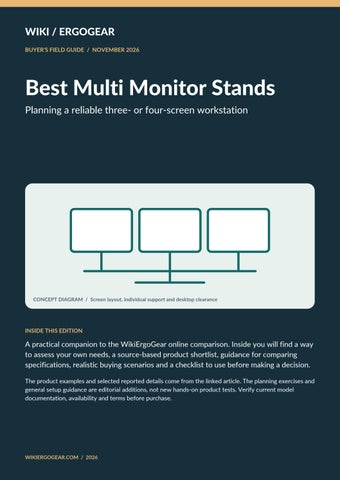
CONCEPT DIAGRAM / Screen layout, individual support and desktop clearance
INSIDE THIS EDITION
A practical companion to the WikiErgoGear online comparison. Inside you will find a way to assess your own needs, a source-based product shortlist, guidance for comparing specifications, realistic buying scenarios and a checklist to use before making a decision. The product examples and selected reported details come from the linked article. The planning exercises and general setup guidance are editorial additions, not new hands-on product tests. Verify current model documentation, availability and terms before purchase.
WIKIERGOGEAR.COM / 2026
WIKI / ERGOGEAR • FIELD GUIDES
DISPLAYS
Design the screen arrangement A three-monitor desk can be useful for a person who needs reference material, a main working canvas and a communication window visible at the same time. A fourth display adds another surface, but not necessarily another useful task. Decide which program deserves the straight-ahead position and which information can be placed at the edges. If a screen is used only occasionally, an upper position or a separate tablet may be adequate. The main display should not be chosen by the symmetry of the stand alone. Make a scale drawing from the dimensions of each display, including the bezel. A screen's diagonal does not tell you how wide it is, and the width matters when adjacent arms must meet without the panels colliding. Curved monitors add depth; portrait displays add height. Draw the outline of the keyboard and work area as well, and leave room for your normal papers or equipment. A three-screen arc needs enough depth to keep the outside panels within a comfortable viewing range. The mount may dictate how the screens can be arranged. A rigid pole system often suits a fixed arrangement; independently moving arms can be valuable if one screen is regularly shared. Consider how often you actually rearrange the display before paying for mobility that will rarely be used.
WIKIERGOGEAR.COM / NOVEMBER 2026
02 / 08
WIKI / ERGOGEAR • FIELD GUIDES
DISPLAYS
Check the structural system Find the model number on each monitor, then record its weight without the factory stand, attachment hole pattern and any required adapter. A four-arm system advertised for a certain total weight may still have an individual arm limit. Do not average heavy and light displays to decide whether a heavy monitor is allowed. Verify each support point independently. Include an adapter or attached accessory in the applicable load calculation if the mount instructions require it. The desk must support the mounting system and the screens. A clamp places force on a small area of the desktop; the extended arms can increase leverage. A grommet fitting has its own requirements for hole size, thickness and material. A freestanding base spreads the footprint differently but can still become unstable if the screens are positioned beyond its intended range. Ask the desk manufacturer about mounting suitability, especially for glass, hollow or thin tops. Record the distance from the desk edge to a wall and check the position of cable trays, drawers and braces. Avoid assuming the clamp will fit just because the desktop thickness is within range. The lower jaw must be able to sit flat at the approved attachment point. Follow both manufacturers' instructions or choose another mounting method.
WIKIERGOGEAR.COM / NOVEMBER 2026
03 / 08
WIKI / ERGOGEAR • FIELD GUIDES
DISPLAYS
Read the published shortlist The source review includes rigid pole mounts, freestanding structures and spring-assisted arms. It identifies seven models for different screen configurations. The values in the table are reported specifications rather than measurements from this edition; check the latest manual for the exact version. The comparison is particularly useful when an ultrawide primary screen must sit next to smaller side screens. Check the approved arrangement before purchase, not just the largest diagonal printed on the box. MODEL
REPORTED FEATURE / SPECIFICATION
WALI M004
4 screens; up to 32 in and 22 lb each; pole mount
WALI M003S
3 screens; up to 27 in and 22 lb each
Mount-It! Freestanding Quad
Quad arrangement without a desk clamp
VIVO Freestanding Triple
Three-screen freestanding option
Mount-It! Triple with USB
Independent spring arms
VIVO STAND-V300D
Ultrawide pneumatic configuration
HUANUO HNTS3B
Three 17–32 in screens, 17.6 lb each
Source: WikiErgoGear online comparison. Confirm the exact model and current specifications.
Decision worksheet A planning matrix can prevent a costly mismatch. Assign each screen an identifier, A through D, and create a row with the bare-panel weight, mounting pattern, width and position in your sketch. In a separate column, write the exact arm you expect to use. Check the intended arm against that row rather than against a group average. Add the mount weight and the attachment method to your desktop inventory. Next, record the most frequently used application for each screen and decide which position is the easiest to view. If the information on the upper display rarely changes, consider whether a smaller arrangement would work just as well. Finally, estimate the effort of replacing a screen in a year. Can you access its connectors and approved mounting fasteners without disturbing the rest of the system? An accessible installation can be just as important as a compact one. Retain a copy of the final screen map with the manual.
WIKIERGOGEAR.COM / NOVEMBER 2026
04 / 08
WIKI / ERGOGEAR • FIELD GUIDES
DISPLAYS
Build a cable and power plan Begin with an inventory of the cables connected to each monitor: video, power, USB and any audio connections. A fixed monitor layout still needs slack for tilt and rotation, while spring arms require enough cable for the intended travel. Check how cables are routed at hinges and how they enter the back of each panel. Do not bind a cable so tightly to a joint that the connector carries the strain. Multiple monitors can add power adapters and plugs. Plan a suitable outlet arrangement before assembly, keeping power supplies accessible and ventilated. Verify that the computer, dock or graphics hardware supports the desired number of independent displays, resolutions and refresh rates. A stand cannot overcome a computer's video-output limits. Test the electronic configuration using the existing stands if possible before committing to a large mechanical installation. Leave an accessible cable loop at each screen and label both ends. In a four-screen environment, identifying the correct cable can save considerable time during troubleshooting. Keep cords away from the stand's pivot points and do not allow them to hang where a chair or foot may catch them. If a desk also rises, confirm cable clearance throughout the intended range according to the manufacturer's guidance.
WIKIERGOGEAR.COM / NOVEMBER 2026
05 / 08
WIKI / ERGOGEAR • FIELD GUIDES
DISPLAYS
Compare two real workstation plans Consider a trader or researcher with three equal-sized monitors. A central panel can carry the main application, with reference material on the sides. A relatively fixed triple pole may be sufficient when the user rarely changes the arrangement. The key measurements are the combined width, usable desk depth and independent capacity of the arms. If the outer displays cannot angle toward the user within their permitted adjustment, a different mount may make more sense. For a developer who uses one wide primary display and two smaller screens, the geometry is more difficult. An advertised triple monitor mount may not support the wider central panel even if each display is light. Compare the approved center-arm configuration separately and measure how far the side panels extend. Draw the arrangement to check the position of display ports and potential collisions before ordering. Another option is to split the installation into two mounts, but that is not automatically safer. Two attachment points may still overload a weak desktop, and the arms may interfere with one another. Seek appropriate structural advice when the desktop's suitability is uncertain. The goal is a manageable system, not the maximum number of screens on one bracket.
WIKIERGOGEAR.COM / NOVEMBER 2026
06 / 08
WIKI / ERGOGEAR • FIELD GUIDES
DISPLAYS
Install and evaluate gradually Clear the desk and read the assembly instructions before opening hardware bags. Inspect the parts and ensure you have the approved fasteners for each monitor. Heavy screens may require assistance; follow the manufacturer's handling recommendations and do not leave a partially assembled structure loaded unattended. Check all locks and adjustment points in the specified order. Once the system is assembled, set a primary monitor directly in the normal working area and position the others for their actual frequency of use. Test ordinary tasks, including reading a document on the edge of a screen, switching windows and taking a video call. If an upper panel makes you repeatedly extend your neck, move frequently used applications to the lower displays instead of relying on an attractive symmetrical layout. Reinspect the fasteners and desktop contact points at the interval specified in the manual. Look for unusual movement, damaged parts or a changing clamp position. Stop using the system if anything appears unstable. Make a record of the load and model numbers so future monitor replacements do not accidentally exceed the system's intended configuration. This record is more useful than assuming that any replacement of the same diagonal will fit. Read the full comparison on WikiErgoGear
WIKIERGOGEAR.COM / NOVEMBER 2026
07 / 08
WIKI / ERGOGEAR • FIELD GUIDES
DISPLAYS
Before you buy Use this checklist to record the measurements and decisions that matter for your own workspace. Keep the exact product model and applicable instructions; treat unspecified requirements as open questions rather than confirmed features. Record all monitor weights without original stands. Measure bezel width, height, depth and VESA patterns. Confirm desk structure and mounting method. Check panel collisions and arm travel on a sketch. Verify graphics outputs and cable lengths. Inspect installation using the approved manual.
Frequently asked questions Can a quad mount hold an ultrawide? Only if the exact approved configuration supports that panel's size, weight and geometry.
Do freestanding stands avoid all desk limitations? No; they still need suitable surface support, footprint and stability.
Is total rated capacity enough? No; check the capacity of each arm and the complete mounting system.
Where should the main monitor go? Choose a position that permits normal work without repeated head turning. SOURCE AND FURTHER READING
See the original product comparison, selection criteria and buying information: https://wikiergogear.com/best-multi-monitor-stands/ Disclosure: WikiErgoGear is reader-supported and may earn affiliate commissions. General product information only; no new testing or medical outcome is claimed.
WIKIERGOGEAR.COM / NOVEMBER 2026
08 / 08