WIKI / ERGOGEAR BUYER’S FIELD GUIDE / NOVEMBER 2026
Choosing an ergonomic keyboard Split, wave and contoured designs explained
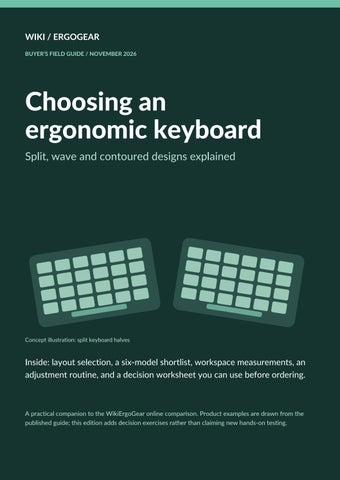
Concept illustration: split keyboard halves
Inside: layout selection, a six-model shortlist, workspace measurements, an adjustment routine, and a decision worksheet you can use before ordering.
A practical companion to the WikiErgoGear online comparison. Product examples are drawn from the published guide; this edition adds decision exercises rather than claiming new hands-on testing.
WIKI / ERGOGEAR • FIELD GUIDE
01 / LAYOUT
Start with the way you type Choose a design that addresses your actual workspace constraints, not just a product label.
Observe your current desk Before shopping, type an ordinary email and notice what happens when you reach for the far keys, switch to your mouse, or use the number pad. A layout that makes one movement easier may make another harder. If your shoulders spread or your hands angle inward, changing the layout may help you find a more comfortable position, but the desk and chair still need to fit.
One-piece split or wave A fixed, curved keyboard keeps the two sides connected. Familiar key positions can make it easier to alternate with a laptop or an office keyboard. The drawback is that the angle and separation are largely predetermined. Compare the actual width and mouse position rather than assuming a curved shape will fit every person.
Fully split and contoured layouts Separate halves give you independent placement and can leave room for a small pointing device or notebook between them. Contoured keyboards change the shape of the key field, often adding thumb clusters. These designs may require extra practice with shortcuts, punctuation and editing commands. Give yourself time to learn instead of making a purchase decision from the first few minutes.
A useful first decision If you routinely move between several computers, prioritize familiar key placement. If your main desk is permanent and you can practice, a more adjustable or unfamiliar layout may be worth considering.
WIKIERGOGEAR.COM / NOVEMBER 2026
02 / 08
WIKI / ERGOGEAR • FIELD GUIDE
02 / COMPARE
Six models to investigate A shortlist from the WikiErgoGear article, arranged here by practical use case.
Kinesis Advantage2 Contoured design; suited to someone willing to learn a different key map.
TECKNET Wireless Fixed curved design; investigate rechargeable multi-device use.
Cloud Nine C989M Separate mechanical halves; check desk space for the numeric keypad.
Arteck HW315 Budget-oriented fixed split; verify the receiver connection fits your setup.
Logitech Ergo K860 Fixed curved layout; check palm support depth and tilt options.
Kinesis Freestyle2 Two movable halves; verify model and available tenting accessories.
Source and scope Model examples follow the site comparison updated November 10, 2026. This companion does not provide new product testing or current price claims.
WIKIERGOGEAR.COM / NOVEMBER 2026
03 / 08
WIKI / ERGOGEAR • FIELD GUIDE
03 / FIT
Measure the workspace first A keyboard can change your hand position, but it cannot correct a desk that is the wrong height.
Measure the available width Clear the working area and measure the usable width between objects you cannot move. Include a mouse area, not just the keyboard footprint. For a split board, check the dimensions of each half and the maximum separation allowed by the cable. A full-width number pad can push a right-handed mouse farther away; a separate keypad may be useful if you only need numbers occasionally.
Check working height and depth Sit as you normally work, with your feet supported. Compare your relaxed elbow height with the top of the keys. Note the thickness of the keyboard, any integrated palm support and the desk edge. If reaching the keys makes your shoulders lift, try adjusting the chair or work surface before choosing extra tilt. Keep enough depth to move the keyboard away from a sharp edge.
Choose tilt deliberately Raising the back of a keyboard is not always the most comfortable adjustment. Start with the board flat and test modest changes in angle. With a split keyboard, try a small amount of separation or tenting at a time. Avoid forcing your wrists into a position because a product photograph shows that arrangement. Comfort and reach should guide your choice.
Record these measurements Usable width: ______ Desk depth: ______ Key height: ______ Mouse area: ______ Cable reach: ______
WIKIERGOGEAR.COM / NOVEMBER 2026
04 / 08
WIKI / ERGOGEAR • FIELD GUIDE
04 / FEATURES
Look beyond the shape A comfortable layout is only useful when the keyboard also supports your work.
Switches and sound Mechanical switches can offer tactile feedback and replaceable keycaps on some models. Low-profile scissor or membrane designs may suit a shared workspace or a preference for shorter key travel. Noise varies by model, switch and how hard you type. If you work near other people, check the return policy and look for a representative sound demonstration rather than relying on a switch label.
Connectivity and platform Write down each device you need to use, its operating system and available ports. Bluetooth may be convenient for alternating between a laptop and tablet, while a receiver can be useful where pairing is restricted. A wired board avoids charging but requires a suitable cable route. Check whether function keys, shortcuts and configuration software behave as expected on your system.
Maintenance and ownership Compare the warranty terms for your country, how the battery is charged, whether keycaps are replaceable and whether the palm surface can be cleaned. For a programmable board, determine where settings are stored. A layout that depends on software may be less practical on a locked-down work computer. Verify the exact model number before ordering because similarly named versions can differ.
Avoid a common mismatch Do not pay for advanced remapping if your employer blocks configuration tools. Verify restrictions before selecting a keyboard that depends on them.
WIKIERGOGEAR.COM / NOVEMBER 2026
05 / 08
WIKI / ERGOGEAR • FIELD GUIDE
05 / SETUP
A gradual adjustment routine Give an unfamiliar design a fair trial without forcing an uncomfortable posture.
Day one: establish a baseline Take a note of your current desk arrangement and the tasks you do most often. Set the new keyboard in a neutral starting position, with a mouse close enough that you do not repeatedly reach sideways. Test a short email and common shortcuts. If the keys feel unfamiliar, keep a reference for the layout rather than bending your hands to compensate.
Days two to four: isolate changes Change one variable at a time. Try a slightly different half separation, tilt, or mouse position, then repeat the same work task. Record what changed and whether reach, typing errors or fatigue felt different. Use short practice blocks for an unfamiliar layout and switch tasks if you become frustrated. A notebook can make this comparison more reliable than memory.
Later in the trial: check real work Test the tasks that matter to you: spreadsheet entry, coding shortcuts, video calls, document editing and device switching. Keep the original packaging until you are sure the product suits your work. Recheck whether the keyboard leaves space for your usual accessories and whether you can return to a comfortable arrangement after taking a break.
Health note A keyboard is not a treatment. Stop an adjustment that causes discomfort, and seek qualified healthcare advice for persistent pain, numbness or weakness.
WIKIERGOGEAR.COM / NOVEMBER 2026
06 / 08
WIKI / ERGOGEAR • FIELD GUIDE
06 / WORKSHEET
Score the options yourself Use this worksheet to compare up to three candidates against the tasks that matter to you. Assign 0 (poor fit), 1 (acceptable), or 2 (good fit) to each criterion. Double the score of any must-have criterion. Use the result to structure your decision, not as a universal ranking.
Criterion
A
B
C
Fits available desk width Mouse stays within easy reach Compatible with every device Suitable key layout / shortcuts Acceptable sound and feel Useful adjustment options Warranty and return policy Affordable total cost TOTAL (include any weights)
Interpret the result If a candidate fails a must-have condition, remove it even if its total score is high. Recheck measurements with the seller, and include the cost of any keypad, tenting kit, adapter or return shipping.
Your shortlist A: __________________ B: __________________ C: __________________
WIKIERGOGEAR.COM / NOVEMBER 2026
07 / 08
WIKI / ERGOGEAR • FIELD GUIDE
07 / DECISION
Make a confident choice Review your notes before ordering. A well-matched everyday keyboard is the goal, not the most unusual design.
When a familiar layout wins Choose a fixed layout when rapid adaptation, shared-device work, or a predictable shortcut map matters more than independent placement of the halves. Check that the mouse still sits within easy reach. A curved design is a reasonable candidate, but only if the particular angle and width suit your space.
When independent adjustment wins Consider a fully split board when you want to explore different spacing between your hands or position a pointing device between the halves. A contoured layout is another route if you are comfortable learning a new key arrangement. Check the available adjustment range and the return window before committing.
Before buying Confirm the model number, layout, connection, dimensions, accessories and warranty with the seller. The online guide contains the original comparison and additional product details; prices and availability may change. If a feature is essential, consult the current manufacturer documentation as well.
READ THE FULL ONLINE COMPARISON https://wikiergogear.com/best-ergonomic-keyboards/ Published by WikiErgoGear. The website contains affiliate links.
WIKIERGOGEAR.COM / NOVEMBER 2026
08 / 08