WIKI / ERGOGEAR BUYER’S FIELD GUIDE / NOVEMBER 2026
Best Dual Monitor Stands Choose side-by-side, stacked or freestanding support
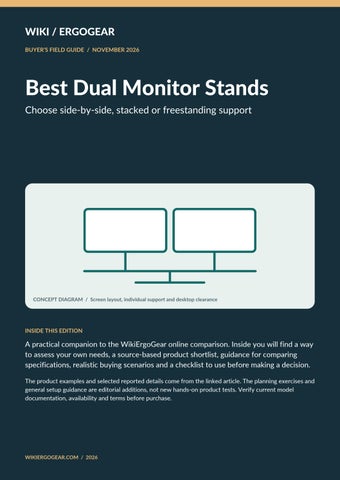
CONCEPT DIAGRAM / Screen layout, individual support and desktop clearance
INSIDE THIS EDITION
A practical companion to the WikiErgoGear online comparison. Inside you will find a way to assess your own needs, a source-based product shortlist, guidance for comparing specifications, realistic buying scenarios and a checklist to use before making a decision. The product examples and selected reported details come from the linked article. The planning exercises and general setup guidance are editorial additions, not new hands-on product tests. Verify current model documentation, availability and terms before purchase.
WIKIERGOGEAR.COM / 2026
WIKI / ERGOGEAR • FIELD GUIDES
DISPLAYS
Choose the relationship between the screens Two screens can support very different working habits. In a typical writing setup, one screen holds the document and the other holds references. In a shared development setup, one display might show a preview while the main one holds code. If one screen dominates your day, start by placing it in front of you and consider the other a secondary surface. If both are equally important, a balanced side-by-side arrangement may feel more natural, provided the combined width does not encourage excessive head movement. A vertical stack makes use of a narrow desk but places one display above the other. It is often most useful when the upper display contains information that is glanced at rather than read continuously. A tall pole will not guarantee that the upper screen can be placed comfortably. Measure the lower screen's height, stand clearance and the resulting top-panel position. A portrait display beside a landscape one is another possibility; check the mount's rotation and the room required when the panel turns. Before buying, spend a day experimenting with window placement on your existing screens. Note how often you look at each one and where the most important controls appear. This inexpensive observation can help prevent buying a mount built for a layout that looks impressive but does not match your work.
WIKIERGOGEAR.COM / NOVEMBER 2026
02 / 08
WIKI / ERGOGEAR • FIELD GUIDES
DISPLAYS
Measure the two displays separately The two monitors need not have identical dimensions or weights. Find the exact model labels and look up the weight without the original stands. Check mounting holes and whether the display requires a recessed plate adapter or special hardware. Compare the thickness and shape of the panel near the mounting point; a recessed connection may prevent a standard bracket from lying flat. For two spring arms, check the allowed minimum as well as maximum load on each arm. A very light screen may not balance correctly if it falls outside the specified range. For a rigid pole, confirm the adjustment method and how far each arm can reach. A wide screen on one side of the desk may push the mount away from the center, so sketch both positions with the actual screen widths. The mount is only one part of the fit. Measure the space between the desk and wall, the thickness at the intended clamp location, and the available surface below it. If a cabinet or support beam obstructs the clamp, a freestanding design might be more suitable. Check that the desktop can carry the structure before assuming a larger clamp solves a material or construction problem.
WIKIERGOGEAR.COM / NOVEMBER 2026
03 / 08
WIKI / ERGOGEAR • FIELD GUIDES
DISPLAYS
Compare the source models The article covers seven candidates spanning independent adjustable arms, fixed pole systems, stacked options and a freestanding stand. Two products with similar diagonal limits may have very different attachment requirements or adjustment behavior. The listed figures are the published comparison's specifications, not a new load test. Consult the manual for your exact monitor combination and desktop, then compare the convenience of adjustment, service and warranty terms. MODEL
REPORTED FEATURE / SPECIFICATION
HUANUO HNDS7
13–40 in; 26.4 lb per screen
VIVO STAND-V002
13–30 in; 22 lb each; pole design
VIVO STAND-V002F
Freestanding dual stand
Ergotron LX Dual
Independent adjustable arms
Ergotron LX Vertical Stacking
Stacked arrangement
Amazon Basics Adjustable Dual
Desk thickness range 0.39–4.25 in
HUANUO HNDS8
Stacked 17–32 in display arrangement
Source: WikiErgoGear online comparison. Confirm the exact model and current specifications.
Decision worksheet Create two rows for your existing monitors. Record their visible width, stand-free weight, attachment pattern and desired position. Add a separate note for any adapter, recessed mount or unusual cable exit. For each candidate, mark whether both screens meet the individual arm requirements and whether the preferred layout is actually supported. Next, draw the available clearance behind the desk with the arm extended and folded. A simple cardboard outline of each display can help you visualize overlap without handling heavy equipment. If a stand fails a mandatory fit check, remove it from the shortlist regardless of its appearance or price. For the remaining options, compare how frequently you expect to alter screen height and distance. A fixed pole may save money when adjustment is infrequent, while a more mobile system can support a changing workflow. Keep the diagram and final model numbers together, so that the next monitor purchase can be checked against the same constraints.
WIKIERGOGEAR.COM / NOVEMBER 2026
04 / 08
WIKI / ERGOGEAR • FIELD GUIDES
DISPLAYS
Decide how much movement you need A pole stand can be a good match for screens that will stay in one position for months. Some designs require loosening a fitting to alter height, so setting the two panels at the right level during installation matters. Independently adjustable arms suit a workflow in which a display is frequently moved toward a colleague, moved back for drawing or rotated for a long document. They may require tension adjustment according to the model instructions. Think about viewing distance as well as height. Pulling both panels forward may leave little room for the keyboard or a notebook. Moving an arm back may require space behind the desktop. In a shallow room, a design with a compact folded position may be worth considering. If you have a deep desk, you may want a mount that can bring screens forward without placing the clamp in an awkward location. A small mismatch between the tops of two display panels is not necessarily a problem. Align the part of the screen that contains the task you use, rather than forcing every edge into a perfect line. Check the software scaling of each panel so you can read normal text at the selected distance. A mechanical mount is useful only when the resulting arrangement works with the rest of the desk.
WIKIERGOGEAR.COM / NOVEMBER 2026
05 / 08
WIKI / ERGOGEAR • FIELD GUIDES
DISPLAYS
A home office example Imagine an employee working from a 48-inch desk with one large landscape monitor and a smaller secondary monitor. A side-by-side mount frees some of the surface formerly occupied by two stands, but the arms still need room behind the displays. First draw the panel widths and decide where the main screen belongs. If the room has a wall immediately behind the desk, compare how far the arm joints extend backward when the displays are aligned. Now imagine a shared workstation with two equal monitors used for spreadsheet work. A fixed pole may be sufficient if both users have similar viewing preferences. If they differ substantially in height or prefer different viewing distances, independent arm movement may justify extra cost. Check that both users can make approved adjustments without reaching awkwardly across the desk or loosening a loaded clamp. For a narrow workspace where both displays are rarely used at once, a stacked system may be practical. Keep the screen used for long reading sessions in the lower position. Record what you gain in desk width and what you lose in comfortable access to the upper screen. If the trade-off is poor, a single larger monitor and a small auxiliary display may be another way to solve the same task.
WIKIERGOGEAR.COM / NOVEMBER 2026
06 / 08
WIKI / ERGOGEAR • FIELD GUIDES
DISPLAYS
Set up, route cables and retest Before attaching the monitors, review the parts list and installation instructions. Work on a clear, stable surface and use assistance if the equipment is heavy. Follow the specific fastener and mounting directions rather than using spare screws of an unknown length. Test the unloaded base in the manner described by the manufacturer, then install and adjust the screens in the approved order. Route each video and power cable with enough slack for the intended arm movement. Rotation into portrait mode can twist or pull a cable if the connectors are close to the arm. Avoid pinching cables in joints, and keep the paths distinct so replacing one monitor does not require dismantling everything. A rising desk also needs clearance for cables that connect to stationary outlets. Use your normal applications for a trial. Notice whether text stays legible when a monitor is moved outward and whether the secondary panel is placed so you can glance at it without frequent large head movements. Adjust one thing at a time. Recheck the attachment and fasteners according to the manual, particularly after moving the desk or replacing a monitor. Discontinue use if the system appears damaged or unstable. Read the full comparison on WikiErgoGear
WIKIERGOGEAR.COM / NOVEMBER 2026
07 / 08
WIKI / ERGOGEAR • FIELD GUIDES
DISPLAYS
Before you buy Use this checklist to record the measurements and decisions that matter for your own workspace. Keep the exact product model and applicable instructions; treat unspecified requirements as open questions rather than confirmed features. List each screen model and stand-free weight. Measure attachment pattern and panel width. Sketch main-screen position and side clearance. Check desk thickness and construction. Plan cables for rotation and movement. Confirm manual, service and return policy.
Frequently asked questions Can I mix monitor sizes? Yes, if each display fits its arm limits and the approved layout.
Do stacked mounts save space? They can reduce horizontal width, but require sufficient vertical clearance.
Is a clamp always better than a base? No; the desktop construction and workspace determine suitability.
Do I need gas springs? Only if the range and ease of repositioning are useful to you. SOURCE AND FURTHER READING
See the original product comparison, selection criteria and buying information: https://wikiergogear.com/best-dual-monitor-stands/ Disclosure: WikiErgoGear is reader-supported and may earn affiliate commissions. General product information only; no new testing or medical outcome is claimed.
WIKIERGOGEAR.COM / NOVEMBER 2026
08 / 08