ISSUE DATE: MAY 2018
COMPASS GPS – Support Note No. 105, V3
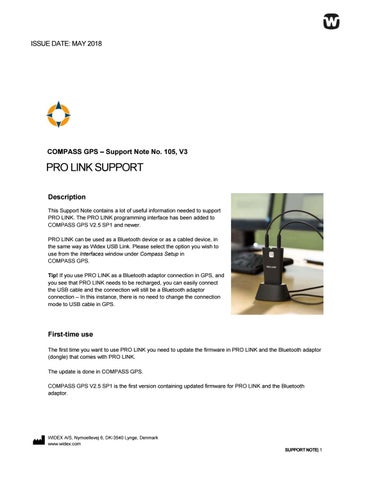
PRO LINK SUPPORT Description This Support Note contains a lot of useful information needed to support PRO LINK. The PRO LINK programming interface has been added to COMPASS GPS V2.5 SP1 and newer. PRO LINK can be used as a Bluetooth device or as a cabled device, in the same way as Widex USB Link. Please select the option you wish to use from the Interfaces window under Compass Setup in COMPASS GPS. Tip! If you use PRO LINK as a Bluetooth adaptor connection in GPS, and you see that PRO LINK needs to be recharged, you can easily connect the USB cable and the connection will still be a Bluetooth adaptor connection – In this instance, there is no need to change the connection mode to USB cable in GPS.
First-time use The first time you want to use PRO LINK you need to update the firmware in PRO LINK and the Bluetooth adaptor (dongle) that comes with PRO LINK. The update is done in COMPASS GPS. COMPASS GPS V2.5 SP1 is the first version containing updated firmware for PRO LINK and the Bluetooth adaptor.
WIDEX A/S, Nymoellevej 6, DK-3540 Lynge, Denmark www.widex.com SUPPORT NOTE| 1
COMPASS GPS
SUPPORT NOTE Pre-conditions for user using COMPASS GPS V2.5 SP1 or V3.0 Before you update you must ensure the following: 1. 2. 3.
An update can only be made while PRO LINK is connected to the computer via the included USB cable, and with the Bluetooth adaptor connected to the computer. To ensure a correct firmware update, PRO LINK should be fully charged and turned on. You need to select PRO LINK with Bluetooth adaptor as your interface.
Pre-conditions for Compass GPS V3.0518 or later Before you update you must ensure the following: 1. 2. 3.
An update can be made while the Bluetooth adaptor is connected to the computer. To ensure a correct firmware update, PRO LINK should be fully charged and turned on. To ensure that the Bluetooth adaptor is updated as well, you need to select PRO LINK with Bluetooth adaptor as your interface.
Test to verify if an update is needed
4.
To test if new firmware is ready for PRO LINK, please do one of the following: Select PRO LINK with Bluetooth adaptor from the drop-down menu, and then Select Connect. Or
5.
Select PRO LINK with Bluetooth adaptor under Current Interfaces, and then select Test.
If an update is available, a PRO LINK firmware update message will be shown on the screen. Simply follow the instructions.
Tip! Check for a PRO LINK firmware update after each new update of COMPASS GPS is completed. Its recommended to do this before the customer arrives!
SUPPORT NOTE | 2
COMPASS GPS
SUPPORT NOTE If the update is required 6.
7. 8.
The message box to the right is shown when an update is required, and you cannot use your PRO LINK until you have completed the update. Select Update firmware to update the PRO LINK and Bluetooth adaptor. Follow the update steps listed on page 2.
If the update is optional 6.
7.
If the update is optional, meaning that PRO LINK can be used without this update (however, we recommend that you update) you will receive the message box to the right. You will also be able to postpone the warning about new firmware until the next firmware release. Select Update firmware to update the PRO LINK and Bluetooth adaptor.
Future updates COMPASS GPS will try to keep your PRO LINK up to date.
A new feature introduced in COMPASS GPS V2.5 SP1 is an updater that will ensure that the PRO LINK firmware is downloaded into COMPASS GPS as soon as it has been released. The update feature requires access to the Internet.
Each new COMPASS GPS version will contain the latest firmware available at the time COMPASS GPS is released; so even without an Internet connection you can still update.
Every time you use PRO LINK to fit a client, the firmware will be checked to see if it is the latest one available. If newer firmware for PRO LINK and the adaptor is available, COMPASS GPS will notify you to update.
Difference between required and recommended update COMPASS GPS version PRO LINK firmware included and required
V2.5 SP1 1.2.8
V3.0 1.3.3.
V3.0518 1.3.4
Each new COMPASS GPS release after COMPASS GPS V2.5 SP1 includes an updated version of the PRO LINK firmware.
These PRO LINK firmware versions are required by the installed COMPASS GPS version (see the table above).
Between two COMPASS GPS releases (COMPASS GPS V2.5 SP1 and later) we may upload a newer PRO LINK firmware to our service in the cloud. For instance, PRO LINK firmware version 1.3.4 was available before the release of COMPASS GPS V3.0518. Such firmware
Will be downloaded by COMPASS GPS V2.5 SP1 or later
SUPPORT NOTE | 3
SUPPORT NOTE
COMPASS GPS
Will most often be a bug-fix version Will be offered to the dispenser/HCP as a recommended update Will not be required for COMPASS GPS versions older than COMPASS GPS V3.0518
If connection to the Bluetooth adaptor is lost In a few cases, we have seen that after a firmware update the connection to the Bluetooth adaptor was lost. The workaround for this is to reboot the computer and then try to update PRO LINK and the Bluetooth adaptor once more, as described above. The same error message is used if the Bluetooth adaptor has been removed from or has lost contact to the USB port on the computer.
If the pairing is lost between PRO LINK and the Bluetooth adaptor From the factory, PRO LINK and the Bluetooth adaptor are paired, but if this pairing is lost, or if one of the parts is replaced, you have to make a new pairing. If you try to connect without making a new pairing an error message will be shown. Follow these instructions to make a pairing: 1. 2. 3. 4. 5. 6.
Turn off PRO LINK. Ensure that the Bluetooth adaptor is directly connected to the USB port on the computer. Hold down the blue button on the Bluetooth adaptor until the LED is fading blue, and then release. Hold down the button on PRO LINK until the LED in the middle is fading blue, and then release. Wait until the LED in the middle of PRO LINK turns green, and the Bluetooth adaptor LED turns into a steady blue. Now the two parts are paired again. Please verify from within COMPASS GPS.
If PRO LINK runs out of battery When the PRO LINK battery runs low, the LED in the middle will turn into a steady yellow, and if the level is getting even lower, the same LED will start to blink yellow. If PRO LINK runs out of battery, it will switch off. To charge PRO LINK:
Connect PRO LINK to the computer by means of the USB cable. If PRO LINK has been turned off, turn it on and you can then continue your fitting. Leave the USB cable connected until PRO LINK is fully charged.
Place PRO LINK in the charger and wait for it to be fully charged.
If PRO LINK runs out of battery during a fitting in COMPASS GPS, the message box above will be displayed.
SUPPORT NOTE | 4
SUPPORT NOTE
COMPASS GPS
If the connection is lost If PRO LINK is moved out of range – Bluetooth connection is lost If PRO LINK is moved out of range while it is connected to hearing aid(s) from within COMPASS GPS, COMPASS GPS will inform you that PRO LINK is out of range. In this case, do the following: 1.
Move PRO LINK closer to the computer with the Bluetooth dongle.
2.
Select OK in the message box.
3.
Select Connect in COMPASS GPS and the connection is re-established.
If PRO LINK is moved out of range of the hearing aid(s) – W-Link connection is lost If PRO LINK is moved too far away from the hearing aid(s), the connection to the hearing aid(s) will be lost. In this case, do the following: 1.
Move PRO LINK closer to the hearing aid(s), for instance place it around the neck of the hearing aid user.
2.
In the Connection status dialogue box in COMPASS GPS, select Search again.
3.
The connection will be re-estabilished.
SUPPORT NOTE | 5