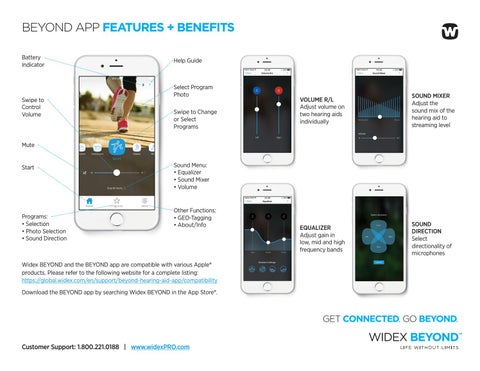
BEYOND APP FEATURES + BENEFITS Battery Indicator
Swipe to Control Volume
Help Guide
Select Program Photo Swipe to Change or Select Programs
VOLUME R/L Adjust volume on two hearing aids individually
SOUND MIXER Adjust the sound mix of the hearing aid to streaming level
EQUALIZER Adjust gain in low, mid and high frequency bands
SOUND DIRECTION Select directionality of microphones
Mute
Start
Programs: • Selection • Photo Selection •S ound Direction
Sound Menu: • Equalizer • Sound Mixer • Volume
Other Functions: • GEO-Tagging • About/Info
Widex BEYOND and the BEYOND app are compatible with various Apple® products. Please refer to the following website for a complete listing: https://global.widex.com/en/support/beyond-hearing-aid-app/compatibility Download the BEYOND app by searching Widex BEYOND in the App Store®.
GET CONNECTED. GO BEYOND. Customer Support: 1.800.221.0188 | www.widexPRO.com
HOW TO CONNECT BEYOND TO iPHONE AND iPAD
STEP 2
STEP 3
Confirm Bluetooth is On. Go to Settings and select Accessibility.
Select Hearing Devices.
Place BEYOND close to the iPhoneÂŽ or iPad.ÂŽ Open and close the battery door. The Apple device will search for BEYOND devices. Once connected, select the Hearing Aids under Devices.
STEP 4 Select Pair for each hearing device.
STEP 5 Once complete, the hearing aids will appear. BEYOND is now paired. Select Adjust Independently ON to control each hearing aid separately.
NOTE: For iOS 12.4 or earlier, access hearing aid pairing options through Settings > General > Accessibility > MFI Hearing Devices.
Apple, the Apple logo, iPhone, iPad, and iPod touch are trademarks of Apple Inc., registered in the U.S. and other countries. App Store is a service mark of Apple Inc.
Customer Support: 1.800.221.0188 | www.widexPRO.com
Apple Native App Access the Apple Native app as an alternative to the BEYOND app by pressing the HOME button on the Apple device three times. This opens features such as Live Listen to change your phone into a remote microphone, as well as volume control and program change.
DRM266/1019
STEP 1