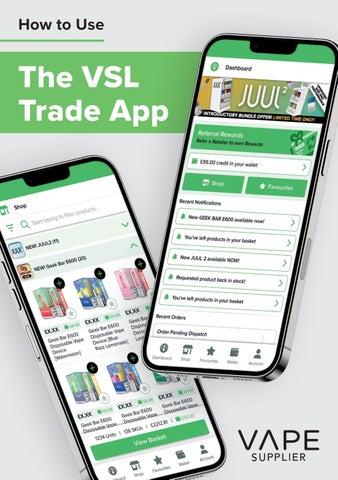
How to Use
The VSL Trade App
1
2
Contents Section
Page
Register
4
Login
6
Dashboard
8
Shop
10
Credit
10
Favourites
12
Notify Me
14
Notifications
16
Wallet
18
Account
20
Checkout/Approval
22
Recent Orders
24
3
Register 1
2
3
4
4
Upon opening the Vape Portal app, select the “Register” tab. Please provide your company information and enter the log-in details you would like to use for your business. At the last field you will see “Please enter rep code”. Please contact your Field Sales Rep to receive the Rep Code. Click the Register button at the bottom and you are signed up!
1 2
3 4
5
Login 1
2
6
If you were to logout of the VSL Trade app, upon opening the VSL Trade app, the default selected tab is “Login”. Simply enter that the e-mail address and password you provided for your business when you registered.
1
2
7
Dashboard 1
When you first login to the app you will see your Dashboard.
2
This provides you with an overview of your use of the VSL Trade app.
3
4
8
From here you can see; a) credit in your wallet b) recent notifications c) recent orders You can click to see each of these in greater detail with shortcut buttons(a) taking you to areas of the app which can also be reached by the menu at the bottom of the screen(b).
3a 4a
3b
3c
4b
9
Shop 1
To add the products you would like to order to your basket, select the drop down(a) for that product range and select the plus arrow(b) on the product you would like to add.
Credit 2
3
10
Each product has a credit indicator which states how much credit will be awarded to your wallet for every unit of that product purchased. The product price combined with the credit for that unit, provides you with a “net price”. For example, if the price of Elux KOV is £2.30 and the Credit is £0.10, this product effectively costs £2.20.
1a
1b
2
All prices shown are indicative only and are subject to change.
11
Favourites 1
2
3
4
12
Every time you order a SKU, this will be automatically added to your “Favourites”. This will effectively provide you with a convenient list of the products you stock in your store, ready for quick and easy re-ordering. If you would like to manually add products to your “Favourites” section, while on the Shop page, simply click the star icon on any product. To view your Favourites, click the button in the bottom centre of the menu.
3
4
13
Notify Me 1
14
If a product should become out of stock due to popularity, simply click the bell icon next to this product and you will receive a notification or text message when this product is back in stock.
1
15
Notifications 1
2
Notifications triggered by the VSL Trade App communicate real-time updates directly to you via your mobile phone handset. These notifications include: a) Updates when the hottest selling new products become available on the VSL Trade App. b) Order status updates at each step of the order fulfilment process, keeping you upto-date each step of the way until your order arrives with you.
3
If you are an android user, you will receive notifications via the app. If you are an iPhone user, you will receive notifications by text message.
16
17
Wallet 1
2
18
The Wallet section will display the credit you have acquired from previous orders that can be used to spend as a discount on your current order. Your wallet credit will automatically be applied on your next purchase as a discount from the order total!
1
19
Account 1
Here, you can update your company details including your; a) shipping addresses to multiple branches b) payment details c) contact information for your Sales Rep
2
20
You can contact your Sales Rep should you have any queries regarding the app and your order.
1a 1b
Select Branch 1c
21
Checkout 1
2
3
When you checkout, if you have multiple branches, you can select your branch where this order is to be shipped. Once the order is placed, the invoice for your order will be sent immediately to the e-mail address you have provided in your Account. If you have not checked out and completed the payment for your order, you can simply go back in to your order via the dashboard and complete your payment.
Approval • Some banks may require that Vape Supplier is approved / verified as a payee or as a supplier, before payment can be made. Every bank’s security verification process is slightly different. Please contact your Vape Supplier Rep for advice if you need assistance.
22
1
23
Recent Orders 1
24
If you visit the Dashboard and click in to any of your paid orders(a), press the button “Reorder Items”(b) and it will instantly add these products to your cart.
1a
1b
25
If you have any further queries, please call or e-mail your Sales Rep. 0121 663 1339 vapesupplier.co.uk
26
Vape Supplier Ltd 33 Bennetts Hill, Birmingham, West Midlands B2 5SN