
VHP Access QSG
Open a member's record
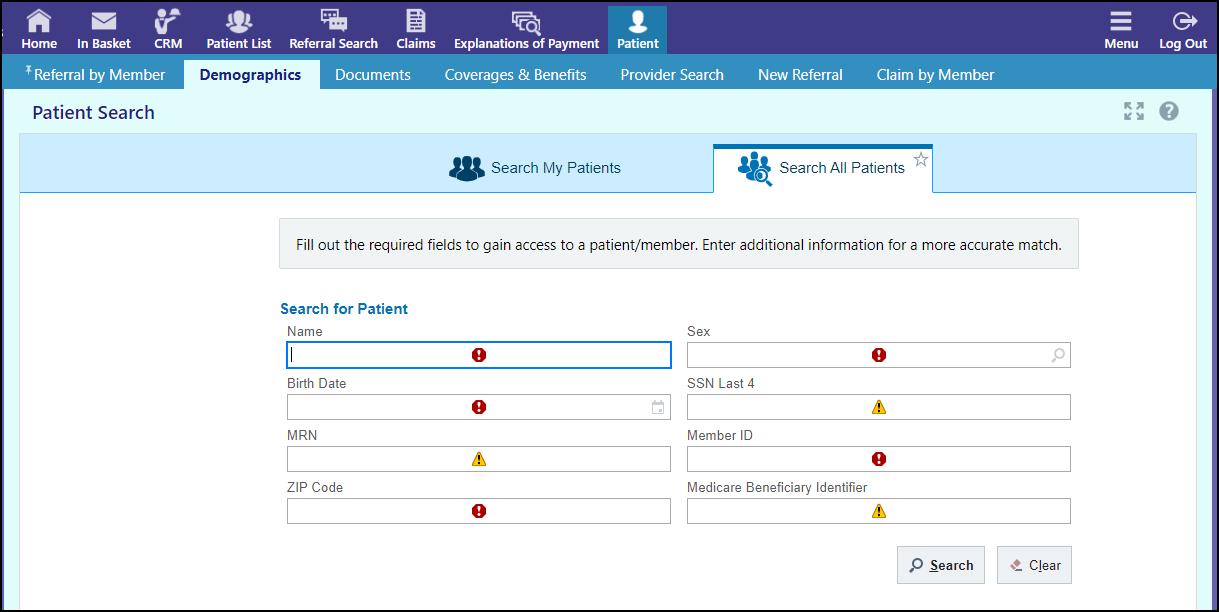
1. Click Patient.
2. Click Search All Patients.
3. Enter the member's name, birth date, or MRN and click Search
Create a new referral
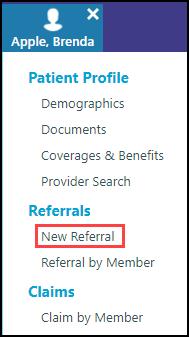
1. From a member's workspace, click New Referral
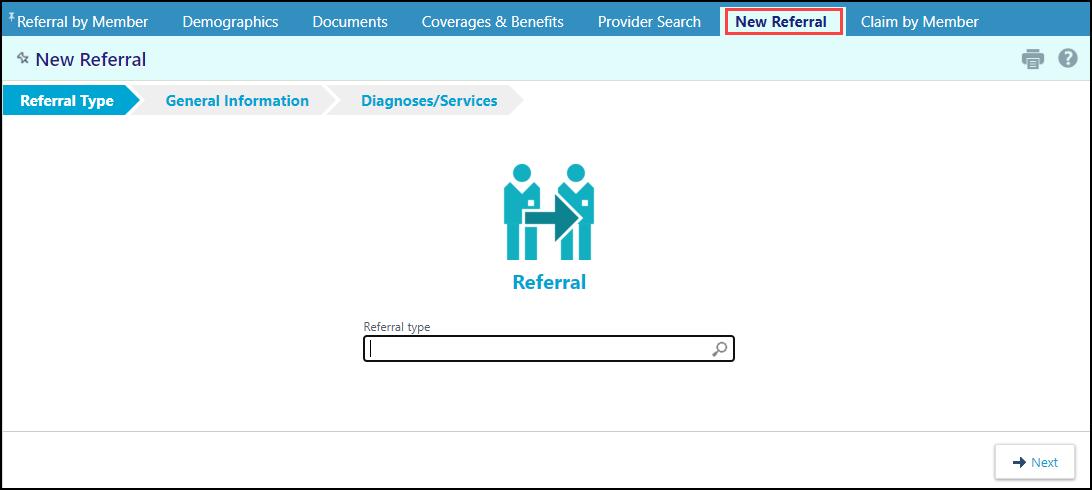
2. In the Referral type Field select the appropriate Referral Type. Common Referral Types:
• Specialist Consultation (Office Visit)
• Outpatient Surgery
• Procedure – Select for an Inpatient Procedure
3. Click Next.
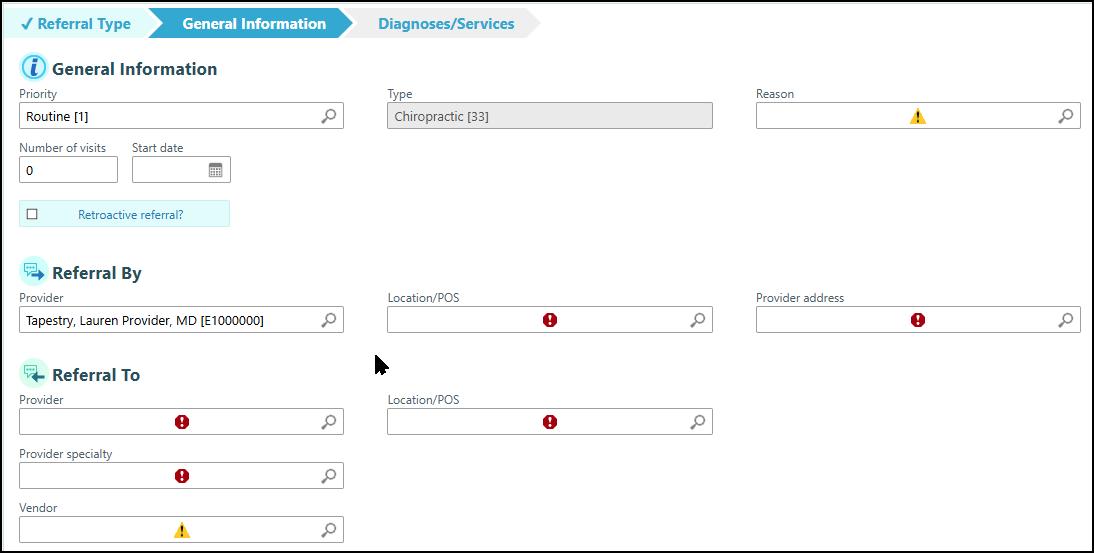
4. On the General Information form, confirm that the priority is correct.
5. Check the Retroactive Referral box if service has already been rendered and enter the date service was rendered in the Start Date field.
6. Fill out all required fields
Enter referred by and referred to information
1. In the Referred by section of the General Information form, enter as much information as you can. You can specify a location/POS, provider, and/or department.
2. In the Referred to section, enter as much information as you can. • Fields that contain a Stop Sign with an exclamation point are required fields.
3. Click Next.
Find a provider
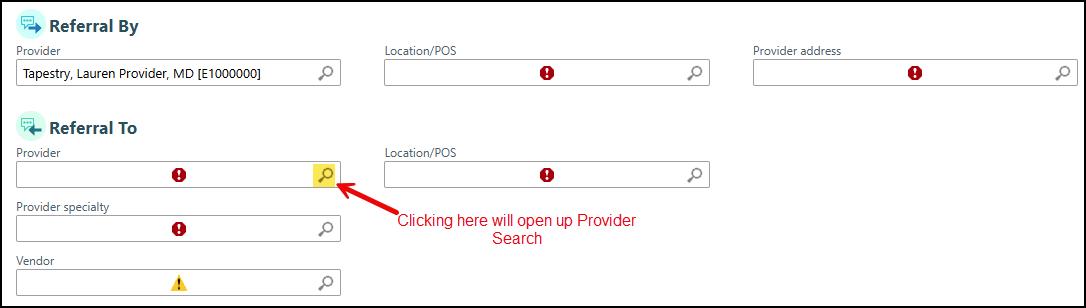
If you don't have a specific provider in mind when creating a referral, you can use Provider Finder to narrow down your choices.
1. In the Referral to section of the General Information form, click to search for a provider using Provider Search.
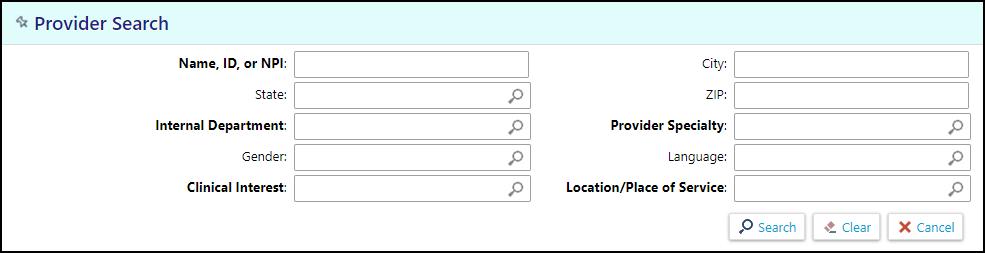
2. Enter criteria including name, clinical interest, and provider specialty then click Search.
3. Select the Provider record that is associated with the correct address location and place of service/network
eg. If the member is SCCIPA select Individual Practice Association of SCC, if the member is PMG select Physicians Medical Group of San Jose, if the member is not with IPA select the individual name option.
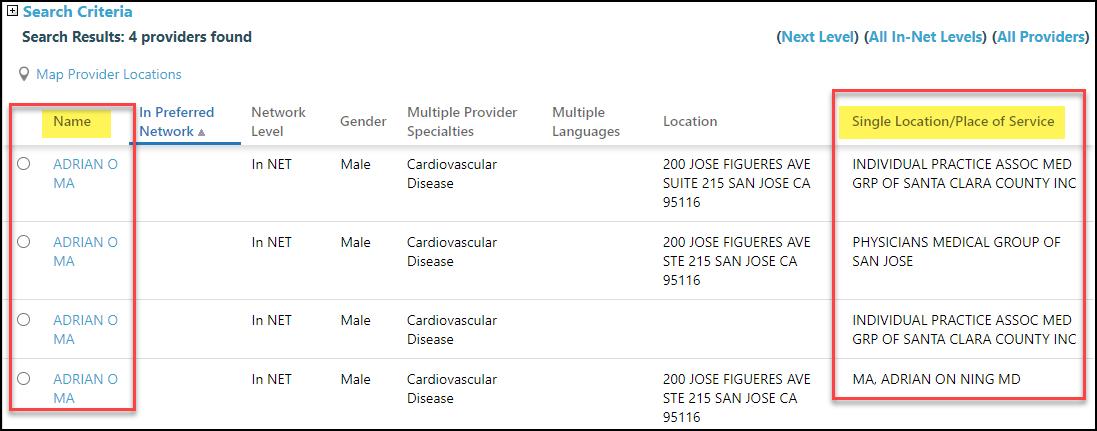
4. Select a provider, verify the provider's network status, and place of service and click Accept.
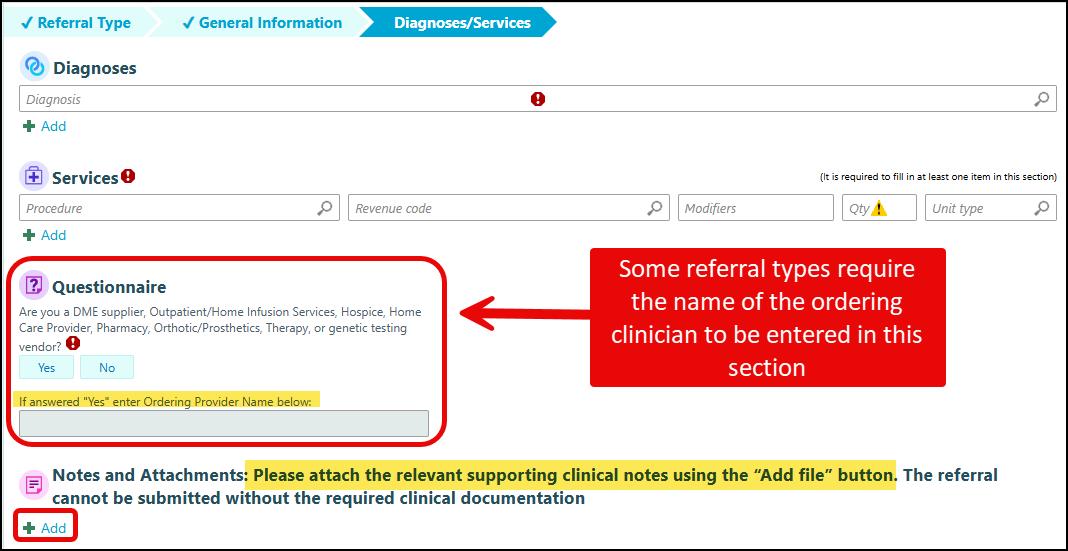
Enter diagnoses and services
1. On the Diagnoses/Services form, enter a diagnosis code in the Diagnoses (coded) field.
2. Enter a procedure code in the Services field.

If you're entering codes but don't have a diagnosis code, enter a description in the Diagnoses (coded) field and press ENTER to search for a code.
DME Supplier Questionnaire
Some referral types require you to fill out this questionnaire
1. Answer Yes or No if you are a DME supplier.
2. If you are a DME supplier, you will need to enter in the name of the ordering provider.
Add notes and attachments
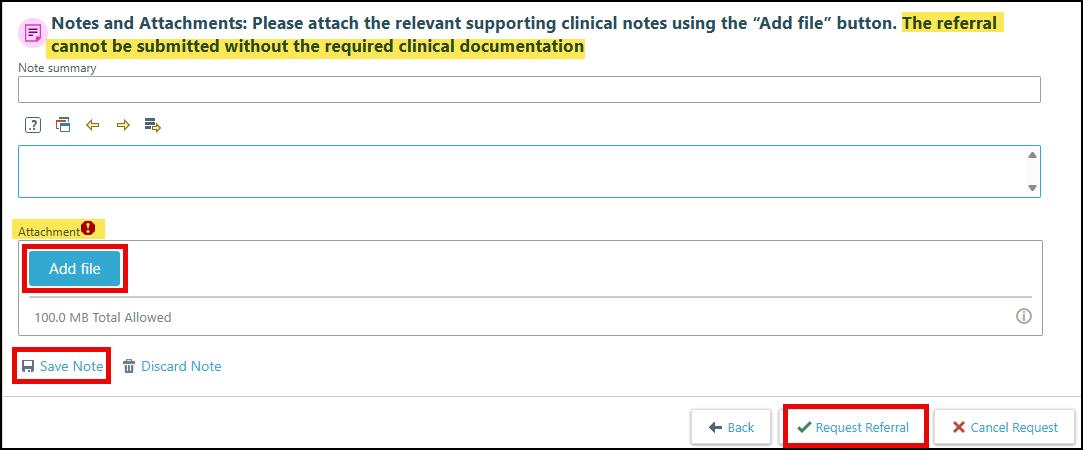
1. Click Add under Notes and Attachments section.
2. Fill out the Note summary field and include any descriptive notes in the text box below.
3. Click Add File, select the file from the file explorer window, and then click Open to attach.
• Only one document can be attached per note.
4. Click Save Note.
5. Click Request Referral
Additional information once Referral is requested
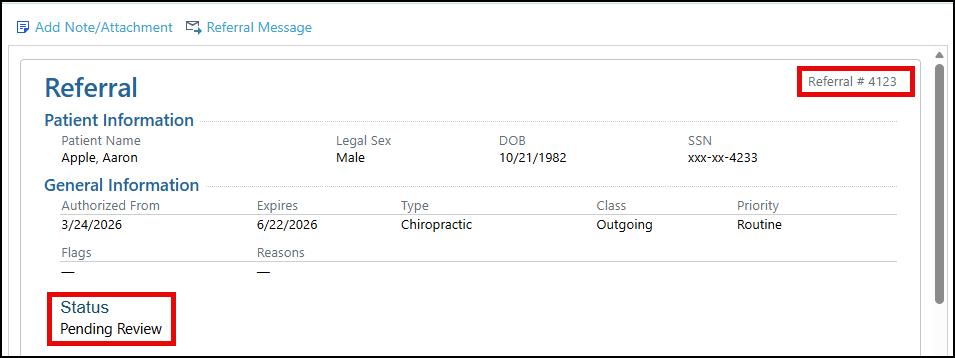
1. Once you Click Request Referral.
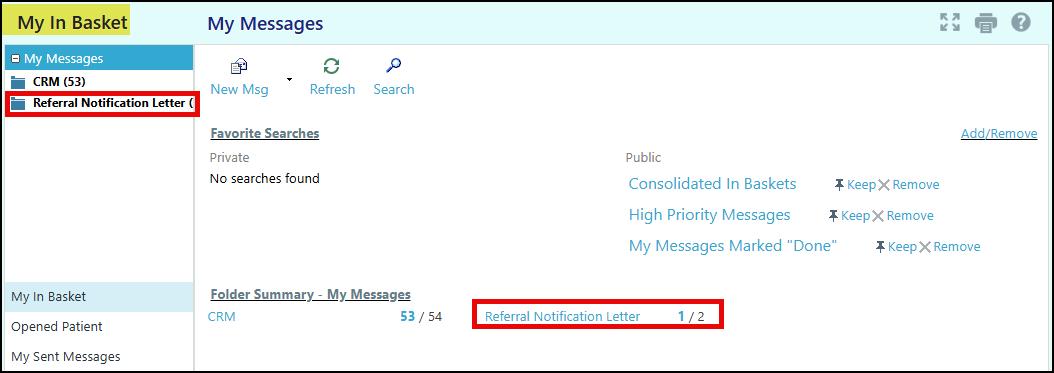
2. Note the Referral # and view the Status of the referral. Referral determinations can also be found in the inbasket under Referral Notification Letters.
Review patient specific referrals
1. From a member's workspace, click Referral by Member.
2. Click the Referral ID to view referral details.
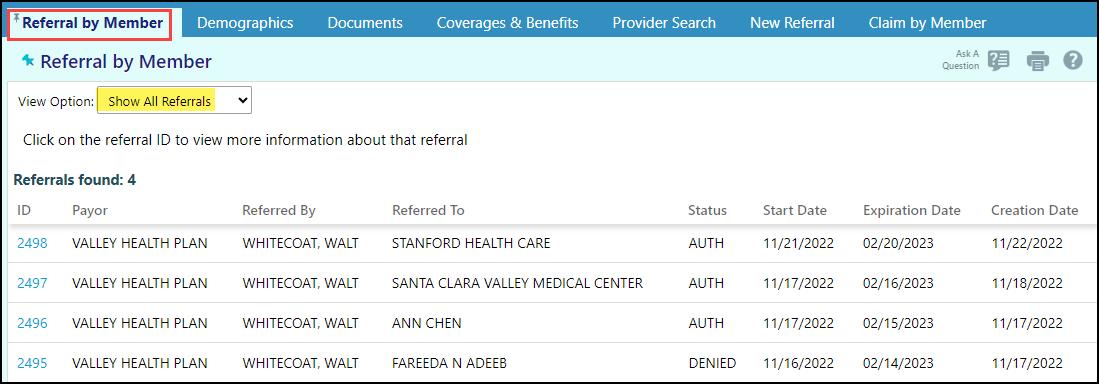
Ask a question about a referral
1. From the Referral by Member tab, click Ask a Question.
2. Select Referrals Question.

3. Enter as much information as you can.
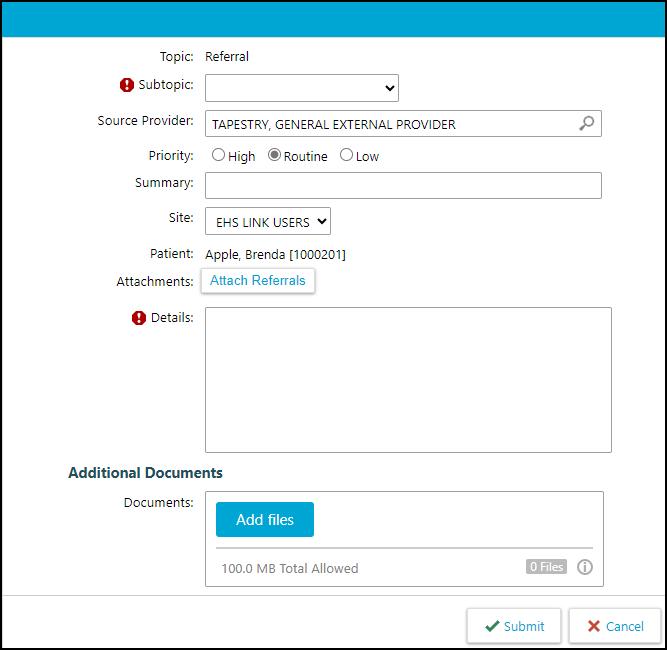
4. Click Submit to route the question to an appropriate user. You will receive a response within <the expected turnaround time for your organization>.
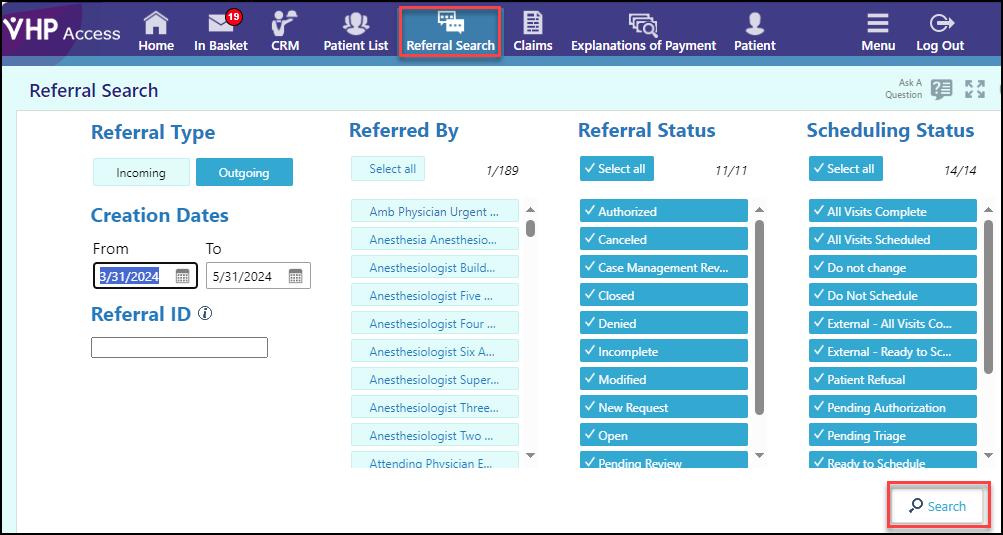
Referral search
1. Click on Referral Search
Enter your search parameters 3. Click on Search
© 2025 Epic Systems Corporation. All rights reserved. PROPRIETARY INFORMATION - This item and its contents may not be accessed, used, modified, reproduced, performed, displayed, distributed or disclosed unless and only to the extent expressly authorized by an agreement with Epic. This item is a Commercial Item, as that term is defined at 48 C.F.R. Sec. 2.101. It contains trade secrets and commercial information that are confidential, privileged, and exempt from disclosure under the Freedom of Information Act and prohibited from disclosure under the Trade Secrets Act. After Visit Summary, ASAP, Aura, Beacon, Beaker, Beans, BedTime, Best Care Choices for My Patient, Bones, Break-the-Glass, Bugsy, Caboodle, Cadence, Canto, Care Everywhere, Charge Router, Cheers, Chronicles, Clarity, Cogito ergo sum, Cohort, Comfort, Community Connect, Compass Rose, Cosmos, Cosnome, Cupid, Discovery, Epic, EpicCare, EpicCare Link, Epicenter, EpicShare, EpicWeb, Epic Earth, Epic Nexus, Epic Research, Garden Plot, Grand Central, Haiku, Happy Together, Healthy Planet, Hello World, Hey Epic!, Hyperdrive, Hyperspace, Kaleidoscope, Kit, Limerick, Lucy, Lumens, MyChart, Nebula, OpTime, Phoenix, Powered by Epic, Prelude, Radar, Radiant, Resolute, Revenue Guardian, Rover, Share Everywhere, SmartForms, Sonnet, Stork, System Pulse, Tapestry, Trove, Welcome, Willow, Wisdom, With the Patient at Heart, and WorldWise are registered trademarks, trademarks, or service marks of Epic Systems Corporation in the United States of America and/or other countries. Other company, product, and service names referenced herein may be trademarks or service marks of their respective owners. Patents Notice: www.epic.com/patents.