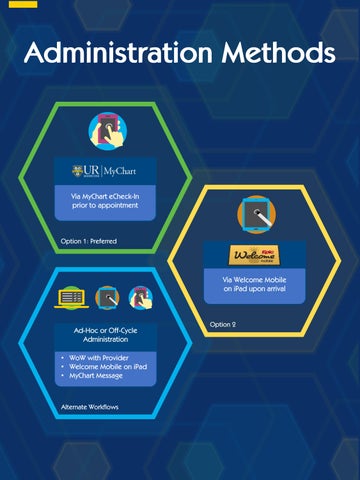
Administration Methods
Via MyChart eCheck-In prior to appointment
Option 1: Preferred
Via Welcome Mobile on iPad upon arrival
Ad -Hoc or Off -Cycle Administration • WoW with Provider • Welcome Mobile on iPad • MyChart Message
Alternate Workflows
Option 2
eCheck-In
Via MyChart eCheck -In prior to appointment Option 1: Preferred For Options 1 & 2, questionnaires are assigned automatically, based on your clinic’s chosen parameters.
eCheck-In Patient information during eCheck-In:
How to tell whether questionnaires were completed during eCheck-In:
Incomplete Complete or No Questionnaires Due Incomplete Incomplete
Welcome Mobile
Via Welcome Mobile on iPad upon arrival Assign Tablet
Scan Tablet
Option 2
Return Tablet
For Options 1 & 2, questionnaires are assigned automatically, based on your clinic’s chosen parameters.
Welcome Mobile Assigning the Tablet:
#2 #1
#2 On Tablet In Epic #1 Select Patient #2 Click Assign Tablet #3 Select Language #4 Select Scan Barcode #5 Scan Barcode
#3 #4 #5
Patient View: #1 Tap Continue #2 Choose Self or Other #3 Enter DoB #4 Choose Continue to Proceed
Alternate Methods
Ad -Hoc or Off -Cycle Administration Welcome kiosk upon •ViaWoW with Provider arrival • Welcome Mobile on iPad • MyChart Message
Alternate Workflows These methods allow for questionnaires to be assigned and/or deployed manually
Alternate Methods (1) Manual Assignment for eCheck-In or iPad: #1 Choose Assign Pt Questionnaire #2 Search or Select Patient #3 Select Encounter #4 Select Questionnaire(s) to Add & Date to Make Available #5 Scan Tablet (if deploying questionnaires now) or Accept (if pre-entering for later use)
#2
#1
#3
#4
#5
Alternate Methods (2-3) Manual Assignment via MyChart Message:
#1 Add General Questionnaire #2 Add Send Date and/or Notification Date #3 Send Message
#2
#1
~
#3 Collection During the Visit (Telemedicine or In Person) #1 Choose Answer Questionnaires #2 Choose Answer Incomplete Questionnaires #3 Select Questionnaire #4 Read the Questions to the Patient and Record the Responses
#1
#2
#3
#4