






•
•
•
•

•
•
•
•
Name:
Username:
We are glad to have you at UC Blue Ash College.
Please use this checklist to ensure you have everything completed during orientation and after in order to begin classes next semester. This New Student Handbook contains valuable information to help you be successful in your first year and beyond.
Major:
M#:
Your Academic Advising Appointment for today is at: _______________ in Muntz 155. Your Academic Advisor for today is: _________________________________________.
Important Tasks:
Do You Need To:
Take your Math Placement Test (ALEKS) if you have not done so already.
Meet with Enrollment Services about Financial Aid Questions
Meet with Accessibility Resources (if applicable) to Request Classroom Accommodations
Orientation Check-In:
Take steps to get your Student ID/Bearcat Card
Manage your Parking Account and Update Vehicle Info
Verify Your Major
Schedule Your Afternoon Advising Appointment
Set up your Username and Password
Set up DUO Authentication
Stop at the Social Media Station

Show your UC Blue Ash Love on Social Media at #New2UCBA
During Orientation:
Introduce Yourself to At Least Two Other Students (You will have a great opportunity to do this during the small group time!)
Engage in Orientation Presentations; take notes and ask questions!
Register for Classes
Verify Your Schedule with your advisor
Complete Post-Orientation Survey found at the bottom of your orientation schedule.
Check Out: Be sure to check out with orientation staff so your completion of required orientation is noted AND so you can pick up your Bearcat Card and special Orientation swag!
Check Your Bearcat Portal Task List Regularly Confirm Financial Aid. Pay your bill.
Waive or pay health insurance. Complete immunization and health screening requirements. med.uc.edu/landing-pages/university-health/frequently-asked-questions
Login to UC Email and Canvas.
(Check for updates and important information from UC and professors.)
Download free Office 365 software.
Login and check for Engagement Opportunities at GetInvolvedUC! Look for information on and attend College Day.

Purchase laptop. (Go to ucblueash.edu/students/new/laptop for information.)
Purchase books.
Find your classrooms.
Still have questions?
Contact Student Life & Success at (513) 558-9429 or ucblueashsls@ucmail.uc.edu.

UCBA students will need a laptop computer that runs either Windows or Macintosh operating systems and can be brought to class when required for in-class computer usage. This laptop requirement ensures you will have adequate and timely access to the electronic resources necessary to be a successful UCBA student. Chromebooks or tablets cannot access all of the electronic educational material used at UCBA, so they are therefore not considered a suitable computer for UCBA classroom use.
Please note that UCBA’s Media Communications & Technology and Art and Visual Communications programs have more specific laptop requirements which can be found on their programs’ pages. Students enrolling in transfer programs should also consider any laptop requirements of their intended transfer program. Specifications
Note: Chromebooks do not meet university specifications and the university IT department cannot support them. Specifications
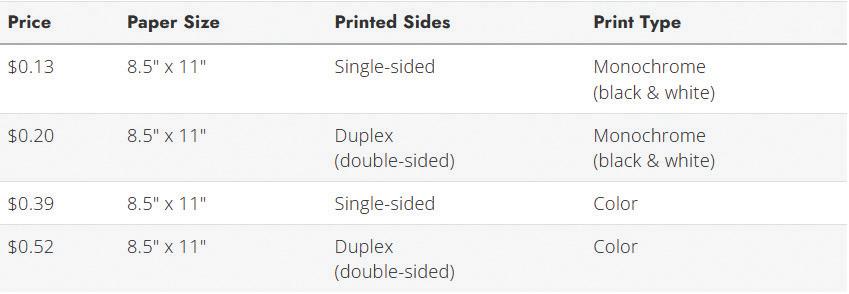
UCBA uses the Wepa print service for student printing. This allows students to upload their documents to the Wepa print cloud and retrieve their documents from any Wepa print station. Wepa print stations are available on the 1st floor of Muntz Hall across from the Café, on the 2nd floor of Muntz Hall in the classroom hallway across from the stairwell, and on the 2nd floor of Walters Hall outside the Science Lab.


The UC shuttle provides free transportation between UC Blue Ash and the Uptown campus.

Note: The UC Campus shuttle dropoff/pick-up location is in the circle drive between the Muntz and Walters parking lots. There is no shuttle stop at the Annex Building.
BAMUNTZ Muntz Hall
BAWALT Walters Hall
BAPROGRS Progress Hall BAANNEX Annex Building
BAFLORY Flory Center BAVE
BAPAVD
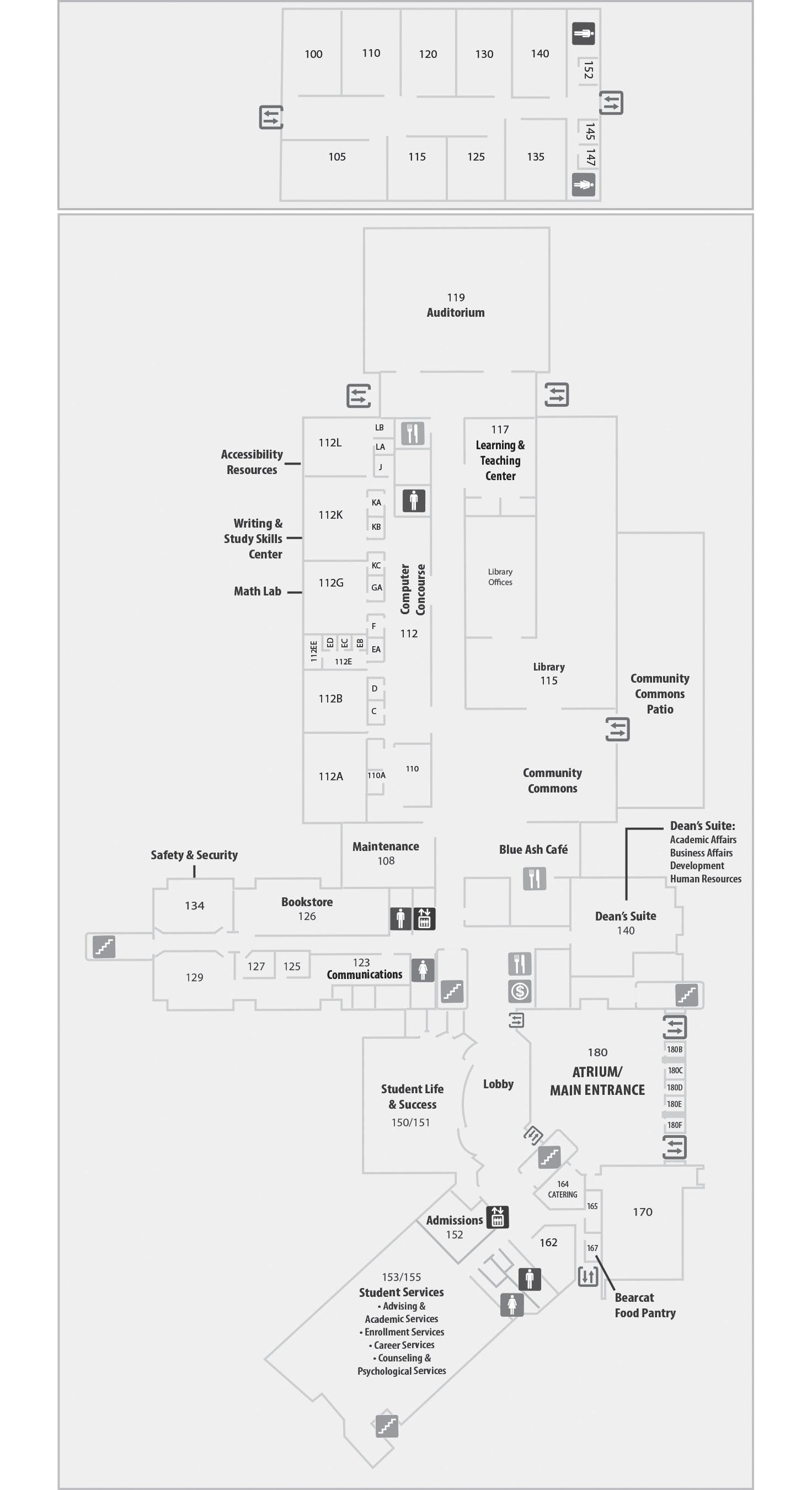
PAVILION D
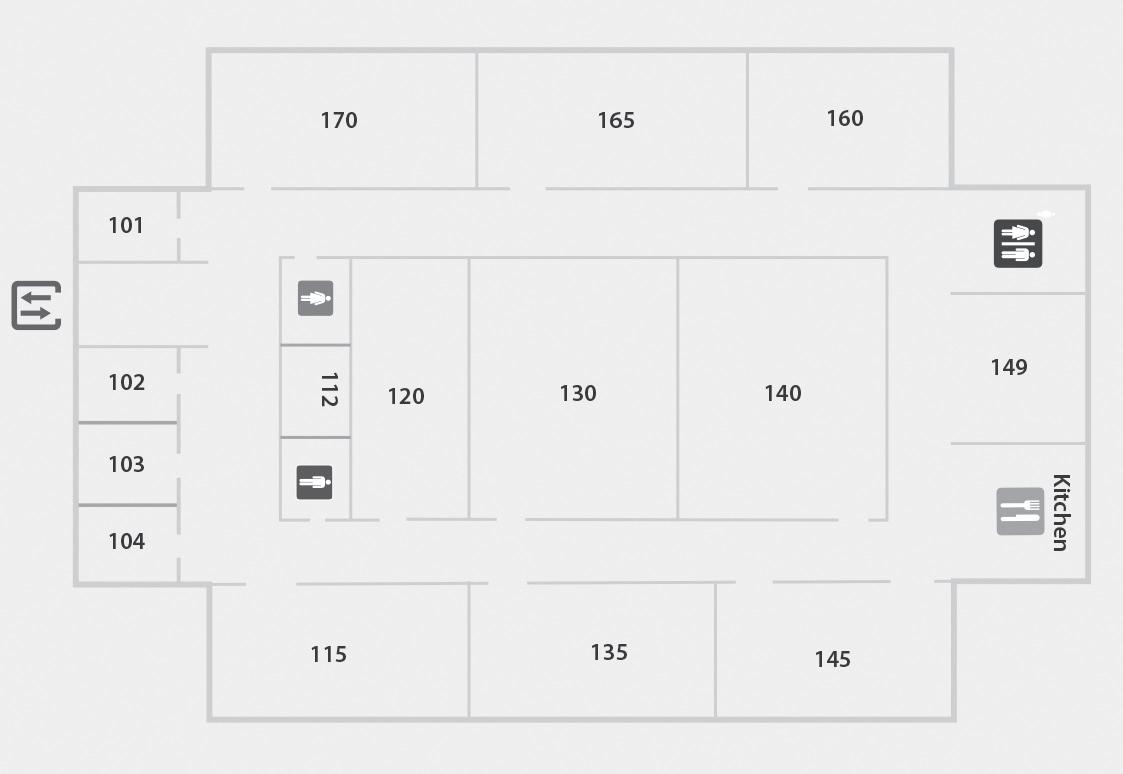
MUNTZ HALL FIRST FLOOR
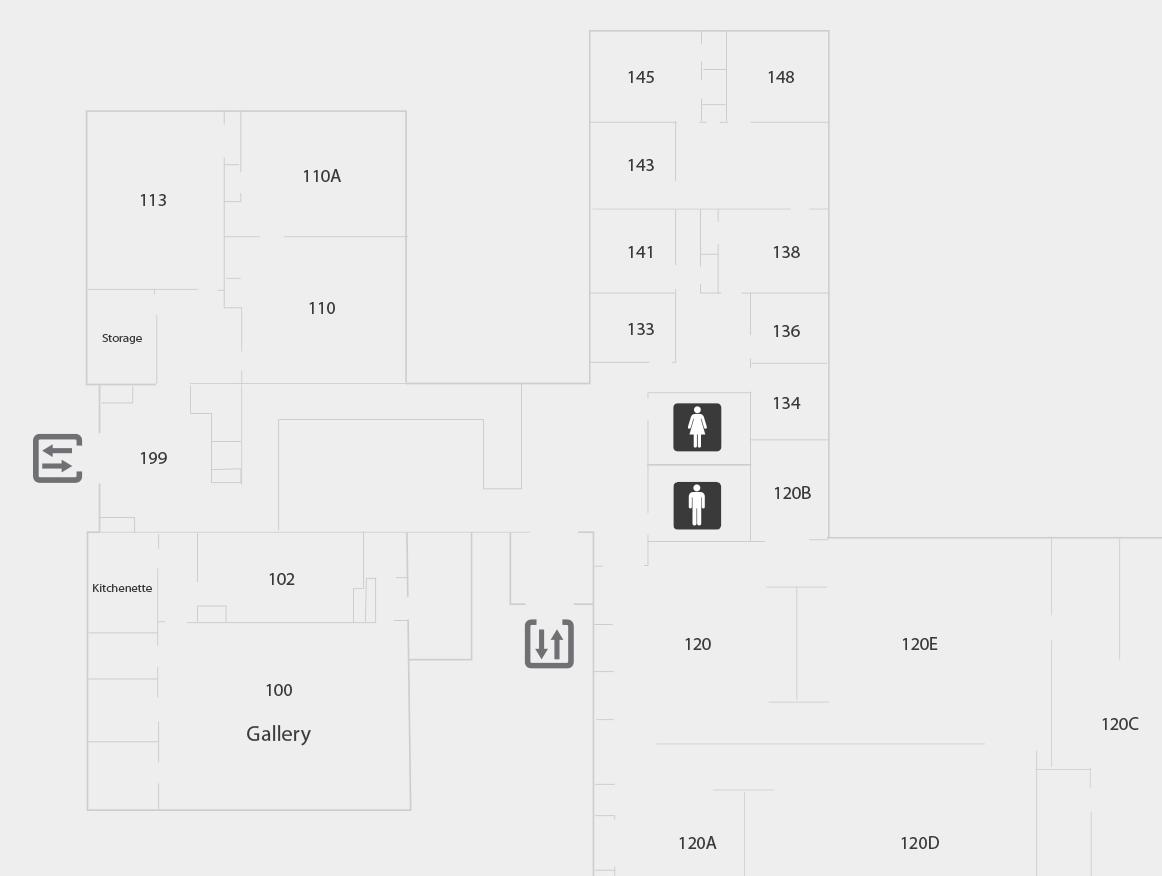
MUNTZ HALL SECOND FLOOR
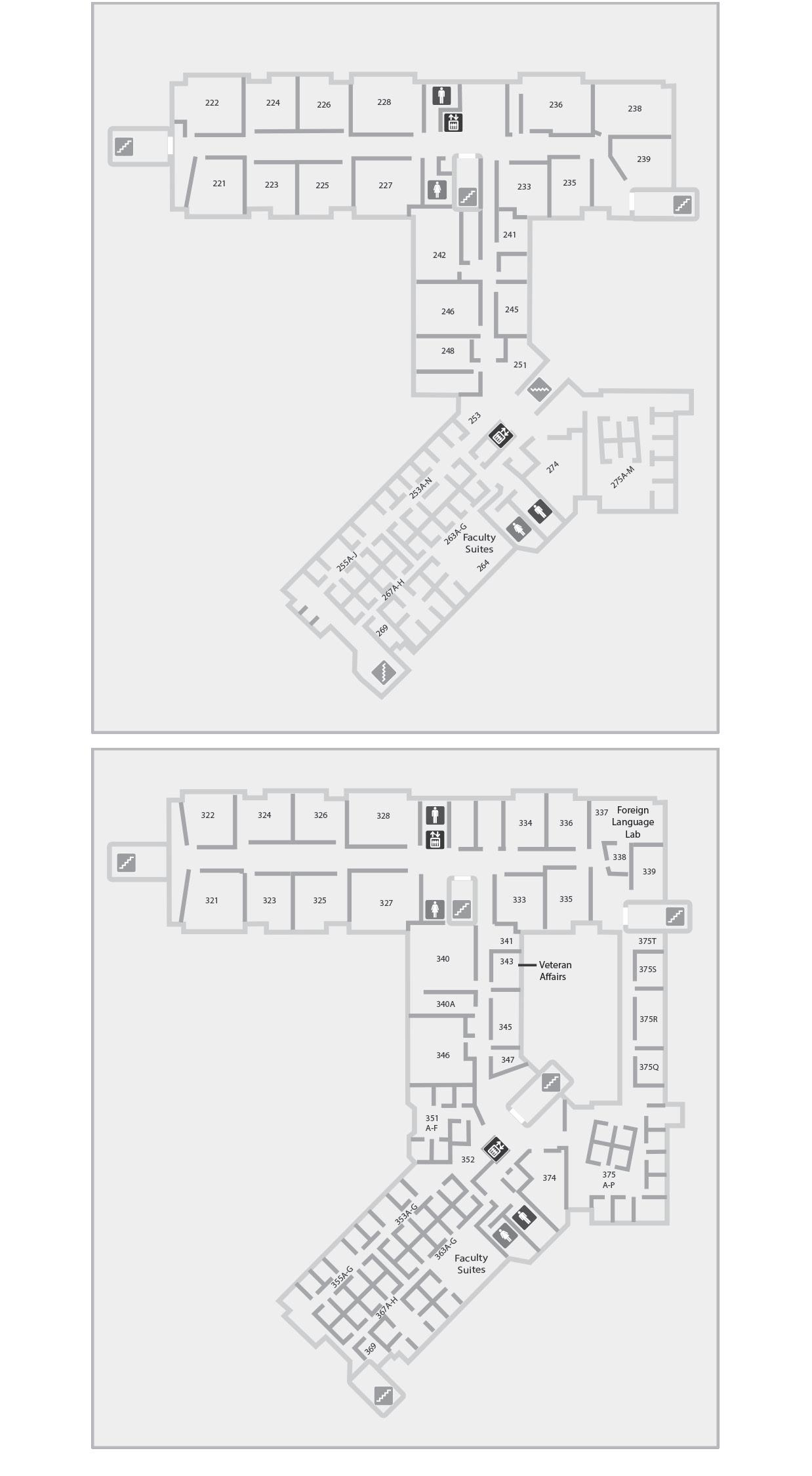
MUNTZ HALL THIRD FLOOR
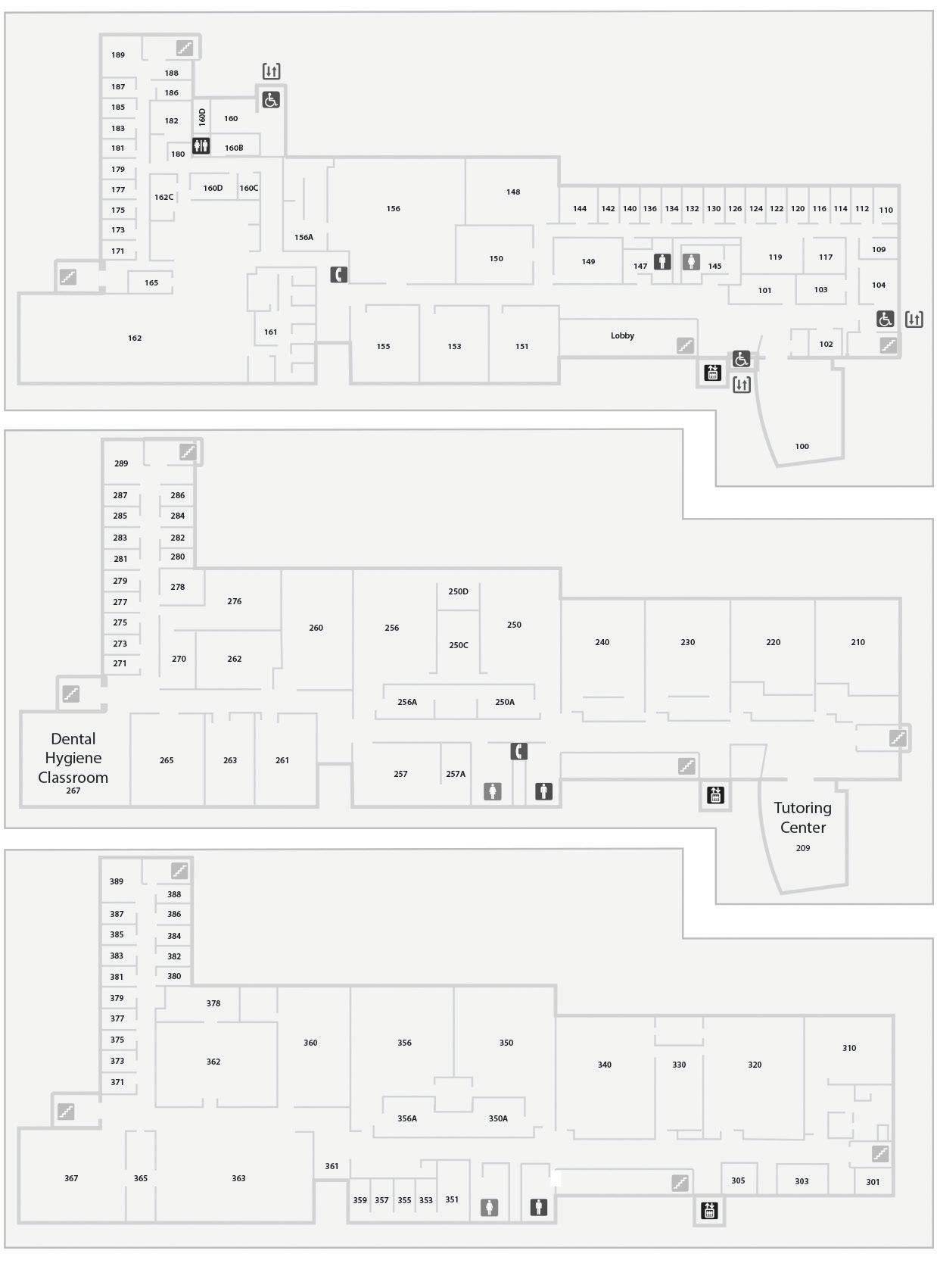
FIRST FLOOR
SECOND FLOOR
THIRD FLOOR
PROGRESS HALL
FLORY CENTER
Learn More About Advising Resources
1. Login to canopy.uc.edu
2. Click the My Courses tile.
3. Open the UC Blue Ash Student Advising Group under Courses. (Don’t see it yet? Check back in a couple days.)
4. On the left, click Modules to navigate to various advising resources.
Find/Schedule an Appointment With Your Advisor
1. Go to canopy.uc.edu and select Student Tools. Look for the My Bearcat Network tool. *Note: Alternatively, go to catalyst. uc.edu and select My Academics and look for My Bearcat Network tool under Academic Progress
2. Click Schedule Appointment under Connect on your dashboard.
3. Select your advisor from the dropdown menu under Search Appointments if they do not already appear. Click Search to see your advisor’s availability.
4. Find an available time that works for you and click Schedule
5. Choose Appointment Modality (Your advisor may list options for Virtual, Phone, or In Person appointments.)
6. Choose the reason for your appointment from the Session Topics. Leave a description as needed.
7. Click the Schedule Appointment button to finalize appointment.
Important Semester Dates: It is a student’s responsibility to be aware of all important dates and deadlines. You can access calendar information through Catalyst. Once you are logged in, click on the My Academics tile. Then, on the left hand side, select Calendars and Deadlines and then Undergraduate and Graduate. Alternatively, you can go to uc.edu/about/registrar/ calendars
UC Blue Ash Coursework Requirement:
• We highly encourage students to take their first 24 credit hours of coursework through UC Blue Ash to take advantage of the wrap around academic support services, smaller class size, and lower tuition cost.
• We recommend students meet with their advisor at least once a semester to make sure they are on track in their program. All students who have earned less than 12 credit hours will have an Advising Registration Hold requiring a meeting with their advisor before registering for future classes. Some specific majors will have an Advising Registration block every semester requiring a meeting with their advisor prior to registration.
Advising + Academic Services Muntz 155 (513) 558-9442 QUESTIONS
Logging in to UC Accounts
You must activate your central login username and password before you will be able to access any of your UC accounts (e.g., Canvas, Catalyst, Canopy).
Logging in to UConnect
1. Go to mail.uc.edu.
2. Enter your central login username and password.
3. Select the Log In button.
Logging in to Canvas 1. Go to www.canopy.uc.edu.
2. Click Canvas login icon.
3. Enter username and password.
4. Navigate through the main page, the tabs at the top and the items in the menu bar on the left to view your personal information and course information.

Course Search
1. Go to catalyst.uc.edu.
2. Log in with central username and password.
3. Take steps to release Financial Agreement Hold under the Tasks tile/To Do List if you haven’t already done so.
4. Click on the My Academics tile from the homepage
5. Choose Classes and Schedule and then Click on Search for Classes
6. Select the Term for which you are searching under the pull down menu.
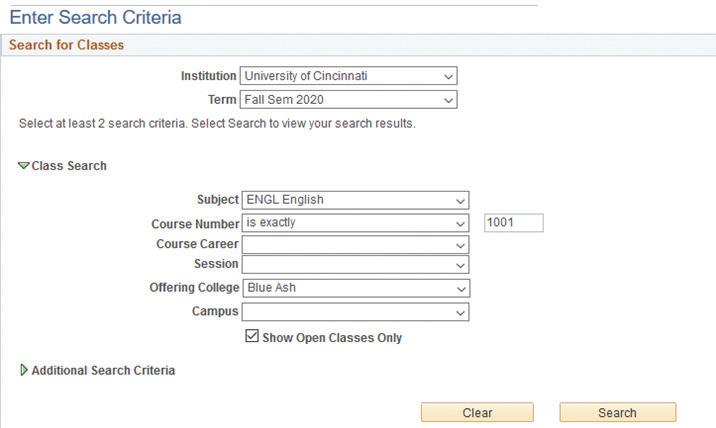
7. Under Class Search use the pull down menus to select:
• Subject (ENGL, MATH, BIOL, etc…)
• If you know the course number, put it in the box to the right. If you don’t know the course number, leave this blank and it will show all courses in the subject.
• Under Offering College, select Blue Ash. (Do not select a Campus.)
8. Click the SEARCH button.
*Students can also use Create My Schedule to search for and plan classes.
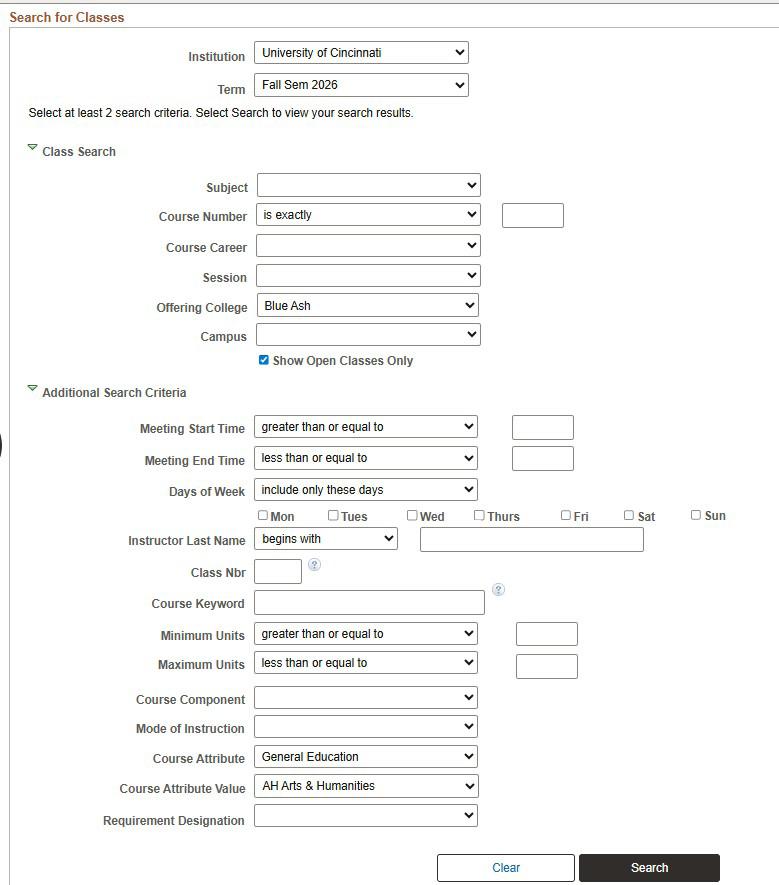
General Education Elective Search If you need to search for a General Education Elective, select Additional Search Criteria.
1. Leave the Subject and Course Number fields blank.
2. Select Blue Ash as the Offering College.
3. Under Course Attribute, select General Education
4. Under Course Attribute Value, select the general education requirement that you need (i.e. Arts & Humanities, Natural Sciences, Oral Communication, etc.)
5. Click the SEARCH button.
1. From your search results, scroll through the course options. Once you find the class you are interested in, select the red Select button to the right of the course. This will give you prerequisite requirements and show co-requisite classes (such as required labs that are attached to specific sections of science lectures.) Alternatively, if you need more information about a course including the course description, click the red course number information to the right of the listing.
2. Once you confirm that you are able to take the class, click the NEXT button to add the course to your shopping cart. If the course has a co-requisite, you may go to a second screen where you again will select the NEXT button confirming registration for both parts of the class.
3. Go to your shopping cart, select the box to the left of the course, and hit the ENROLL button.
4. On the next screen, click the button that says FINISH ENROLLING to add the class to your schedule. Note: we recommend that you enroll for each class individually during Orientation. In future enrollments, you can plan your classes ahead of time and register for them all at once.
5. Once you finish enrolling for a course, you will select the Search tab to look for your next class. Once you finish adding all of your classes, select MY CLASS SCHEDULE to view your completed schedule.
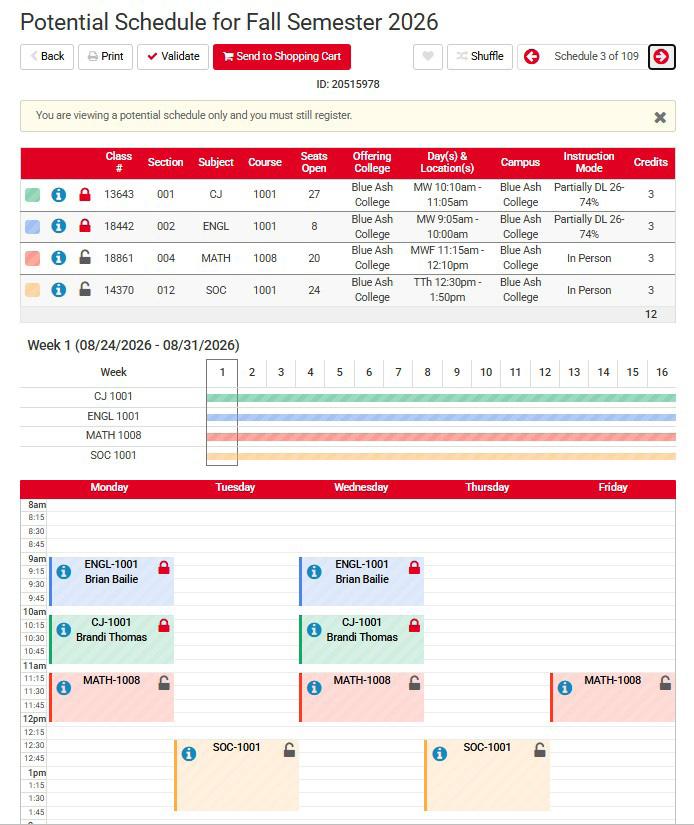
Create My Schedule is a class scheduling tool within Catalyst that allows you and your advisor to generate possible schedules and visually compare course options to find your optimal class schedule. Once you’ve identified your desired courses, you’ll get an overview of all possible section combinations for review and comparison. You can refine potential schedules by blocking out times reserved for activities outside of class and build schedules around specific course meeting times.
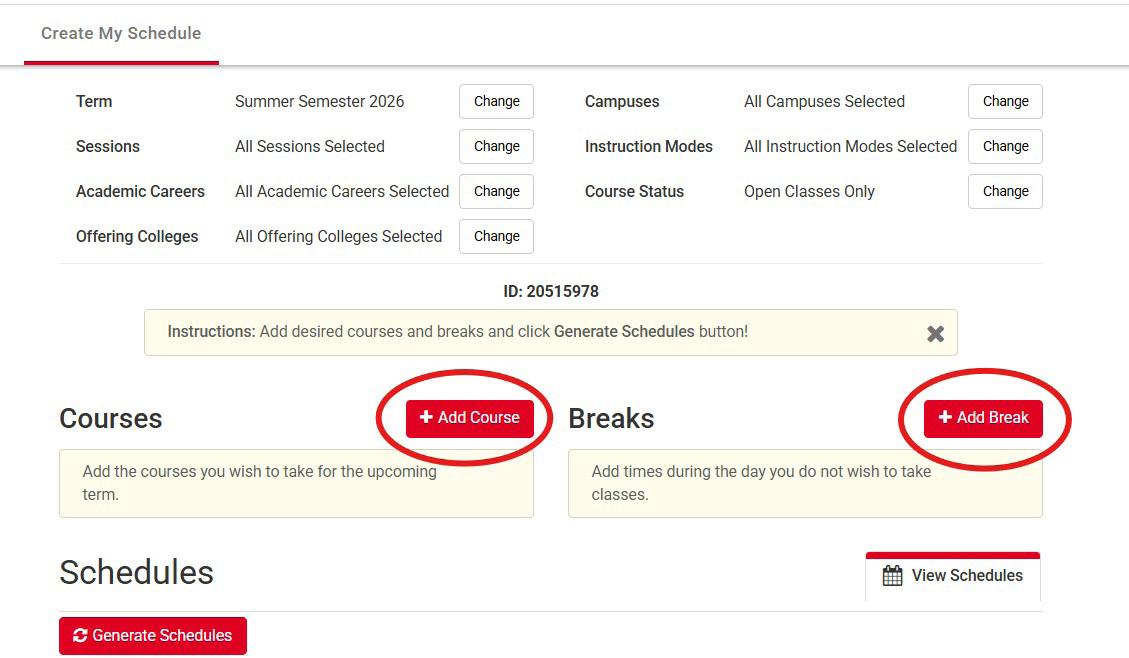

Find more information about using Create My Schedule in Catalyst!
Enrollment Services is your one stop for managing the business of being a student at University of Cincinnati. We can provide information and help you navigate the financial aid, billing, money management, registration,and student records processes. Use this guide as a quick reference tool for easy instructions on how to do your UC-related businessonline. We are located on all three campuses and meet with students via in-person, phone and email.
Visit our website at uc.edu/enrollment-services for information and instruction on the following topics.
NOTE: Access Catalyst through Student Tools in the Bearcat Portal
• Add or Drop a Class
• View Your Class Schedule
• View Your Degree Audit
• View Your Grade Report
• Obtain Enrollment or Degree Verification
• Order a Transcript
• Accept/Decline Financial Aid
• View Your Billing Information
• Pay Your Bill
• Enroll in a Payment Plan
• Enroll in Direct Deposit
• Download Your 1098-T
• Check Status of Health Ins. Waiver
• Federal and State financial aid (grants and loans) posts to your bill 10 days prior to the start of the term. Students should check their bills before calling with questions.
• You may view your bill by logging into your Bearcat Portal or Catalyst account and navigating to the My Finances tile. You will be able to see when grants, loans and scholarships have posted to your bill. You will also see when refund checks are mailed or funds are direct deposited. Bills are not sent by mail. We suggest that students check their bills often, as changes in registration will be reflected on the bill.
• If you would like a third party (such as a parent or guardian) to have access to your record to view/pay your bill, view financial aid or view class schedule and/or grades, The Family Education Rights and Privacy Act of 1974 (FERPA) requires a release by the student. You can grant access
by logging into your Catalyst account and selecting Quick Links & Helpful Contacts and Give Parent/Guest Access
.
• Direct Deposit allows you to receive any financial aid refunds directly to your designated bank account. Sign up on your Catalyst account under the My Finances tile and select Billing Information then Direct Deposit Enrollment.
• Students may sign up for a payment plan. Sign up on your Catalyst account under the My Finances tile and Billing Information then Payment Plan Enrollment
• If your bill remains unpaid, late fees will be added. Late fees are assessed on the last day of every month. A $50 flat late payment fee plus 1.5% interest will be charged on balances greater than $200.
For more information, visit uc.edu/about/ bursar/past-due-accounts.html
The University of Cincinnati requires all students registered with 6+ credit hours to be covered by a health insurance policy; either the University’s Plan policy or a policy that is equal to or better than UC’s. Find more information about the UC Student Health Insurance plan at uc.edu/ uhs/student_health_insurance
• Delegate Access to Your Account Info
• Check for Outstanding Required Actions
• Update Your Address/ Phone Number
• Get Your UCID (M#) or Username
• UC students enrolled in 6 or more credit hours are required to have health insurance; all students, therefore, are automatically enrolled in the University Health Insurance plan. If you have existing health insurance, you must waive the University Health Insurance by completing the Health Insurance task from your Bearcat Portal. Health insurance must be waived each academic year and may need to be waived each semester. Please be aware of strict deadlines to complete this waiver. Students may check the status of their health insurance in their Catalyst account. Please allow up to 30 days for processing the waiver and removal of this fee from your bill,if approved. For information, visit uc.edu/uhs/student_health_insurance
Get Your FSA ID
• Go to studentaid.gov and select Create Account
• Parent(s) of dependent students will need their own FSA ID.
• A personal FSA ID will be required of each person who is required to supply tax information on the FAFSA.
Complete a FAFSA
• Go to https://fafsa.gov
• Fill out the 2026-27 FAFSA with 2024 tax information (1040’s, W2’s, untaxed income information).
• You’ll be able to provide consent and approval to have most of your financial information imported directly from the IRS, but you should keep your tax return handy for additional questions.
• You may need information for both student and parent(s).
• The school code for all University of Cincinnati campuses is 003125
• If you need assistance, call (513) 556-1000.
Once your admissions application is complete, you may go on-line to check your Financial Aid Award Offer. Please note that financial aid is awarded based on full-time status for the entire academic year. To better understand your award offer, please visit UC Blue Ash Enrollment Services, call 513-556-1000 or email enrollmentservices@uc.edu.
• Go to your Bearcat Portal and view your Tasks for any requirements and steps needed to secure your 2026-27 financial aid. Accept/Decline your aid as needed. You may be asked to provide more information regarding income, household size, high school completion, or identity. For more information, visit uc.verifymyfafsa.com
• If you accept loans, you must complete the undergraduate Direct Loan Entrance Counseling and a Master Promissory Note. Follow steps on your Bearcat Portal Tasks to complete these.
Students may also complete these steps at studentaid.gov.
UC Blue Ash Enrollment Services
Muntz 153 (513) 556-1000 enrollmentservices@uc.edu uc.edu/enrollment-services QUESTIONS
If your parent wants to accept a Parent PLUS Loan, an application and separate Master Promissory Note will be required. They can complete these items at studentaid.gov with their own FSA ID.




Follow us on Twitter twitter.com/ucenrollment
Follow us on Instagram instagram.com/ucenrollment
Follow us on TikTok tiktok.com/@ucenrollment
Ask yourself these questions:
• Have I looked at the available options?
• What majors stick out to me?
• What are my expectations of the majors?
• What are my strengths, weaknesses, and interests?
There are a lot of students who are unsure of what they want to do when they get to college. There are even more students who change their major in the first year. Reflect on yourself, don’t be afraid to ask questions, and do research on what interests you.
Catalyst Username: ____________________________
Catalyst Password setup
“Forgot My Password” setup
Financial Agreement Hold - lifted
Duo Authentication App downloaded
Duo Authentication setup
Download free Office 365 software
Explore New Student Orientation Canvas site
Check Bearcat Portal regularly
Resources: Career information: O*NET https://www.onetonline.org
UCBA Majors & Programs https://ucblueash.edu/academics/majors.html
Find Your College Major Assessment https://uc.mymajors.com/quiz
*** If you have any questions about programs or reservations about the majors you are thinking about after your orientation day, please feel free to call Advising + Academic Services at 513-558-9442 to talk with an Exploratory Advisor ***
Catalyst Setup catalyst.uc.edu
Financial Agreement Hold bit.ly/BursarHold
DUO Authentication bit.ly/UC-duo
Office 365 Software bit.ly/UC_Office365
UC Canvas uc.instructure.com
Canopy canopy.uc.edu
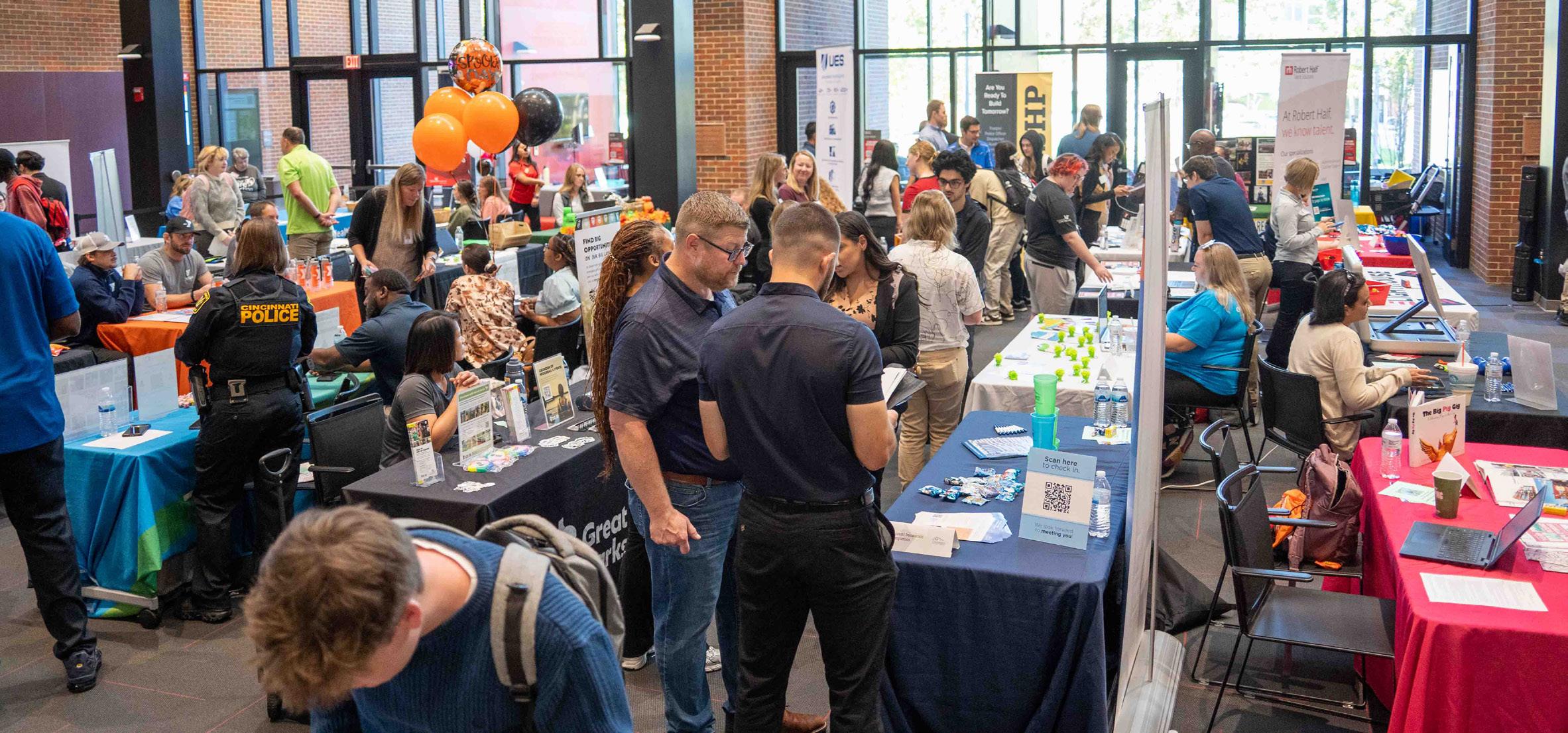
UC Blue Ash Career Services is here to help with all things related to career education and professional development. Need a resume? Career Services can help you create one that shines! Need help preparing for an interview? Come in for a mock interview! The Career Services Office will work with you through in-class instruction or one-on-one sessions to navigate the career-readiness process no matter the need.
Career Services can help you with:
• Resume & Cover Letter Writing
• Co-ops & Internships
• Interviewing Preparation
• Proper Business Etiquette
• Career Exploration and Coaching
• Job Searching
• Professional Development & Support
• Employer/Networking Relationships



Connect. Engage. Learn. Grow
UC Blue Ash College’s Division of Student Life and Success (SLS) fosters a welcoming campus community by providing student-centered support to empower students as they navigate their academic journey. SLS creates opportunities for students to connect, engage, learn, and grow as they transition to and through college.


As a new Bearcat, are you looking to meet new friends, discover campus events, join student organizations, and connect with campus offices? GetInvolvedUC is the place to find everything you’re looking for!
Success Coaching offers personalized support services to help students navigate college, overcome challenges, gain skills and get connected to resources to succeed at UCBA. CPS graduates enroll in the Success Coaching Seminar with an assigned success coach, but services are available to all students. If you are interested in participating, complete the interest form.

Get confidential support navigating college processes, addressing barriers interfering with academic success and gain support with accessing community resources and benefits, and more from our Program Director of Social Services and Wellness by completing the Referral Form. Basic Needs Resources also available.

Need a Bearcat Card ID?
Student IDs are printed on-site during set times each semester. You can also easily upload your photo using the QR code and request your card to be printed. Stop by Student Life & Success for any assistance!
RecRe Lockers
Student Life & Success Muntz 150 513-558-9429
UCBlueAshSLS@uc.edu ucblueash.edu/studentlife
Looking for something to do?
We’ve got you covered! Our new RecRe Lockers offer a variety of items to rent at no cost. Located in Muntz Hall near the bookstore.
The Student Veteran Affairs Office supports Veterans, military members, and their families with benefits counseling, events, and resources. Contact them at 513-556-9423 or ucbavets@uc.edu.


August 21, 2026!