
Statements Statements Accessing Your Monthly Club Accessing Your Monthly Club & Setting Up Auto Pay & Setting Up Auto Pay
How to Access Your Monthly Statement
Access “My Statement” portal
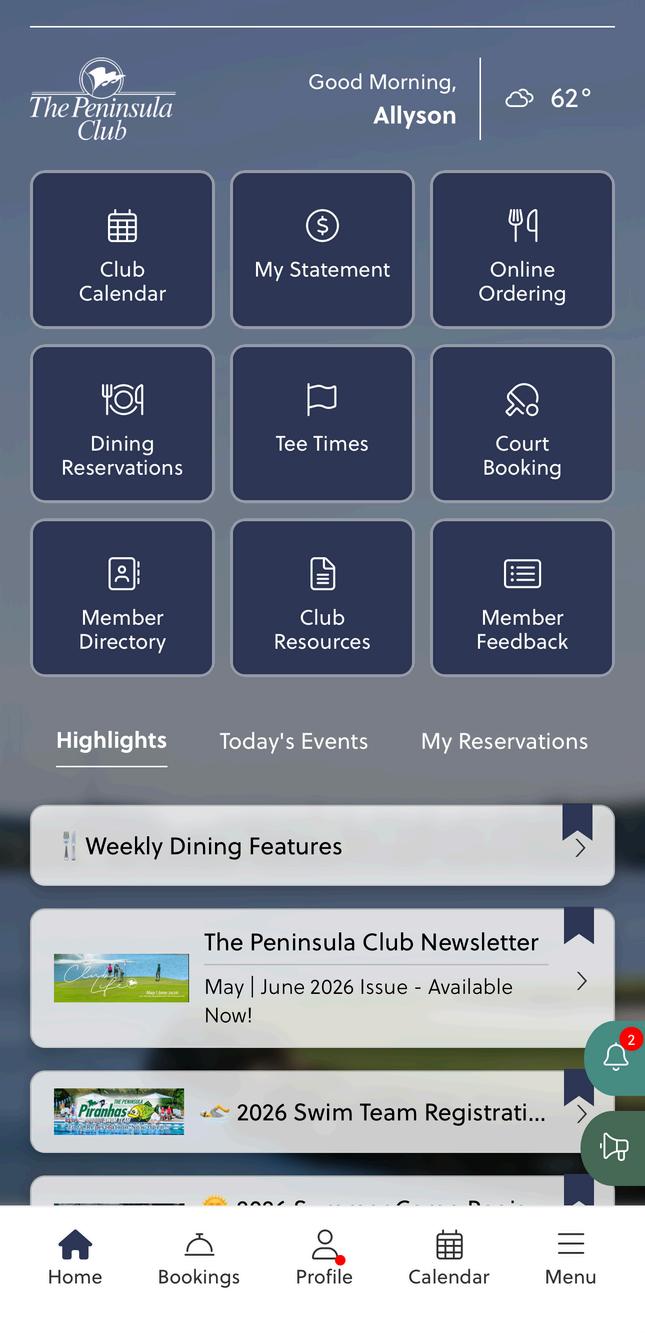
Mobile App | Click the “My Statement” button at the top of your mobile app home page.
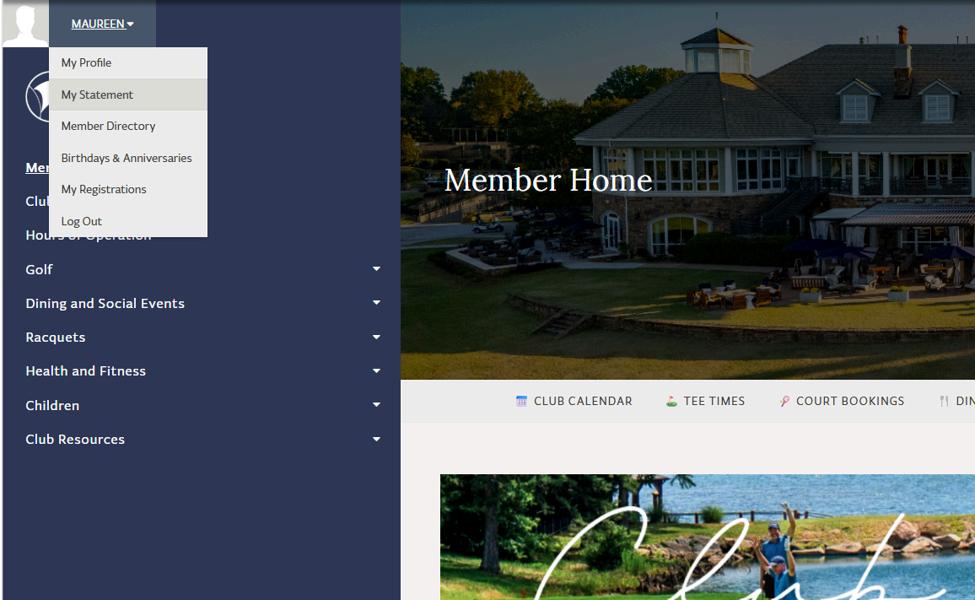
Desktop | Click your name or profile icon in the top left corner to toggle the drop-down menu. Select “My Statement”.


Setting Up Monthly Statement Auto Pay
You will be redirected to Clubhouse Online.
Start a Recurring Payment
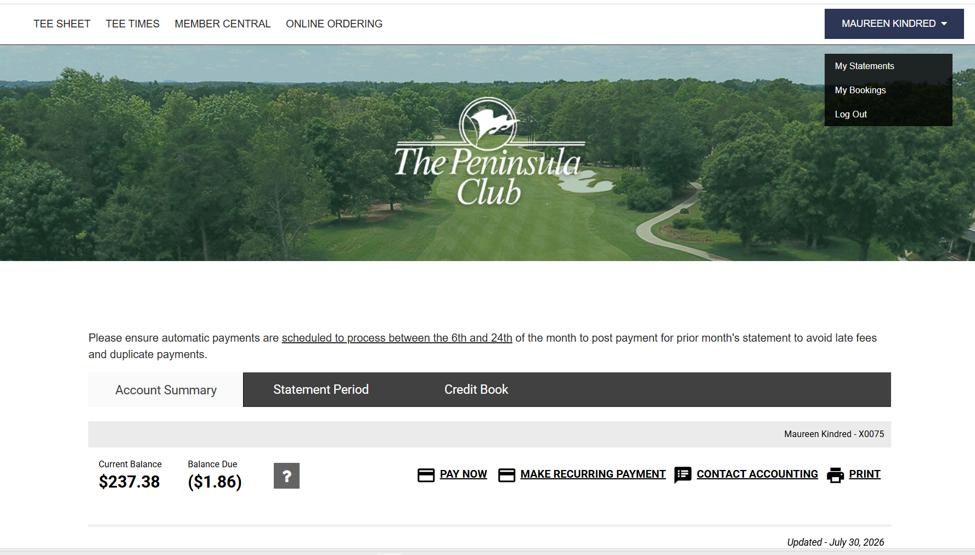
On your statement page, click ’Make Recurring Payment’.
Setting Up Monthly Statement Auto Pay
Under Create New Recurring Payment, select the following options:
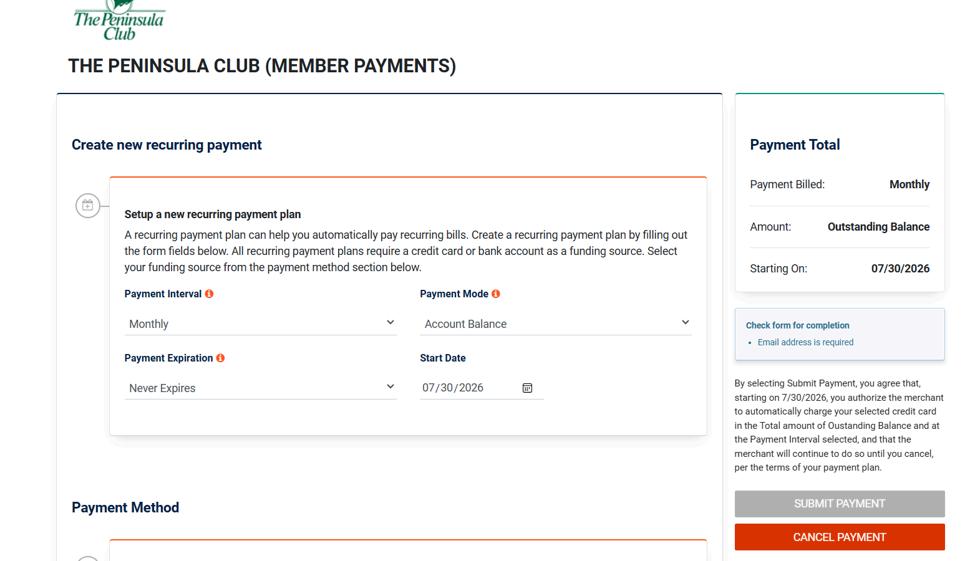
Payment Interval: Monthly
Payment Mode: Account Balance
Payment Expiration: Never Expires
Start Date: Choose a date between the 6th and 24th of each month. This ensures your payment is applied to the previous month's statement and helps avoid late fees or duplicate payments.
Setting Up Monthly Statement Auto Pay
Under Select Your Payment Method select your preferred payment (Credit/Debit Card or Electronic Bank Account/ACH).
Enter the required payment information.
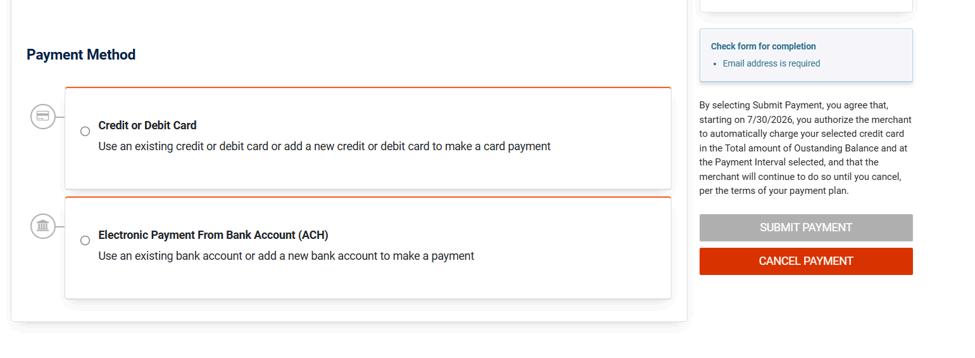
Review your information, then click Submit Payment to activate your recurring monthly payment.