CONGRATULATIONS + THANK YOU FOR YOUR PURCHASE. HERE IS YOUR MANUAL + LAUNCH CHECKLIST FOR YOUR NEW 3 DAY WEBSITE TEMPLATE - TINY HANDS! If we haven’t met.. Hi, I am Dani. My biggest passion (outside of chipotle and a good scotch) is helping the good-doers of the globe, change the world. So get ready to truly OWN + feel confident with your new website!
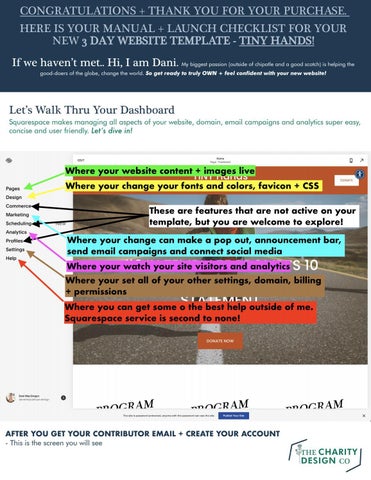
Let’s Walk Thru Your Dashboard Squarespace makes managing all aspects of your website, domain, email campaigns and analytics super easy, concise and user friendly.
AFTER YOU GET YOUR CONTRIBUTOR EMAIL + CREATE YOUR ACCOUNT - This is the screen you will see
PAGES
Under pages you control all of your content + images Simply drag and drop any additional pages that you want in the “MAIN NAVIGATION” area. OR leave the pages in the “NOT LINKED” section for a cleaner look.
BEFORE YOU ATTEMPT EDITS Please view the videos below. WALK THRU
VIEW VIDEO CONNECTING DONORBOX
VIEW VIDEO
GET DONORBOX
CONNECTING FORMS
VIEW VIDEO
TO EDIT TEXT
Triple click on the actual page window you want to edit. The page will expand. Then retype, edit, delete like you would in a word document or email.
TO ADD A BLOCK
Hover where you want to add an element and a blue bar and + will appear. CLICK on it and options will appear. Choose what you would like. Drag and drop where you want and remember to save.
TO ADD A SECTION
Hover between sections and a blue button will appear. CLICK this button and a new window will appear. Use the filters and options to help select a layout that will work for what you are wanting to create and use it as a starting point.
TO CHANGE AN IMAGE
Click on the image you want to change. A box will pop up and from there you can trash the image and drag and drop in your new image. You can change the focal point (white circle) to change the view point.
TO EDIT EVENTS
Under “Events” the ··· will allow you to duplicate an event or go into the settings. In the settings, you set the name, the look or logo, and details like time, location, date.
TO CHANGE A BACKGROUND IMAGE
Click on the section you want to change the background image. Click the paint/pen icon that comes up on the right hand side. This will open an options box. This options box is just like your other image boxes. Change the image to whatever you would like.
TO EDIT PROGRAMS
Under “Programs” the ··· will allow you to adjust the settings on a program or delete it. In the settings, adjust the name, url and image. Then on the program page, edit and adjust content by text and image edits.
TO EDIT THE HEADER + FOOTER
Click on any page. Then hover over the header or footer. Click on the “EDIT HEADER/FOOTER” Button. From there, another window will pop up and give you options for adjustments and customizations.
TO CHANGE YOUR LOGO
While editing your header, find the “Site Title & Logo” section with the header window. That will bring you to another window of options where you drag and drop in a png/no background image to your website header. Resize with the sliders as needed.
DESIGN
Under design you can add a favicon, add css, update fonts + colors Under “Design > Browser Icon” is where you update the favicon. This is a icon of your logo with no background. CSS is customization that I have already uploaded for you but you are welcome to add more.
TO CHANGE FONTS + COLORS
Under “Design > Site Styles” a panel will open on the right side of the browser window. This panel controls the look of your website. I advise you to change the colors but leave the settings on the pages and blocks “as is”. I also advise to update fonts based on packs. If you need more help, feel free too reach out.
I can help you apply your brand colors and fonts.
ADD THIS FOR JUST $100 BRANDING APPLICATION
$100
MARKETING
Under Marketing you can manage a lot of your charity
Here you handle SEO settings, connect that Google Business Listing we got started on with your welcome packet and connect all of your social media. You can also create and design a pop up as well as an announcement bar.
SETTINGS
Under Settings you can manage your account
Here you handle the site visibility, make sure to go thru all of the green sections, add team members, connect your url and get a custom email@domain.com with google workspace as well as manage your billing.
I AM SO EXCITED YOU DECIDED TO GET SERIOUS ABOUT BEING FOUND BY YOUR DONORS & GOOGLE. Hello, I am Dani.
My biggest passion (outside of chipotle and a good scotch) is helping the good-doers of the globe, change the world. So get ready to get found by your donors and google with 3 easy steps!
#1
Get a Google Business Listing One of the easiest and best ways to get listed & noticed in search results is to get your business verified by its own pretty little box in the google search window. Sound expensive or time consuming?!? Its not. Its FREE and super easy!
STEP 1 - Log into a commonly used gmail account that you use for your charity. This can be an admin level or another level but it needs to be accessible by those who you want to have control over this listing. STEP 2 -
se
f the o e n get o s! oy bad b
GO TO GOOGLE BUSINESS LISTING
STEP 3 - Follow the steps and complete registration. If you can, be sure to add in logos, images, and important information like hours, phone & website. *Its important to note, Google no longer requires you to share you physical address or have a brick and mortar location to have one of these spiffy listings. So if you are just starting out and still being a crusader for good while in a home office, you do not have to share your location.* STEP 4 - Wait a few days. Google will send a postcard to the address you provided (make sure you gave a good one) with a verification code that will signify that YOU are YOU. When that postcard arrives, simply log back into your Google Business Listing using the same account you identified before. There will be a orange box around where you will need to input the code. STEP 5 - Do the Happy Dance! You did it! Congrats and well done! See wasn’t that easy and awesome!? Check out #2 for another easy and free step to get found and noticed by your donors and google.
look for t his be orange to then cleared
#2
Upload your Sitemap to Google Search Console If you have a website up, nudging Google to notice and “crawl” your site is another way to say “Hey! I’m here! Look at me!”. This will get your important pages like DONATE and EVENTS a better chance to get noticed!
STEP 1 - GO TO GOOGLE SEARCH CONSOLE. STEP 2 - Make sure you are logged into a common admin account much like you were for the google listing. You will want access to this account. Make sure its a good gmail account that you will remember and is tied to your charity. STEP 3 - Click the Blue “Start Now” STEP 4 - You are going to click “add property” under the search drop-down. A pop-up window will appear with two options: Domain or URL Prefix. Choose URL Prefix and paste your domain name in the box making sure to include the full URL (https:// and all). STEP 5 - Click continue, and cross your fingers! It just might connect your site right there. No further verification needed. If not, I got you covered! STEP 1A - Click back out to the Google Search Console and again click “add property under the search drop-down and allow the pop-up window to appear. This time, you will click “DOMAIN”. STEP 2A - Input your domain name simply in .com format, without the https or www. and click “Continue”. This will give you a verification code. This code will need to be copied completely and pasted into your Squarespace website. STEP 3A - Log back into your Squarespace website and navigate to Settings > Advanced > Code Injection > paste that code into the Header. STEP 4A - While still in Squarespace, go to Settings > Domains > click on your connected domain > Advanced Settings > now we’re going to add the code as a TXT record. At the bottom of the table, you’ll see an “ADD” button. This has a drop-down menu in the same line. Click the drop down menu, choose TXT, then paste the verification code into the box, click Add. Save any changes. STEP 5A - Open back up your Google Search Console and see if its verified now. It might take a day but you just did some hard DNS stuff! CONGRATS!
#2·
The Hard Part is Done! Almost there! Now, its really simple. Promise! This is one of the main reasons why I love Squarespace so much, the makes Sitemaps and usually heavy Tech things simple. Just Watch how easy this is, you will feel like a hacker, guaranteed!
STEP 6 - While in the Google Search Console and find your property/url listed in the drop-down. STEP 7 - Click on “Sitemaps” STEP 8 - Here is a serious perk of Squarespace, simply add “sitemap.xml” into the box after the domain. Then click “Submit”. STEP 9 - That is it! Told ya! Super easy, wicked perk. You feel like you could do something major now right?!? Just remember, anytime you make major site changes, new pages etc you should come back in and again navigate to “sitemaps” - type “sitemap.xml” and click “Submit” to nudge google to check out your new pages.
#3
Create + Connect Google Analytics Google Search Console will give you some analysis of your search results and how your site is performing but if you want the real data, you need analytics. It will do help in getting Google to notice you and get donors to your door.
STEP 1 - Under your same trusty gmail account that you have set up your business listing, and your Google Search Console, now you navigate to Admin from the “waffle” or grid menu in the top right. STEP 2 - In admin, click “Create an Account” and follow the prompts. Make sure to open “Advanced Options” and toggle on “Universal Analytics Property”. Continue inputting the required data and when you come to the option to choose between Google Analytics 4 and Universal Property, choose “Universal Property”. Continue through the set up and finally “Create”. Accept terms and “Finish”.
this is the start of accoun t creation
STEP 3 - Once you “Finish” you will be given a “Tracking ID” Copy this to your clip board. STEP 4 - Now you will navigate in Squarespace to Settings > Advanced > External API Keys and paste in that Tracking ID that you were given. Make sure to “Save” and you are done! Seriously, you rock!
api r u o s y you i s i th at h t e cod need
DID YOU GET STUCK? HAVE AN ERROR CODE? I would LOVE to help! Get my undivided attention on these integrations & troubleshooting connections so google & your donors can find you!
BOOK OUR CALL NOW
BOOK A 1HR INTEGRATIONS SESSION with me for just $150 & we will get you perfectly connected!
PLEASE BE SURE TO SET ASIDE SOME TIME TO FOLLOW ALL OF THESE STEPS FULLY + IN ORDER. GENERAL EDITS BEFORE LAUNCH #1. Review the Manual COMPLETELY
Watch all of the videos and familiarize yourself with the platform.
#2. Create a Donorbox account
Use my link and video to connect my favorite donor management system to your website seamlessly. You will also need STRIPE or PAYPAL for your charity.
#3. Connect all forms to your google drive + selected email campaign Use the manual to and this video to help you chose the best connections for your charity.
#4. Apply Content from Template Prompts
Everywhere on the site there are #s and prompts where you should insert the content you have already written. Simply copy and paste it in the sections provided. Don’t forget to update the legal pages too from your Template Prompts. SEO TIP - Use https://compressjpeg.com to compress your images + Make sure to rename all images before you upload them using some of those keywords in #1A.
#5. Change images, logos, fonts + colors
Use the manual to make your changes to the images, logo, fonts and colors to match your brand and charity.
#6. Change images, logos, fonts + colors
Use the manual to make your changes to the images, logo, fonts and colors to match your brand and charity.
#7. Review the site completely.
Make sure everything is connected. Test it out and make sure it all looks great.
#8. Do a happy dance. Take a break.
The next steps are lengthly. So take a break here and do a dance!
PLEASE BE SURE TO SET ASIDE SOME TIME TO FOLLOW ALL OF THESE STEPS FULLY + IN ORDER. DESIGN SETTINGS
Verify these items are adjusted for your charity • • • • • •
Set site title (Edit Site Header > Site Title & Logo) Change built-in domain (Settings > Domains) Add logo (Site Header > Site Title & Logo. Use transparent png file, and set height.) Add mobile logo, optional (Site Header > Site Title & Logo) Add favicon (Design > Browser Icon. Appears in browsers and tabs and makes you look like a pro.) Set main social sharing image (Design > Social Sharing. Use a photo rather than a logo, as this is often cropped.) • Set up Site Header (Edit site header on rollover.)
MARKETING
Verify these items are adjusted for your charity • SEO title & meta description (Marketing > SEO. Appears in Google search underneath your site link. Use keywords.) • SEO formats for titles, pages, and collections (Marketing > SEO)
BLOG/ PRESS/ JOURNAL
Verify these items are adjusted for your charity • Style blog posts (Set display width and hide/show meta-data, date, and more. Applies to each post in the same blog.) • Check post format is “%t” (Settings > Blogging) • Use simple liking (Settings > Blogging) • Use AMP unless there are graphics issues (Settings > Blogging) • Blog comment settings (Settings > Blogging. I would remove completely unless you want to use this as a actual blog)
PLEASE BE SURE TO SET ASIDE SOME TIME TO FOLLOW ALL OF THESE STEPS FULLY + IN ORDER. PAGE SETTINGS (FOR EACH PAGE) Verify these items are adjusted for your charity • • • •
Change Page title + url slug to match your charity needs. SEO description on each page (Use your Template Prompts to Copy + Paste one that makes the most sense) Any page-specific Social Sharing images No-index pages as needed to hide from search results (Page Settings > SEO: Hide Page from Search Results). Do this for your legal pages, 404 page, and any other pages you don’t want to show up in Google search. *THIS IS ALREADY DONE FOR YOU BUT IF YOU ADD OTHER PAGES, DO THIS* • Does each page content include a Call to Action. Give your visitors somewhere to go / something to do rather than leaving them stranded on a page.
IMAGES Verify these items are adjusted for your charity • Check on a mobile device (Adjust image focal points if needed.)
VIDEOS (IF APPLICABLE) Verify these items are adjusted for your charity • Use custom thumbnails for video embeds to speed up site
FOOTER
Verify these items are adjusted for your charity • Update content on the footer
PLEASE BE SURE TO SET ASIDE SOME TIME TO FOLLOW ALL OF THESE STEPS FULLY + IN ORDER. FORMS & NEWSLETTERS Verify these items are adjusted for your charity • Set primary storage (Where would you like the form emailed? Where should newsletter subscribers be saved? ) • Set backup storage (I advise you to use Google Sheets for backup.) • Customize post-submit message or page (Let people know what to expect and give them a chance to continue engaging with your site.) • Test all form blocks and newsletter blocks (Make sure you get the email submissions for forms and that emails are saved to the correct mailing list for newsletter blocks.)
GENERAL Verify these items are adjusted for your charity • Set up social links (Settings > Connected Accounts and/or Social Links. Add these in the header settings or using the social block to any page or footer.) Cookie banner (If you have EU lots of visitors. Settings > Cookies and Visitor Data; under Cookies & Visitor Data, check ‘Disable SQS Analytics cookies’ and uncheck ‘enable activity log’) • Check that text is easy to read and skim (Break up any long paragraphs into shorter blocks. Add headings, bullet points as needed.) • Test all links • *Add business info if there is a physical location (Settings > Business Information) You can use your google business listing • *Connect Google Search Console (Analytics > Search Keywords.) • *After sitemap is ready, submit to Google Search Console (Go to yourdomain.com/sitemap.xml, replacing yourdomain.com with your own domain, to check that the sitemap has propagated - you’ll see multiple lines of code. When ready, submit at https://search.google.com/search-console)
** These steps are also in your packet called “3 Ways for Google + Donors to Find You” - these things were apart of your checklist with your purchase. **
PLEASE BE SURE TO SET ASIDE SOME TIME TO FOLLOW ALL OF THESE STEPS FULLY + IN ORDER.
!MAKE IT LIVE!
MUST FOLLOW THESE STEPS TO OPTIMIZE YOUR SAVINGS! Please follow exactly in this order and reach out if you run into any issues
• Upgrade to a paid account (Please choose Business Annual) This optimizes your savings by using me (a circle member) and gives you a discount on a new domain + google workspace email.
• Connect your domain (Settings > Domains) Purchase a new URL if you need to using the Squarespace internal domain cart. This is a part of your hosting fees that you just purchased above with a paid account.
• Make site public (Settings > Visibility > Public)
• Check SSL (After domain propagates, set SSL and HSTS to secure. Settings > Advanced > SSL.)
!MAKE AN IMPACT!
IF YOU ARE A 501C3, YOU HAVE FREE MONEY WITH GOOGLE! Google Ad Words has their Google Grant for all qualifying 501C3’s! And I have some friends who can help you optimize this FREE, $10K a month GIFT from Google Ad Words.
CHECK OUT THEIR VIDEO SEO TIP - Use NONPROFIT MEGAPHONE to manage your Google Grant with Google Ads. Here’s why: • They are specifically dedicated to working on the Google Grant - this makes them the expert in the field! • Their Grant Managers choose accounts they connect with, so they are passionate about your mission too! • They have built a number of proprietary tools to make our Grant Managers even more effective in optimizing your Google Grant. • Their dedicated team of specialists working on your account have completed months of rigorous training, passed certifications, and learned all of the grant management best practices. • They offer a variety of Add-On Services to provide additional value, such as content creation. • They have a direct relationship with the Google Grants team and the Head of the Grants program allows them to get answers quickly and stay up-to-date with new developments. • They collaborate with your team to ensure alignment with your goals and mission.
CONTACT NON PROFIT MEGAPHONE I REALLY HOPE YOU WILL REACH OUT TO THEM AND MAKE SURE YOU TELL THEM YOU ARE A CHARITY DESIGN CO CLIENT!