IT STUDENT GUIDE · HANDS-ON
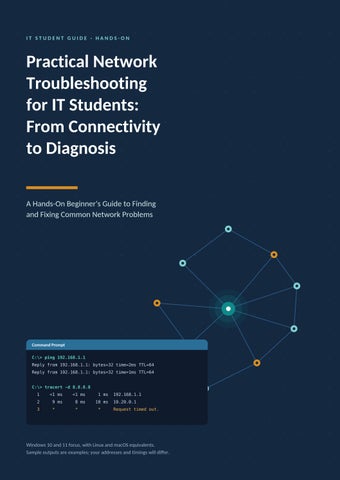
Practical Network Troubleshooting for IT Students: From Connectivity to Diagnosis A Hands-On Beginner's Guide to Finding and Fixing Common Network Problems
Command Prompt C:\> ping 192.168.1.1 Reply from 192.168.1.1: bytes=32 time=2ms TTL=64 Reply from 192.168.1.1: bytes=32 time=1ms TTL=64
C:\> tracert -d 8.8.8.8 1
<1 ms
<1 ms
1 ms
192.168.1.1
2
9 ms
8 ms
10 ms
10.20.0.1
3
*
*
*
Request timed out.
Windows 10 and 11 focus, with Linux and macOS equivalents. Sample outputs are examples; your addresses and timings will differ.
PRACTICAL NETWORK TROUBLESHOOTING
2
Sample outputs are examples; your values will differ
Understanding Network Connectivity How a device reaches the local network and the internet
When you open a web page, your request passes through several devices before an answer returns. Knowing each device’s job tells you where to look when something breaks. If you can reach the router but not the internet, investigate the router’s internet connection, DNS settings, and the ISP connection.
LOCAL NETWORK
BEYOND YOUR ROUTER
Wi-Fi or cable
fibre, cable, or DSL line
Your computer
Router (default gateway)
ISP
Internet
network adapter
often combined with modem or ONT
your provider
websites and servers
Figure 1. The path from your computer to the internet.
Who does what • Network adapter: the hardware and driver that lets your computer use Wi-Fi or Ethernet. • Router: joins your devices to each other and to the internet. Its address on your network is your default gateway. • Modem (or fibre terminal, ONT): converts the ISP’s line signal into a form the router can use. Many home devices
combine router and modem in one box. • ISP (Internet Service Provider): the company that connects your network to the wider internet.
Your adapter joins the router by Wi-Fi or cable, and the router gives your device an address. Traffic for other local devices stays inside the network. Everything else goes to the router, then through the ISP.
Local problem or internet problem? Local network problem
Internet connectivity problem
You cannot reach your router or other local devices. Typical signs: no valid IP address, the gateway does not answer, or Windows reports limited connectivity.
You can reach the router, but not sites beyond it. Typical signs: the gateway replies, outside addresses do not, and other devices are offline too.
The troubleshooting mindset Good troubleshooters work in a fixed order and change one thing at a time. 1 Identify the symptom
2 Check the basics
3 Test connectivity
4 Isolate the problem
5 Verify the fix
What exactly fails?
Cables, Wi-Fi, power
ipconfig and ping
Local, ISP, or DNS?
Retest the symptom
TRY IT
Open Command Prompt (press the Windows key, type cmd, press Enter) and run ipconfig. Find the line Default Gateway. That is your router’s address on the local network.
Practical Network Troubleshooting for IT Students
2/9
PRACTICAL NETWORK TROUBLESHOOTING
Sample outputs are examples; your values will differ
IP Addresses, Subnets, Gateways, and DHCP
3
The settings every device needs before it can communicate
An IPv4 address identifies a device on a network. It has four numbers from 0 to 255, separated by dots, such as 192.168.1.25. Addresses beginning 192.168, 10, or 172.16 to 172.31 are private: they work inside a home or campus network and are not directly reachable from the internet.
Subnet mask and default gateway The subnet mask tells your computer which addresses are on the same local network. With 255.255.255.0, devices that share the first three numbers (192.168.1.x) are local and reached directly. IP address
192 255
. .
168 255
. .
1 255
. .
25
Network part: the same for every device on this local network (192.168.1.x).
0
Device part: unique to each device. In this example, the first three 255 values identify the network portion, while the final 0 identifies the host portion.
Subnet mask Figure 2. Reading an address and mask together, without any binary.
An address outside the local network, such as 8.8.8.8, cannot be reached directly. Your computer sends that traffic to the default gateway, usually the router at 192.168.1.1. Without a gateway, a computer can talk to local devices but not to the internet.
DHCP: automatic configuration DHCP (Dynamic Host Configuration Protocol) is a service, usually running on the router, that hands out settings automatically. The address is leased for a set time, then renewed. A new device and the router exchange four messages, shown below.
Settings the laptop receives
Laptop
IP address
192.168.1.25
Subnet mask
255.255.255.0
Default gateway
192.168.1.1
DNS server
192.168.1.1
Lease time
24 hours
Router (DHCP server) 1 DISCOVER Is there a DHCP server?
2 OFFER You may use 192.168.1.25
3 REQUEST I accept 192.168.1.25
4 ACKNOWLEDGE Confirmed, lease: 24 hours
Figure 3. Sita’s laptop joins her home Wi-Fi and receives its configuration from the router.
When DHCP fails: 169.254.x.x If Windows asks for an address and gets no answer, it assigns itself an APIPA (Automatic Private IP Addressing) address in the 169.254.x.x range, with mask 255.255.0.0 and no default gateway. This address only works with other self-assigned devices on the same link. A 169.254.x.x address commonly means the device failed to obtain a DHCP lease. It does not prove one specific fault: a weak Wi-Fi signal, a bad cable, a stopped DHCP service, or an adapter problem can all produce it. TRY IT
Run ipconfig /all and find DHCP Server, Lease Obtained, and Lease Expires. On most home networks the DHCP server is also your gateway. Practical Network Troubleshooting for IT Students
3/9
PRACTICAL NETWORK TROUBLESHOOTING
4
Sample outputs are examples; your values will differ
DNS and How Name Resolution Works Why a website can fail even when your connection is fine
People use names such as www.example.com. Computers need IP addresses. The Domain Name System (DNS) translates one into the other, like a phone book. Your computer asks a DNS resolver, often the router, which answers from its cache or asks other DNS servers.
1 "Where is www.example.com?"
DNS resolver router, ISP, or public DNS checks its cache or asks others
2 "It is 203.0.113.50"
Your computer
3 The browser now connects to the IP address
(browser)
Web server 203.0.113.50
DNS only translates the name. If step 1 or 2 fails, the web server may be perfectly reachable. Figure 4. Name resolution happens before the browser connects to the web server.
DNS and connectivity are separate problems IP connectivity means packets can travel between devices. DNS means names can be translated. Either can fail alone. If DNS fails, a browser may say the server’s address could not be found, even though your internet link works.
Looking up a name with nslookup nslookup asks a DNS server to translate a name. It shows which server answered and which address it returned. Command Prompt (Windows)
Command Prompt (Windows)
C:\> nslookup www.example.com Server: router.lan Address: 192.168.1.1
C:\> nslookup www.example.com Server: router.lan Address: 192.168.1.1
Non-authoritative answer: Name: www.example.com Address: 203.0.113.50
*** router.lan can't find www.example.com: Non-existent domain (a mistyped or unknown name)
Left: a successful lookup. “Non-authoritative” only means the answer came from a cache, which is normal. Right: the server replied but has no record of that name. A timeout instead would mean the DNS server itself is not answering.
Telling DNS apart from a general connectivity problem Ask two questions: does ping 8.8.8.8 work, and does ping www.example.com work? Ping by IP address
Ping by name
What it suggests
Works
Works
Connectivity and DNS both look fine.
Works
Fails
IP connectivity is fine, so suspect DNS.
Fails
Fails
Fix connectivity first. DNS cannot be judged yet.
Fails
Works
Unusual. That one address may block ping.
ILLUSTRATIVE EXAMPLE, NOT A UNIVERSAL TEST
If a site will not open by name but pings fine by IP address, DNS is a likely suspect. Browsing to a raw IP address often fails even when DNS is healthy, because many servers host several sites on one address. Use the two-question test as a clue, then confirm with nslookup.
Practical Network Troubleshooting for IT Students
4/9
PRACTICAL NETWORK TROUBLESHOOTING
5
Sample outputs are examples; your values will differ
Essential Troubleshooting Commands Six tools, what they show, and what they cannot prove
Run these in Command Prompt. Linux and macOS equivalents are in the notes. Addresses in 203.0.113.x and 198.51.100.x are reserved for documentation.
1 ipconfig and ipconfig /all C:\> ipconfig /all DHCP Enabled. . . . . . . . . . . : Yes IPv4 Address. . . . . . . . . . . : 192.168.1.25(Preferred) Subnet Mask . . . . . . . . . . . : 255.255.255.0 Default Gateway . . . . . . . . . : 192.168.1.1 DHCP Server . . . . . . . . . . . : 192.168.1.1 DNS Servers . . . . . . . . . . . : 192.168.1.1
Shows your address, mask, gateway, DNS servers, and DHCP details. Read it: a valid address and gateway are good signs. Limit: it shows settings, not whether they work. Linux: ip addr, ip route. macOS: ifconfig.
2 ping C:\> ping 192.168.1.1 Reply from 192.168.1.1: bytes=32 time=2ms TTL=64 (three more replies) Packets: Sent = 4, Received = 4, Lost = 0 (0% loss)
Shows whether a host answers and how long a round trip takes. Limit: silence does not prove a host is offline, because firewalls may block ping. Linux/macOS: ping -c 4 host.
3 tracert (Windows) and traceroute (Linux/macOS) C:\> tracert -d 8.8.8.8 1 <1 ms <1 ms 2 9 ms 8 ms 3 * * (more hops follow)
1 ms 10 ms *
192.168.1.1 10.20.0.1 Request timed out.
Shows routers along the path and the delay to each. -d skips name lookups. Limit: it does not reveal every device, and a * is not proof of a fault. Linux/macOS: traceroute -n host.
4 nslookup C:\> nslookup www.example.com Server: router.lan Address: 192.168.1.1 Non-authoritative answer: Name: www.example.com Address: 203.0.113.50
Shows which DNS server answered and the address it returned. Limit: it queries the DNS server directly, so it can differ from what your browser uses. Add a server to test it: nslookup name 8.8.8.8.
5 ipconfig /release and ipconfig /renew C:\> ipconfig /release C:\> ipconfig /renew IPv4 Address. . . . . . . . . . . : 192.168.1.25 Default Gateway . . . . . . . . . : 192.168.1.1
Shows whether the DHCP server grants a new lease. Run Command Prompt as administrator. Limit: it does nothing for a manually set address, and release drops your connection briefly.
6 ipconfig /flushdns C:\> ipconfig /flushdns Successfully flushed the DNS Resolver Cache.
Practical Network Troubleshooting for IT Students
Clears the names your computer has cached. Run as administrator. Limit: it cannot fix a DNS server that is down, and browsers keep their own caches too.
5/9
PRACTICAL NETWORK TROUBLESHOOTING
6
Sample outputs are examples; your values will differ
Using Ping and Traceroute to Diagnose Problems Test outward from your own computer, one step at a time
Ping sends small ICMP (Internet Control Message Protocol) echo requests to a target. If the target replies, ping reports the round-trip time in milliseconds. Ping outward in three steps: 1 Ping yourself
2 Ping the gateway
3 Ping outside
127.0.0.1: is my TCP/IP software working?
192.168.1.1: can I reach my router?
8.8.8.8: can I reach beyond the router?
Command Prompt (Windows)
C:\> ping 127.0.0.1 Reply from 127.0.0.1: bytes=32 time<1ms TTL=128 C:\> ping 192.168.1.1 Reply from 192.168.1.1: bytes=32 time=2ms TTL=64 C:\> ping 8.8.8.8 Reply from 8.8.8.8: bytes=32 time=24ms TTL=117 (one reply shown for each; Windows sends four by default)
Pinging 127.0.0.1 never leaves your computer, so it only tests your TCP/IP software, not your cable or Wi-Fi. A reply from 8.8.8.8 shows that ICMP traffic can travel that far. It does not prove every website or app will work.
Reading ping results Result
What it may indicate
Replies, steady low times
The target is reachable and the path is healthy.
Request timed out
No reply came back. The host may be down, a firewall or policy may block ICMP, or packets are being lost.
Destination host unreachable
A router, often your own, reports it cannot reach that address. Check the address and gateway.
Some packets lost, or times vary widely
An unstable link, such as weak Wi-Fi or congestion. Repeat the test.
Traceroute: following the path Traceroute sends probes with a rising time-to-live value so that each router along the path reports back in turn. Each line is a hop: three timings and the router’s address. Command Prompt (Windows) C:\> tracert -d 8.8.8.8 Tracing route to 8.8.8.8 over a maximum of 30 hops 1 2 3 4 5 6
<1 ms 9 ms 11 ms * 21 ms 23 ms
<1 ms 8 ms 10 ms * 22 ms 24 ms
1 ms 10 ms 12 ms * 21 ms 23 ms
192.168.1.1 <- your router (gateway) 10.20.0.1 <- first router at the ISP 203.0.113.1 Request timed out. 198.51.100.9 8.8.8.8 <- destination
Trace complete.
• Hop 4 timed out, yet hops 5 and 6 replied. That router simply did not answer probes, so the path still works. Some routers block or deprioritise diagnostic traffic. • If every hop after one point times out, the fault may lie there, or replies may be blocked. Combine the trace with ping before deciding. • A trace never shows every device on the path. Windows tracert uses ICMP; Linux and macOS traceroute uses UDP probes by default, so results can differ. Practical Network Troubleshooting for IT Students
6/9
PRACTICAL NETWORK TROUBLESHOOTING
7
Sample outputs are examples; your values will differ
Basic Configuration and Common Fixes Beginner-level steps, in a sensible order (Windows 10 and 11)
1
Check Wi-Fi or Ethernet status
2
Verify the IP settings
3
Restart the adapter or reconnect
4
Renew the DHCP lease
5
Flush the DNS cache
6
Check proxy and VPN settings
7
Restart the router, when appropriate
Look at the network icon in the taskbar. Confirm Wi-Fi is on, Airplane mode is off, and you joined the right network. For Ethernet, check the cable and the link lights on the port.
Run ipconfig /all and check four values: IPv4 address, subnet mask, default gateway, and DNS servers. On a home network they usually look like 192.168.1.x with a gateway of 192.168.1.1.
Open Settings, Network & internet, Advanced network settings (Windows 11) or Status, Change adapter options (Windows 10). Disable the adapter, then enable it. You can also run ncpa.cpl. For Wi-Fi, disconnect and reconnect first. If you choose Forget, keep the password ready.
Open Command Prompt as administrator and run ipconfig /release, then ipconfig /renew. The new lease replaces the old one.
In the same administrator window, run ipconfig /flushdns. Do this when names fail to resolve or point to an old address.
Open Settings, Network & internet, Proxy. Unless your organisation requires a proxy, manual proxy settings should be off. If a VPN is connected, disconnect it and retest, because VPNs can change DNS servers and routes.
If several devices are affected and your tests point beyond the gateway, switch the router off for about 30 seconds, switch it on, and wait a few minutes. This disconnects everyone on it, so ask first on a shared network.
DO NOT START HERE
Avoid typing random IP addresses, switching the firewall off for good, or using Network reset as a first move. Network reset removes saved Wi-Fi networks and VPN adapters, so keep it as a last resort. Change one setting at a time and note the original value.
Linux and macOS equivalents Task
Linux
macOS
Show configuration
ip addr, ip route
ifconfig, networksetup -getinfo "Wi-Fi"
Renew DHCP lease
nmcli connection down NAME then up NAME
Network settings, Details, TCP/IP, Renew DHCP Lease
Flush DNS cache
resolvectl flush-caches
sudo dscacheutil -flushcache; sudo killall -HUP mDNSResponder
Both systems use the same names for ping, nslookup, and traceroute. Use -c instead of -n to set the ping count.
Practical Network Troubleshooting for IT Students
7/9
PRACTICAL NETWORK TROUBLESHOOTING
8 1
Sample outputs are examples; your values will differ
Practical Troubleshooting Scenarios Three student-level cases, reasoned one step at a time
The laptop connects to Wi-Fi but cannot reach the internet Symptom. Windows shows “Connected”, but pages and apps do not load. C:\> ipconfig IPv4 Address. . . . . . . . . . . : 192.168.1.25 Default Gateway . . . . . . . . . : 192.168.1.1 C:\> ping 192.168.1.1 Reply from 192.168.1.1: bytes=32 time=2ms TTL=64 C:\> ping 8.8.8.8 Request timed out. (all four attempts; 100% loss)
Reading the evidence. A valid address and gateway rule out a DHCP problem. The gateway responds, confirming that the laptop can communicate with the router over the local network. The problem appears to be beyond basic local connectivity. Opening a website and trying another device help confirm it is not just blocked ping. Likely cause. The router has lost its connection to the ISP (an outage, or a modem or line fault). On public Wi-Fi, a sign-in page that has not been completed is another possibility. Corrective action. Check whether other devices fail too and look at the router’s internet light. Restart the router once. If it stays down, contact the ISP with these results.
2
Websites fail by domain name, but other network tests work Symptom. The browser says the server’s address could not be found. C:\> ping 8.8.8.8 Reply from 8.8.8.8: bytes=32 time=24ms TTL=117 C:\> ping www.example.com Ping request could not find host www.example.com. Please check the name and try again. C:\> nslookup www.example.com DNS request timed out. *** Request to UnKnown timed-out (the router at 192.168.1.1 is not answering) C:\> nslookup www.example.com 8.8.8.8 Name: www.example.com Address: 203.0.113.50
Reading the evidence. Ping by IP works, so connectivity is fine. The name fails, and the configured DNS server does not answer. A different DNS server returns an address instantly. The problem is the DNS service in use, not the connection. Likely cause. The router’s DNS forwarding has stalled, or the adapter points to a DNS server that is unreachable. Corrective action. Run ipconfig /flushdns, then restart the router if it is the resolver. If it still fails, temporarily set another DNS server in the adapter settings, noting the old values so you can restore them. Also check VPN and proxy.
3
A computer has an IP address beginning with 169.254 Symptom. Windows reports limited connectivity and nothing loads. C:\> ipconfig Autoconfiguration IPv4 Address. . : 169.254.113.87 Subnet Mask . . . . . . . . . . . : 255.255.0.0 Default Gateway . . . . . . . . . : C:\> ipconfig /renew An error occurred while renewing interface Wi-Fi : unable to contact your DHCP server. Request has timed out.
Reading the evidence. The 169.254 address is self-assigned and there is no gateway. The failed renewal confirms the laptop cannot obtain a lease. This does not point to a single fault. Likely cause. The DHCP request is not reaching a working DHCP server: weak Wi-Fi, a loose cable or bad port, an adapter problem, or a router whose DHCP service has stopped or has no free addresses. Corrective action. One at a time: reconnect or reseat the cable, move closer to the access point, and retry the renewal. Test another device, then restart the router. Do not assign a static address as a first step.
Practical Network Troubleshooting for IT Students
8/9
PRACTICAL NETWORK TROUBLESHOOTING
9
Sample outputs are examples; your values will differ
A Systematic Troubleshooting Checklist A reusable routine for any failed connection
1 Identify the exact problem. What fails, on which device, since when?
6 Investigate DNS if necessary. nslookup and ping by name.
2 Check physical and wireless connections. Cable, Wi-Fi, Airplane mode, adapter.
7 Examine the route when appropriate. tracert or traceroute.
3 Inspect IP configuration. ipconfig /all
8 Apply one corrective action at a time. Change one thing, then retest.
4 Test the local network and gateway. ping 127.0.0.1, then the gateway.
9 Retest and confirm. Repeat the original failing task.
5 Test external connectivity. ping 8.8.8.8
A network problem appears
Link is up?
No
Fix the link: Wi-Fi on, airplane mode off, cable and port, enable the adapter.
No
Renew the DHCP lease. Check the router is handing out addresses. Reconnect.
Wi-Fi joined or cable lit
Yes
Valid IP address? not blank, not 169.254.x.x
Yes
Gateway replies?
No
Local problem: signal, cable, another device, restart the router.
ping your default gateway
Yes
Outside IP replies?
No
ping 8.8.8.8
Beyond the router: check the modem or ISP, test other devices, run a traceroute.
Yes
Names resolve?
No
ping or nslookup a website
DNS problem: nslookup, flush the DNS cache, test another DNS server.
Yes
After any fix, retest from the step that failed. Change one thing at a time.
Network path looks healthy: check the app, proxy, VPN, or firewall
Figure 5. Work down the left side and stop at the first “No”.
Conclusion Network troubleshooting is a skill built by practice. Run these commands on a healthy network first, so you recognise normal output. Then compare: turn Wi-Fi off and on and watch ipconfig change, or run tracert to different destinations. Change one thing at a time, and write down what you see.
Glossary Adapter
Hardware and driver that connects a device to a network.
Hop
One router along the path to a destination.
APIPA
Self-assigned 169.254.x.x address used when DHCP fails.
ICMP
Protocol used by ping and tracert for diagnostic messages.
DHCP
Service that assigns addresses and settings automatically.
Lease
The time an address is assigned to a device.
DNS
Service that translates names into IP addresses.
Packet loss
Packets sent that never receive a reply.
Gateway
The router address used to leave the local network.
Subnet mask
Shows which addresses are on the local network.
Practical Network Troubleshooting for IT Students
9/9