PROJECT: After Sales
Field Service Management - Jira Service Management

This document serves as an introductory guide to the Jira Service Management (JSM) tool, which has been implemented to streamline the registration and management of complaints within the TESY After-Sales Department. The tool is designed to centralize complaint handling, ensure accurate tracking of each request, and facilitate efficient communication between all parties involved.
Before proceeding with the registration process, you are kindly requested to read this document thoroughly. It provides essential information regarding the structure of the system, the steps required to submit a complaint, and the key fields and categories you will encounter during registration.
Please keep this document readily available throughout the process, as it is intended to serve as a reference guide and to assist you in the event that any questions or uncertainties arise. Adhering to the outlined procedures will help ensure the accurate and timely processing of all submitted requests.
1. First, you`ll receive a email with invitation to join the project via email:
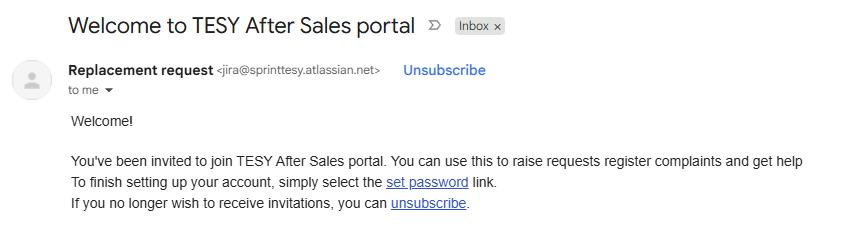
2. After clicking on the set password link – you`ll be redirected to a page below:

3. After registering you`ll be able to access the platform on the following link: Field Service Management - Jira Service Management
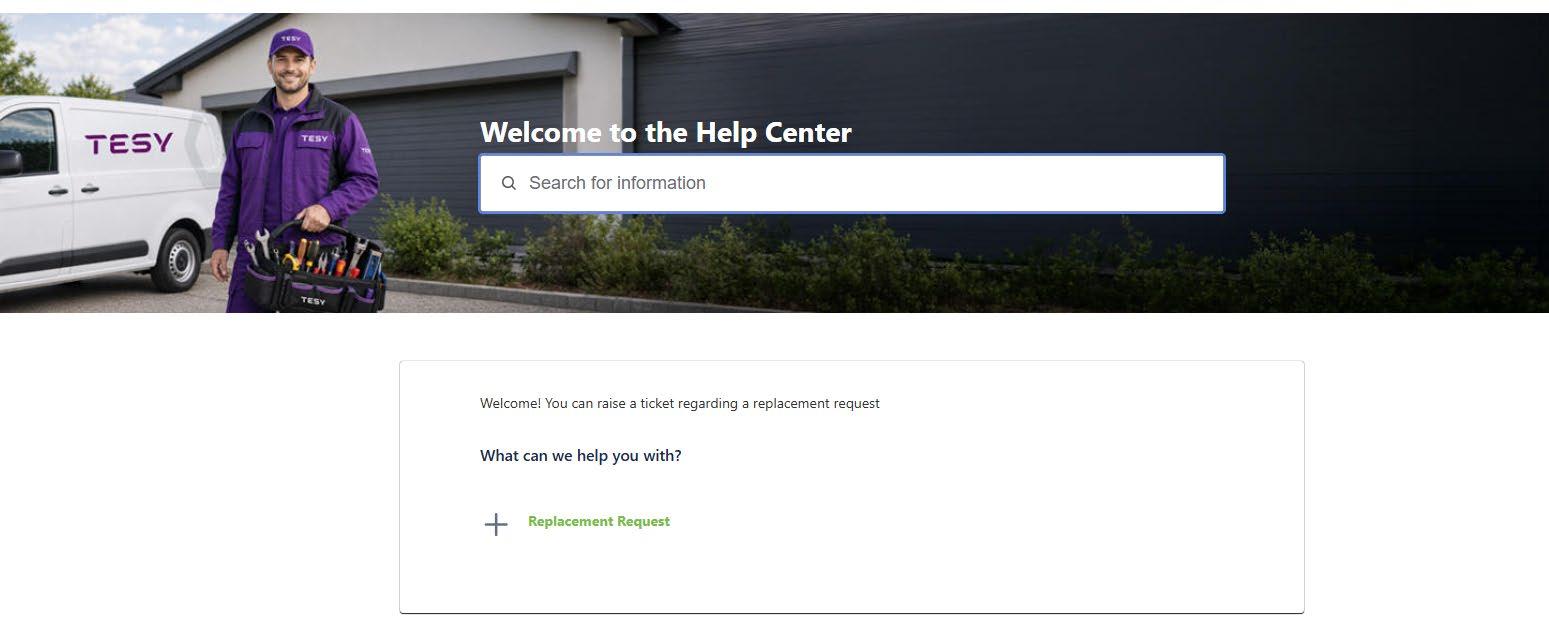
4. The window above will appear. And you need to select the request that you need. Currently only replacement request option is available – after choosing it you`ll be introduced to the following screen
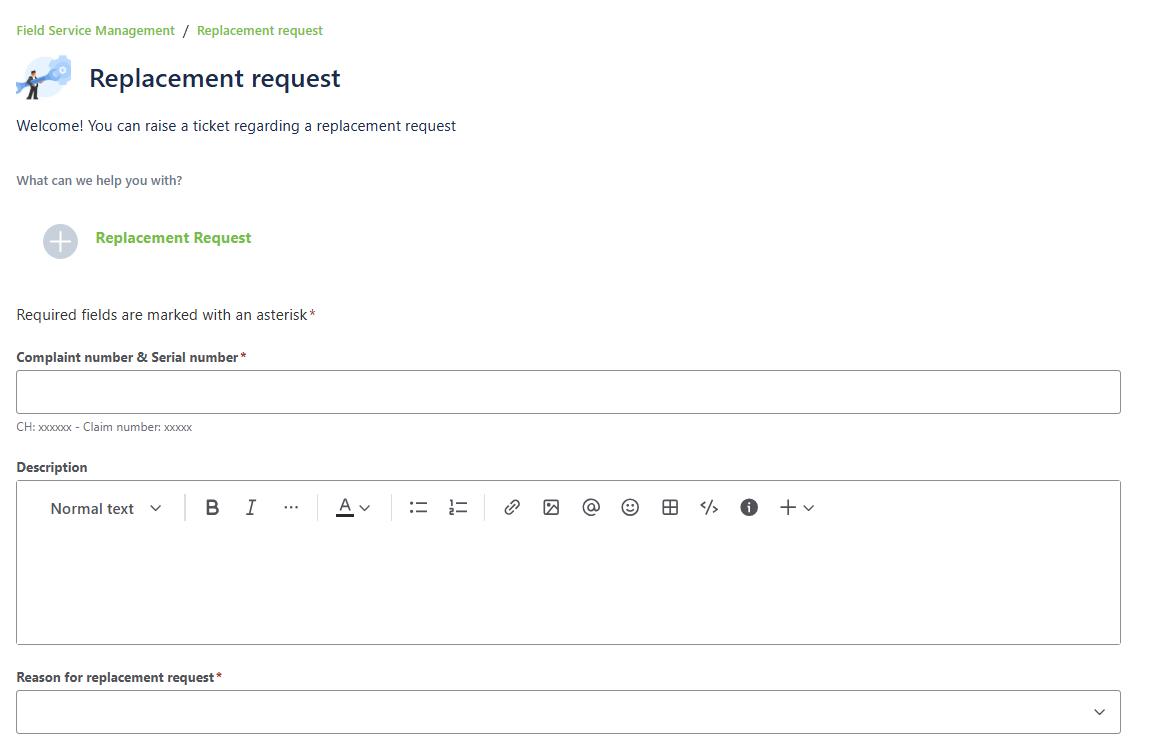
5. In the "Complaint number & Serial number " field, you need to enter the SN of appliance and the complaint number from your system. – Later you`ll be able to search through the tickets – only with the data from this field.
6. In the "Description" field, you should write description of the claim – according to the replacement guideline (if applicable) or the statement from the end user together with the necessary information that After Sales will need to know in order to complete the task.
7. In the "Reason for replacement request" field, you can choose one from the options available
8. The rest of the fields need to be input the required type of data – where data is missing and there is an asterisk (*) put N/A
9. You`ll be required to add a photo of the purchase document, product label, photo of the defect etc.
10. After filling in all the required fields, you need to click the "Send" button to submit your request to After Sales team

11. After you click the button, the After Sales team will receive your request and start working on it. You will receive email updates after every change to your request.
The result of the request could be
• waiting for feedback – if TESY team needs additional data for the case – statement is not provided and additional info from you is needed - either photos or comments
• Approved – replacement is approved – and you can issue a replacement protocol/ request a CN from customer service/sales team
• Rejected – Claim is rejected and protocol or CN would not be approved – reasons will be explained in the comment of the ticket.
IMPORTANT – Adding a comment to a closed ticket (Approved, Rejected) will – reopen the case again (so if you agree with the statement – do not add a comment.)
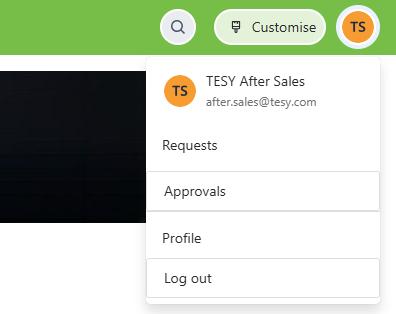
12. Additionally, you will be able to view the requests you have submitted by clicking on the circle with your initials in the top right corner: After clicking on your initials, the window below will appear, where you need to click the "Requests" button:
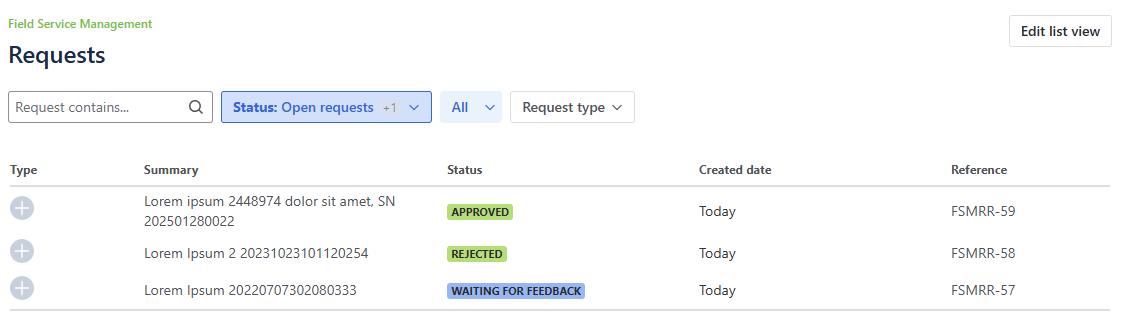
13. After clicking the button, the window below will appear, where you can filter requests by status (Open requests, Closed requests, Requests in progress). You can also filter them by All requests, Requests created by me, or Requests I’m involved in:
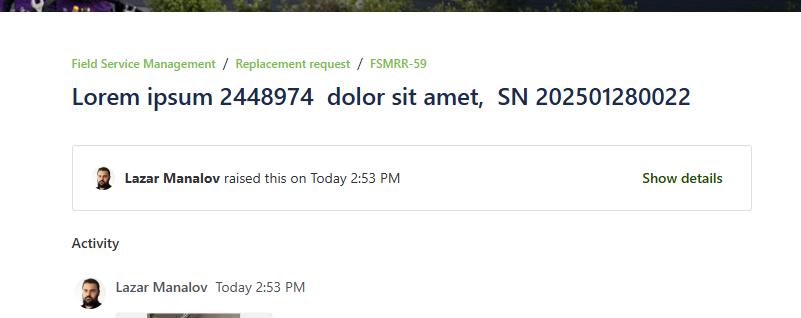
14. If you want to open a request, you need to click on it to see all the information and add additional details:
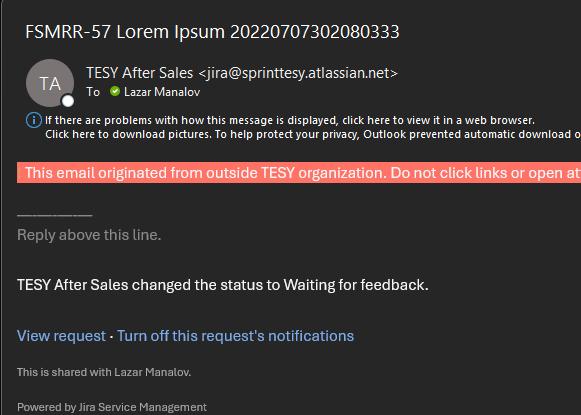
15. Make sure that when you receive an email notification about a request and want to provide feedback immediately, you always click the "View request" button to access the request system and add your comment directly to the relevant request. Otherwise, if you reply directly via email, your comment will not be received by anyone.
Accessing Jira Service Management as a Customer on Your Phone
A. Using the Mobile Browser
• Open your mobile browser.
• Go to your organization’s Jira Service Management Help Center URL:
• https://sprinttesy.atlassian.net/helpcenter/fsm/
• Log in with your customer credentials.
• You can submit requests, check ticket statuses, and comment on issues directly from your phone’s browser.
B. Using the Jira Cloud Mobile App
• Download the Jira Cloud app from the Google Play Store or Apple App Store
• Log in with your Atlassian account. As a customer, you can:
• View and comment on your requests.
• Receive push notifications for ticket updates.
• Access the Help Center and your organization’s service portals.
Setting Up Notifications on Your Phone:
A. Email Notifications (Default)
• By default, you will receive email notifications for ticket updates, comments, and resolutions.
• You can open these emails on your phone and click the links to view or respond to requests.
B. Mobile Push Notifications
• If you use the Jira Cloud mobile app, you can receive push notifications for ticket updates.
To enable them:
1. Open the Jira Cloud app.
2. Go to Profile Settings > Notification Settings.
3. Make sure that push notifications are enabled.
4. Allow notifications for the app in your phone’s system settings.