The Ultimate Guide to Downloading Files from TeraBox
Credit: Teramod
Cloud storage has revolutionized how we store, access, and share our digital files. TeraBox stands out as a popular cloud storage solution, offering generous free storage and user-friendly features for managing your data. One of the core functionalities of TeraBox, and any cloud storage service, is the ability to download your files whenever you need them In this comprehensive guide, we'll delve into the step-by-step processes of downloading from TeraBox, covering all major platforms and exploring potential scenarios you might encounter.
Understanding TeraBox File Storage
Before we dive into the downloading process, it's essential to grasp how TeraBox organizes your files TeraBox employs a hierarchical folder structure, much like the file system on your computer. You can create folders and subfolders to arrange your files into logical categories. When uploading files to TeraBox, you choose where to place them within this folder structure
When it comes to downloading, you have the flexibility to download individual files, a selection of multiple files, or entire folders with all their contents Understanding these options will streamline your download process.
Downloading from TeraBox: The Core Methods
TeraBox offers two primary ways to download your files:
1. Web Browser (PC/Mac): This method is ideal if you need quick access to a few files from your computer. Here's how it works:
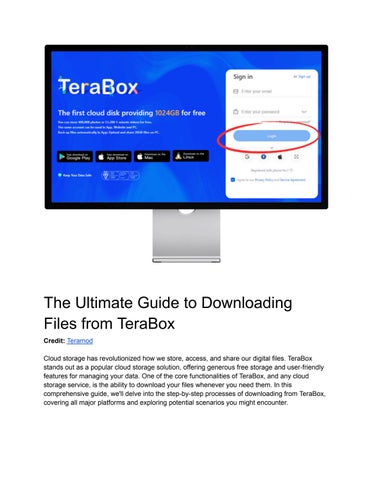
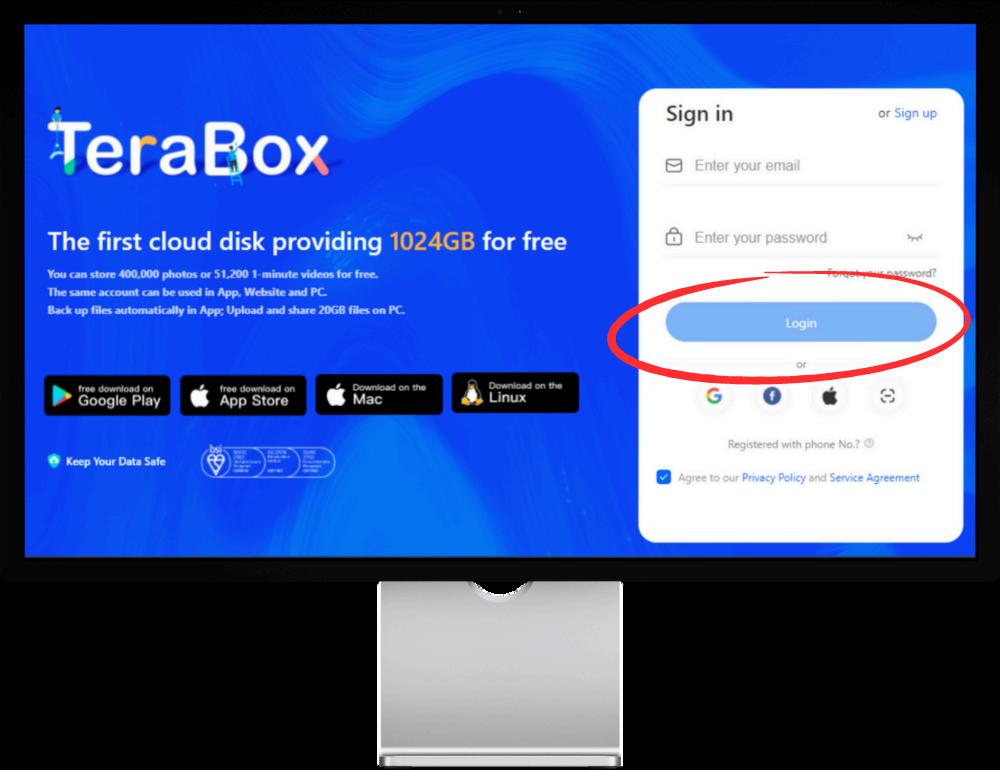
● Visit the TeraBox website ([invalid URL removed]) and log in to your account.
● Navigate to the file or folder you want to download
● For a single file, click the three dots next to the filename and select "Download "
● For multiple files or a folder, select the desired items and click the "More" button at the top, followed by "Download "
● Choose a location on your computer to save the downloaded items
● Initiate the download.
2. TeraBox App (Android/iPhone): The TeraBox mobile app is the go-to choice for downloading files directly to your smartphone or tablet Here's the process:
● Download and install the TeraBox app from the App Store (iOS) or Google Play Store (Android)
● Launch the app and sign in to your account
● Locate the file or folder you wish to download.
● For a single file, tap the three dots beside it and select "Download "
● To download multiple files, long-press a file to start selection mode, then tap the other files and choose "Download" from the bottom menu.
Downloading Large Files and Folders: Considerations
When downloading particularly large files or folders containing numerous files, keep the following in mind:
● Internet speed: A fast and stable internet connection is crucial for smooth and efficient downloads, especially when working with large amounts of data.
● Compression: TeraBox compresses folders into ZIP files before downloading After it downloads, you'll need to extract the contents of the ZIP file to access the individual files
● Storage space: Be sure you have enough free space on your device to accommodate the downloaded files, especially with large downloads.
Downloading Shared Files
TeraBox's file-sharing features make it convenient to collaborate with others. If someone has shared a TeraBox file or folder with you, you can usually download the content directly using a shared link. Here's how:
● Open the shared link provided to you
● You'll be taken to a TeraBox page previewing the file or folder contents.
● Look for a "Download" button or similar option
● Follow the prompts to download the file(s) to your device
Note: In some cases, you might be required to sign in to a TeraBox account to download shared files, even if you don't already have one.
Offline Access: A Convenient Alternative
Besides direct downloading, the TeraBox mobile app offers an "Offline" feature Marking a file or folder for "Offline" access downloads a copy and keeps it stored locally on your phone or tablet. This is particularly useful in these situations:
● Limited internet connectivity: Access your files without needing an active internet connection
● Saving mobile data: Avoid streaming the same file repeatedly, which can eat up your mobile data
● Fast access: Files marked for offline access load faster since they're readily available on your device.
Troubleshooting Download Issues
While downloading from TeraBox is usually straightforward, you might occasionally encounter challenges Here are some common issues and how to address them:
● Slow downloads: If downloads are sluggish, check your internet connection Try switching to Wi-Fi if you're on mobile data or move closer to your router. Other downloads competing for bandwidth may also be slowing things down
● Insufficient storage space: Before downloading large files, check if your device has enough space. Delete unused apps, photos, or videos to free up storage if necessary.
● Interrupted downloads: If a download gets interrupted, TeraBox often allows you to resume it Look for a "Resume" option next to the incomplete download item
● File format errors: If you can't open a downloaded file, double-check the file format. Ensure your device has compatible software to handle that particular file type
Advanced Downloading Tips and Tricks
Let's take your TeraBox download skills to the next level with these handy tips:
● Batch downloading: Both the web interface and mobile app support downloading multiple files or entire folders at once, saving significant time
● Download scheduling (PC): Some third-party download managers allow you to schedule TeraBox downloads for off-peak hours when internet speeds may be less congested
● Selective downloading within folders: If you only need certain files from a large folder, you can often download only the necessary files instead of the entire folder This saves bandwidth and storage space.
● Integration with other apps (Mobile): Depending on the type of file, you might be able to open a downloaded file from TeraBox directly into another app on your smartphone or tablet for further editing or viewing.
Security Considerations
It's important to be mindful of security when downloading files from the cloud:
● Viruses and malware: Ensure your device has up-to-date antivirus or anti-malware software, especially when downloading executable files.
● Sensitive data: Be cautious when downloading sensitive personal or business information. Consider using additional security measures like encryption if necessary.
● Shared files: Exercise caution with downloaded files from shared links, especially if you don't recognize the source.
Beyond the Basics: Other TeraBox Features
While downloading is a core function, TeraBox offers additional features that enhance your file management experience:
● File uploads: Easily upload files from your computer or mobile device to your TeraBox cloud storage
● File sharing: Generate shareable links to files or folders, allowing others to view or download your content
● Remote file access: Access your TeraBox files from any device with an internet connection, keeping your data always at your fingertips.
● Automatic photo/video backup (Mobile): Automatically save your phone's photos and videos to TeraBox, freeing up valuable local storage.
Conclusion
Mastering the art of downloading files from TeraBox unlocks a world of flexibility and convenience Whether you need quick access to files on your computer, offline availability on your phone, or seamless collaboration through file sharing, TeraBox delivers By understanding the methods, troubleshooting potential issues, and utilizing power-user features, you'll be equipped to fully leverage TeraBox's capabilities to manage your digital life