Teacher Manual
Grade 4
NEP 2020 aligned Digital coding platform included



Note: Use the following points to prepare for the session beforehand. Avoid reading the points in the class.
In the Previous Grade…
● Junior robot Mel and junior wizards Conji and Eva were close friends.
● They lived in a land of robots and wizards named Avora.
● Whenever they got confused, they turned to the elders for guidance.
● A wizard named Lord Ero used to practise dark magic and considered himself the Dark Lord.
● Lord Ero didn’t want robots to learn magic.
In this Chapter…
● Mel, Conji and Eva are building a powerful weapon.
● The weapon goes missing.
● Lord Ero gets hold of the weapon.
● They seek help from the Elders.
● Eva is also missing.
● Everyone doubts that Eva has joined hands with Lord Ero.
The content covered in this chapter is aligned with the following CSTA Standard
● 1B-CS–01 Computer Systems
This chapter is divided into the following classroom sessions
1. Introduction to Computer Memory
2. Types of Computer Memory – I
3. Types of Computer Memory – II
In this session, students will learn about –

● Computer Memory
● How a Computer Stores Data
● Units of Data
Keywords
● Computer Memory: Space where we store data and instructions in a computer
● Binary Digits : A unit of binary information (0 or 1) stored in a computer
WEBS at a Glance
● Introduce the characters given on the Meet the Characters page.
● Brief the story so far.
● Read or invite 4 students to read the story aloud from page 2 to panel 3 on page 5 up to Mel’s words “Similarly, even … megabytes and gigabytes”.
● Say: Let me explain what computer memory is.
CS Concepts Explain
Computer Memory
Binary Digits
Units of Data
As given on Page 3
As given on Page 4
As given on Page 5
● Present the scenario: Consider your elder cousin is storing some data on his phone and his phone has 1 GB of storage space left.
● Discuss:
■ Would he be able to download a video of 2048 MB?
Possible Responses: Yes; No.
Explanation: No. Here’s the calculation:
2048 MB = 2048 / 1024 GB = 2 GB
As we have only 1 GB storage space, he will not be able to download the video.
■ Would he be able to download an image of 1024 KB?
Possible Responses: Yes; No.
Explanation: Yes. Here’s the calculation:
1024 KB = 1024 / 1024 MB = 1 MB = 1/1024 GB
This is a fraction of a GB. As he has only 1 GB storage space, he will be able to download the image.
■ Why is it important to remove unused or unimportant data from the computer or phone?
Possible Responses: If we store a lot of unused data in our machine, we will not have space left for the important data.
● Conduct Fill Up on Page 10:
■ Say: Meteorites are approaching Avora. Let’s help Mel complete the sentences to get the magic wand and save Avora.
■ Read Q1, 2, 3 aloud, one by one.
■ Invite some students to share their answers and others to validate their peers’ answers.
■ Instruct: Fill in the final answers in your books.
● Conduct Find the Truth on Page 12:
■ Say: Let’s practise some more to revise what we have learned.
■ Read Q2 aloud. Ask if it is true or false.
■ Invite some students to share their responses.
■ Discuss and validate the answers with the whole class.
■ Instruct: Write answers in your books.
Note
● If time permits, discuss Tick the Correct Answer – Q4 or assign it in the homework.
● Conclude: Today, we learned about computer memory, binary digits and units of data.
● Ask the following probing questions:
■ Is 5 a binary digit?
Possible Responses: Yes; No.
Explanation: No. Only 0 and 1 are binary digits.
■ Which of the files is larger in size – a 1 MB file or a 512 KB file ?
Possible Responses: 1 MB file; 512 KB file.
Explanation: 1 MB file is the larger file.
512 KB = 512 / 1024 MB = 0.5 MB
● Assign the following as homework:
■ Brain Teasers:
❍ Answer in Short –1, 2
■ DIY:
❍ Fill Up – Question 4, 5
❍ Answer in One Word – Question 1, 2
In this session, students will learn about –
● Types of Computer Memory
● Primary Memory and its types
Keywords
● Primary Memory: Main Memory of a computer (also known as Internal Memory)
● RAM: RAM (Random Access Memory) stores the information about active programs on a computer
● ROM: ROM (Read Only Memory) tells the computer what to do when we start the computer
Recap the story Revise the computer memory and binary digits Read or Invite students to read the story ahead aloud
● Recap the story and CS concepts covered in the previous class.
● Read or invite 4 students to read the story aloud from page 5 to panel 2 page 6 up to the text, “The information … switched off.”
● Say: Let me explain what computer memory is.
CS Concepts Explain
Classification Computer Memory
As given on Page 5
Primary Memory As given on Page 6
Types of Primary Memory As given on Page 6
● Discuss:
■ The computer needs some programs to switch on properly. Where should the computer store these programs, in RAM or in ROM?
Possible Responses: RAM; ROM.
Explanation: In ROM, because the files do not get deleted from ROM, whereas RAM clears every time we switch off the computer. = 1/1024 GB
■ RAM is also called volatile memory. Why do you think it is called volatile memory?
Explanation: In real life, volatile means something that evaporates at normal temperature. Examples of volatile elements are - deodorants, hair spray, room fresheners etc. In computer science, RAM is called volatile memory because everytime we switch off the computer, RAM’s contents get erased, just like something volatile would evaporate with no trace.
● Conduct Fill Up on Page 10:
■ Read Q4 aloud, one by one.
■ Invite some students to share their responses.
■ Discuss and validate the answers with the whole class.
■ Instruct: Fill in the final answers in your books.
● Conduct Find the Truth on Page 12:
■ Read Q1 aloud. Ask if it is true or false.
■ Invite some students to share their answers and others to validate their peers’ answers.
■ Instruct: Write the correct answers in your books.
Note
● If time permits, discuss the Tick the Correct Answer - Q 2, 5 or assign it as homework.
● Conclude: Today, we learned about computer memory, binary digits and units of data.
● Ask the following probing questions:
■ Is 5 a binary digit?
Possible Responses: No. Only 0 and 1 are binary digits.
■ Which of the files is bigger in size – a 1 MB file or a 512 KB file ?
Possible Responses: 1 MB file is bigger in size.
Explanation:
512 KB = 512 / 1024 MB = 0.5 MB
● Assign the following homework:
■ From Brain Teasers:
❍ Match Me
■ From DIY:
❍ Fill Up – Question 1, 2
In this session, students will learn about –
● Secondary Memory
● Cloud Storage
Keywords
● Secondary Memory: External memory attached to a computer to store data and information
● Cloud Storage: Data is stored over the internet in some distant device
Recap the story Revise the primary memory
Read or Invite students to read the story ahead aloud
Discuss secondary memory and cloud storage
Fill Up – Q 5 Tick the Correct Answer –Q 1, 3 Find the Truth –Q 3-5
Conclude the concepts Assign homework
● Recap the story and concepts covered in the previous class.
● Read or invite students to read the story aloud on page 6 from “Secondary Memory” to page 8 up to the text “Basically, the data … connecting to the internet.”
● Say: Let me explain what Secondary memory is.
CS Concepts Explain
Secondary Memory
Pen Drive
Cloud Storage
As given on Page 6-7
As given on Page 7
As given on Page 8
● Discuss:
■ Which kind of memory do you think is faster, primary memory or secondary memory?
Possible Responses: Primary memory; Secondary memory.
Explanation: Primary memory is faster than secondary memory. Primary memory stores all the important data which is essential for the computer to run. We know that RAM holds data about all the active programs. ROM holds all the essential routines. Hence, primary memory is faster so that our computer can process smoothly.
■ “My data is stored in cloud storage.” Does that mean my data is floating around in a real cloud which brings rain?
Possible Responses: Yes; No; May be; Not sure.
Explanation: No. Data is not stored in a real physical cloud. Data is actually in some distant device. We can access this data using the internet.
● Conduct Fill Up on Page 10:
■ Say: Meteorites are approaching Avora. Let’s help Mel complete the sentences to get the magic wand and save Avora.
■ Read Q5 aloud, one by one.
■ Invite some students to share their responses.
■ Discuss and validate the answers with the whole class.
■ Instruct: Fill in the final answers in your books.
● Conduct Find the Truth section:
■ Say: Let’s practise more to revise what we have learned.
■ Read Q3, 4 and 5 aloud. Ask if it is true or false.
■ Invite some students to share their answers and others to validate their peers’ answers.
■ Instruct: Write the correct answers in your books.
Note
● If time permits, discuss Tick the Correct Answer - Q 1, 3 or, assign it in the homework.
● Conclude: Today, we learned about secondary memory and cloud storage.
● Ask the following probing questions:
■ Can we run the computer without primary memory?
Possible Answers: Yes; No; May be.
Explanation: No. Because Primary memory holds all the essential routines to run a computer. So, we cannot run the computer without primary memory.
● Assign the following homework:
■ Brain Teasers:
❍ Answer in Short - Question 3, 4, 5
(Correction in Q3 - How many types of memories are there? Name the different types)
■ DIY:
❍ Fill Up – Question 3
❍ Answer in One Word - Question 3, 4, 5
Note: Use the following points to prepare for the session beforehand. Avoid reading the points in the class.
In the Previous Chapter…
● Mel and Conji discovered Ero had the weapon.
● They discussed this with Elder wizard and Elder robot.
● They were shocked to learn Eva had helped Ero.
● They all pondered Ero’s plans.
In this Chapter…
● The story begins in flashback with Ero trying to revive Cyborg.
● Ero met Eva, and with her help, he built the weapon.
● In the present, Mel is teaching Conji how to manage files.
The content covered in this chapter is aligned with the following CSTA Standard
● 1B-DA-06 - Data and Analysis
This chapter is divided into the following classroom sessions
1. Keyboard Shortcuts - I
2. Keyboard Shortcuts - II
3. Files, Recycle Bin and Restoring
In this session, students will learn about –
● Using a Keyboard Shortcut to Copy Selected Text
● Using a Keyboard Shortcut to Paste the Text
● Using a Keyboard Shortcut to Cut the Selected Text
● Flashback: Switch to a scene that happened before the main story.
WEBS at a Glance
● Recap the story covered in the previous chapter.
● Say: There are two new characters in this chapter.
● Introduce Ero and Eva to the students.
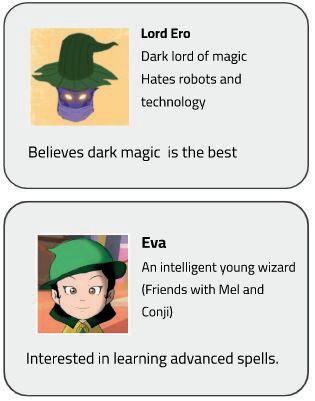
● Instruct: Let’s learn how the story moves ahead. We will read from page 16 to 18 (panel 1 ) until the text “..it must be done in the same way as before.”
● Read the story aloud OR invite 4 students to read the dialogue aloud.
● Say: Let me explain the keyboard shortcuts to cut-copy-paste.
Cut the text
Paste the text
Copy the text
As given in Panel 3 on Page 17
As given in Panel 1 and 3 on Page 18
As given in Panel 2 on Page 18
● Present the scenario: Consider you have to write the same text 3 times.
● Discuss:
■ What keys will you use to copy the text?
Possible Responses: Control + C, command + C (for MacBook)
■ What keys will you use to paste the text?
Possible Responses: Control + V 3 times, Control + V.
● Ask students to open at page 23.
● Conduct Fill Up section:
■ Say: Let’s help Conji complete the sentences to cross the first river.
■ Read Fill Up – Q5 aloud.
■ Invite some students to share their answers and others to validate their peers’ answers.
■ Instruct: Fill in the final answers in your books.
● Conduct Find the Truth section:
■ Say: Let’s practise more to revise what we have learned.
■ Read Find the Truth – Q4 sentences aloud. After the sentence, ask if it is true or false.
■ Invite some students to share responses.
■ Discuss and validate the answers with the whole class.
■ Instruct: Fill in the final answers in your books.
● If time permits, discuss the section Fill Up – Q2, 5 else, assign it in the homework.
● Conclude: Today, we learned to cut, copy and paste the text using the keyboard shortcuts.
● Ask the following probing questions:
■ Which is the common key that we use with the keys X, C and V to cut-copy-paste the text?
Possible Responses: Control key
● Assign the following from DIY Activity as homework:
■ Fill Up – Q2
In this session, students will learn about –
● Using a Keyboard Shortcut to Undo Action
● Using a Keyboard Shortcut to Redo Action
Keywords
● Undo: Reverse the previous action.
● Redo: Reverse an action that was undone.
● Say: Do you remember what we learned in the previous session?
● Invite responses from some students.
● Say: Let’s revise what we have learned.
● Instruct: Let’s read from page 19 up to the text “we undid using the Undo option.”
● Read the story aloud OR invite a student to read the dialogue aloud.
● Say: Let me explain the undo and redo feature.
CS Concepts Scenarios
If you are teaching without a projector
Undo Feature
Redo Feature
As given in Panel 2 on Page 19
As given in Panel 3 on Page 19
● Present the scenario: Consider you have accidentally deleted a whole paragraph from a document.
● Discuss:
■ What keys will you use to undo the action?
Possible Responses: Control + Z
● Ask students to open at page 23.
● Conduct Match Me section:
■ Say: Let’s help Conji match the shortcut keys with correct commands to cross the second river.
■ Read shortcut keys from the left-hand column one by one and options from the righthand column aloud.
■ Invite some students to share their answers and others to validate their peers’ answers.
■ Instruct: Fill in the final answers in your books.
● If time permits, discuss the section Fill Up – Q3 and Find the Truth – Q4 or assign it as homework.
● Conclude: Today, we learned the undo and the redo feature using the keyboard shortcuts.
● Ask the following probing questions:
■ Which keys do we use for the redo action?
Possible Responses: Control + Y key
● Assign the following from DIY Activity as homework:
■ Fill Up – Q5
Objectives
In this session, students will learn about –
● Sorting File
● Using Recycle Bin to Delete File
● Restore Files from the Recycle Bin
Keywords
● Restore: To bring back something to its original location
WEBS at a Glance
Revise the shortcut for undo and redo
Read the story aloud
● Say: Do you remember what we learned in the previous session?
● Invite responses from some students.
● Say: Let’s revise what we have learned.
● Instruct: Let’s read from page 20 and 21 up to the text “ You cannot get your files back if you do this.”
● Read the story aloud OR invite a student to read the dialogue aloud.
● Say: Let me explain sorting files, recycle bin and restoring the files.
CS Concepts
Sorting Files
Recycle Bin
Restoring files
Scenarios
If you are teaching without a projector Explain
As given in Panel 1 and 2 on page 20
As given in Panel 3 and 4 on page 20
As given in Panel 1 and 2 on page 21
● Present the scenario: Consider you have accidentally deleted a file from your computer.
● Discuss:
■ Where will you find the deleted file?
Possible Responses: folder, recycle bin
■ How can you restore that deleted file?
Possible Responses: Select from recycle bin and click restore, right-click and restore.
● Ask students to open at page 24.
● Conduct Answer in Short section:
■ Say: Let’s help Conji answer the questions to cross the last river.
■ Read Q2 and 3, one by one.
■ Invite some students to share their answers and others to validate their peers’ answers.
■ Instruct: Fill in the final answers in your books.
● If time permits, discuss the section Fill Up – Q1, 2, 4 or assign them as homework.
● Conclude: Today, we learned about sorting files, recycle bin and restoring files.
● Ask the following probing questions:
■ Where can we find deleted files?
Possible Responses: In the Recycle bin
■ If we delete files from the recycle bin, can we restore them?
Possible Responses: No
Explanation: We cannot restore a file once it has been deleted from the recycle bin.
● Assign the following from Brain Teaser as homework:
■ Find the Truth – Q1, 4
Note: Use the following points to prepare for the session beforehand. Avoid reading the points in the class.
● The story began in flashback with Ero trying to revive Cyborg.
● Ero met Eva, and with her help, he built the weapon.
● In the present, Mel taught Conji how to manage files.
● Lord Ero tries to attack Mel and Conji when they are looking for Eva.
● Eva tries to stop Lord Ero.
● Conji uses a magic spell to help all of them reach Mel’s house.
● Mel thinks of the Anywhere door to escape Lord Ero.
● They use the internet to find the location of the Anywhere Door.
● They reach the location and take a spaceship to the Memory Palace.
The content covered in this chapter is aligned with the following CSTA Standard
● 1B-CS–02 Computing Systems
This chapter is divided into the following classroom sessions
1. Introduction to Internet
2. About Google Chrome: A Web Browser
In this session, students will learn about –
● The Internet
● Terms related to the Internet
Keywords
● Internet: Network of interconnected computers
● WWW: World Wide Web, or Web; a collection of websites
● Modem: Device that helps us connect to the internet
● ISP: Internet Service Provider; a company that provides internet services
● URL: Uniform Resource Locator; address of a website on the internet
Revise the story covered in the previous chapter
Read or invite the students to read the story aloud
● Recap the story covered in the previous chapter.
● Read the story aloud from Page 28 to Panel 4 on Page 30 up to Mel’s words, “I remember …. similar waterfalls.”
Action Plan 5 min Warm-Up 10 min Engage
● Say: Let me introduce you to the Internet and various terms related to it.
CS Concepts Explain
Search Engine
Web Browser
Internet Services
ISP
Modem
As given in Panel 5 on Page 30 to Panel 2 on Page 34
As given in Panel 2 on Page 31
As given in Panel 2 on Page 31
As given in Panel 1 on Page 32
As given in Panel 2 and 3 on Page 32
WWW
As given in Panel 1 and on Page 33
URL As given in Panel 2 on Page 33
Webpage
As given in Panel 2 on Page 34
Website As given in Panel 2 on Page 34
● Present the scenario: Consider you have an internet connection at home.
● Discuss:
■ What would you use the internet for?
Possible Responses: get help with homework; search for ice cream; send messages; download images; watch movies online.
■ Which internet services do you think you would use frequently?
Possible Responses: E-mail; search engines; YouTube; Google Chrome; Google.
■ Which search engines do you think you would use to search for information?
Possible Responses: Google; DuckDuckGo; Yahoo!; Microsoft Bing.
■ What elements do you think a website can contain?
Possible Responses: Web pages; text; images; videos; gifs; music.
● If time allows, discuss all four questions, or discuss the first two.
● Conduct Fill Up on Page 42:
■ Say: Let’s help Conji find a website that contains information about the design of a new wand by filling in the blanks.
■ Read Q1, 2, and 3 aloud, one by one.
■ Invite some students to share their answers and others to validate their peers’ answers.
■ Instruct: Fill in the final answers in your books.
● Conduct Find the Truth on Page 42:
■ Say: Let’s help Mel customise a wand for Conji by answering these questions.
■ Read Q1, 2, and 3 aloud, one by one.
■ Invite some students to share their responses.
■ Discuss and validate the answers with the whole class.
■ Instruct: Mark the final answers in your books.
● If time permits, discuss the section Answer in One Line – Q1, 2, 3 or assign it as homework.
● Conclude: Today, we learned about the Internet, websites, web pages, and the terms related to the internet.
● Ask the following probing questions:
■ Name some terms related to the internet.
Possible Responses: Websites; Webpages; WWW; URL; web address.
■ What would you require to set up an internet connection at your home?
Possible Responses: A computer; a laptop; ISP; Modem; Telephone line.
● Assign the following as homework:
■ Answer in One Line – Q1, 2, 3
■ Tick the Correct Answer – Q3, 4, 5
In this session, students will –
● Explore a commonly used web browser: Google Chrome
Keywords
● Google Chrome: A web browser developed by Google
Revise the story covered in the previous chapter Read or invite the students to read the story aloud
Discuss and explore Google Chrome Fill Up – Q4, 5 Find the Truth – Q4, 5 Tick the Correct Answer – Q1, 2
Conclude the concepts Assign homework
● Recap the story covered in the previous session.
● Invite the students to recall the CS concepts covered in the previous session.
● Say: Let’s learn about one of the popular web browsers – Google Chrome.
CS Concepts Explain
New tab
History
New window
Address bar
Refresh
Bookmarks
Backward and Forward buttons
As given in Panel 1 on Page 35
As given in Panel 2 on Page 35
As given in Panel 1 on Page 36
As given in Panel 2 on Page 36
As given in Panel 3 on Page 36
As given from Page 37 to Panel 1 on Page 38
As given in Panel 2 on Page 38
● Present the scenario: Consider you are using the internet.
● Discuss:
■ If you want to visit a website, how would you proceed?
Possible Responses: Use a web browser; open Google Chrome; type the URL; open Bing; search on Google, search on the internet; type the web address in the address bar.
■ Suppose you wish to revisit a website in future. What will you do?
Possible Responses: Save the webpage; save the link of the website; remember the website’s name; use the start option; bookmark the page.
■ Suppose you wish to see whether you have visited this page in the past or not. What will you do?
Possible Responses: try to recall; try to think; ask my friend; check the History option in Google Chrome.
■ Where would you type the address of the website you want to visit?
Possible Responses: In the Address bar; URL space; Address line of the website.
● If time allows, discuss all four questions, or discuss the first two.
● Conduct Fill Up on Page 42:
■ Say: Let’s help Conji find a website that contains information about the design of a new wand by filling in the blanks.
■ Read Q4 and 5 aloud, one by one.
■ Invite some students to share their answers and others to validate their peers’ answers.
■ Instruct: Fill in the final answers in your books.
● Conduct Find the Truth on Page 42:
■ Say: Let’s help Mel customise a wand for Conji by answering these questions.
■ Read Q4 and 5 aloud, one by one.
■ Invite some students to share their answers and others to validate their peers’ answers.
■ Instruct: Mark the final answers in your books.
● Conduct Tick the Correct Answer on Page 43:
■ Say: Let’s test what we have learned to revise.
■ Read Q1 and 2 aloud.
■ Invite some students to share their responses.
■ Discuss and validate the answers with the whole class.
■ Instruct: Tick the final answers in your books.
● If time permits, discuss the section Match Me or assign it as homework.
● Conclude: Today, we learned about Google Chrome.
● Complete the chapter story as given on Page 39 and 40
● Ask the following probing questions:
■ List different short forms you have learnt in the chapter.
Possible Responses: URL; WWW; ISP; Modem; Web; IP Address.
■ List different parts of a web browser.
Possible Responses: New tab; history; refresh; forward and backward buttons; bookmark; address bar; the three dots.
● Assign the following as homework:
■ Answer in One Line – Q4, 5
■ Tick the Correct Answer – Q1, 2
■ DIY – Fun Time
Note: Use the following points to prepare for the session beforehand. Avoid reading the points in the class.
● Lord Ero tried to attack Mel and Conji when they were looking for Eva.
● Eva tried to stop Lord Ero.
● Conji used a magic spell to help all of them reach Mel’s house.
● Mel thought of the Anywhere door to escape Lord Ero.
● They used the internet to find the location of the Anywhere Door.
● They reached the location and took a spaceship to the Memory Palace.
● Mel, Conji and Eva are on their way to the Memory Palace.
● Mel is suspicious of Eva as she helped Ero in the past.
● Conji and Mel turn to Mr. Geebal to resolve their conflict.
● Mr. Geebal suggests they give Eva another chance.
● With Mr. Geebal’s guidance, they resolve their issues.
The content covered in this chapter is aligned with the following CSTA Standard
● 1B-DA–06 Data and Analysis
This chapter is divided into the following sessions
1. Images in Google Docs I
2. Images in Google Docs II
3. Shapes and Tables in Google Docs I
4. Shapes and Tables in Google Docs II
In this session, students will learn about –
● Adding images to Google Docs from a computer and the web
● Text wrapping
● Cropping images
● Text wrapping: The process of adjusting text around an inserted image
● Cropping: Trimming an image to get rid of extra elements
Revise the story and CS concepts covered in the previous chapter
Read or Invite students to read the story of the chapter
Discuss layouts, page margins and how to adjust them, and how to organize content into columns.
Fill Up – Q1, 2, 3 Find the Truth – Q1, 2 Tick the Correct Answer – Q1, 2, 3
● Recap the story covered in the previous chapter.
● Recap the stor y covered in the previous chapter
● Say: There is a new character in this chapter.
● Say: There is a new character in this chapter
● Introduce Mr Geebal to the students
● Introduce Mr. Geebal to the students.
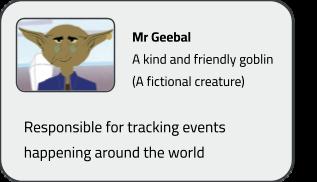
● Instruct: Let’s learn how the stor y moves ahead We will read from Page 48 to Panel 5 on Page 49 until the text “Google docs”
● Instruct: Let’s learn how the story moves ahead. We will read from Page 48 to Panel 5 on Page 49 until the text “Google docs”.
● Read the stor y aloud OR invite 4 students to read the dialogues of the characters
● Read the story aloud OR invite 4 students to read the dialogues of the characters.
● Say: Let me explain about images in Google Docs
If you are teaching without a projector
If you are teaching with a projector Open a Google Doc on your computer system
If you are teaching with a projector
Open a Google Doc on your computer system
CS Concepts Explain Demonstrate
Adding an Image
From a computer as given in Panel 1 on Page 50
If you are teaching without a projector OR
From the web as given in Panel 2 on Page 50
Text Wrapping As given in Panel 1 and 2 on Page 52
Cropping an Image As given in Panel 3 on Page 52
How to add an image from a computer and from the web on screen.
How to wrap the text around the image on screen.
How to crop an image on screen.
● Present the scenario: Consider you are creating a project on Seven Wonders of the World on Google Docs.
● Discuss:
■ What elements will you add in the document?
Possible Responses: Text; Images; Shapes; Videos; Arrows; etc
■ What steps will you follow to add the images to the document?
Possible Responses: Click on insert; select image; select “Upload from Computer”; upload from the web.
■ What will you do if there is some extra part in an image that you don’t want to show?
Possible Responses: Crop the image; resize the image; reduce the size; use the cropping tool.
■ Which text wrapping formats can you apply to the images added in the document?
Possible Responses: Inline with text; wrap text format; text above the image; text below the image.
10 min
● Conduct Fill Up on Page 57:
■ Say: Memory Palace is under attack. Let’s help Mel complete the sentences to reach Memory Palace and save it.
■ Read Q1, 2, 3 and 5 aloud, one by one.
■ Invite some students to share their answers and others to validate their peers’ answers.
■ Instruct: Fill in the final answers in your books.
● Conduct Find the Truth on Page 57:
■ Say: Let’s practise more to revise what we have learned.
■ Read Q1 and 2 sentences aloud one by one. After each sentence, ask if it is true or false.
■ Invite some students to share responses.
■ Discuss and validate the answers with the whole class.
■ Instruct: Fill in the final answers in your books.
● If time permits, discuss the section Tick the Correct Answer – Q2, 3, 4 else, assign it in the homework.
● Conclude: Today, we learned to add images in a Google Doc, wrap text and crop an image.
● Ask the following probing questions:
■ For what purposes do you think you would need to insert an image in a document?
Possible Responses: Digital Greeting Card; Project Work; Invitation; Notices.
■ Why would you need text wrapping?
Possible Responses: To move the text around the image; To make the document look presentable; to move the text above the image; to move the text below the image.
● Assign the following from Brain Teasers as homework:
■ Answer in One Line
■ Tick the Correct Answer – Q2, 3, 4
In this session, students will apply what they have learned from the previous class to complete tasks on Google docs.
● Text wrapping: The process of adjusting text around an inserted image
● Cropping: Trimming an image to get rid of extra elements
● Say: Do you remember what we learned in the previous session?
● Invite responses from some students.
● Say: Let’s revise what we have learned.
● Instruct: Go to the Panel and open Lab on Images in Google Doc – II
● Show slides one by one and discuss the concepts shown on the slide in the panel.
● Discuss the following questions one by one to check students’ understanding:
■ When would you need to add images while creating docs?
Possible Responses: To make digital greeting cards; project work; invitations.
■ If you wish to type a story in Google Docs, which topic would you choose?
Possible Responses: Birthday story; summer story; a day in the life of my mom; my country; my city; my home; my best friend.
■ Which elements would you add in your story?
Possible Responses: image; text; title; moral; paragraph.
■ Why do we need to crop an inserted image in Google Docs?
Possible Responses: To get rid of unwanted parts of an image; to customise the image; to reduce the size; to make the image bigger or smaller.
● Invite answers from as many students as possible.
● Address if students have any other doubts related to the concepts presented in the slides.
15 min
● Instruct: We know how to insert, wrap or crop an image on Google Docs.

● Now, let’s practise our learning. Click on the Practice button on the Assignment page to attempt the activity.
● Now, let’s practise our learning Click on the Practice button on the Assignment page to attempt the activity
● Click on the Attempt button to open the activity page
● Click on the Attempt button to open the activity page.
● Walk around in the classroom and observe the activity done by the students.
● Walk around in the classroom and obser ve the activity done by the students
●
● Instruct: Click on the Confirm button to submit your work when you are done with the activity.
● Conclude: Today, we have learned how to add images, wrap text around the image and crop the unwanted part from an image.
● Conclude: Today, we have learned how to add images, wrap text around the image and crop the unwanted par t from an image
● Instruct: Practise the same activity at home
● Instruct: Practise the same activity at home.
● Assign the following as homework:
● Assign the following as homework:
○ Project: Make a card for an upcoming festival ( Teacher ’s Day/Mother ’s Day/Independence Day) using the tools you learnt today
■ Project: Make a card for an upcoming festival (Teacher’s Day/Mother’s Day/Independence Day) using the tools you learnt today.
● The project is optional, kindly assign as per feasibility.
In this session, students will learn how to –
● Add and modify shapes in Google Docs
● Add and modify tables in Google Docs
● Table: A set of data arranged in rows and columns
Revise the story and CS concepts covered in the previous chapter
Read or Invite students to read the story of the chapter
Discuss adding and modifying shapes, and adding and modifying tables in Google Docs
Fill Up – Q4
Find the Truth – Q3, 4, 5 Tick the Correct Answer – Q1, 5
● Recap the story covered in the previous session.
Conclude the concepts
Assign homework
● Invite a few students to recall the CS concepts covered in the previous session.
● Say: Let me explain how we can use shapes and create tables in Google Docs.
Scenarios
If you are teaching with a projector
Open a Google Doc on your computer system
CS Concepts Explain Demonstrate
Add and Modify shapes
Insert and Modify tables
If you are teaching without a projector OR
As given on Page 53
As given on Page 54
Google Docs - Advanced Tools I
How to add and modify shapes in Google Docs
How to insert and modify tables in Google Docs
● Present the scenario: Consider you are creating a project on Seven Wonders of the World on Google Docs.
● Discuss:
■ What elements do you think can be added in your document?
Possible Responses: Shapes; tables; images; text.
■ If you want to arrange the seven wonders in a table, what steps would you take in Google Docs?
Possible Responses: click on Insert menu, select table, select the size; select table from insert menu; draw a table using lines.
■ What information would you like to include in your project?
Possible responses: Images; name of the seven wonders; a brief description; countries of the seven wonders.
■ How many rows and columns do you think you would need to select?
Possible responses: 7 rows; 8 rows; 2 columns; 1 column; 3 columns, 4 columns.
● Conduct Fill Up on Page 57:
■ Say: Memory Palace is under attack. Let’s help Mel complete the sentences to reach it and save it.
■ Read Q4 aloud.
■ Invite some students to share their answers and others to validate their peer answers.
■ Instruct: Fill in the final answer in your books.
● Conduct Find the Truth on Page 57:
■ Say: Let’s practise some more to revise what we have learned.
■ Read Q3, 4, and 5 aloud, one by one. After each sentence, ask if it is true or false.
■ Invite some students to share their responses.
■ Discuss and validate the answers with the whole class.
■ Instruct: Fill in the final answers in your books.
● Conduct Tick the Correct Answer on Page 59:
■ Say: Let’s practise more to revise what we have learned.
■ Read Q1 and 5 aloud, one by one.
■ Invite some students to share their responses.
■ Discuss and validate the answers with the whole class.
■ Instruct: Fill in the final answer in your books.
● If time permits, discuss the section Match Me or, assign it as homework.
● Conclude: Today, we learned about shapes and tables in Google Docs.
● Ask the following probing questions:
■ How do you think a table can be useful in a document?
Possible Responses: to see the data clearly; add information; modify information; delete information.
■ A shape can highlight an important text in the document. What are the other ways we can use shapes to create better documents?
Possible Responses: to make charts; drawings; paintings; figures.
● Assign the following as homework:
■ Brain Teasers: Match Me
■ DIY
In this session, students will apply what they learned from the previous class to complete tasks on Google Docs.
● Table: A set of data arranged in rows and columns
on
in
● Say: Do you remember what we learned in the previous session?
● Invite responses from some students.
● Say: Let’s revise what we have learned.
● Instruct: Go to the Panel and open Lab on Shapes and Tables in Docs II.
● Show slides one by one and discuss the concepts shown on the slide in the panel.
● Discuss the following questions one by one to check students’ understanding:
■ When would you need to add shapes while creating docs?
Possible Responses: To make the documents better; for fun; to explain better; to separate the texts.
■ Which shapes do you think are included in the Shape tool?
Possible Responses: rectangle; square; circle; arrow; lines; home; star; moon; sun; planets
■ Which shapes do you see in the Shapes tool?
Possible Responses: rectangle; square; circle; arrow; lines; triangles; moon.
■ How many rows and columns would you like to insert in Google Docs?
Possible Responses: 1 row and 2 columns; 2 rows and 2 columns; 1 column and 2 rows.
● Invite answers from as many students as possible.
● Address if students have any other doubts related to the concepts presented in the slides.
● Instruct: We know how to add shapes and tables in Google Docs.

● Now, let’s practise our learning. Click on the Practice button on the Assignment page to attempt the activity.
● Click on the Attempt button to open the activity page
● Click on the Attempt button to open the activity page.
● Make the students practice the activity till the concepts covered in the session.
● Walk around in the classroom and obser ve the activity done by the students
● Walk around in the classroom and observe the activity done by the students.
● Instruct: Click on the Confirm button to submit your work when you are done with the activity.
● Instruct: Click on the Confirm button to submit your work when you are done with the activity
● Conclude: Today, we have learned how to add and modify shapes, and insert tables in Google Doc.
● Conclude: Today, we have learned how to add and modify shapes, and inser t tables in Google Doc.
● Instruct: Practise the same activity at home
● Instruct: Practise the same activity at home.
● Assign the following as homework:
● Assign the following as homework:
○ Project: Make a table on your expenses from the pocket money you receive from your parents/ money you get from relatives
■ Project: Make a table on your expenses from the pocket money you receive from your parents/ money you get from relatives.
● The project is optional, kindly assign if feasible.
Note: Use the following points to prepare for the session beforehand. Avoid reading the points in the class.
● Mel, Conji and Eva were on their way to the Memory Palace.
● Mel felt suspicious of Eva as she had helped Ero in the past.
● Conji and Mel turned to Mr. Geebal to resolve their conflict.
● Mr. Geebal suggested they give Eva another chance.
● With Mr. Geebal’s guidance, they resolved their issues.
● Mel, Conji, and Eva are at the Memory Palace and still going through records.
● Mr. Geebal observes that the kids are getting disheartened.
● Mr. Geebal proposes they learn some new things about Google Docs.
● Mr. Geebal proposes a visit to the Idea Centre, the land of solutions.
● All of them head towards the Idea Centre with the hope of getting answers.
The content covered in this chapter is aligned with the following CSTA Standard
● 1B-DA–06 Data and Analysis
This chapter is divided into the following sessions
1. Page Setup in Google Docs I
2. Page Setup in Google Docs II
3. Header and Footer in Google Docs I
4. Header and Footer in Google Docs II
In this session, students will learn about –
● What is a layout and how to change it
● What are page margins and how to change them
● How to organise text into columns
Keywords
● Layout: A way to describe what each page of a document will look like when it is printed
● Page Orientation: The direction in which a document is displayed or printed (vertical or horizontal)
● Page Margin: The blank spaces at the top, left, right, and bottom of the document that can be set to make the doc look neat and professional
WEBS at a Glance
Revise the story and CS concepts covered in the previous chapter
Read or Invite students to read the story of the chapter
Discuss layout and page margins and how to change them, and how to organise text into columns
Action Plan
● Recap the story covered in the previous chapter.
Fill Up – Q1, 2, 3 Find the Truth – Q1, 2 Tick the Correct Answer – Q 1, 2, 3
Conclude the concepts Assign homework
5 min
● Instruct: Let’s learn how the story moves ahead. We will read from Panel 1 on Page 64 to Panel 3 on Page 64 until the text “But, what is a layout?”
● Read the story aloud OR invite 4 students to read the dialogues of the characters.
● Say: Let me explain about page setup in Google Docs.
Scenarios
If you are teaching with a projector
Open a Google Doc on your computer system
CS Concepts Explain Demonstrate
What is a layout
How to change Page Layout As given in Panel 4 on Page 64
If you are teaching without a projector OR
As given in Panel 4 on Page 64
What is Page Orientation As given in Panel 1 on Page 65
What are Page Margins As given in Panel 2 on Page 65
How to change Page margins As given in Panel 2 on Page 65
How to organise text into columns
given in Panel 2 on Page 66
Show what a layout is
Show how to change Page Layout
Show what Page Orientation is
Show what page margins are
Show how to change page margins
● Present the scenario: Consider you are creating a storybook on Google Docs.
● Discuss:
■ How can you make the story presentable?
Possible Responses: add images; format text; add shapes and elements; set page margins.
■ How many types of orientations are available in Docs?
Possible Responses: Landscape or Horizontal; Portrait or Vertical.
■ What all options are available in the Page setup option?
Possible Responses: setting page orientation; margins; paper size; paper color.
■ How can we arrange text in Docs?
Possible Responses: we can organise text in columns; use the Format menu for text formatting; options available under Format options → align and indent text; Bold, Italics, subscript or superscript text; page orientation; set paragraph and line spacing; Paragraph styles; add header and footer and so on.
● If time allows, discuss all four questions, or discuss the first two.
● Conduct Fill Up on Page 89:
■ Say: Mel and Conji need your help to find the treasure. Help them by filling in the blanks.
■ Read Q1, 2, and 3 aloud, one by one.
■ Invite some students to share their answers and others to validate their peers’ answers.
■ Instruct: Fill in the final answers in your books.
● Conduct Find the Truth on Page 72:
■ Say: Let’s practise some more to revise what we have learned.
■ Read Q1 and 2 sentences aloud one by one. After each sentence, ask if it is true or false.
■ Invite some students to share responses.
■ Discuss and validate the answers with the whole class.
■ Instruct: Mark the final answers in your books.
● Conduct Tick the Correct Answer on Page 74:
■ Say: Let’s practise some more to revise what we have learned.
■ Read Q1, 2, and 3 aloud, one by one.
■ Invite some students to share their responses.
■ Discuss and validate the answers with the whole class.
■ Instruct: Mark the final answers in your books.
● If time permits, discuss the section Answer in One Line – Q1, 2, and 3 or assign them as homework.
min
● Conclude: Today, we learned about page setup in Google Docs.
● Ask the following probing questions:
■ What kind of things can you create in Google Docs?
Possible Responses: documents like stories; questions; describe and keep track of a plan; points of a to-do list; legal documents; technical documents.
■ Who do you think uses Google Docs?
Possible Responses: story writers; teachers; technical writers; doctors; lawyers.
● Assign the following as homework:
■ Brain Teasers: Answer in One Line – Q 1, 2, and 3
■ DIY: Fill Up – Q1, 5
■ DIY: Answer in Short – Q1
In this session, students will apply what they have learned from the previous class to complete tasks on Google docs.
● Layout: A way to describe what each page of a document will look like when it is printed
● Page Orientation: The direction in which a document is displayed or printed (vertical or horizontal)
● Page Margin: The blank spaces at the top, left, right, and bottom of the document that can be set to make the doc look neat and professional
Present the slides on Page Setup in Docs – II on Tekie Platform Discuss the topics covered in the slides Attempt the activity on the Assignment page Conclude the concepts Assign homework
● Say: Do you remember what we learned in the previous session?
● Invite responses from some students.
● Say: Let’s revise what we have learned.
● Instruct: Go to the Panel and open Lab on Page Setup in Docs – II.
● Show slides one by one and discuss the concepts shown on the slide in the panel.
● Discuss the following questions one by one to check students’ understanding:
■ If you wish to type a story in Google Docs, which topic would you choose?
Possible Responses: Birthday story; summer story; a day in the life of my mom; my country; my city; my home; my best friend.
■ Which elements would you add in your story?
Possible Responses: table; columns; image; text; title; moral; paragraph.
■ What are the options to change the look and feel of your page?
Possible Responses: change the page margins; orientation; organise text into columns.
■ Who would you write a letter to in Google Docs?

Possible Responses: friends; mom; dad; grandparents; cousins
● Invite answers from as many students as possible
● Invite answers from as many students as possible.
● Address any other doubts that students may have related to the concepts presented in the slides
● Address any other doubts that students may have related to the concepts presented in the slides.
15 min
● Instruct: We know how to change page layout, orientation, and margins in Google docs
● Instruct: We know how to change page layout, orientation, and margins in Google docs.
● Now, let’s practise our learning Click on the Practice button on the Assignment page to attempt the activity
● Now, let’s practise our learning. Click on the Practice button on the Assignment page to attempt the activity.
● Click on the Attempt button to open the activity page
● Click on the Attempt button to open the activity page.
● Walk around in the classroom and obser ve the activity done by the students
● Walk around in the classroom and observe the activity done by the students.
●
● Instruct: Click on the Confirm button to submit your work when you are done with the activity.
5 min
● Conclude: Today, we have learned how to set up a page in Google Docs
● Conclude: Today, we have learned how to set up a page in Google Docs.
● Instruct: Practise the same activity at home
● Instruct: Practise the same activity at home.
● Assign the following as homework:
● Assign the following as homework:
○ Project: Write a summar y of your favourite novel/book /stor ybook using the tools you learnt today
■ Project: Write a summary of your favourite novel/book/storybook using the tools you learnt today.
Note
● The project is optional. Assign it if feasible.
Objectives
In this session, students will learn –
● What are header and footer
● How to add a header and footer to a Google Doc
● How to add and position page numbers
● How to print a document
Keywords
● Header: A section of a document that appears in the top margin
● Footer: A section of a document that appears at the bottom of the page
Revise the story and CS concepts covered in the previous chapter
Read or Invite students to read the story of the chapter
Discuss what are header and footer, how to add them, how to add and position page numbers, and how to print a document
Fill Up – Q4, 5 Find the Truth – Q3, 4, 5 Tick the Correct Answer – Q4, 5
Conclude the concepts Assign homework
● Recap the story covered in the previous session.
● Invite a few students to recall the CS concepts covered in the previous session.
Engage
10 min
● Say: Let me explain what headers and footers are and how we can add them in Google docs.
Scenarios
If you are teaching with a projector
Open a Google Doc on your computer system
CS Concepts Explain Demonstrate
What is a header As given in Panel 3 on Page 66
What is a footer As given in Panel 1 on Page 67
Adding a header or footer
If you are teaching without a projector OR
As given in Panel 1 on Page 67
Add page numbers As given in Panel 1 on Page 68
Position page numbers As given in Panel 2 on Page 68
Print a document As given in Panel 1 on Page 69
Show what a header is and where it is located in a document
Show what a footer is and where it is located in a document
Show how to add a header and footer to a document
Show how to add page numbers
Show how to position page numbers at various places
Show how to print a document
● Present the scenario: Consider you are still working on your story in Google Docs.
● Discuss:
■ What elements do you think can be added to your document?
Possible Responses: Shapes; tables; images; text; links; charts; horizontal lines; header; footer; page numbers
■ You want to show it to your friends. How can you do that?
Possible Responses: Send them a link to the doc; share it over email; print it and send it or give them.
■ What is the importance of Google Docs?
Possible responses: Ease of collaboration; Access your work from any device; Automatic saving; a lot of helpful features; It is free.
■ Have you come across places where you saw text in columns?
Possible responses: newspapers; textbooks; books; documents.
● If time allows, discuss all four questions, or discuss the first two.
● Conduct Fill Up on Page 72:
■ Say: Let’s help Mel and Conji find the treasure by completing the sentences.
■ Read Q4 and 5 aloud.
■ Invite some students to share their answers and others to validate their peers’ answers.
■ Instruct: Fill in the final answer in your books.
● Conduct Find the Truth on Page 72:
■ Say: Let’s practise some more to revise what we have learned.
■ Read Q3, 4, and 5 aloud, one by one. After each sentence, ask if it is true or false.
■ Invite some students to share their responses.
■ Discuss and validate the answers with the whole class.
■ Instruct: Fill in the final answers in your books.
● Conduct Tick the Correct Answer on Page 74:
■ Say: Let’s practise more to revise what we have learned.
■ Read Q4 and 5 aloud, one by one.
■ Invite some students to share their responses.
■ Discuss and validate the answers with the whole class.
■ Instruct: Mark the final answers in your books.
● If time permits, discuss the section Match Me or, assign it as homework.
● Conclude: Today, we learned about headers, footers, page numbers, and printing pages in Google Docs.
● Ask the following probing questions:
■ What options do we have when applying page numbers?
Possible Responses: we can add them in header; footer; start from any page
■ Are you aware of any other text editor apart from Google Docs? Name them.
Possible Responses: MS Word; Wordpad; Notepad; Open Office writer; Word Perfect
● Assign the following as homework:
■ Brain Teasers: Match Me
■ DIY: Fill Up
■ DIY: Answer in Short
In this session, students will apply what they learned from the previous class to complete tasks on Google Docs.
● Header: A section of a document that appears in the top margin
● Footer: A section of a document that appears at the bottom of the page
● Say: Do you remember what we learned in the previous session?
● Invite responses from some students.
● Say: Let’s revise what we have learned.
● Instruct: Go to the Panel and open Lab on Header and Footer in Docs II.
● Show slides one by one and discuss the concepts shown on the slide in the panel.
● Discuss the following questions one by one to check students’ understanding:
■ Ask for what purpose you would want to print a document?
Possible Responses: school project; art and crafts; creating a card; creating invitations; printing pictures for scrapbook; diary
■ What all can you add in a header?
Possible Responses: title; date; page numbers
■ What can you add in a footer?
Possible Responses: title; author; date; page numbers; subheading; notes about the document
■ Why should you use Google Docs?
Possible Responses: to write letters; scripts; stories; make lists
● Invite answers from as many students as possible.
● Address any other doubts that students may have related to the concepts presented in the slides.
● Instruct: We know how to add headers and footers in Google docs.

● Now, let’s practise our learning. Click on the Practice button on the Assignment page to attempt the activity.
● Click on the Attempt button to open the activity page.
Note
● Make the students practise the activity until they have mastered the concepts covered in the session.
● Walk around in the classroom and obser ve the activity done by the students
● Walk around in the classroom and observe the activity done by the students.
● Instruct: Click on the Confirm button to submit your work when you are done with the activity.
● Instruct: Click on the Confirm button to submit your work when you are done with the activity
● Conclude: Today, we have learned how to add headers, footers, and page numbers in Google Doc.
● Conclude: Today, we have learned how to add headers, footers, and page numbers in Google Doc
● Instruct: Practise the same activity at home
● Instruct: Practise the same activity at home.
● Assign the following as homework:
● Assign the following as homework:
○ Project: Make a document of your choice and add headers, footers, and page numbers to it Also, tr y printing it if it is feasible
■ Project: Make a document of your choice and add headers, footers, and page numbers to it. Also, try printing it if it is feasible.
● The project is optional. Assign it if feasible.
Note: Use the following points to prepare for the session beforehand. Avoid reading the points in the class.
In the Previous Chapter…
● Mel, Conji, and Eva were at the Memory Palace going through records.
● Mr. Geebal observed that the kids were getting disheartened.
● Mr. Geebal proposed they learn some new things about Google Docs.
● Mr. Geebal proposed a visit to the Idea Centre, the land of solutions.
● All of them headed towards the Idea Centre with the hope of getting answers.
● Ms. Idea welcomes the kids to the Idea Centre.
● She explains the importance of ideas in shaping the world.
● She introduces the Ideator, the head of the machines, to the kids.
● Mel and Conji start discussing Google Slides.
The content covered in this chapter is aligned with the following CSTA Standard
● 1B-DA–06 Data and Analysis
This chapter is divided into the following sessions
1. Basics of Google Slides I
2. Basics of Google Slides II
3. Using Tools and Adding Text I
4. Using Tools and Adding Text II
In this session, students will learn –
● What is Google Slides
● How to open Google Slides
● How to start a presentation
● How to select a theme
● What are tools
● Themes: Pre-designed sets of visual elements such as colours, fonts, and backgrounds that can be applied to a presentation
● Tools: Functionalities that help to modify the slides
Revise the story and CS concepts covered in the previous chapter Read or Invite students to read the story of the chapter
min
Action Plan
Fill
Up
● Instruct: Let’s learn how the story moves ahead. We will read Page 78
● Read the story aloud OR invite 4 students to read the dialogue of the characters.
5 min Warm-Up 10 min Engage
● Say: Let me explain about Google Slides.
Scenarios
If you are teaching with a projector
Open Google Slides on your computer system
CS Concepts Explain
How to open Google Slides
As
How to start a new presentation As given in Panel 2 on Page 79
How to select a theme As given in Panel 1 and Panel 2 on Page 81
What are Tools
As
OR
Explain what Google Slides is
Show how to open Google Slides
Show how to start a new presentation
Show how to select a theme
Show what tools are
● Present the scenario: Consider you are creating a presentation on Google Slides.
● Discuss:
■ How can you make the presentation attractive?
Possible Responses: Add images; Format text; Add shapes and elements
■ Name some examples of software that can be used for creating presentations.
Possible Responses: Google Slides; MS PowerPoint.
■ How can you add a text box?
Possible Responses: Click on Insert → Select the text box → click and drag on the slide to create a text box.
■ What is the use of themes in Google Slides?
Possible Responses: To make the presentation more interactive; to make a presentation more attractive; to add more colours to the slide; to indicate a purpose
● If time allows, discuss all four questions, or discuss the first two.
● Conduct Fill Up on Page 89:
■ Say: Conji needs your help to fill in the blanks and clear the first challenge round.
■ Read Q1 and 2 aloud, one by one.
10 min
■ Invite some students to share their answers and others to validate their peers’ answers.
■ Instruct: Fill in the final answers in your books.
● Conduct Find the Truth on Page 90:
■ Say: Let’s practise more to revise what we have learned.
■ Read Q1, 4 and 5 sentences aloud one by one. After each sentence, ask if it is true or false.
■ Invite some students to share responses.
■ Discuss and validate the answers with the whole class.
■ Instruct: Mark the final answers in your books.
● Conduct Tick the Correct Answer on Page 91:
■ Say: Let’s practise more to revise what we have learned.
■ Read Q1 and 5 aloud, one by one.
■ Invite some students to share their responses.
■ Discuss and validate the answers with the whole class.
■ Instruct: Mark the final answers in your books.
● If time permits, discuss the section Answer in Short – Q1 and 2 else, assign it as homework.
● Conclude: Today, we learned about Google Slides.
● Ask the following probing questions:
■ How can different themes be used to create different moods or tones in a presentation?
Possible Responses: Using bright colours and bold fonts can create a more upbeat and energetic mood; Using playful fonts and whimsical graphics can create a more lighthearted and fun mood.
■ What are some tips for choosing the right theme for a presentation?
Possible Responses: Consider the purpose; Look for a theme that matches the tone and style of the presentation; Experiment with different themes to find the one that works best.
● Assign the following as homework:
■ Brain Teasers: Answer in Short – Q1, 2
■ DIY: Name them – Q1, 4
In this session, students will apply what they have learned from the previous class to complete tasks on Google Slides.
● Themes: Pre-designed sets of visual elements such as colours, fonts, and backgrounds that can be applied to a presentation
● Tools: Functionalities that help to modify the slides
● Say: Do you remember what we learned in the previous session?
● Invite responses from some students.
● Say: Let’s revise what we have learned.
● Instruct: Go to the Panel and open Lab on Intro to Google Slides – II.
● Show slides one by one and discuss the concepts shown on the slide in the panel.
● Discuss the following questions one by one to check students’ understanding:
■ If you wish to create a presentation in Google Slides, which topic would you choose?
Possible Responses: Birthday story; Summer story; A day in the life of my mom; My country; My city; My home; My best friend
■ Which elements would you add in your presentation?
Possible Responses: Table; Columns; Image; Text; Title; Moral; Paragraph
■ What are some benefits of using themes in Google Slides?
Possible Responses: Can help create a consistent and polished look throughout a presentation; Can help save time by providing pre-designed layouts and colour schemes.
■ Where can you show your presentation skills in Google Slides?
Possible Responses: School; Friends; Mom; Dad; Grandparents; Cousins
● Invite answers from as many students as possible
● Invite answers from as many students as possible.
● Address any doubts that students may have related to the concepts presented in the slides
● Address any doubts that students may have related to the concepts presented in the slides.
● Instruct: We know how to star t creating a presentation in Google Slides
● Instruct: We know how to start creating a presentation in Google Slides.

● Now, let’s practise our learning Click on the Practice button on the Assignment page to attempt the activity
● Now, let’s practise our learning. Click on the Practice button on the Assignment page to attempt the activity.
● Click on the Attempt button to open the activity page
● Click on the Attempt button to open the activity page.
● Walk around in the classroom and obser ve the activity done by the
● Walk around in the classroom and observe the activity done by the students.
● Instruct: Click on the Confirm button to submit your work when you are done with the activity.
● Instruct: Click on the Confirm button to submit your work when you are done with the activity
● Conclude: Today, we have learned how to create a presentation in Google Slides.
● Instruct: Practise the same activity at home.
● Assign the following as homework:
■ Project: Lab Time on Page 93.
Note
● The project is optional. Kindly assign if feasible.
Objectives
In this session, students will learn –
● What is layout
● How to change layout
● How to add text
● How to move text
● How to add a slide
● How to duplicate, reorder and delete a slide
Keywords
● Layout: Pre-designed template or structure that determines the placement and formatting of elements such as text boxes, images, etc.
Warm-Up Engage Build Sum-Up
Revise the story and CS concepts covered in the previous chapter
Read or Invite students to read the story of the chapter
Discuss Slide Layouts, how to add text, move text, add, duplicate, reorder, and delete a slide
Fill Up – Q3, 4, 5 Find the Truth – Q2, 3 Tick the Correct Answer – Q2, 3
Conclude the concepts Assign homework
● Recap the story covered in the previous session.
● Invite a few students to recall the CS concepts covered in the previous session.
● Say: Let me explain slide layout, how to add text, move text, add a slide, duplicate, reorder and delete a slide.
Scenarios
If you are teaching with a projector
Open Google Slides on your computer system
CS Concepts Explain Demonstrate
What is layout
How to change slide layout As given in Panel 2 on Page 83
How to add text
How to move text
How to add a slide
Duplicate a slide
Reorder slides
Delete slides
As given in Panel 1 on Page 83
How to add Title and Subtitle As given in Panel 3 on Page 83
If you are teaching without a projector OR
As given in Panel 1 on Page 84
As given in Panel 3 on Page 84
As given in Panel 1 on Page 85
As given in Panel 2, 3 on Page 86
As given in Panel 3 on Page 86
As given in Panel 1 on Page 87
Explain what layout is
Show how to change a slide layout
Show how to add Title and Subtitle
Show how to add text
Show how to move text
Show how to add a slide
Show how to duplicate a slide
Show how to reorder slides
Show how to delete slides
● Present the scenario: Consider you are continuing to work on your presentation on Google Slides.
● Discuss:
■ What are some ways you can use Google Slides to showcase your creativity and individuality?
Possible Responses: Customise the theme and background of your presentation; Use different fonts and colours; Incorporate your own drawings or designs.
■ What are some best practices for organising content on a Google Slides presentation?
Possible Responses: Use clear headings and subheadings; Limit the amount of text on each slide; Use bullet points or numbered lists to break up information.
■ What are the advantages of Google Slides?
Possible responses: Ease of collaboration; Access your work from any device; Automatic saving; a lot of helpful features; It is free.
■ How can you make your Google Slides presentation engaging and interesting for your audience?
Possible responses: Use images and videos; Add animations or transitions between slides; Include interactive elements such as quizzes.
● If time allows, discuss all four questions, or discuss the first two.
● Conduct Fill Up on Page 89:
■ Say: Conji needs your help to fill in the blanks and clear the first challenge round.
■ Read Q3, 4 and 5 aloud.
min
■ Invite some students to share their answers and others to validate their peers’ answers.
■ Instruct: Fill in the final answers in your books.
● Conduct Find the Truth on Page 90:
■ Say: Let’s practise some more to revise what we have learned.
■ Read Q2 and 3 aloud, one by one. After each sentence, ask if it is true or false.
■ Invite some students to share their responses.
■ Discuss and validate the answers with the whole class.
■ Instruct: Mark the final answers in your books.
● Conduct Tick the Correct Answer on Page 91:
■ Say: Let’s practise some more to revise what we have learned.
■ Read Q2 and 3 aloud, one by one.
■ Invite some students to share their responses.
■ Discuss and validate the answers with the whole class.
■ Instruct: Mark the final answers in your books.
Note
● If time permits, discuss the section Match Me or, assign it as homework.
● Conclude: Today, we learned about slide layout, how to add text, move text, add a slide, duplicate a slide, reorder a slide and delete a slide in Google Slides.
● Ask the following probing questions:
■ What are some ways you can use Google Slides to present information?
Possible Responses: Create a slideshow presentation; Create a digital poster; Create an interactive infographic.
■ How can you use Google Slides to collaborate with others on a group project or assignment?
Possible Responses: To share ideas; Assign tasks; Work together on the same presentation at the same time.
● Assign the following as homework:
■ Brain Teasers: Match Me
■ DIY: Name them
In this session, students will apply what they learned from the previous class to complete tasks on Google Slides.
● Layout: Pre-designed template or structure that determines the placement and formatting of elements such as text boxes, images, etc
Present the slides on Intro to Google Slides – II on Tekie Platform
● Say: Do you remember what we learned in the previous session?
● Invite responses from some students.
● Say: Let’s revise what we have learned.
● Instruct: Go to the Panel and open Lab on Intro to Google Slides II.
● Show slides one by one and discuss the concepts shown on the slide in the panel.
● Discuss the following questions one by one to check students’ understanding:
■ How can you use Google Slides to demonstrate your knowledge of a particular topic or subject?
Possible Responses: To create an informative presentation; Include facts; Include examples; Include visuals to illustrate points.
■ What are some common mistakes to avoid when designing a presentation in Google Slides?
Possible Responses: Using too much text; Using too many graphics; Using too many fonts or colours.
■ How can slide layouts be used to organise information effectively?
Possible Responses: Can help break up the content and make it easier to follow; Using visual aids like images and diagrams can help illustrate complex information; Using bullet points, lists, and tables can help organise information in a clear and concise way.
■ Name some slide layout elements in Google Slides.

Possible Responses: Title slide layout; Title and body layout; Blank Layout; Picture with Caption Layout
● Invite answers from as many students as possible.
● Address if students have any other doubts related to the concepts presented in the slides.
15 min
● Instruct: We know how to add headers and footers in Google docs.
● Now, let’s practise our learning. Click on the Practice button on the Assignment page to attempt the activity.
● Click on the Attempt button to open the activity page.
● Make the students practice the activity until they understand the concepts covered in the session.
● in the classroom and observe the activity done by the students.
● Instruct: Click on the Confirm button to submit your work when you are done with the activity.
● Instruct: Click on the Confirm button to submit your work when you are done with the activity
● Conclude: Today, we learned about slide layout, how to add text, move text, add a slide, duplicate slide, reorder slide and delete a slide in Google Slides.
● Conclude: Today, we learned about slide layout, how to add text, move text, add a slide, duplicate slide, reorder slide and delete a slide in Google Slides
● Instruct: Practise the same activity at home
● Assign the following as homework:
● Instruct: Practise the same activity at home.
○ Project: Lab time on Page 94
● Assign the following as homework:
■ Project: Lab time on Page 94
Note The project is optional. Kindly assign if feasible.
Note: Use the following points to prepare for the session beforehand. Avoid reading the points in the class.
In the Previous Chapter…
● Ms. Idea welcomed the kids to the Idea Centre.
● She explained the importance of ideas in shaping the world.
● She introduced the Ideator, the head of the machines, to the kids.
● Mel and Conji had a discussion about Google Slides.
In this Chapter…
● Mel, Conji, and Eva are in the Idea Centre with Ms. Idea.
● Conji prepares a text presentation about spells.
● Mel suggests that Conji should use images in his presentation.
● Mel teaches Conji how to add, edit and resize images.
● She also teaches him how to add shapes and resize them.
The content covered in this chapter is aligned with the following CSTA Standard
● 1B-DA–06 Collection Visualisation & Transformation
This chapter is divided into the following classroom and lab sessions
1. Inserting, Editing and Resizing Images
2. Images in Google Slides
3. Inserting and Editing Shapes
4. Shapes in Google Slides
In this session, students will learn about -
● Adding images in Google Slides
● Editing images in Google Slides
● Resizing images in Google Slides
Keywords
● Insert: Adds an image in Google Slides
● Crop: Removes unwanted outer areas of an image
● Move: Changes the position of an image
● Resize: Makes an image bigger or smaller
Recap the story and CS concepts covered in the previous session
Read the story to be covered in the current session aloud
Discuss inserting, editing and resizing images in Google Slides
Fill Up – Q1, 2, 3 Find the Truth – Q1, 2 Answer in Short – Q1, 2
Conclude the session Assign the homework
● Recap the story covered in the previous chapter.
● Read or invite the students to read the story aloud from Panel 1 on Page 96 to Panel 2 on Page 96 up to the text, “...in the Powerpoint.”
● Say: Let me explain insert, crop, move and resize options in Google docs.
CS Concept Explain
Insert
Crop
As given in Panel 2 on Page 96 and Panels 1 and 2 on Page 97
As given in Panel 1 on Page 98
Move As given in Panel 2 on Page 98
Resize As given in Panel 1 on Page 99
● Present the scenario: You are working on a presentation on renewable energy.
● Discuss:
■ You want the presentation to look engaging. What can you add to do so?
Possible Responses: Images; Pictures; Themes; Good fonts
■ What file types of images can you add to the presentation?
Possible Responses: PNG; JPEG; GIF
■ From where you can insert images in your presentation?
Possible Responses: Files on the computer; Images on the internet
■ What picture editing tools are available in Google Slides?
Possible Responses: Crop; Resize
● If time allows, discuss all four questions, or discuss the first two.
● Some questions in the book do not match the LO. Please refer to the questions here only.
● Conduct Fill Up on Page 105:
■ Say: Help Conji to fill in the blanks.
■ Read Q1, 2 and 3 aloud, one by one.
■ Q1: To move an image, select and ____ it to the desired location on the slide.
Answer: drag
min
■ Q2: An image is a picture or a ________ that you can add to your Google Slides presentation.
Answer: graphic.
■ Q3: To add an image in Google Slides, we need to go to the ________ menu.
Answer: Insert
■ Invite some students to share their answers and others to validate their peers’ answers.
■ Instruct: Fill in the final answers in your books.
● Conduct Find the Truth on Page 105:
■ Say: Help Conji mark the statements as true or false.
■ Read Q1 and 2 aloud, one by one.
■ Q1: We cannot reduce the size of an image in Google Slides.
Answer: False
■ Q2: There is only one way to insert an image in Google Slides.
Answer: False
■ Invite some students to share their answers and others to validate their peers’ answers.
■ Instruct: Mark the final answers in your books.
● Conduct Answer in Short on Page 106:
■ Say: Help Mel to answer the following questions.
■ Read Q1 and 2 aloud, one by one.
■ Q1: Write steps to add a GIF image in Google Slides.
■ Q2: In which ways can you add images in Google Slides?
■ Invite some students to share their answers.
■ Discuss and Validate their answers.
■ Write the final answers on the board for students to take notes.
● If time permits, discuss the sections DIY Activity – Fun Time – Q1, 2 or assign them as homework.
min
● Conclude: Today, we learned about inserting, editing and resizing images in Google Slides.
● Ask the following probing questions:
■ What are the possible usages of resizing images?
Possible Responses: Enlarging a small image; Compressing a large image
■ Once resized, images cannot move.
Possible Responses: Yes; No; Maybe
● Assign the following as homework:
■ DIY Activity: Fun Time – Q1, 2
■ DIY Activity: Answer in One Word – Q1, 2, 4, 5
In this session, students will apply their knowledge of -
● Inserting, editing and resizing images in Google Slides.
● Insert: Adds shapes in Google Slides
● Crop: Reduces the area of the image
● Move: Changes the position of a shape
● Resize: Makes a shape bigger or smaller
Present the slides on Images in Google Slides –II on Tekie Platform Discuss
● Say: Do you remember what we learned in the previous session?
● Invite responses from some students.
● Say: Let’s revise what we have learned.
● Instruct: Go to the Panel and open Lab on Images in Google Slides - II
● Show slides one by one and discuss the concepts shown on the slide in the panel.
● Say: Let me explain how to work with images in Google Slides.
Insert Image
Insert Image from Web
Crop
Move
Resize
As given in Panel 2 on Page 96 and Panel 1 on Page 97
As given in Panel 2 on Page 97
As given in Panel 1 on Page 98
As given in Panel 2 on Page 98
As given in Panel 1 on Page 99
● Discuss the following questions one by one to check students’ understanding:
■ What image editing tools are available to us in Google Slides?
Possible Responses: Crop; Resize; Move
■ What graphical components can be added to Google Slides?
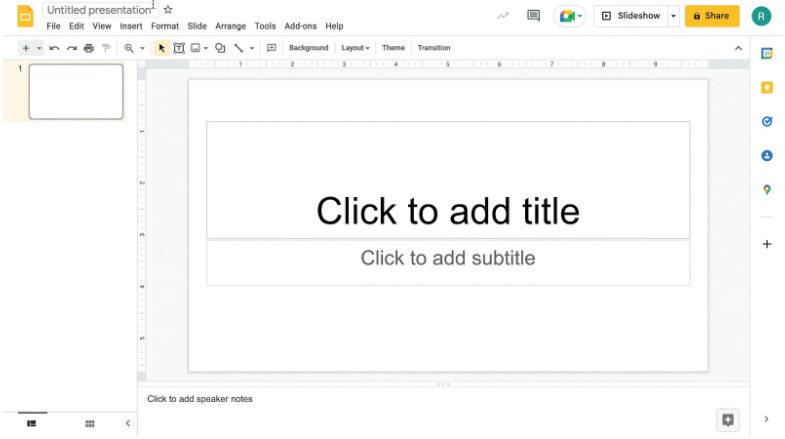
Possible Responses: Images; Shapes
■ Does left clicking on the image in google slides enable the crop functionality?
Possible Responses: Yes; No; Maybe
■ Do you have to exit the Google Slides platform to search for images on the web?
Possible Responses: Yes; No; Maybe
● Invite answers from as many students as possible.
● Address any other doubts students may have related to the concepts presented in the slides.
● Instruct: We know how to insert, edit and resize images in Google Slides.
● Now, let’s practise what we have learned. Click on the Practice button on the Assignment page to attempt the activity.
● Walk around in the classroom and observe the activity done by the students.
● Instruct: Click on the Confirm button to submit your work when you are done with the activity.
● Conduct Match Me on Page 106:
■ Say: Help Mel to match the correct options on both sides to make her presentation look more attractive.
■ Read options on both sides aloud, one by one.
■ Invite some students to share their answers and others to validate their peers’ answers.
■ Instruct: Match the final combinations in your books.
● Make the students practise the activity until they have mastered the concepts covered in the session.
● Conclude: Today, we have learned inserting, editing and resizing in Google Slides.
● Instruct: Practise the same activity at home.
● Assign the following as homework:
■ Project: Lab Time 1.a and 1.b
■ DIY Activity: Answer in One Word
● The project is optional. Kindly assign as feasible.
In this session, students will learn about -
● Adding shapes in Google Slides
● Editing shapes in Google Slides
● Insert: Adds shapes in Google Slides
● Move: Changes the position of a shape
● Resize: Makes a shape bigger or smaller
● Fill Colour: Adds colour to a shape
● Border Colour: Adds a border with a specific colour to the shape
Recap the story and the concepts covered in the previous session Discuss
● Recap the story covered in the previous session.
● Say: Let me explain adding, editing and resizing shapes in Google sheets.
CS Concept
Insert
Move
Resize
Fill Colour
Border Colour
As given in Panel 2 on Page 99
As given in Panel 2 on Page 100
As given in Panel 3 on Page 100
As given in Panel 1 on Page 101
As given in Panel 2 on Page 101
● Present the scenario: Your teacher reviewed the presentation you made and suggested you add shapes to your presentation.
● Discuss:
■ Which shapes can you add to your presentation?
Possible Responses: Square; Rectangle; Oval; Any
■ What creative things can you do with shapes to make your presentation better?
Possible Responses: Resize; Fill Colour; Insert text box inside
■ You don’t like the position where the shape is placed. What can you do in that case?
Possible Responses: Drag the shape; Move; Change position
■ What creative things can you do in order to make your shapes better?
Possible Responses: Fill colour; Add border; Resize as needed
● If time allows, discuss all four questions, or discuss the first two.
● Some questions in the book do not match the LO. Please refer to the questions from here only.
● Conduct Fill Up on Page 105:
■ Say: Help Conji to fill in the blanks.
■ Read Q4 and 5 aloud, one by one.
■ Q4: Add colour to the shapes on Google slide by using the ____ tool.
Answer: fill
■ Q5: To add an image from the Internet, we need to click on the Insert menu. Then, select Image and click on ________.
Answer: search the web
■ Invite some students to share their answers and others to validate their peers’ answers.
■ Instruct: Fill in the final answers in your books.
● Conduct Answer in Short on Page 106:
■ Say: Help Mel to answer the following questions.
■ Read Q3, 4 and 5 aloud, one by one.
■ Q3: What can you add to your Google Slides presentation to make it more visually interesting?
Answer: Pictures, graphics, and shapes.
■ Q4: How do you change the colour of a shape on Google Slides?
Answer: Select the shape, click on fill colour, select a colour of your choice.
■ Q5: Why are images and shapes important in creating an engaging presentation?
Answer: They can help to make the presentation more visually interesting and keep the audience engaged.
■ Invite some students to share their answers.
■ Discuss and Validate their answers.
■ Write the final answers on the board for students to take notes.
● Conduct Tick the Correct Answer on Page 107:
■ Say: Help Conji to tick the correct answer.
■ Read Q4 and 5 aloud, one by one.
■ Q4: Select the option from where you cannot add images in Google slides.
■ A. Your computer
■ B. From the web
■ C. Google drive
■ D. Your friend’s computer
■ Q5: Tick the option which is not required for cropping images in Google slides.
■ A. Right click
■ B. Click on crop command
■ C. Left click
■ D. Adjust crop handles
■ Invite some students to share their answers and others to validate their peers’ answers.
■ Instruct: Tick the final answers in your books.
● If time permits, discuss the sections Find the Truth – Q3, 4, 5 or assign them as homework.
● Q3: True or False: A rectangle looks like a slice of pizza.
Answer: False.
● Q4: True or False: An image is a picture that you can add to your Google Slides presentation.
Answer: True.
● Q5: True or False: A triangle has three sides and looks like a roof. Answer: True.
Sum-Up
● Conclude: Today, we learned about inserting and editing shapes in Google Slides.
● Ask the following probing questions:
■ Using shapes and images in our presentations make them ____?
Possible Responses: Attractive; Engaging; Beautiful
■ Can shapes in Google Slide be added using URLs?
Possible Responses: No; Yes; Maybe
● Assign the following as homework:
■ Find the Truth – Q3, 4, 5
■ DIY Activity: Answer in One Word – Q3
■ Q3: Can you change the size and position of a shape or image in Google Slides?
Answer: Yes.
2 min
In this session, students will use their knowledge to -
● Add shapes in Google Slides
● Edit shapes in Google Slides
● Insert: Adds shapes in Google Slides
● Move: Changes the position of a shape
● Resize: Makes a shape bigger or smaller
● Fill Colour: Adds colour to a shape
● Border Colour: Adds a border with a specific colour to the shape
● Say: Do you remember what we learned in the previous session?
● Invite responses from some students.
● Say: Let’s revise what we have learned.
● Instruct: Go to the Panel and open Lab on Shapes in Google Slides – II.
● Show slides one by one and discuss the concepts shown on the slide in the panel.
● Say: Let me explain adding, resizing and filling shapes in Google Slides.
CS Concept Demonstrate
Insert Shape
Move and Resize
Fill Colour
Add Border
Chapter 7
As given in Panel 2 on Page 99 and Panel 1 on Page 100
As given in Panel 2 on Page 100 and Panel 3 on Page 100
As given in Panel 1 on Page 101
As given in Panel 2 on Page 101
• Google Slides – More Tools
● Discuss the following questions one by one to check students’ understanding:
■ What are the possible operations with shapes in Google Slides?
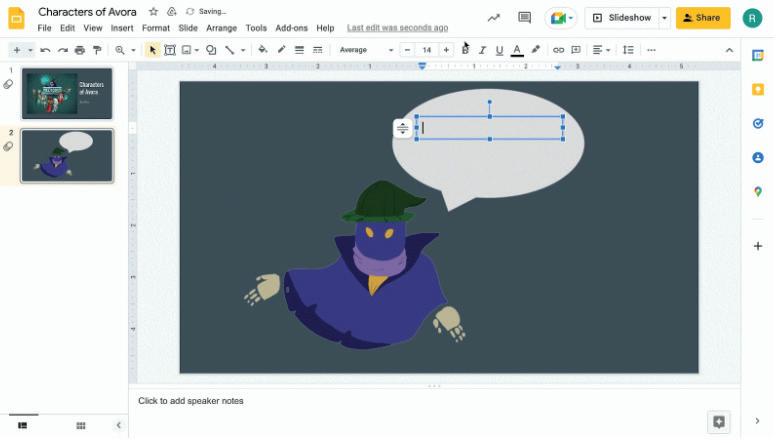
Possible Responses: Add; Insert; Fill colour; Add border; Move; Resize
■ Will resizing shapes cut some part of the shape?
Possible Responses: Yes; No; Maybe
■ Can shapes be cropped?
Possible Responses: Yes; No; Maybe
■ Which colour property of shapes can we change in Google Slides?
Possible Responses: Fill; Border
● Invite answers from as many students as possible.
● Address any other doubts students may have related to the concepts presented in the slides.
● Instruct: We know how to work with shapes in Google Slides.
● Now, let’s practise our learning. Click on the Practice button on the Assignment page to attempt the activity.
● Walk around in the classroom and observe the activity done by the students.
● Instruct: Click on the Confirm button to submit your work when you are done with the activity.
Note
● Make the students practise the activity until they have mastered the concepts covered in the session.
● Conclude: Today, we have learned how to add, resize, fill and move shapes in Google Slides.
● Instruct: Practise the same activity at home.
● Assign the following as homework:
■ DIY Activity: Fun time – Q3, 4, 5
■ Q3: Add shapes to your previously made presentation.
■ Q4: Fill in your favourite colours in them.
■ Q5: Add borders and border colours to the shapes.
C Tick the Correct Answer
D Find the Truth
E Answer in Short
a. Computer memory is a space in the computer where all the data and instructions are stored.
b. The full form of GB is gigabytes. it is the measure of the storage space of hard drive.
c. There are two types of memory in a computer - Primary memory and Secondary memory. Primary memory is the main memory of a computer system that resides inside the computer. Whereas, secondary memory is the external memory that is stored in storage devices that can be attached to the computer to store information.
d. Cloud storage is type of computer data storage where the data can be stored over the internet. The two advantages are -
1. The data we store over cloud doesn’t require storage space in our system.
2. We can access it anytime by connecting to the internet.
e. Secondary memory is also known as external memory. Secondary memory includes the storage devices that can be attached to the computer to store information. Some examples are external hard disks, pen drives, and SD cards.

C Find the Truth
D Answer in Short
1. Arranging the files is called file sorting.

2. A computer file stores information like text, images, and numbers in it. Managing the files to help store information in a systematic manner that makes it easy to find when needed.

3. Recycle bin stores all the deleted files from the computer.
4. Select the file in the recycle bin → right-click on the file → click on the option Restore.
D Tick the Correct Answer
E Answer in One Line
1. The Internet is a network of connected computers. We can use the internet to learn, watch videos, and read articles.
2. Web browsers are a way to access the internet which takes us to websites.
3. Search engines help us to search for information on the web in an organised way. ExampleGoogle.
4. IP address is an address provided to uniquely identify a device.
5. The full form of WWW is the World Wide Web; it was invented by Tim Berners-Lee. DIY
Brain Teasers

1. Inline Format
2. Upload from Computer and Search the Web
3. Crop tool.
4. colour and weight
5. attractive
C Match Me
D Tick the Correct Answer
E Answer in One Line
1. Text wrapping: When we wrap the text around an image, the text adjusts itself around that image.
2. Inline format: In inline format, the text is above and/or below the image.
3. Adding pictures to a document ensures that it is easy to read and well-organised.
4. In Google docs, images can be added from two sources which are –
a. From our own computer
b. Search from web
Note: DIY and Lab Time activity solutions are available on Panel.
Section
A Fill Up
Section Name
B Find the Truth
C Match Me
Appears at the bottom of the page
D Answer in One Line
1. Page layout is the arrangement of visual elements on a page.

2. We can change the Page Layout using the File Menu.
3. We can change the Page Margins using the Page Setup option available in the File menu.

4. The “Whole Document” option changes the document’s layout all at once.
5. A footer is a section that appears at the bottom of the page.
1. Select the text. Go to the Format menu. Choose Columns from the drop-down menu and select the options as required.
2. Click on the File menu. Select the Page Setup option from the drop-down list and change the Page layout from the Page Setup dialogue box that appears.
3. We can insert headers and footers using the Format menu.
4. To add page numbers in Google Docs, click on the Insert tab. Hover over the Page number option. From the menu that appears, select the desired option.
5. A footer is the section of a document that appears at the bottom of the page. We can use a footer to add page numbers, dates, titles, or descriptions about the document.

1. Google Slides is an online presentation app. It is better than Microsoft presentation as we can do a Google Slides presentation from any device using the internet and also multiple people can work on the same presentation using Google Slides.
2. Themes are a preset group of colours, fonts, backgrounds, and layouts which makes our presentation eye-catching.
3. Shortcut toolbar displays the most frequently used tools.
4. The function of the Slide Navigation Panel is to reorder the slides, duplicate the slides, and delete the slides.
5. Reordering slides is changing the order of slides in a presentation.
E Tick the Correct Answer
F Answer in Brief
1. To add a text box in Google Slides, click on Insert and select the Text box.
2. Layouts are different types of slides that are available to use. We can change it by clicking on the Layout shortcut toolbar.
3. Tools are the functionalities that help to modify the slide. E.g. adding images, texts, alignment etc.
4. Duplication is the process to make an exact copy or replica of the same slide. To duplicate select the slide, right click on it and select the Duplicate Slide Option.
B Word Search

Note: Some questions in the back of the book do not agree with the lesson objectives. Updated questions are provided in the teachers’ manual. Kindly use those and use these answers. Brain
D Answer in Short
1. Insert → Insert image → Search the web → Search → Select from results
2. From the files on Computer or from the web
3. Pictures, graphics, and shapes.
4. Yes.
5. They can help to make the presentation more visually interesting and keep the audience engaged.

The content covered in this chapter is aligned with the following CCSS-Mathematics Standard
● 4.OA Operations and Algebraic Thinking
This chapter is divided into the following lab sessions
1. Print Statement
2. Operations
3. Worksheet Solving – Operations
4. Currency and Temperature Converter
In this session, students will learn about –
● Programming
● Basic blocks in Blockly - Print, Number, Text
Keywords
● Programming: A set of instructions given to the computer to perform a particular task
● Coding: A term for computer programming
● Programming Language: A language which can be used to give instructions to the computer
● Block-based Coding: Instructions are given to the computer using programming blocks
● Say: What does the word “coding” mean?
● Invite 1 or 2 responses from the students.
● Say: Let’s watch a video together and come up with a definition of “coding” afterwards.
● Show the video “Meet Koi and Newt” on the panel.
● Explain the following concepts -
● Show slides one by one and discuss the blocks shown on the slide in the panel.
● Discuss the Quiz questions given in the Panel.
● Invite answers from as many students as possible.
● Ask the students to complete the Assignment
● Walk around in the classroom and observe the activity done by the students.
min
● Conclude: Today, we learned about coding. We were introduced to a block-based coding named Blockly.
● Ask the following probing questions: (Conduct this activity only if the time permits)
■ Do you think a computer would understand my instructions if I gave the instructions in Spanish?
Explanation: No. Spanish is a human language. The computer does not understand Spanish.
In this session, students will learn about –
● Operators / Math blocks
● Other maths blocks - Even / odd
● Math Block: All the arithmetic operators are available under the Math Block in Blockly
Revise the concepts from the previous coding class Discuss Operator
● Say: Do you remember what we learned in the previous session?
● Invite responses from some students.
● Revise the concepts learned in the previous class.
● Show the video with the title, “The Zombie Game” and discuss the concepts shown in the video in the panel.
● Say: We can perform various mathematical functions using blocks under the maths section in Blockly.
● Explain the following blocks -
Operator Block
As given on Page 2
Basic Arithmetic Operations As given on Page 2–3
Remainder
As given on Page 3
* Power block can be skipped if the students are not yet aware of exponents.
● Ask the students to open the Maths with Blockly section.
● Discuss the Quiz questions given in the Panel.
● Invite answers from as many students as possible.
● Ask the students to complete the Assignment.
● Walk around in the classroom and observe the activity done by the students.
2 min
● Conclude: Today, we have learned Operations. Additionally, we have learned about the various maths mathematical operators present in the maths operator block.
● Instruct: We should practise the same activity at home.
Objectives
In this session, students will learn about –
● Random block
● Round block
Keywords
● Random Number: A number which is selected by chance or without making a conscious decision.
● Prime Number: A whole number greater than 1 that cannot be divided exactly by any whole number other than itself and 1.
● Rounding a Number: Simplifying a number with a decimal point to an integer with an approximate value.
Revise the concepts from the previous coding class
Discuss other Maths Blocks Attempt the activities given under Worksheet Solving
Conclude the concepts
● Say: Do you remember what we learned in the previous session?
● Invite responses from some students.
● Revise the operator block and maths block learned in the previous class.
● Explain the following concepts -
CS Concepts
Random Integer As given on Page 3
Rounding a number
As given on Page 4
Positive / Negative Block As given on Page 6
Prime Numbers As given on Page 6
● Discuss the Assignment questions given in the Panel. But first, let the students try to come up with solutions on their own.
● Invite answers from as many students as possible.
● Ask the students to attempt the Assignment given in the panel.
● Walk around in the classroom and observe the activity done by the students.
2 min
● Conclude: Today, we have learned about Maths blocks.
● Instruct: We should practise the same activity at home.
● In this session, students will build a project named “Currency and Temperature Converter” to showcase their learnings.
● Currency Converter: Converts one currency’s value into the relative value of other currencies
● Exchange Rate: The price of one country’s currency in terms of another’s
● Temperature Converter: Converts the measurement units of the temperature recorded in a particular unit to the other.
● Say: Do you remember what we learned in the previous session?
● Invite responses from some students.
● Revise operators which we learned in the previous class.
● Instruct: Go to the Panel and open Currency & Temperature Converter.
● Discuss the challenge with the students.
● Explain the terms like Currency Converter and Temperature Converter. Currency Converter: Different countries use different currencies. The currency of one country differs in value from that in another country. Let’s say, we are visiting the US. We will need US currency which is called the dollar. A currency converter will help us understand how many dollars we will get for a certain amount of rupees.
Temperature Converter: A temperature converter helps in the conversion of the measurement units of temperature recorded in a particular unit to the other. We measure temperature in Fahrenheit and Celcius. To convert temperature from Celcius to Fahrenheit we use the formula: Fahrenheit value = (Celcius value x 1.8) + 32.
● Ask the students to complete the Assignment. Instead of giving the solution, give hints.
● Help the students when required.
● Walk around in the classroom and observe the activity done by the students.
● If time permits, ask the students to complete the Temperature Converter program. Otherwise, assign it as homework.
● Conclude: Today, we have learned to program a currency converter and temperature converter. We will start with a new chapter in the next session.
The content covered in this chapter is aligned with the following CSTA – Standard
● 1B-AP – 09 Algorithms & Programming
This chapter is divided into the following lab sessions
1. Introduction to Variables
2. Variables in Blockly
3. Data Types
4. Worksheet Solving – II
5. Taking Input in Blockly
In this session, students will learn about –
● Variables
● Creating Variables
● Set block
Keywords
● Variable: Are like boxes in the computer memory that hold information in the form of numbers, words, letters, and sentences
● Create Variable: Block is used to create a new variable in Blockly
● Set block: Is used to set a value of a variable
Discuss the word “Variables” with students Show the video “Introduction to Variables” on the panel
● Say: What does the word “Variable” mean?
● Invite 1 or 2 responses from the students.
● Say: Let us watch a video together and then come up with a definition of “variable”.
● Show the video under “Introduction to Variables” on the panel.
● Explain the following concepts -
● Show slides one by one and discuss the blocks shown on the slide in the panel.
● Discuss the Quiz questions given in the Panel.
● Invite answers from as many students as possible.
● Ask the students to complete the Assignment
● Walk around in the classroom and observe the activity done by the students.
● Conclude: Today, we learned about variables. We were introduced to the set block in Blockly.
● Ask the following probing questions: (Conduct this activity only if time permits)
■ What values can be set using the Set Block?
Explanation: We can set text; letters; numbers; sentences in a variable using the Set block.
In this session, students will learn about –
● Change Block
● Update the value of a variable
● Change Block: In Blockly it is used to increment or decrement the value stored in a variable
● Assignment statement: Another name for Set block
Revise the concepts from the previous coding class
Show the video and learning slides under “Variables in Blockly” on the panel
Attempt
● Say: Do you remember what we learned in the previous session?
● Invite responses from some students.
● Revise the concepts learned in the previous class.
● Show the video under Variables in Blockly and discuss the concepts shown in the video in the panel.
● Say: We can change and update values of variables in Blockly.
● Explain the following blocks:
Change Block
Updating the value of a variable
Examples 1 and 2
As given on Page 9
As given on Page 10
As given on Page 10 and 11
● Ask the students to open the Learning Slides section under Variables in Blockly
● Discuss the slides given in the Panel.
● Invite answers from as many students as possible.
● Ask the students to complete the Assignment
● Walk around in the classroom and observe the activity done by the students.
Sum-Up
2 min
● Conclude: Today, we have learned about changing and updating values of variables in Blockly.
● Instruct: Practise the same activity at home.
In this session, students will learn about –
● Data Types
● Rules of naming a variable
● Comments in Blockly
Keywords
● Data Type: The type of value that can be stored in a variable like numbers, letters, and sentences
● Comments: Instructions written in a code that are not part of the code but are meant to increase user readability
● Say: Do you remember what we learned in the previous session?
● Invite responses from some students.
● Revise the concepts learned in the previous class.
● Show the video with the title “Science Fair” and discuss the concepts shown in the video in the panel.
● Say: We can store data using different data types in Blockly.
● Explain the following -
Writing variable names
● Ask the students to open the Data Types section.
● Discuss the Learning Slides given in the Panel.
● Invite inputs from as many students as possible.
● Ask the students to complete the Assignment
● Walk around in the classroom and observe the activity done by the students.
● Conclude: Today, we have learned Data Types. Additionally, we have learned about naming variables and comments in Blockly.
● Instruct: Practise the same activity at home.
● Ask the following probing questions: (Conduct this activity only if time permits.)
■ Why should we add comments while coding?
Explanation: To help the user know what the code is performing; It is a good practice to put across the process and intention while writing the code; Helps in error and bug detection; Helps reuse code.
In this session, students will learn about –
● Creating variables
● Set block
● Print block
● Variables: Are like boxes in the computer memory that hold information in the form of numbers, words, letters, and sentences
● Create Variable: Block is used to create a new variable in Blockly
● Set block: Is used to set the value of a variable
● Say: Do you remember what we learned in the previous session?
● Invite responses from some students.
● Revise the concepts learned in the previous class.
● Explain the following concepts -
Data Types
As given on Page 8
As given on Page 12
● Ask the students to attempt the Assignment given in the panel.
● Invite answers from as many students as possible.
● Discuss the questions given in the Panel. But first, let the students try to come up with solutions on their own.
● Walk around in the classroom and observe the activity done by the students.
Sum-Up
● Conclude: Today, we have learned about Set and Print blocks.
● Instruct: Practise the same activity at home.
2 min
In this session, students will build an assignment project named “Currency Converter” to showcase their learnings.
● Currency Converter: Converts one currency’s value into the relative value of other currencies
● Exchange Rate: The price of one country’s currency in terms of another country’s currency
Revise the concepts from the previous coding class
the slide on taking input and the Assignment problem with the students
● Say: Do you remember what we learned in the previous session?
● Invite responses from some students.
● Revise operators which we learned in the previous class.
● Instruct: Go to the Panel and open Taking Inputs in Blockly
● Discuss the challenge with the students.
● Explain how we can take input from the user using the prompt block.
● Explain the terms like Currency Converter
Currency Converter: Different countries use different currencies. The currency of one country differs in value from that in another country. Let us say, we are visiting the US. We will need US currency which is called the US dollar. A currency converter will help us understand how many US dollars we will get for a certain amount of Indian rupees.
● Ask the students to complete the Assignment. Instead of giving the solution, give hints.
● Help the students when required.
● Walk around in the classroom and observe the activity done by the students.
Sum-Up
2 min
● Conclude: Today, we have learned to program a currency converter. We will start with a new chapter in the next session.
The content covered in this chapter is aligned with the following CSTA Standard
● 1B-AP – 10 Control
This chapter is divided into the following lab sessions
1. Comparison Operators I
2. Comparison Operators II
3. Logical Operators I
4. Logical Operators II
5. Project – BMI Calculator
In this session, students will learn about -
● Comparison Operators
■ Equal to and Not equal to operators
Keywords
● Comparison Operators: Are used to compare two numbers or strings
Recall the concepts covered in the previous coding session
Play the video given in the panel to introduce the concepts to be covered in this session
Discuss comparison operators Activity given in the panel Comparison Operators I
Conclude the session
● Instruct: Go to the Panel and open the Lab on Comparison Operators I.
● Play the video given in the panel.
● Discuss the Quiz questions given in the Panel.
● Invite answers from as many students as possible.
● Conduct the activity Come and Compare given in the Panel:
■ Say: Let us see what we need to compare here.
■ Instruct: Click on the Assignment section.
■ Instruct: Click the Go to Practise button to attempt the activity.
■ Walk around in the classroom and observe the activity done by the students.
■ Instruct: Click on the Yes button to submit the activity.
● If time permits, conduct the additional activity given on the panel.
● Ask the following probing questions:
■ What kind of situations in your daily life may need comparison?
Possible Responses: Marks; Which book to read first (select between books); Which dress to wear to the party; Who has the most friends; Check if two numbers are equal; Who wakes up earlier (who is an early bird); Who won the elections.
■ How can you put any of the situations stated above into a code in Blockly?
Possible Responses: Compare marks using the comparison operator; Check the theme of the party and decide on which dress to wear; Check the time when two people wake up and tag the one that wakes earlier as an early bird; compare the number of friends two people have and see who has more; Check equality of numbers; Check the number of votes of each candidate and decide who won based on who got more votes.
● Assign the following project as homework:
■ Compare and check if two numbers given by the user as inputs are equal or not. Note
● The project is optional. Assign it if feasible.
In this session, students will learn about -
● Comparison Operators –
■ Less than, less than equal to operators
■ Greater than, greater than equal to operators
● Comparison Operators: Are used to compare two numbers or strings
Recall the concepts covered in the previous coding session
Play the video given in the panel to introduce the concepts to be covered in this session
Discuss less than, less than equal to, greater than, and greater than equal to operators
Activity given in the panel Solved Examples – Q3.1, 3.2 from the coding booklet
● Instruct: Go to the Panel and open the Lab on Comparison Operators II.
● Play the video given in the panel.
● Discuss the Quiz questions given in the Panel.
● Invite answers from as many students as possible.
Conclude the session Assign the homework
● Conduct Who is Elder given in the Panel:
■ Say: Let us compare the ages of two siblings to see who is the older.
■ Instruct: Click on the Assignment section.
■ Instruct: Click the Go to Practise button to attempt the activity.
■ Walk around in the classroom and observe the activity done by the students.
■ Instruct: Click on the Yes button to submit the activity.
● If time permits, conduct the additional activity given in the panel.
● Ask the following probing questions:
■ What is the difference in the output of greater than and greater than equal to?
Explain with the help of an example.
Possible Responses: Greater than will give the output as true only if the first number is greater than the second; Greater than equal will give true even when the numbers are equal.
Example: num1 = 6 and num2 = 6 Here, Num1 is greater than num2 will give the output as false, while greater than equal to will give true.
■ Name all the comparison operators we can use in Blockly.
Possible Responses: Equal to; Not equal to; Greater than; Greater than equal to; Less than; Less than equal to
● Assign the following project as homework:
■ Compare two numbers and check what results you get using the 6 comparison operators that you have studied.
● The project is optional. Assign it if feasible.
In this session, students will learn about -
● AND operator
● OR Operator
Keywords
● Logical AND or AND operator: Compares two conditions and if both the conditions are true, only then is the result true.
● Logical OR or OR operator: Compares two conditions and if any one of the conditions is true, the result is true
Recall the concepts covered in the previous coding session
Play the video given in the panel to introduce the concepts to be covered in this session
Discuss AND operator and OR operator Activity given in the panel Conclude the session Assign the homework
● Instruct: Go to the Panel and open the Lab on Logical Operators I.
● Play the video given in the panel.
● Discuss the Quiz questions given in the Panel.
● Invite answers from as many students as possible.
● Conduct Select Your Game given in the Panel:
■ Say: Let us choose our game from the store. The game should fulfil two conditions in order to be your companion.
■ Instruct: Click on the Assignment section.
■ Instruct: Click the Go to Practise button to attempt the activity.
■ Walk around in the classroom and observe the activity done by the students.
■ Instruct: Click on the Yes button to submit the activity.
● If time permits, conduct the additional activity given in the panel.
● Ask the following probing questions:
■ Mention conditions in your day-to-day life where you apply AND condition.
Possible Responses: I will have pizza and coke; I will wear blue jeans and a white shirt; I will buy a book and a game and so on.
■ Mention conditions in your day-to-day life where you apply OR conditions.
Possible Responses: I will have sandwiches OR burgers for snacks; I will have juice or coconut water; I will wear a red or blue dress.
● Assign the following project as homework:
■ Compare two conditions using AND and OR operators and check the output.
Hint: Use the tables on Pages 18 and 20 in the coding booklet.
● The project is optional. Assign it if feasible.
In this session, students will learn about -
● NOT operator
● Using logical operators with mathematical conditions
Keywords
● NOT operator/ Logical NOT: Reverses the value of the boolean input
Recall the concepts covered in the previous coding session
Play the video given in the panel to introduce the concepts to be covered in this session
Discuss NOT operator and using logical operators with mathematical conditions
Activity given in the panel Solved Examples – Q3.3 and 3.4 from the coding booklet
Conclude the session Assign the homework
● Instruct: Go to the Panel and open the Lab on Logical Operators II.
● Play the video given in the panel.
● Discuss the Quiz questions given in the Panel.
● Invite answers from as many students as possible.
● Conduct Logical Operators given on Pages 18-21:
■ Say: Let us see what the logical operators are and how they function.
■ Instruct: Click on the Assignment section.
■ Instruct: Click the Go to Practise button to attempt the activity.
■ Walk around in the classroom and observe the activity done by the students.
■ Instruct: Click on the Yes button to submit the activity.
● If time permits, conduct the additional activity given in the panel.
● Ask the following probing questions:
■ Give some examples of using the NOT operator.
Possible Responses: Not an odd number; Not a multiple of 5; Age is not less/greater than 18; Not red (or any colour)
■ Can you combine logical operators and comparison operators? Give an example.
Possible Responses: Yes
● Assign the following project as homework:
■ Ask the user to input a number. Add a condition to check if the number is a three-digit number.
● The project is optional. Assign it if feasible.
In this session, students will learn how to -
● Use the concepts learnt in the lesson to create a mini project – BMI Calculator.
● Body mass index (BMI): Is a person’s weight in kilograms divided by the square of the height in metres.
● Comparison Operators: Are used to compare two numbers or strings
Recall the concepts covered in the previous coding session
● Instruct: Go to the Panel and open the Lab on Project – BMI Calculator.
● Discuss the concept of the calculator as given in the Panel.
● Invite answers from as many students as possible.
● Conduct the Project given in the Panel:
■ Say: Let us try and code for calculating the result of a BMI calculator.
■ Instruct: Click the Go to Practise button to attempt the activity.
■ Walk around in the classroom and observe the activity done by the students.
■ Instruct: Click on the Yes button to submit the activity.
● If time permits, conduct the additional activity given in the panel.
● Ask the following probing questions:
■ Why do we need a BMI calculator?
Possible Responses: It helps us keep track of our body fat; Body fat can lead to illnesses and hence we can keep a check on it.
■ Can you think of creating any other calculators or checkers?
Possible Responses: We can create mathematical or basic calculators; We can check if a number is positive or negative; A number is even or odd; A number is a multiple of a particular number and so on.
● Assign the following project as homework:
■ Create a basic calculator that produces a result of +. -, *, / on a set of 2 numbers.
● The project is optional. Assign it if feasible.
The content covered in this chapter is aligned with the following CSTA Standard
● 1B-AP – 08 Algorithms
This chapter is divided into the following lab sessions
1. Strings I
2. Strings II
3. Strings III
4. Strings IV
5. Project – My Profile
In this session, students will learn about -
● What are Strings
■ Length of String
■ Empty String
● Strings: Are values put inside double quotes (“ ”) in the text block. These values can be words, numbers, symbols, characters, or a combination of all these.
● Length of String: Is a function that gives the length of the input String as the result
● Empty String: Gives a true or false output depending on whether the String is empty or not
Recall the concepts covered in the previous coding session
Play the video given in the panel to introduce the concepts to be covered in this session
● Instruct: Go to the Panel and open the Lab on Strings I.
● Play the video given in the panel.
● Discuss the Quiz questions given in the Panel.
● Invite answers from as many students as possible.
● Conduct the activity Let’s learn String basics given in the Panel:
■ Say: Let’s see how we can add our name and find its length.
■ Instruct: Click on the Assignment section.
■ Instruct: Click the Go to Practice button to attempt the activity.
■ Walk around in the classroom and observe the activity done by the students.
■ Instruct: Click on the Yes button to submit the activity.
Note
● If time permits, conduct the additional activity given in the panel.
● Ask the following probing questions:
■ What can you store in a string? Give a few examples of strings. Possible Responses: Names; Places or Addresses; A sentence; Numbers; Special characters. Examples – “Newt”; “I love coding”; “Hello, Koi”; “123”; “Hi!”.
■ Do you think we can perform addition and subtraction in strings?
Possible Responses: No, we cannot perform general mathematical operations in strings. Addition of strings is possible though. It adds or joins two strings together.
● Assign the following project as homework:
■ Compare and check if two strings are equal or not.
Note
● The project is optional. Assign it if feasible.
In this session, students will learn about -
● Strings
● Lower Case
● Upper Case
● Title Case
● Strings: Are values put inside double quotes (“ ”) in the text block. These values can be words, numbers, symbols, characters, or a combination of all these
● Lower Case: Small letters like a, b, c, and so on
● Upper Case: Capital letters like A, B, C, and so on
● Title Case: The first letter of each word is in capitals like This Is Title Case
Recall the concepts covered in the previous coding session
Play the video given in the panel to introduce the concepts to be covered in this session
Discuss strings and types of cases that can be used with strings
Activity given in the panel Solved Examples – Q4.1 in the coding booklet
Conclude the session Assign the homework
● Instruct: Go to the Panel and open the Lab on Strings II.
● Play the video given in the panel.
● Discuss the Quiz questions given in the Panel.
● Invite answers from as many students as possible.
● Conduct Solved Example given in the Coding booklet on Page 26:
■ Say: Let’s check the length and case of our favourite movie.
■ Instruct: Click on the Assignment section.
■ Instruct: Click on the Go to Practice button to attempt the activity.
■ Walk around in the classroom and observe the activity done by the students.
■ Instruct: Click on the Yes button to submit the activity.
● If time permits, conduct the additional activity given in the panel.
● Ask the following probing questions:
■ What will happen if a string is entered in all capital letters and we try to convert it to uppercase?
Possible Responses: It will remain as it is because it is already in upper case.
■ What is an empty string?
Possible Responses: Empty strings don’t have any value in them, not even a space! Their length is 0.
● Assign the following project as homework:
■ Input 2 Strings. The words of both strings should be the same but the cases should be different. Example → S1=”newt” while S2=”NEWT”. Now, compare the Strings and see if they are equal or not.
● The project is optional. Assign it if feasible.
In this session, students will learn about -
● Combining Strings
Keywords
● Combining Strings: Joining multiple strings into one string
Recall the concepts covered in the previous coding session
Play the video given in the panel to introduce the concepts to be covered in this session
● Instruct: Go to the Panel and open the Lab on Strings III.
● Play the video given on the panel.
● Discuss the Quiz questions given on the Panel.
● Invite answers from as many students as possible.
● Conduct Join Us given in the Panel:
■ Say: Let us input strings and join them.
■ Instruct: Click on the Assignment section.
■ Instruct: Click on the Go to Practice button to attempt the activity.
■ Walk around in the classroom and observe the activity done by the students.
■ Instruct: Click on the Yes button to submit the activity.
● If time permits, conduct the additional activity given in the panel.
● Ask the following probing questions:
■ Can we join strings and numbers?
Possible Responses: Yes, we can
■ How is it possible to join numbers with Strings?
Possible Responses: We can do this in two ways. We can store the number as a string or simply use the number or variable that stores the number as a part of the “Create text with” block.
● Assign the following project as homework:
■ Ask the students to practise the blocks that they learnt today.
Note
● The project is optional. Assign it if feasible.
In this session, students will learn about -
● More String blocks
■ Get the first letter
■ Find occurrences of a word/character
■ Substrings
● Substring: Is part of a string
Recall the concepts covered in the previous coding session
Play the video given in the panel to introduce the concepts to be covered in this session
Discuss more Strings blocks Activity given in the panel
Conclude the session Assign the homework
● Instruct: Go to the Panel and open the Lab on Strings IV.
● Play the video given in the panel.
● Discuss the Quiz questions given in the Panel.
● Invite answers from as many students as possible.
● Conduct Find Me given in the Panel:
■ Say: Let’s find a string inside another.
■ Instruct: Click on the Assignment section.
■ Instruct: Click the Go to Practise button to attempt the activity.
■ Walk around in the classroom and observe the activity done by the students.
■ Instruct: Click on the Yes button to submit the activity.
Note
● If time permits, conduct the additional activity given in the panel.
● Ask the following probing questions:
■ Why do you think we use substrings?
Possible Responses: They help us filter data; They can help us encode data; They can help us search for words or phrases; They can help us find and replace certain texts.
■ Can we find occurrences of numbers in a string?
Possible Responses: Yes.
● Assign the following project as homework:
■ Input a sentence in a String and find the occurrences of ‘a’ in it.
Note
● The project is optional. Assign it if feasible.
In this session, students will -
● Use the concepts learnt in the lesson to create a mini project - Print Your Profile.
● Profile: is an article or details about a person
Discuss what can
students input and print as
person’s details
● Instruct: Go to the Panel and open the Lab on Project – Print Your Profile.
● Discuss the concept of the Profile as given in the Panel.
● Invite answers from as many students as possible.
● Conduct the Project given in the Panel:
■ Say: Let’s try and code for creating our profile.
■ Instruct: Click the Go to Practise button to attempt the activity.
■ Walk around in the classroom and observe the activity done by the students.
■ Instruct: Click on the Yes button to submit the activity.
Note
● If time permits, conduct the additional activity given in the panel.
● Ask the following probing questions:
■ Why do we need a profile?
Possible Responses: It helps others know about us.
■ Can you think of places where a profile can be used?
Possible Responses: At school; At work; In hospitals; We create profiles in social media as well
● Assign the following project as homework:
■ Ask the students to practise all the concepts learnt in the lesson.
Note
● The project is optional. Assign it if feasible.
The content covered in this chapter is aligned with the following CSTA Standard
● 1B - AP – 10 Control
This chapter is divided into the following lab sessions
1. Conditions I
2. Conditions II
3. Conditions III
4. Conditions IV
In this session, students will learn about -
● What are conditions
■ If-else statement
■ If do block
● Conditions: Tell a program to execute different actions depending on whether a certain criteria is true or false
Recall the concepts covered in the previous coding session
Play the video given in the panel to introduce the concepts to be covered in this session
Discuss Conditions Activity given in the panel
Conclude the session Assign the homework
● Instruct: Go to the Panel and open the Lab on Conditions I.
● Play the video given on the panel.
● Discuss the Quiz questions given on the Panel.
● Invite answers from as many students as possible.
● Conduct Frame Conditions given in the Panel:
■ Say: Let’s see a couple of scenarios and try to frame blockly conditions for the situations.
■ Instruct: Click on the Assignment section.
■ Instruct: Click on the Go to Practice button to attempt the activity.
■ Walk around in the classroom and observe the activity done by the students.
■ Instruct: Click on the Yes button to submit the activity.
Note
● If time permits, conduct the additional activity given on the panel.
● Conclude: Today, we learned about conditions, if-else statements, and if-do blocks.
● Ask the following probing questions:
■ What decisions do you come across in your day-to-day life?
Possible Responses: Deciding what to wear; What to eat; Where to go out with friends/ parents; Which subject to study on a particular day and so on.
■ Can you think of conditions in your day-to-day life that can be framed as “if <this> then I will <do this>?
Possible Responses: If it rains, I will wear dark coloured clothes; If the teacher is absent, I will do my pending H.W (or read a book); If it’s Mom’s birthday, I will make her a card; If my friend visits me, I will go out to play with him/her and so on.
● Assign the following project as homework:
■ Take user input and create a condition using the if do block.
Note
● The project is optional. Assign it if feasible.
In this session, student will learn about -
● If-else block
● Else-if block
● Conditions: Tell a program to execute different actions depending on whether a certain criteria is true or false
Recall the concepts covered in the previous coding session
Play the video given in the panel to introduce the concepts to be covered in this session
Discuss if-else and Else-if blocks
Activity given in the panel Solved examples – Q 5.1 and 5.2
Conclude the session Assign the homework
● Instruct: Go to the Panel and open the Lab on Conditions II.
● Play the video given on the panel.
● Discuss the Quiz questions given on the Panel.
● Invite answers from as many students as possible.
● Conduct Solved Examples given in the Pages 32 and 33:
■ Say: Let’s see some examples to understand the If-else and Else-if blocks.
■ Instruct: Click on the Assignment section.
■ Instruct: Click on the Go to Practice button to attempt the activity.
■ Walk around in the classroom and observe the activity done by the students.
■ Instruct: Click on the Yes button to submit the activity.
● If time permits, conduct the additional activity given on the panel.
● Conclude: Today, we learned about the If-else and Else-if blocks.
● Ask the following probing questions:
■ Can you differentiate when to use the if-else block and when to use the else-if block?
Possible Responses: When we have only one condition, we use the if-else block; When we have to check more than one condition and action, we use the else-if block.
■ Why do you think the last else does not require a condition?
Possible Responses: The last else is the last option that will execute whenever the previous conditions are false; If no condition is true, the last else block will be executed.
● Assign the following project as homework:
■ Input marks in English. Check the following conditions – If the marks are more than 90 print a message “Excellent”. If the marks are fewer than 60, print “You need to work harder”. If none of the conditions are true, print “You are doing well. Keep working hard!”
● The project is optional. Assign it if feasible.
In this session, students will learn about -
● Conditions using the logical operator AND
● Logical AND: Returns true if both conditions are true and returns false if any of the two conditions is false
Recall the concepts covered in the previous coding session
Play the video given in the panel to introduce the concepts to be covered in this session
Discuss conditions using logical AND operator Activity given in the panel Conclude the session Assign the homework
● Instruct: Go to the Panel and open the Lab on Conditions III.
● Play the video given in the panel.
● Discuss the Quiz questions given in the Panel.
● Invite answers from as many students as possible.
● Conduct Hot or Cold given in the Panel:
■ Say: Let’s check in what range the temperature falls.
■ Instruct: Click on the Assignment section.
■ Instruct: Click on the Go to Practice button to attempt the activity.
■ Walk around in the classroom and observe the activity done by the students.
■ Instruct: Click on the Yes button to submit the activity.
● If time permits, conduct the additional activity given in the panel.
● Conclude: Today, we learned about conditions using the AND operator.
● Ask the following probing questions:
■ What kind of conditions can we check using an AND operator?
Possible Responses: We can check marks that fall in a range and assign a grade; We can check the age and decide if the person is a teenager, an adult, or old.
■ Where do you find the use of conditions in your day-to-day life?
Possible Responses: While in a fun park, there is a height or age limit that should be fulfilled; A person can vote if their age is older than 18; Some places only allow people within a certain age range; We can play a certain game at the gaming zone only if our age is older than 10 years and so on.
● Assign the following project as homework:
■ Input a student’s marks and write a condition for checking the marks and deciding if the student is an A grader. [A student who scores between 85 and 95 is an A grader.]
● The project is optional. Assign it if feasible.
In this session, students will learn about -
● Conditions using the logical OR operator
● OR operator: Gives the result as true if any of the conditions is true and false if all the conditions are false
Recall the concepts covered in the previous coding session
Play the video given in the panel to introduce the concepts to be covered in this session
Discuss conditions using logical OR operator Activity given in the panel Conclude the session Assign the homework
● Instruct: Go to the Panel and open the Lab on Conditions IV.
● Play the video given on the panel.
● Discuss the Quiz questions given in the Panel.
● Invite answers from as many students as possible.
● Conduct Check Number given in the Panel:
■ Say: Let’s check if the number is a single-digit, double-digit, or a three-digit number.
■ Instruct: Click on the Assignment section.
■ Instruct: Click on the Go to Practice button to attempt the activity.
■ Walk around in the classroom and observe the activity done by the students.
■ Instruct: Click on the Yes button to submit the activity.
● If time permits, conduct the additional activity given in the panel.
● Conclude: Today, we learned about conditions using the OR operator.
● Ask the following probing questions:
■ What is the difference between AND and OR operators?
Possible Responses: AND is used when we want all the conditions to be true. OR is used when we want any one of the conditions to be true.
■ Give an example (from your day-to-day life) that clearly shows the difference between the use of AND and OR.
Possible Responses: I want a sandwich AND a milkshake → here I want both of them, hence AND is used; I can have a chocolate milkshake OR a vanilla milkshake → here any one of the two will do, so OR is used.
● Assign the following project as homework:
■ Input a number and print “Condition Satisfied” if the number lies between the range 1-10 or 50-60.
● The project is optional. Assign it if feasible.
This Teacher Manual has been designed to implement Tekie, the storytelling-based Coding and Computer Science program. The manual consists of lesson plans within each chapter that teachers transact within classrooms and computer labs. Each lesson is based on a research-based ‘WEBS’ framework that simplifies pedagogical practices for teachers and enables them to deliver effectively.
• Sharp Lesson Planning: Each lesson plan focuses on specific sub-learning outcomes within a chapter and are designed for delivery within the stipulated class or lab time.
• Real-life and Application-based Questions: Additional questions that link Computer Science to real-life contexts and assist teachers to develop learners’ conceptual understanding and application skills.
• Support and Detailed Solutions: In-depth solutions for in-class and post-class activities to reinforce learning.
Uolo partners with K12 schools to bring technology-based learning programs. We believe pedagogy and technology must come together to deliver scalable learning experiences that generate measurable outcomes. Uolo is trusted by over 8,000 schools with more than 3 million learners across India, South East Asia, and the Middle East.
hello@uolo.com