RGB Peg Mirror Manual
1
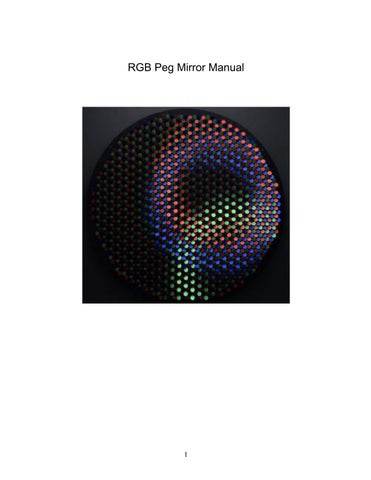
Introduction “RGB Peg Mirror” is a system involving various hardware/ software electronics and mechanical components, this user manual will guide you through the proper way to maintain and fix any problems that may occur during the lifetime of the “RGB Peg Mirror” . As a rule of thumb, the wear and tear of the “RGB Peg Mirror” is directly correlated to the amount of use it receives. A “RGB Peg Mirror” that is on for many hours every day and is in constant move due to many viewers moving in front of it will age faster and some of its motors may need to be replaced more frequently. It is advised to turn the “RGB Peg Mirror” off when it is not in use, this will prolong the motors life, it is advised to limit the hours every day that the piece is on, and limit the amount of interaction it receives in order to prolong the life of its motors. A “RGB Peg Mirror” that is displayed in a public place is at risk of being touched and damaged. It is advised in such circumstances to have the piece installed behind glass or stanchins. The “RGB Peg Mirror” is based on the Kinect sensor. The space in front of the piece should be empty of furniture and permanent obstacles as those cause the piece to constantly twitch and wear out its motors.
Setup and lighting Setting up the “RGB Peg Mirror” properly will greatly improve its performance, factors to consider are the space allocated to the “RGB Peg Mirror” and the lighting. Space consideration – The “RGB Peg Mirror” is a large object that displays a coarse image. As such it is very important to have a great viewing distance so that viewers can grasp the piece and comprehend the image being shown. In my experience a viewing distance of at least 25 feet (8 meters) is required, a greater distance is advantageous. When placing the piece, it is important to consider the flow of visitors. It is best if the piece can be first viewed from afar and then visitors walk towards it. This guarantees an understanding of the piece prior to interacting with it. Lighting considerations – The core of the functionality of the “RGB Peg Mirror” is dependant on lighting, the piece is made of hundreds of knobs that rotate up and down in an attempt to change their brightness in order to become a pixel in a digital image. In order to facilitate this effect certain lighting conditions should be created. It may be helpful to consult a lighting designer or lighting specialist prior to installing the lighting:
2
Ambient lighting – Ambient lighting in the space surrounding the “RGB Peg Mirror” should be as low as possible. This dramatically improves the contrast of the piece by allowing the aluminum knobs that tilt down to become as dark as possible. Adding a dark floor or carpet in front of the “RGB Peg Mirror” helps create this contrast by reducing the light reflection from the floor. Lighting of the space should be done without using florescent or mercury lighting which would add a flickering. Directional lighting – In order to function properly the “RGB Peg Mirror” should be lit from above with a series of a few flood lights. The lighting should hit the front surface of the “RGB Peg Mirror” at an average angle of 25-30 degrees off vertical. If the ceiling in the space is low enough, a track lighting system can be attached to the ceiling, if the ceiling is too high, the track may be suspended from the wall above the “RGB Peg Mirror”. (For example on a 12 feet ceiling a track can be hung 3 feet away from the wall). When adjusting the light positioning and direction try to aim them so that the surface of the “RGB Peg Mirror” is illuminated evenly and that a minimum amount of light hits the wall behind it or the floor. Dim the lights to make sure you are getting a good contrast between knob pieces that are rotated upwards (should be bright) and knob pieces that are rotated downwards (should be dark). Electrical power setup – As mentioned above, it is recommended to turn off the “RGB Peg Mirror” when not in use so having a timer for daily shutdowns is a good idea, and it is important for the outlet to have a surge protector too. Plug the piece into an outlet that can handle 2000 watt. The piece is connected to a power strip / surge protector that provides power to the piece, the computer and the kinect sensor. All components are rated for 110-230 volt operation
3
Side view
Front view
6 flood lights on track to light the piece evenly from above, usualy 90 watt
Position track to illuminate the piece from aboute 25-30 degrees from vertical
72"
25-3
72"
larger upper half with camera
16"
smaller lower half with wires
4
0
Hanging RGB Peg Mirror: 1. Affix the 4 cleat aluminum strips to the wall according to the drawing bellow. 2. Remove he smaller half (without camera) from the travel frame and lift to rest on the lower cleat strips. 3. Repeat with the upper half. 4. Remove the handles from the piece and cover holes with plastic plugs. 5. Attach the wires between the upper and lower parts on the left side: a. Power plug. b. USB connector. c. Small flat male / female connector. 6. 14. Cover the hole with the large plastic cover. 7. Attach the power cable below.
5
6
28.5"
50.25"
61.75"
84.125"
Turn the piece on: Turn on the piece with the switch on the bottom. The piece will go through a few seconds of calibrations in which the motors will move, once this is done (about 45 seconds) the piece will be on and working. Cleaning the piece: The piece should be dusted to remove dust, and can be cleaned with wipes and mild detergent.
7
Adjusting: There are a few adjustments you can do to make the piece work better in your environment, you can change things like zooming, tilting and panning of the image and change the brightness and contrast of the image and change the duration and frequency of the generative animations. For that you need to connect an HDMI monitor and mouse. See instructions for making adjustments bellow. The user name for the computer is “mirror”, the password is “mirror”. Description of system components: Mechanical – The mechanical components of the “RGB Peg Mirror” are hundreds of stepper motors connected to aluminum knobs. Of all the components of the “RGB Peg Mirror” the motors are most susceptible to failure, this is due to their mechanical nature and the fact that there are hundreds of them. Luckily the stepper motors are easily replaceable and so the life of the “RGB Peg Mirror” can be prolonged indefinitely by replacing the stepper motors as they fail. The stepper motors that are used in the “RGB Peg Mirror” are made by OEM Motors they are the R25BYHJ-01 and may be purchased from them directly at http://www.contactor.com.tw/. see below for instructions for replacing a stepper motor. Electronics – in order to control the hundreds of motors, capture the viewer’s image and communicate with the computer, the “RGB Peg Mirror” uses some electronic components: Computer – The computer used is a Mac Mini running OSX 11 The software is written in C++ in openFrameworks version 0.11 it uses addons for the kinect- ofxKinect and for the XML settings. The source code is included on flash drive that came with the piece. Kinect sensor – The Kinect model is from the Xbox 360. Motor Controllers. All the stepper motors in the “RGB Peg Mirror” are connected to stepper motor controllers that are made by the artist, if you need to replace one contact the artist or the gallery, you should mention the number of the controller you are replacing, it is written on a label on the large capacitor. The firmware for the controllers is included on the flash drive and can easily be uploaded to a controller. If you wish to create a new controller, all files and schematics are included as well. Looking at a Motor Controller you will notice the following wiring : 16 stepper wires – plugged into both sides of the controller, if you have to disconnect, make sure that the stepper wire is reconnected to the same position it was in (each motor has its unique place) .
8
There are 4 wires leading out of each controller, these wires are connected in parallel to all other controllers : Thick Red - +12V for motor supply. Thick Black – Ground for motors and logic Thin blue - +5 for controller (logic) supply Thin yellow – Serial signal (ttl) Power supply. All the Thick Red, thin blue and black wires of the controllers are connected to 4 power supplies. These are Mean Well UHP -500-12 All the yellow wires are connected to two DSD TECH SH-U09C3 Isolated USB to TTL Adapter.
16 motor controller board
9
R25BYHJ-01 Stepper motor
Mean Well UHP-500-12
Microsoft Xbox Kinect Sensor Xbox 360
Mean Well UHP-500-12 Mean Well UHP-500-12
Ground - Black wire
12V Red wire
motor driver Stepper controller
5V DC - Blue wire
Mean Well UHP-500-12
6 wire stepper
http://www.contactor.com.tw
Serial - Yellow wire Ground - Black wire
Mac Mini
USB Hub
DSD TECH SH-U09C3 Isolated USB to TTL Adapter
HDMI monitor
Mean Well 5v power supply
Keyboard keypad
Kinect power adaptor Power entry with switch
“RGB Peg Mirror” electronics components
10
Troubleshooting: If you have technical problems with the piece you can contact the artist or the gallery for help: Artist – danny.rozin@nyu.edu Gallery – info@bitforms.com The following are a few scenarios that may occur and the ways to diagnose and fix them. Knob has fallen of its motor. – The aluminum knob is secured to the shaft of the stepper motor by means of a set screw. The set screw can be tightened with a hex (allen) key, It is sometimes difficult to get the key into the screw, try using a hex key that has a rounded tip which is more flexible in terms of angles, sometimes removing a neighboring knob can help. Single knob not moving – If a single knob is not moving, its motor probably needs to be replaced see the “replacing a stepper motor” section below, before you replace the motor you may follow the wire from the motor and see if it is securely plugged into the controller, if it is not, plug it in and see if the motor resumes. If it is plugged in correctly and still not moving then try swapping the wires with a nearby motor, then see if your motor has resumed moving, if it does, this means that the controller is at fault and needs to be replaced, if the motor does not resume then the motor should be replaced (make sure you reconnect the motors to their original positions in the controllers after this test). A section of motors are not moving- if a section of motors is not moving (a group of 16) there may be a few things that would cause this: Wiring problem- Follow the wires from the motors and isolate the controller that they are connected to, then check the wires leading to the controller and see that they are securely plugged in, you may try and measure 12V between Red and Black and 5V between Blue and Black. Have someone move in front of the mirror and see if the controller’s LED blinks. Controller has failed – if you determine that the wiring is OK and the controller does not blink on startup or during operation, the controller may need to be replaced. You may try uploading the firmware from the flash drive and see if that helps. If you have a spare controller, you can try uploading new firmware for it from the flash drive. If you need a new controller contact the gallery or artist and mention the ID number of the controller which is marked on the large capacitor.
11
The entire “RGB Peg Mirror” is not working - Before getting into detailed diagnostics it is best to turn off the whole power of the “RGB Peg Mirror” and computer, wait 5 minutes and turn back on. If this fails there are a number of things to check: Turn the piece of and on, do the motors go through the 45 second calibration sequence but then stop? This could be the fault of the computer, the kinect camera or the TTL serial cables. If there is no movement at all it is probably a power issue. Connect a HDMI screen to the computer. On top it should say “kinect – OK”, “serial1 – OK, serial2 – OK”. If one of those is not OK then check the wires leading to them (USB and power to kinect). Press the “show video”, “show depth”, “show pixels” option on the screen, are you seeing a moving image on all three? If all seems fine in the software, things to consider are: If you turn the piece on and there is no motion and no blinking on the controller, there may be power problem, check the outlet and the power supplies. Bad controller shorting the serial bus, unplug all the wire connectors from the stepper controllers (not the motors, just the connector that feeds power and serial), then one by one try reconnecting the controllers and see if they work, there may be an offending controller or wire that is spoiling the connection for all the mirror. If you find the offending controller you may need to replace it. If you turn the piece on and there is blinking on the controllers but the motors don’t move, there may be a problem with only the 12V Red and Black wires
Removing a section of 64 motors for maintenance- The piece is comprised of sections of 64 motors (4 controllers each 16) each mounted to a metal panel and connected to the structure of the piece via several socket head screws around the edges of each panel. If you need to fix a motor or access the electronics behind a panel you can remove the screws. Be aware that the motor controller is affixed in the back of the panel of 16 and will still be attached to its wires so the panel will be dangling on the wires. The length of the wire is about 10 inches which is sometimes sufficient for making a simple fix. If you need to remove the
12
panel completely you will have to remove the 4 connectors. When you are done with the panel reattach the connector, the order is not important.
Replacing a stepper motor – If you need to replace a stepper motor follow these steps, you should have a few replacement motors that were supplied with the “RGB Peg Mirror”. If you run out of replacement stepper motors, you can purchase new ones, see above. 1. Locate the aluminum knob you want to replace and mark it with a sticker. 2. Turn the piece off. 3. Remove the panel of 64 as described above. 4. Follow the wire from the stepper motor and unplug the wire from the controller by pulling gently, remember the position it was plugged into. 5. Using an allen wrench (hex) from the side loosen the set screw that attaches the aluminum knob to the motor you want to replace, pull the aluminum knob off the motor shaft. 6. Loosen the two screws that hold the motor to the black metal mount, use a thin Phillips screwdriver and small pliers. 7. Get a new motor. 8. Attach the new motor to the black metal mount with the two screws and two nuts with spring washers. 9. Using an allen wrench (hex) tighten the set screw securing the aluminum knob to the motor, tighten as much as you can. (make sure it is pressing against the flat side of the motor shaft, you may need to rotate the motor shaft with pliers before) 10. Test the aluminum knob and see that it rotates and that the motor moves with it. 11. connect the wire to the controller in the position it was. 12. Reattach the panel of 64.
13
Making adjustments and diagnostics with software:
All adjustments to the software are done via the screen. You will need to attach a monitor to the computer via HDMI or thunderbolt and a keyboard and mouse. If you need to make any changes to the computer itself, the user name is “mirror” and the password is “mirror” All settings, once changed take effect immediately so you can see the results of changing them. However these changes are not automatically saved for future use. If you make a change and you are 100% certain you want to keep it then press the “Save Settings” button that will appear on the bottom. If you have made a change and you are not happy with the results it is best to simply power down the piece (and computer) and power it up again. The computer will use the last saved settings. On the top of the screen there is some information that may be useful while troubleshooting the piece: “Frame rate”, “Kinect status”, and “Serial 1 status”. These should all say “OK”, if the say “Not OK” there is a problem. |YES| |NO | show video Use this button to see the video coming in from the kinect.
14
|YES| |NO | show depth Use this button to see the depth image coming in from the kinect |YES| |NO | show pixels Use this button to see the image that should be showing on the piece. |YES| |NO | show shifts Use this button to see an image of the users (black) on the background (red). When no one is in front of the piece it should all be red, if there is furniture or obstacles in the field of view , those should be removed. If the walls, floor or ceiling show up then use the “ROI settings” below to adjust. |ADD| |SUB | threshold 7 Use the add/sub buttons to change the threshold. The threshold settings determines how sensitive the piece is to changes in the incoming video. A higher value will yield a less responsive piece, a lower value will yield a more twitchy piece, (normal values are 5-25) |ADD| |SUB | brightness -50 Use the add/sub buttons to change the brightness. The brightness changes the video coming from the camera, 0 is no change, negative value will darken and positive value will lighten the image. ( this will only effect the user image, not the background) normal values (-)50 – 50 |ADD| |SUB | contrast 120 Use the add/sub buttons to change the contrast. The contrast changes the video coming from the camera, 100 is no change, under 100 value will lower the contrast and higher value will add contrast. (this will only effect the user image, not the background) normal values 50 – 150 |ADD| |SUB | saturation 100 Use the add/sub buttons to change the saturation. The saturation changes the video coming from the camera, 100 is no change, under 100 value will lower the saturation and higher value will add saturation. (this will only effect the user image, not the background) normal values 80 – 180 |ADD| |SUB | min Dynamic range 120 Use the add/sub buttons to change the min Dynamic range. As the knobs turn downwards they don’t change much in color after about half the way down, this setting allows you to minimize this un-useful zone by setting a minimum limit at a higher point than 0 normal values 50 – 150, don’t change unless you feel confident you know what you are doing.
15
|ADD| |SUB | max Dynamic range 120 Use the add/sub buttons to change the max Dynamic range. As the knobs turn upwards they don’t change much in color in the last few degrees, this setting allows you to minimize this un-useful zone by setting a maximum limit at a lower point than 255, normal values 200 – 255, don’t change unless you feel confident you know what you are doing. |ADD| |SUB | video zoom 800 Use the add/sub buttons to change the zoom. The zoom allows you to magnify the field of view of the camera. lower numbers will magnify the image. |ADD| |SUB | shift X 200 Use the add/sub buttons to change the shift X. The Shift X allows you to pan left and right within the fields of view of the camera. For best results try to center the image of a person that is standing right in front of the piece. |ADD| |SUB | shift Y 120 Use the add/sub buttons to change the shift Y. The Shift Y allows you to tilt up and down within the fields of view of the camera. For best results try to make sure that people are centered on the piece from a variety of distances, remember that children also need to show up. |ADD| |SUB | max motors 770 Use the add/sub buttons to adjust the max motors. The max motors is a limit to how many motors may be moved in a single frame. |ADD| |SUB | depth blur 1 Use the add/sub buttons to adjust the blur depth. The blur depth is a setting that allows adding a blur to the depth data which can result in a less twitchy piece . good values are 0-3 |ADD| |SUB | image blur 0 Use the add/sub buttons to adjust the blur image. The blur image is a setting that allows adding a blur to the image which can result in a less twitchy piece . good values are 0-3 |ADD| |SUB | background red 255 Use the add/sub buttons to adjust the background red. The background red is the red level of the knobs that are in the background. This is typically 255 for white. |ADD| |SUB | background green 255 Use the add/sub buttons to adjust the background green. The background green is the green level of the knobs that are in the background. This is typically 255 for white.
16
|ADD| |SUB | background blue 255 Use the add/sub buttons to adjust the background blue. The background blue is the blue level of the knobs that are in the background. This is typically 255 for white. |ADD| |SUB | startup wait 35000 Use the add/sub buttons to adjust the startup wait . The startup wait is the time in milliseconds (1000= 1 second) that the computer waits on startup before starting to operate. If you have it long enough then the computer will make sure all the knobs are in the background position when it starts up. |ADD| |SUB | parallax X 0.0 Use the add/sub buttons to adjust the parallax X. If the camera is not positioned in the horizontal center of the piece ( say it’s on the right side) then the parallax X setting can shift the image of the viewer so that it is always centered. As the kinect is installed in the center and the piece is currently hung at eye level this should remain 0.0 |ADD| |SUB | parallax Y -0.0 Use the add/sub buttons to adjust the parallax Y. If the camera is not positioned in the vertical center of the piece ( say it’s on the top) then the parallax Y setting can shift the image of the viewer up and down so that it is always centered. As the kinect is installed in the center and the piece is currently hung at eye level this should remain 0.0 |ADD| |SUB | parallax depth shift -3000 Use the add/sub buttons to adjust the parallax depth shift. If a parallax X or Y is used (not 0) then this parameter allows to have it kick in some distance from the camera in MM so -3000 means shift by 3 meters. As the kinect is installed in the center and the piece is currently hung at eye level this will be ignored |ADD| |SUB | stretch factor X 1.00 Use the add/sub buttons to adjust the stretch factor X. If the camera is not positioned in the horizontal center of the piece (say it’s on the right side) then the stretch factor X will allow the piece to correct for the shrinking of the image on the X axis. 1.00 is no change. As the kinect is installed in the center and the piece is currently hung at eye level this should remain 1.00 |ADD| |SUB | stretch factor Y 1.00 Use the add/sub buttons to adjust the stretch factor Y. If the camera is not positioned in the vertical center of the piece (say it’s on the top) then the stretch factor Y will allow the piece to correct for the shrinking of the image on the Y axis. 1.00 is no change. As the kinect is installed in the center and the piece is currently hung at eye level this should remain 1.00
17
|EXPERT MODE| Pressing this button will show more adjustments that are probably not meant for the user so don’t make any changes unless you are sure you know what you are doing. |ADD| |SUB | min position 5 Use the add/sub buttons to adjust the min position. The min position is how much can the knob rotate to one direction. |ADD| |SUB | max position 45 Use the add/sub buttons to adjust the max position. The max position is how much can the knob rotate to the other direction. |ADD| |SUB | range 150 |PROGRAM| Use the add/sub buttons to adjust the range. The range is how much each knob rotates during the calibration on startup. This needs to be saved to the firmware of the controller board so press program to save it to the boards. (Not active in this piece) |ADD| |SUB | speed 26 |PROGRAM| Use the add/sub buttons to adjust the speed. The speed is how fast the motors move , smaller is faster. This needs to be saved to the firmware of the controller board so press program to save it to the boards. . (Not active in this piece) |ADD| |SUB | new controller ID from 200 Use the add/sub buttons to adjust the new controller ID from. If a new board needs to be programmed then set the current ID of the board ( 200 when it’s new), . (Not active in this piece) |ADD| |SUB | new controller ID to 110 |PROGRAM| Use the add/sub buttons to adjust the new controller ID to. If a new board needs to be programmed then set the wanted ID of the board ( 100-186), then press program to make it happen. (Not active in this piece) |ROI SETTINGS| Press this button to go to the screen that lets you change the ROI (region of interest) of the piece. This will allow you to limit the view, left right, top, bottom near and far. Any object that is in the cube of space defined by the ROI settings will be imaged and considered a “user” so walls floor and furniture should be out of the cube or the piece will constantly show them and will be twitching constantly which is annoying and can wear out the motors.
18
|ADD| |SUB | left ROI -630 Use the add/sub buttons to adjust the left ROI. The left ROI is the left side of the cube that defines the region of interest, a smaller number (bigger minus) makes the cube bigger. |ADD| |SUB | left angle 0.0 Use the add/sub buttons to adjust the left angle. The left angle is the angle of the left side of the cube that defines the region of interest, if the kinect camera is not facing forwards, but is on an angle left or right you can set this angle to a value that is above or under 0 to correct for that. As the kinect is mounted parallel to the floor in this piece it should remain 0.0 |ADD| |SUB | right ROI 824 Use the add/sub buttons to adjust the right ROI. The right ROI is the right side of the cube that defines the region of interest, a bigger number makes the cube bigger. |ADD| |SUB | right angle 0.0 Use the add/sub buttons to adjust the right angle. The right angle is the angle of the right side of the cube that defines the region of interest, if the kinect camera is not facing forwards, but is on an angle left or right you can set this angle to a value that is above or under 0 to correct for that. As the kinect is mounted parallel to the floor in this piece it should remain 0.0
19
|ADD| |SUB | top ROI -1200 Use the add/sub buttons to adjust the top ROI. The top ROI is the top side of the cube that defines the region of interest, a smaller number (bigger minus) makes the cube bigger. |ADD| |SUB | top angle 0.0 Use the add/sub buttons to adjust the top angle. The top angle is the angle of the top side of the cube that defines the region of interest, if the kinect camera is not facing forwards, but is on an angle up or down you can set this angle to a value that is above or under 0 to correct for that. As the kinect is mounted parallel to the floor in this piece it should remain 0.0 |ADD| |SUB | bottom ROI 1220 Use the add/sub buttons to adjust the bottom ROI. The bottom ROI is the top side of the cube that defines the region of interest, a bigger number makes the cube bigger. |ADD| |SUB | bottom angle 0.00 Use the add/sub buttons to adjust the bottom angle. The bottom angle is the angle of the bottom side of the cube that defines the region of interest, if the kinect camera is not facing forwards, but is on an angle up or down you can set this angle to a value that is above or under 0 to correct for that. |ADD| |SUB | near ROI 750 Use the add/sub buttons to adjust the near ROI. The near ROI is the side of the cube closest to the piece, that defines the region of interest, a bigger number makes the cube smaller. |ADD| |SUB | far ROI 4500 Use the add/sub buttons to adjust the far ROI. The far ROI is the side of the cube furthest away from the piece, that defines the region of interest, a bigger number makes the cube bigger. |ADD| |SUB | rotate 0 Use the add/sub buttons to adjust the rotate setting. The rotate setting allows the kinect to be placed sideways. 0= horizontal, 1= vertical. |ADD| |SUB | flip horizontal 1 Use the add/sub buttons to adjust the flip horizontal setting. 0= not flipped horizontal, 1= yes flipped horizontal. |ADD| |SUB | flip vertical 0 Use the add/sub buttons to adjust the flip vertical setting. 0= not flipped vertical, 1= yes flipped vertical.
20
|ADD| |SUB | wait between moves 150 Use the add/sub buttons to adjust the wait between moves setting in MS. 150 is good amount to reduce flicker while maintaining responsiveness. |ADD| |SUB | work or freeze 1 Use the add/sub buttons to adjust the work or freeze setting , default is 1 , 0 will stop the piece |ADD| |SUB | percent of blur for shaking this is used to reduce flicker due to noise of the kinect sensor. |ADD| |SUB | percent of blur eroding this is used to reduce flicker due to noise of the kinect sensor. |ADD| |SUB | time between slides 10000 Use the add/sub buttons to adjust the time between slides setting in MS , this sets how long each effect in the animation phase will last. |ADD| |SUB | time between slideshows 240000 Use the add/sub buttons to adjust the time between slideshows setting in MS , this sets how often the animation phase will start. |ADD| |SUB | slideshow duration 120000 Use the add/sub buttons to adjust the slideshow duration setting in MS , this sets how long the animation phase will be. |ADD| |SUB | slide motor range 90 Use the add/sub buttons to adjust the slide motor range setting, this sets how much knobs will deflect u and down during the animation phase. |ADD| |SUB | slide middle position 100 Use the add/sub buttons to adjust the slide middle position setting, this sets the middle position of knobs during the animation phase. |ADD| |SUB | max slideshows after person 3 Use the add/sub buttons to adjust the number of slideshows to be performed once no one has been seen for a while, after that the piece waits for a person and does not perform slideshows. |SERIAL SCREEN| Press this button to go to the screen that lets you change the assignment of the serial ports. The piece is connected to a USB/TTL serial adaptor. In this screen you can determine which adaptor will be assigned to the piece. If this is set wrong there will be no motion on both sides of the piece.
21
current port 0: tty.usbserial-A100FY2H On the top of the screen, the current assignments as saved in the settings file , you will see 2 lines. |Set 0| |Set 1| : tty.usbserial-A100FY2H under the current assignment you will see a list of all available serial ports By pressing set 0 or 1 you can assign that port to the piece. The effect does not take effect immediately but rather next time the piece and computer are started. You should save settings to make the change last. Make sure you know what you are doing before changing this.
22