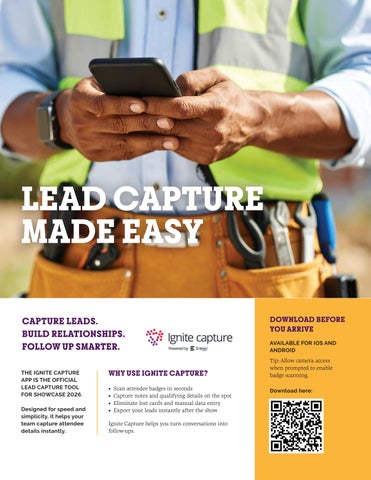
LEAD CAPTURE MADE EASY CAPTURE LEADS. BUILD RELATIONSHIPS. FOLLOW UP SMARTER. THE IGNITE CAPTURE APP IS THE OFFICIAL LEAD CAPTURE TOOL FOR SHOWCASE 2026. Designed for speed and simplicity, it helps your team capture attendee details instantly.
WHY USE IGNITE CAPTURE? • Scan attendee badges in seconds • Capture notes and qualifying details on the spot • Eliminate lost cards and manual data entry • Export your leads instantly after the show Ignite Capture helps you turn conversations into follow-ups.
DOWNLOAD BEFORE YOU ARRIVE AVAILABLE FOR IOS AND ANDROID Tip: Allow camera access when prompted to enable badge scanning. Download here:
HOW TO USE THE IGNITE CAPTURE APP GET STARTED IN 5 SIMPLE STEPS 1
DOWNLOAD THE APP
Get Ignite Capture for iOS or Android at: igniteevents.com.au/leadcapture 2
ACCESS THE EVENT
When prompted, enter the event code: sbcmember 3
LOG IN & SET YOUR PASSWORD
• Tap Log In at the bottom of the screen. • Enter the same email address you used to register. • Use the temporary password: SBCShow26 • Create your own password. 4
SCAN ATTENDEE BADGES
Tap to Scan, hold the badge about 8 inches from your camera, and centre the QR code on screen. A green checkmark confirms a successful scan.
5
MANAGE & EXPORT LEADS
• Add notes and qualifying details to each lead • Tap Export to receive a CSV file by email • Follow up quickly while conversations are still fresh • Click “Sync” to ensure your leads are saved to the cloud.
QUICK HELP & TIPS CAN’T LOG IN? Make sure you’re using the email tied to your exhibitor registration. LOGGED OUT? Tap “Already have an account? Log in” or “Recover my account details.” At the Showcase and can’t access your email? • Visit Exhibitor Registration (Hall H) for help, or • Contact cjosef@supplybuild.ca for an account reset WANT BETTER LEAD DATA? Use Qualifying Questions in the app to capture extra insights and share them across your booth team.
TO CREATE CUSTOM QUALIFYING QUESTIONS IN CAPTURE APP 1. Click Manage on the home screen 2. Select Qualifying Questions from the list of options 3. Click + to add a new question 4. Select the type of question you wish to add to your form 5. Add the Question and, if applicable, the response/s 6. Click Save