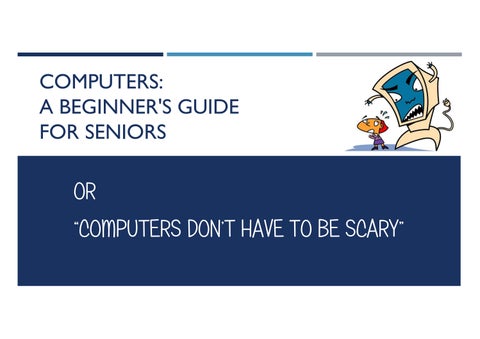
COMPUTERS: A BEGINNER'S GUIDE FOR SENIORS
OR “COMPUTERS DON’T HAVE TO BE SCARY”
WELCOME & INTRODUCTION Reassuring Pace: The format is very friendly, and you will be encouraged to progress at your own speed, throughout this journey. Supportive Learning Environment: We meet here in a warm nonintimidating space where questions are welcomed, and mistakes are part of learning. Building Confidence: I especially want to boost your confidence in navigating IT, making it accessible and enjoyable for you. To foster a can, do attitude towards technology. Jargon Free: Getting the most from your devices in plain English
TOPICS WE WILL BE COVERING Can I just Ignore it all ! Anti-Virus Malware Passwords & Security Apps Advertising Social Media
AI – Will it affect me? Is big brother watching me Keeping Safe Online What’s True Anymore? Bots Online banking Google / Microsoft
Email me if you would like to receive notes following these sessions (pdf) petersmerdon@blueyonder.co.uk
SESSION NOTES
AI Names Quiz Apple Amazon Google (now part of Gemini branding) xAI (Elon Musk) Microsoft IBM Minstral AI (French) SalesForce Amazon Samsung Black Rock Dominoes Pizza Burger King
Siri Alexa Duet AI Grok (means to understand deeply in sci-fi slang) Copilot Watson Le Chat Einstein Q Bixby Aladdin Dom Patty !
QUIZ TIME
What is a browser?
BROWSERS
Browsers are essentially different makes / brands of a window to access the internet. They are the simply the ‘Windows to the World’ The Big 5 Chrome – Google Edge – Microsoft (formally Explorer) Safari – Apple Firefox – Mozilla (not for profit) Opera – Opera (no frills) +Brave my new favourite & Duck Duck Go
BROWSERS
Alternate views to the same / similar data whilst harvesting and monetising information about you as you browse.
Do you like my picture by the way ?
BROWSERS
Draw a picture of an open grassed field as viewed from inside a white room. In the distance is a whole large oak tree. The windows in the room are three glazed window frames one round one square and one oblong upright. The three frames are roughly the same size and are painted in different colours red blue and yellow the oak tree needs to be completely visible through the round window so this can be a bit lower
BROWSERS
•
•
•
•
Historically you purchased and installed ‘programmes’ onto your PC to perform useful work (client sided). Upgrades were then purchased as required e.g. Word Increasingly you ‘subscribe’ to that service that provides that same service via your ‘Browser’ (server sided). Upgrades are included in your subscription, and your PC loads the latest version every time you run it. This way everyone is running the latest version of an application at the same time making programme development more sustainable and cost effective. On phones and tablets rather than use your browser the company provide an ‘app’ that essentially does the same thing (server sided) optimised for the smaller screen sizes
BROWSERS
• Accesses Websites A browser allows users to visit and view websites by entering a web address (URL). • Displays HTML Content Browsers interpret and display HTML, CSS, and JavaScript to turn code into visible, interactive pages. • Renders Web Pages It converts code into formatted text, images, links, buttons, videos, and other elements on a page.
BROWSERS
• Handles Links and Navigation Browsers let users click links to move between pages or sites and use back/forward buttons to navigate. • Manages Cookies and Local Storage Browsers store small pieces of data (cookies, local storage) to remember preferences, sessions, and login info. • Enforces Security Protocols It uses HTTPS to ensure secure connections and warns users about insecure or suspicious sites.
BROWSERS
• Runs JavaScript The browser executes JavaScript code that enables dynamic content like forms, animations, and interactive features. Manages Cookies and Local Storage • Downloads Files It allows users to download documents, images, software, and other files from the internet. • Supports Extensions and Add-ons
BROWSERS
In the following pages I will be using Chrome in my examples, but most browsers offer similar functionally. Personally, this is my browser of choice for both it’s simplicity and for supporting multiple profiles (more on that later). Being owned by Google it works across the majority of phones / tablets / desktops effectively with 66% of market share (3.69 billion users!!). All browser makes steal your data! Firefox to a lesser degree.
BROWSERS
Browser Parts • • • • • • • • • • •
Address / Search Bar Tabs Extensions Area Profile & Settings Webpage display Scrollbars & Zoom Bookmarks (optional) Menu & customisation Passwords Viewing History Incognito Mode
BROWSERS
CHROME SETTINGS
ADDRESS / SEARCH BAR Set your default Search Engine Updates may try and reset your choice Duck Duck Go – least invasive https://duckduckgo.com/
START-UP PAGES
TABS
A. Open Tabs B. New Tab C. Paused – unloaded from memory D. Right click – Duplicate tab E. Right click – Pin tab to the left There is no need to close one tab before opening another – the more the merrier!
TAB SEARCH
Displays a list of all the open tabs to save scrolling Useful when you have a lot of tabs open
EXTENSIONS AREA
A. Extension Manager B. Typical Extensions
BOOKMARKS
From here you can view and organise web pages you have previously bookmarked Pages displaying a blue star have previously been bookmarked
DOWNLOADS & DOWNLOAD HISTORY
From here you can view your recently downloaded file as well as historical downloads from previously viewed web pages By default any files downloaded by your browser are stored in a folder called Downloads
PROFILE MANAGER
From here you can manage your profile passwords, your google account, customization & Sync You can also create / share multiple profiles with others each profile retains its own personal setting and passwords
SYNC MANAGER Turning on the Sync means that everything you see on one device is also shown on all your other signed in devices. Bookmarks Passwords Favourites etc
MORE OPTIONS
Allows you access to additional functionality like printing, zoom & help Incognito Window allows you to browse a webpage safely • No history saved • No cookies saved • No autofill • 3rd party cookies blocked
WEBPAGE DISPLAY - ZOOM Use ctl+ & ctl- (or the scroll wheel) to make text larger or smaller
WEBPAGE DISPLAY - SCROLLING A. Left clicking and dragging on the scroll page will move the page up and down B. Clicking in the ‘blank space’ above / below the scroll bar will move a page at a time C. Clicking on up arrow will move the page up a few lines D. The down arrow will move you down
WEBPAGE DISPLAY – KEEPING SAFE When you highlight a web page link (URL) depending on your device you will see displayed the address where you will be sent to when you follow the link. Remember the words displayed in the link don’t necessarily reflect where the link will take you ! On smaller devices the address may display in a popup window when you ‘hover’ over it.
New Chrome Split View Simply right click on a tab and select split view (desktop only)
CHROME NEW SPLIT VIEW
New Chrome Tab Groups Simply right click on a tab and select - Add tab to group
CHROME NEW TAB GROUPS
BROWSER PASSWORDS Most browsers offer to store your passwords and will auto fill them for you. If browser sync is turned on then they will sync across all your devices running the ‘same’ browser Passwords are encrypted so are stored safely but for us ‘seniors’ a password book is a good back up Remember when you change a password you need to update it in your book as well.
PASSWORD BOOKS Password Book Alphabetical with Tabs, 120 Pages Small Password Book for Seniors Managing Website Address & Logins (16 x 12cm, Blue) from as little as 5.99p from Amazon
Email me if you would like to receive notes following these sessions (pdf) petersmerdon@blueyonder.co.uk
SESSION NOTES
COMPUTERS: A BEGINNER'S GUIDE FOR SENIORS
“COMPUTERS DON’T HAVE TO BE SCARY” THURSDAY 18TH SEPTEMBER 2025