


Please visit the link https://match.sigma.world/ to login to the app.
Please enter the email address you have used to fill in the form after purchasing the ticket on our website and also the ticket reference number (for first time login users). You should also get these details on your registered email address.
Once you enter the correct credentials, an email will be sent to you to setup your password as per the screenshot below:

For returning users, you can login by simply using the password you had set earlier. In case if you have forgotten the password, please use the ‘Forgot Password’ option to receive an email on your registered email address.
For Push Notifications to work on your mobile device, you need to login to the app first. Once you are logged in to the app, after a few seconds, you shall see a pop-up below to subscribe to push notifications.
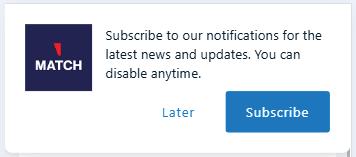

Click on Subscribe. Then you shall also be asked to install the app on to your device for Android users. For iOS, you will have to add the app to your homescreen.

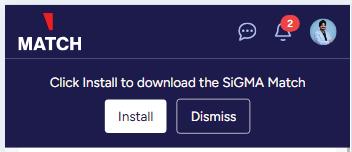
Once the app is installed or added to your homescreen, you will need to ensure that the push notifications for SiGMA Match App is enabled. This can be done by going into your phone settings and ensuring that the push notifications are enabled for SiGMA Match App.
That is all. Once you have followed the steps above, you shall start getting push notifications on your mobile device for both Android and iOS.
It is mandatory for all users to first have their profile filled up. This is required for best user experience. A lot of functionalities in the app depend on your profile being filled up completely. Functionalities like search by filter, recommendations etc. may not show up properly unless you fill your profile.
To fill your profile, simply tap on the top right icon of your app and then click on the edit profile icon as in the screenshot below:
On the next screen, you will be able to upload a profile picture and also fill up all the fields as applicable to you. Make sure you fill up all the fields to the best of your knowledge. At the end, click on ‘Save Changes’.
SiGMA Match App – Menu Item Descriptions
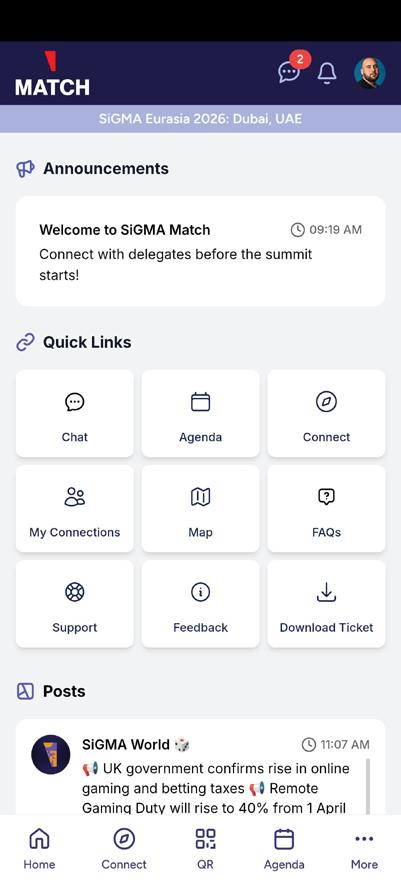
Notifications (bell icon) – View alerts about new updates, announcements, or meeting requests.
Messages/Chat (speech bubble with badge) – Access all your ongoing conversations and unread messages.
Profile (user icon with photo) – Manage your personal profile, settings, and visibility.
Event Selector – Shows the current event for which you have access in the app.
Announcements Feed – Displays important updates, reminders, and news from the organizers (e.g., “Welcome to SiGMA Match”, event countdowns, or last-minute changes).
Chat – Connect instantly with other attendees through private conversations.
Agenda – Explore the full event schedule including keynote sessions, panels, workshops, and networking activities.
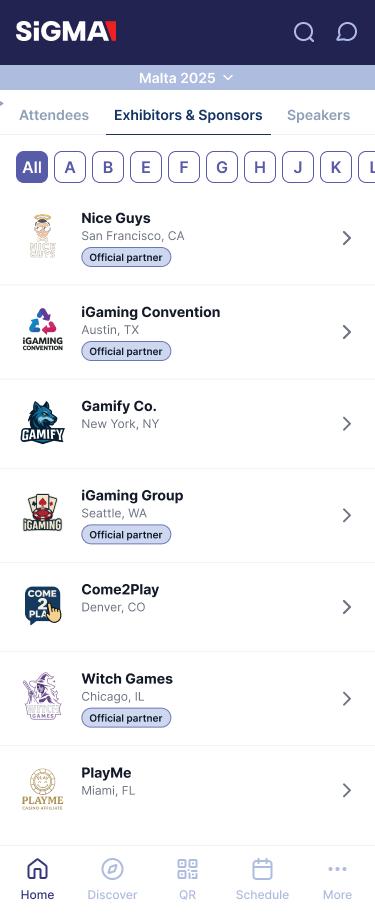
Connect – Find and reach out to attendees, speakers, and exhibitors to expand your professional network. Here you can search attendees through filtering options as well.
My Connections – View the list of people you have successfully connected with during the event.
Map – Access an interactive map of the event venue to easily navigate booths, stages, and lounges.
FAQs – Find quick answers to common questions regarding logistics, tickets, sessions, or app usage.
Support – Reach out to the helpdesk for technical assistance or event-related queries.
Feedback – Share your experience, suggestions, or issues with the organizers to help improve the event.
Download ticket – Access and download your o cial event ticket for registration and entry.
You can search other attendees by filtering through the Connect screen. Navigate to ‘Connect’ tab.
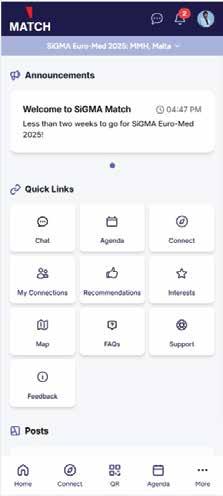
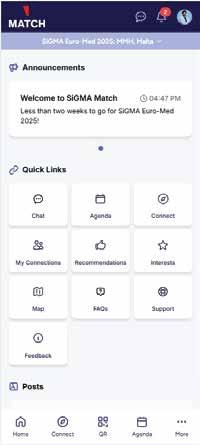
Click on the search button in the header and then click on the blue filter icon to search attendees by Filter.
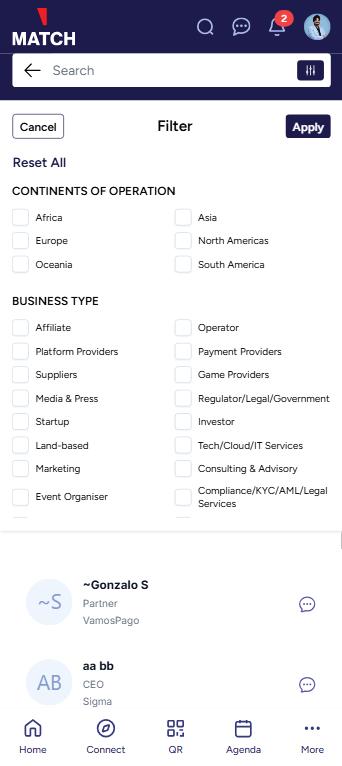
Once you click on the filter button, you shall see a scrollable screen of all the filters available as below:

Note: The filter will work if you have filled your profile correctly. It is mandatory for all attendees to complete their profile after logging into the app.
You can now connect with attendees using the QR code from the app. To get your QR code, simply tap on the top right profile picture icon and the app will redirect you to your profile page showing you a QR code.
To connect with the person, click on the QR code button on the bottom bar and allow camera permissions, this will ensure that you are able to scan the QR code. Upon scanning, the app will open the profile of the person of whom the QR code was scanned allowing you to send a connection request and begin socializing.