Timekeeping: Submitting Time Employees who need to submit time can do so using the Time Application. Follow the steps below to submit time in Workday. Hourly and non-exempt employees are required to submit time daily to their manager for approval.
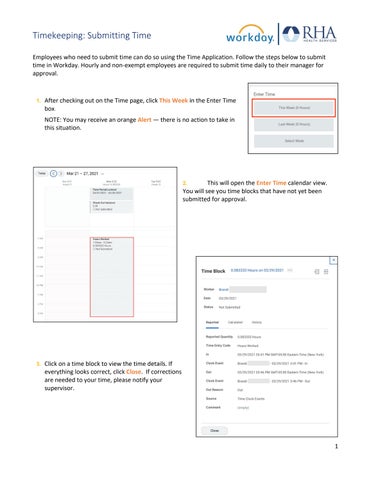
1. After checking out on the Time page, click This Week in the Enter Time
box.
NOTE: You may receive an orange Alert — there is no action to take in this situation.
2. This will open the Enter Time calendar view. You will see you time blocks that have not yet been submitted for approval.
3. Click on a time block to view the time details. If
everything looks correct, click Close. If corrections are needed to your time, please notify your supervisor.
1
Timekeeping: Submitting Time 4. When you are ready to submit your time block for the day, scroll down to
the bottom of the Enter Time page and click Review.
5. A screen will pop up showing you the time you
are submitting. If everything looks good, click Submit.
6. You will then see a pop-up notification that
your time has been successfully submitted to your time approver. If you dismiss the success pop-up, you will be returned to the Enter Time calendar view. The time block you just submitted should now say Submitted on the calendar. Once your manager approves your time, your time block will say Approved.
REMEMBER: Be sure to log out of Workday when you finish with your task to protect your privacy. If you have questions or issues with Workday, please email solutions@rhanet.org with the subject line Workday.
2