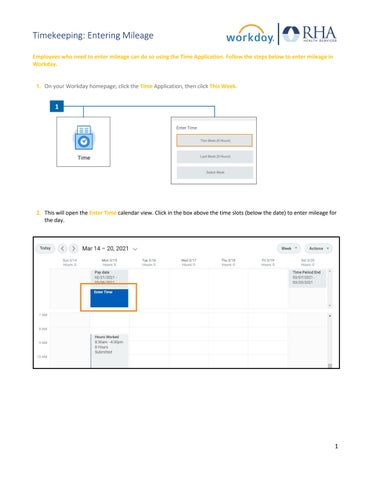
Timekeeping: Entering Mileage Employees who need to enter mileage can do so using the Time Application. Follow the steps below to enter mileage in Workday. 1. On your Workday homepage, click the Time Application, then click This Week.
1
2. This will open the Enter Time calendar view. Click in the box above the time slots (below the date) to enter mileage for
the day.
1
Timekeeping: Entering Mileage 3. This will open a pop-up for you to enter the details for your mileage on this day. First, select Mileage in the Time Type
field. Enter the mileage for that day, the cost center, and a brief description of the mileage. Then click OK.
3
4. After you have entered your mileage for the day, scroll down to the bottom of the
Enter Time page and click Review. If everything looks good, click Submit.
5. This will pop up a notification that your mileage has
been submitted to your time approver.
Manager Name
REMEMBER: Be sure to log out of Workday when you finish with your task to protect your privacy. If you have questions or issues with Workday, please email solutions@rhanet.org with the subject line Workday.
2