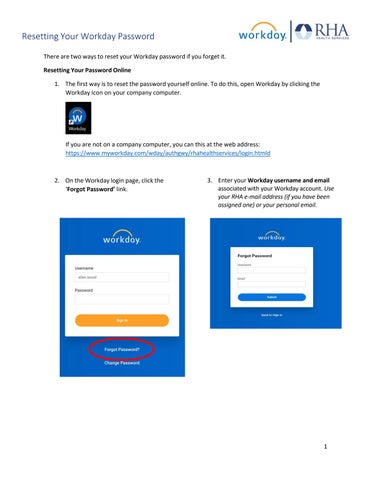
Resetting Your Workday Password There are two ways to reset your Workday password if you forget it. Resetting Your Password Online 1. The first way is to reset the password yourself online. To do this, open Workday by clicking the Workday icon on your company computer.
If you are not on a company computer, you can this at the web address: https://www.myworkday.com/wday/authgwy/rhahealthservices/login.htmld
2. On the Workday login page, click the ‘Forgot Password’ link.
3. Enter your Workday username and email associated with your Workday account. Use your RHA e-mail address (if you have been assigned one) or your personal email.
1
Resetting Your Workday Password 4.Check your e-mail for the password reset link and follow the instructions. Please allow a few minutes to receive the notification and check your spam folder.
5.If the “forgot password” procedure does not work, and you are a current employee, see the contact information below: Current Employees RHA Benefits Service Center Phone: 855-742-2367 E-mail: rhabenefits@onesourcevirtual.com Hours of Operation: 8a-8p EST Monday-Friday Required Information: 1. Workday ID 2. Date of Birth 3. Last 4 digits of your Social Security Number 4. Zip Code- Address listed in Workday
6. If the “forgot password” procedure does not work, and you are a new employee or contractor, see the contact information below: New Employees or Contractors HR4U Phone: 833-742-4748 E-mail: HR4U@rhanet.org Hours of Operation: 8a-8p EST Monday-Friday Required Information: 1. Workday ID 2. Date of Birth 3. Last 4 digits of your Social Security Number
REMEMBER: Be sure to log out of Workday when you finish with your task to protect your privacy. If you have questions or issues with Workday, please email HR4U@rhanet.org with the subject line Workday.
2