Requesting Time Off Employees who wish to request time off can do so using the Absence application on the Workday home page. Follow the steps below to request time off in Workday.
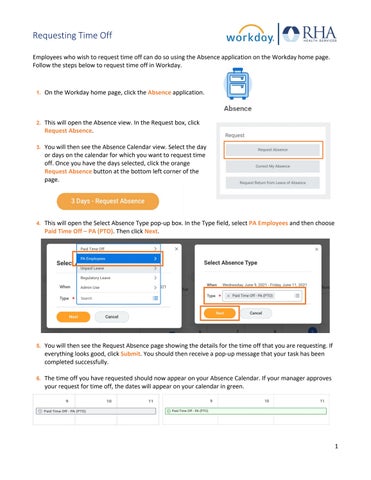
1. On the Workday home page, click the Absence application.
2. This will open the Absence view. In the Request box, click
Request Absence.
3. You will then see the Absence Calendar view. Select the day
or days on the calendar for which you want to request time off. Once you have the days selected, click the orange Request Absence button at the bottom left corner of the page.
4. This will open the Select Absence Type pop-up box. In the Type field, select PA Employees and then choose
Paid Time Off – PA (PTO). Then click Next.
5. You will then see the Request Absence page showing the details for the time off that you are requesting. If
everything looks good, click Submit. You should then receive a pop-up message that your task has been completed successfully.
6. The time off you have requested should now appear on your Absence Calendar. If your manager approves
your request for time off, the dates will appear on your calendar in green.
1
Requesting Time Off 7. If your manager denies your request for time off, you will receive a notification in Workday that your
request has been denied.
8. If there is an issue with your request, your manager may send it back to you to revise. In this case you will
receive a notification that you need to revise your absence request. You will see the reason your manager has sent back the request in the comments section. Adjust the request and click submit.
If you have any questions about a time off request you have submitted, please contact your supervisor. REMEMBER: Be sure to log out of Workday when you finish with your task to protect your privacy. If you have questions or issues with Workday, please email solutions@rhanet.org with the subject line Workday. 2