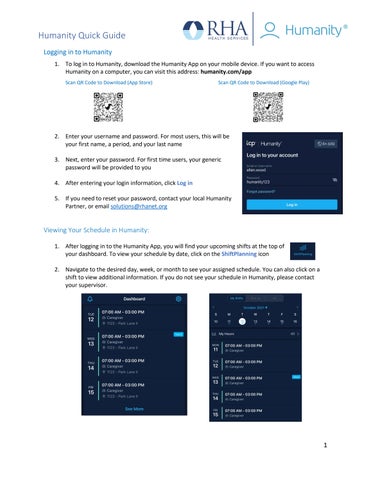
Humanity Quick Guide Logging in to Humanity 1. To log in to Humanity, download the Humanity App on your mobile device. If you want to access Humanity on a computer, you can visit this address: humanity.com/app Scan QR Code to Download (App Store)
Scan QR Code to Download (Google Play)
2. Enter your username and password. For most users, this will be your first name, a period, and your last name 3. Next, enter your password. For first time users, your generic password will be provided to you 4. After entering your login information, click Log in 5. If you need to reset your password, contact your local Humanity Partner, or email solutions@rhanet.org
Viewing Your Schedule in Humanity: 1. After logging in to the Humanity App, you will find your upcoming shifts at the top of your dashboard. To view your schedule by date, click on the ShiftPlanning icon 2. Navigate to the desired day, week, or month to see your assigned schedule. You can also click on a shift to view additional information. If you do not see your schedule in Humanity, please contact your supervisor.
1
Humanity Quick Guide Requesting Open Shifts in Humanity 1. After logging into the Humanity App, you may see open shifts that can be requested on your dashboard. Open shifts can be identified by the purple "Open" label on the shift.
2. After selecting an open shift, select Request Open Shift
3. Pending requests will be approved or denied by the scheduler. If you change your mind about the request, select Cancel Open Shift Request.
4. If your request is approved, you will find the shift on your ShiftPlanning calendar.
REMEMBER: If you have questions or issues with Humanity, please email solutions@rhanet.org
2