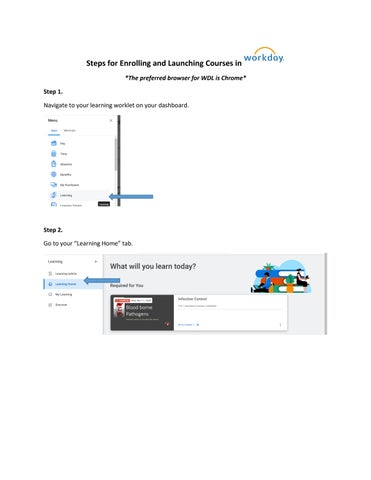
Steps for Enrolling and Launching Courses in *The preferred browser for WDL is Chrome* Step 1. Navigate to your learning worklet on your dashboard.
Step 2. Go to your “Learning Home” tab.
Step 3. Click on the course you need to complete in the “required for you” slider as shown above. Example #1 is a digital course. Click on the enroll button.
Step 4. To complete the enrollment, click the submit button.
Step 5. Click the done button.
Step 6. Click the start course button.
Step 7. Click the launch content button.
*If you see this screen, you can click launch course & continue viewing the content. You can also check
your pop-up blockers to ensure that they are disabled for the Workday website.
Example of Enrolling into a Blended Course To enroll in a blended course, you will be prompted to select an offering. Do NOT enroll in a random offering without consulting your supervisor or coordinator first. Follow the steps outlined below. 1) Navigate to the course you need to enroll into and click the “Enroll” button.
2) Select an offering and click the “OK” button.
3) After clicking “OK”, a new pop-up window will appear and show the details of the offering. If the details provided list the assessor/trainers from your location, click the “Submit” button.
4) If the details are not correct for your location, click the “Review” button to return to the list of offerings to continue searching for the correct offering.
* Upon completion of the media portion of a blended course, notify your training coordinator. They can then manage completion of any other lessons that require an assessor. Once they have completed the lessons, your record will then show complete.
Enrolling into an Annual Recertification Course Step 1. Navigate back to your learning worklet and then go to your learning history.
Step 2. Locate the course you need to recertify in your transcript and click on it. You will now click the “View Course Again” button, then “Retake Course” NOT “View Course Again”, Submit and Done.
Step 3. Click Start Course.