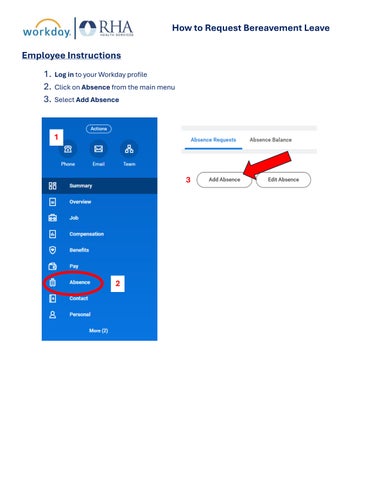
How to Request Bereavement Leave Employee Instructions 1. Log in to your Workday profile 2. Click on Absence from the main menu 3. Select Add Absence
1
3
2
How to Request Bereavement Leave 4. Navigate to the dates you wish to request off and click on the date. A pop-up box will appear. 4
5. Click on the menu to select the absence type. • Click on the arrow next to “Bereavement Time Off” • Select Bereavement
6. Click Next and repeat these steps for each additional day you are requesting. • The selected date(s) will turn blue. 5
6
How to Request Bereavement Leave 7. Review your Bereavement Leave Request Summary: • Confirm the total hours requested • Verify the dates selected 7 • Edit the quantity per day if necessary • Full-Time Employees: Default is 8 hours per day. You may enter fewer hours but not more. • Part-Time Employees: Default is 4 hours per day. You may enter fewer hours but not more. • The minimum increment is 1 hour.
How to Request Bereavement Leave 8. Select Submit to send to your Supervisor for Approval. 8 Please Note: •
Your Absence Calendar will reflect the requested Bereavement Leave dates.
•
Once your supervisor approves the request, you will receive a notification in Workday.
•
Approved leave will appear in your Absence Calendar, marked in green, indicating that it has been approved and that you will be paid for those days
How to Request Bereavement Leave SUPERVISOR STEPS: 1. Go to your Workday Inbox and click on the employee’s Absence Request
1
2. Review the Bereavement Leave Absence Request Summary • Ensure that the request is for three days or fewer • Confirm that: • Full-Time employees do not exceed 8 hours per day • Part-Time employees do not exceed 4 hours per day • Verify that the correct hours are entered if the employee is requesting fewer than the maximum allowed. 3. Click Approve to finalize the request 4. A notification will be sent to the employee confirming the approved time off.
How to Request Bereavement Leave
2
3