LHR Provider Portal | Overview Sheet

Page 1


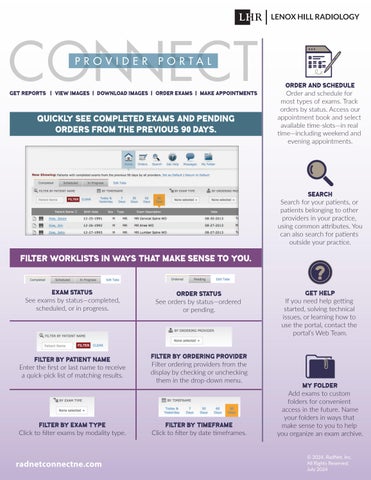
Quickly see completed exams and pending orders from the previous 90 days. Filter worklists in ways that make sense to you.
See exams by status—completed, scheduled, or in progress.
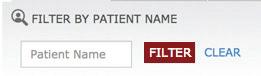
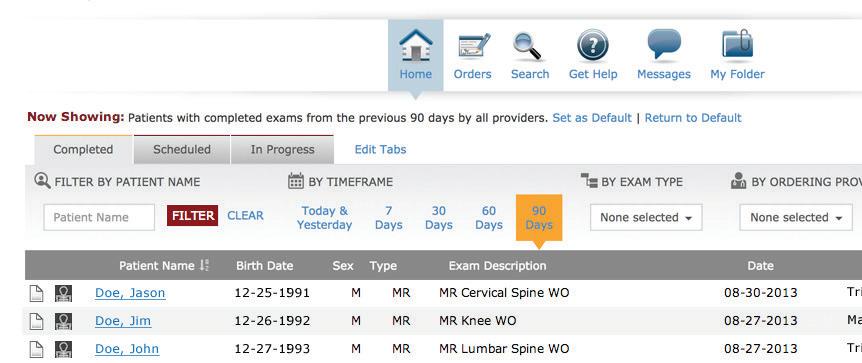
Enter the first or last name to receive a quick-pick list of matching results.
order Status

See orders by status—ordered or pending.
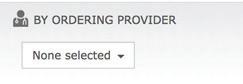
Filter ordering providers from the display by checking or unchecking them in the drop-down menu.
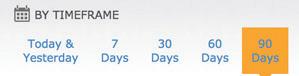
Order and Schedule

Order and schedule for most types of exams. Track orders by status. Access our appointment book and select available time-slots—in real time—including weekend and evening appointments.

Search

Search for your patients, or patients belonging to other providers in your practice, using common attributes. You can also search for patients outside your practice. Get Help

If you need help getting started, solving technical issues, or learning how to use the portal, contact the portal’s Web Team. My Folder

Add exams to custom folders for convenient access in the future. Name your folders in ways that make sense to you to help you organize an exam archive.
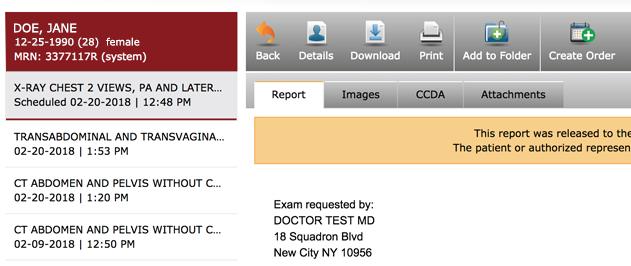
Download Report

Download a PDF copy of the final report.

Print Report

Print the report using the browser’s print function.

Add to Folder

Add exams to custom folders for convenient access in the future.

Create Order

Create a new order for the selected patient.

The Images tab shows all images acquired during the patient’s exam, organized in series.
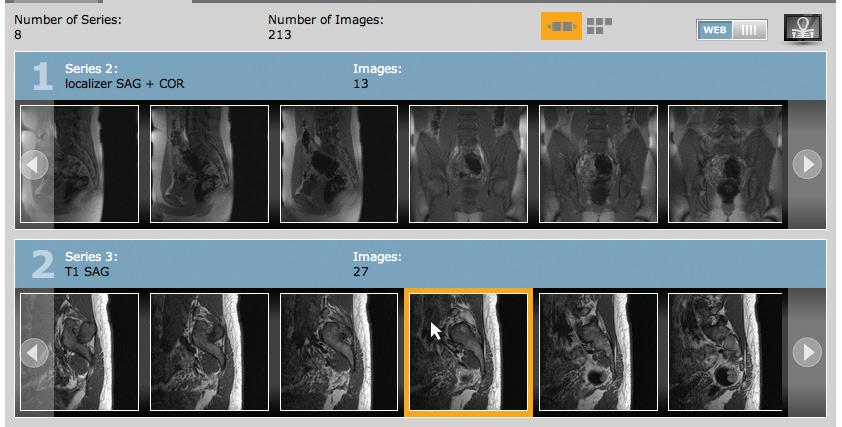
Image Viewer Options

WEB Viewer

IVIS, a robust web viewer with a full suite of tools for all of your needs. You can access study details, reports, view and manipulate images easily right from your web browser. IVIS also allows seamless DICOM downloading and sharing of images.

Quick Viewer

Click in the lower-right corner of the thumbnail, indicated by a green highlight, to view a large static display of the selected image.

Full Viewer

A full-featured DICOM viewer that displays diagnostic-quality images. The full viewer must be downloaded and installed on your computer.

The Account Page allows you to define settings that are specific to your portal account:

My Profile

Update your personal information, including email and phone numbers.

Settings

Refine your view preferences for how patients are displayed on the Home Page and Orders Page.

Security

Change your password.

Change your security answers. These are helpful to retrieve your user ID or password, if you forget in the future.

Orders

Change the default settings.

Authorized others to order and schedule on your behalf (ordering providers only). See which providers you can order and schedule for.

Image Viewer

Set your preferred viewer as the default for quick and easy access.

Turn static files into dynamic content formats.

Create a flipbook
LHR Provider Portal | Overview Sheet by RadNet East Marketing - Issuu