Page 1 of 5
P R O V I D E R
P O R T A L
G U I D E
Ordering and Scheduling on the Provider Port
How to:
ORDER & SCHEDULE AN EXAM Page 1 of 5
Click for Easy Access to ORDER Your Provider Portal!
The Orders Page has 2 tabs; Ordered Exams and Pending Exams. Ordered
Ordering and Scheduling onorthe Provider PROVIDER PORTAL ordered by a provider, a sta; user withPortal ordering privileges, that have not yet be
Pending Exams are exams ordered by sta; users waiting for a provider to authoriz have not been sent yet. This is where you will find the option to create a new orde ORDER
The Orders Page has 2 tabs; Ordered Exams and Pending Exams. Ordered Exams are exams ordered by a provider, or a sta; user with ordering privileges, that have not yet been scheduled. Pending Exams are exams ordered by sta; users waiting for a provider to authorize the order, and have not been sent yet. This is where you will find the option to create a new order.
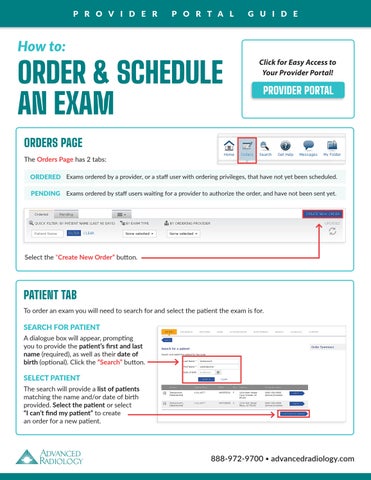
ORDERS PAGE
The Orders Page has 2 tabs:
Page 1 of 5
ORDERED Exams ordered by a provider, or a staff user with ordering privileges, that have not yet been scheduled. Ordering and Scheduling on the Provider Portal and have not been sent yet. PENDING Exams ordered by staff users waiting for a provider to authorize the order, ORDER The Orders Page has 2 tabs; Ordered Exams and Pending Exams. Ordered Exams are exams ordered by a provider, or a sta; user with ordering privileges, that have not yet been scheduled. Pending Exams are exams ordered by sta; users waiting for a provider to authorize the order, and have not been sent yet. This is where you will find the option to create a new order.
Start by selecting “Create New Order”. You will be asked to provide patien name, and can include date of birth in the search if you would like; not a required searching, you will be given a list of patients that match the name and/or date of b Select the “Create New Order” button.can select the patient or select “I can’t find my patient” to create an order for a ne Start by selecting “Create New Order”. You will be asked to provide patient’s first and last name, and can include date of birth in the search if you would like; not a required field. After searching, you will be given a list of patients that match the name and/or date of birth provided, and can select the patient or select “I can’t find my patient” to create an order for a new patient.
PATIENT TAB
Start by selecting “Create New Order”. You will be asked to provide patient’s first and last name, and can include date of birth in the search if you would like; not a required field. After searching, youpatient will be giventhe a list of patientsisthat match the name and/or date of birth provided, and To order an exam you will need to search for and select the exam for. can select the patient or select “I can’t find my patient” to create an order for a new patient.
SEARCH FOR PATIENT A dialogue box will appear, prompting you to provide the patient’s first and last name (required), as well as their date of birth (optional). Click the “Search” button.
SELECT PATIENT The search will provide a list of patients matching the name and/or date of birth provided. Select the patient or select “I can’t find my patient” to create an order for a new patient.
888-972-9700 • advancedradiology.com
Page 2 of 5
Page 2 of 5
P R O V I D E R
P O R T A L
G U I D E
PATIENT TAB (CON’T) When entering a new patient, you will need to enter first and last name, date of birth, address, and a valid phone If you select “I can’t find my patient”, you will be prompted to add a new number. When entering a new patient, you will You have the option to enter an patient by filling in the following fields: email address, but it is not required.
ADD A NEW PATIENT
need to enter first and last name, date of Required fields: birth, address, and a valid phone • First and Last Name number. You have the option to enter an • Gender • Date of but Birthit is not required. email address, • Address/City/ZIP Code • Valid Phone Number
Optional fields: • Email Address • Middle Name Click the “Save” button to submit the information
INSURANCE TAB
INSURANCE
After selecting a patient, or creating a new patient, you will be asked about the patient’s insurance. If they have been previously seen, prior insurances will display in the drop down; secondary insurance can be added as well. If insurance has changed, you can select “The insurance policy is not listed” to enter the new information. The options for “Patient will pay for thi exam” and “Workers’ Comp & Auto Claims” are also available.
INSURANCE
After a patient, Afterselecting selecting a patient, or creating a new patient, you will be asked about the patient’s or creating a new patient, insurance. If they have been previously seen, prior insurances will display in the drop down; you will be asked about the secondary insurance can be added as well. If insurance has changed, you can select “The patient’s insurance.
insurance policy notpreviously listed” to enter the new information. The options for “Patient will pay for this If they have is been exam” seen, and “Workers’ Comp prior insurances will& Auto Claims” are also available. display in the drop down; secondary insurance can be added as well. If insurance has changed, select “insurance policy is not listed” to enter the new information. The options for “Patient will pay for this exam” and “Workers’ Comp & Auto Claims” are also available.
888-972-9700 • advancedradiology.com
With the exam selected, a series of qu
After the insurance section, you will need to select the exam that is b P R O V I D E selecting R PtheOmodality, R T aAlist Lof available G U body I D E for that modality will disp parts specific questions. The option to enter an ICD10 code will display after the e all boxes turn green to show selection completed. Additional exams can be a With the exam selected, a series of questions will populate; based on the exa
EXAM TAB Following the Insurance section, you will need to enter information about the desired exam. 1
FIELDS/OPTIONS 1. Exam Type Select the type of exam you want to order. 2. Body Part Once the type has been selected, a list of available body parts for that modality will display, followed by exam specific questions.
4
3. ICD10 Code The option to enter an ICD10 code will display after the exam is selected, and all boxes turn green to show selection completed.
2
4. Add Another Exam Additional exams can be added below the first. With the exam selected, a series of questions will populate; based on the exam that was ordered.
3
888-972-9700 • advancedradiology.com
P R O V I D E R
P O R T A L
G U I D E
AUTHORIZATION AND ATTACHMENTS AND ATTACHMENTS Certain exams thatAUTHORIZATION require authorization will prompt to see if the insurance authorization AUTHORIZATION TAB You will have the option to enter an authorization number and expiration has already been received. Certain exams that require is authorization prompt to seeyou if the date or mark that the authorization not required.will After that step, caninsurance then add authorization any applicable Certain exams that require authorization will prompt to see if the insurance authorization has already been has already been received. You will have the option to enter an authorization number and aexpiration attachments you would like related to this specific order. Note: You do not need to upload received. You will have the option to enter an authorization number and expiration date or mark that the date or mark that the not this required. After that step, you can then add any applicable script/referral, one willauthorization be generatedisfrom process. authorization is not required. attachments you would like related to this specific order. Note: You do not need to upload a script/referral, one will be generated from this process.
ATTACHMENTS TAB Add any applicable attachments you would like related to this specific order. Note: You do not need to upload a script/referral, one will be generated from this process.
888-972-9700 • advancedradiology.com
P R O V I D E R
SCHEDULE TAB
P O R T A L
G U I D E
FINALIZING ORDER
To finalize the order, choose how you would like to proceed. Some exams may not have the option to schedule. The next step will ask you how you would like to proceed. You must select one of the options OPTIONSfor the order to be created. Note: Some exams may not have the option to schedule. o patient: Schedule for the and patient 1. Schedule for the Continue schedule the order on behalf of the patient. o Let the patient schedule 2. Let the patient schedule: Send an invitation to the patient’s email to schedule via the Patient Portal. § Send an invitation to the patient’s email to schedule on the patient portal 3. Call patient to schedule: Patient will receive a follow up call to schedule the appointment. o Please call patient to schedule
1
2
3 Page 6 of 6
Page 6 of 6
SCHEDULE FOR THE PATIENT
SCHEDULING
When selecting to for the patient, you will be prompted to select a location, date, and If you choose to “Schedule forSchedule the patient”, time for the exam. The scheduler will state the soonest availability for the selected exam. It will also you will be prompted to select a location, show the distance from the patient’s date, and time for the exam. The schedulerhome address on file to each location. After selecting location, date, and time, the for appointment details will be shown, and the option to create the order will display the earliest availability will be at the bottom. You must hit create order to complete order and schedule exam. the selected exam, as well as the distance from the patient’s home address on file to each location.
CONFIRM Once location, date, and time have been selected, a confirmation window will display the appointment details. Click the “Create Order” button to complete the order and lock in the scheduled exam.
888-972-9700 • advancedradiology.com