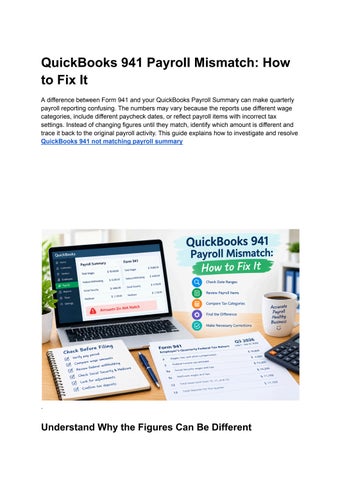
QuickBooks 941 Payroll Mismatch: How to Fix It A difference between Form 941 and your QuickBooks Payroll Summary can make quarterly payroll reporting confusing. The numbers may vary because the reports use different wage categories, include different paycheck dates, or reflect payroll items with incorrect tax settings. Instead of changing figures until they match, identify which amount is different and trace it back to the original payroll activity. This guide explains how to investigate and resolve QuickBooks 941 not matching payroll summary
.
Understand Why the Figures Can Be Different
Form 941 reports federal income tax withheld, Social Security and Medicare taxes, and other required employment tax information for a quarter. A Payroll Summary organizes payroll activity according to the report settings and the items used in your company file. These documents do not always display the same categories. For example, gross wages on a payroll report may not equal the federal income tax wages reported on Form 941. A difference may be expected when the figures represent different tax treatments. The IRS explains that Form 941 reports wages paid, tips reported by employees, federal income tax withheld, and both the employer and employee shares of Social Security and Medicare taxes. Compare each return line with the corresponding payroll category rather than relying on one overall total.
Internal Revenue Service
Common Causes of a QuickBooks 941 Payroll Mismatch 1. The report uses the wrong date range Form 941 is based on wages paid during the quarter. A payroll report using pay period dates instead of paycheck dates may include different transactions. For example, an employee may work during the final week of June but receive payment in July. That paycheck generally belongs to the third quarter because the payment date falls in July. A report that includes only work performed in June could leave it out. How to check: Set the Payroll Summary to the exact quarter and review the paycheck dates. Make sure the Form 941 and payroll report cover the same period.
2. Gross wages are being compared with federal taxable wages This is a frequent source of confusion. Gross wages may include amounts that are treated differently for federal income tax, Social Security, or Medicare purposes. For QuickBooks Desktop, Intuit explains that Form 941 Line 2 should be compared with the Federal Withholding Income Subject to tax amount, not automatically with adjusted gross wages on the Payroll Summary. The detailed federal withholding amount can be reviewed by double-clicking the tax amount in the report.
QuickBooks How to check: Identify the exact Form 941 line that differs, then compare it with the matching taxable wage figure—not simply the report’s gross total.
3. A payroll item has incorrect tax tracking Payroll items control how earnings, additions, and deductions are treated in payroll calculations and tax reporting. If an item is assigned the wrong tax tracking type, it may affect the amounts appearing on Form 941. Examples can include certain benefits, deductions, reimbursements, or special compensation entries. The correct treatment depends on the nature of the payment, so do not change a setting just to make the return agree with a report. How to check: Review the payroll items included in the Additions and Deductions sections of Payroll Summary. In QuickBooks Desktop, open the Payroll Item List and inspect the tax tracking type. If the correct classification is uncertain, consult an accountant or payroll tax professional. Intuit specifically identifies incorrect payroll item setup as a common cause of certain Form 941 reconciliation issues.
QuickBooks
4. Voided or reissued paychecks affect the totals A paycheck may have been voided, replaced, or corrected after it was originally processed. Depending on how the transactions were recorded, the payroll report may show a different result from the tax form. How to check: Review paycheck history for the quarter. Look for voided checks, replacement payments, and corrections. Confirm that the original and replacement transactions have been handled correctly and are not both included in the totals.
5. Payroll adjustments were entered manually Manual adjustments can affect tax figures when they are entered with an incorrect date, employee, or payroll item. A correction made for an earlier period may also create confusion if it appears in a later report. How to check: Review adjustments made during the quarter and compare them with supporting records. Note the reason for each entry and the tax category it affects. Do not delete or change an adjustment until you understand its purpose.
6. Some payroll was processed outside QuickBooks If your business paid employees through another payroll provider or entered certain payments manually, those transactions may not appear in the QuickBooks Payroll Summary. How to check: Collect payroll reports from every provider used during the quarter. Compare the employees, paycheck dates, wages, and taxes to identify missing or duplicated transactions.
Step-by-Step: How to Fix the Mismatch Use the following process to locate the source of the difference before making changes.
Step 1: Save the original reports Before editing payroll information, save a copy of Form 941 and the Payroll Summary for the relevant quarter. Keep any related tax and wage reports as well. Having the original figures available makes it easier to see what changed and helps preserve a record of your review.
Step 2: Confirm the reporting period Check the beginning and ending dates on the reports. Use paycheck dates and make sure both records cover the same quarter. If the date range is incorrect, rerun the report before investigating individual transactions. A report covering the wrong period can create a mismatch even when payroll entries are correct.
Step 3: Identify the Form 941 line that differs Do not treat the return as one combined number. Compare the relevant categories separately: ● ● ● ● ●
Wages, tips, and other compensation. Federal income tax withheld. Social Security wages and tax. Medicare wages and tax. Adjustments and total tax liability. Write down the Form 941 amount, the corresponding QuickBooks figure, and the difference. This helps narrow the search to a specific tax category.
Step 4: Review the detailed payroll transactions Open the report details, where available, and inspect the paychecks contributing to the total. Check the employee name, paycheck date, earnings, deductions, and tax amounts. For instance, if Form 941 shows $64,000 while the report figure is $66,000, do not immediately enter a $2,000 adjustment. First check whether the report includes a payment outside the quarter or compensation that is treated differently for federal tax purposes.
Step 5: Check payroll item settings If a particular addition or deduction appears to be responsible, review its tax tracking. Confirm that the setting reflects the actual tax treatment of the payment. QuickBooks Desktop users can follow Intuit’s Form 941 troubleshooting guidance to review payroll items, correct confirmed setup issues, and run Payroll Checkup when appropriate.
QuickBooks
Step 6: Rerun the reports
After correcting a verified issue, run the Payroll Summary and relevant tax reports again using the same date range. Reopen Form 941 and review the affected lines. If the figures still differ, do not keep changing payroll settings. The remaining difference may be due to a legitimate reporting distinction or an issue that needs professional review.
Check Social Security and Medicare Separately Social Security and Medicare wages may not be equal. For 2026, the Social Security wage base is $184,500 per employee. The Social Security tax rate is 6.2% for the employee and 6.2% for the employer. Medicare tax is generally 1.45% for each, and it has no annual wage base limit.
Internal Revenue Service This distinction matters when an employee reaches the Social Security wage limit during the year. Social Security wages may stop increasing for tax purposes, while Medicare wages continue to accumulate. Review employee year-to-date wage details before assuming that a difference between these categories indicates an error.
What If Form 941 Was Already Filed? If you discover an error after filing, do not submit a second original Form 941 to replace the first one. Employers generally use Form 941-X to correct errors on a previously filed return. The correct procedure depends on the type of error and whether the correction involves underreported or overreported tax. The IRS provides separate instructions for Form 941-X, including information about electronic filing.
Internal Revenue Service Keep the original return, corrected calculations, payroll reports, and supporting documents together. If you are unsure whether the problem is a reporting difference or an actual tax error, ask a qualified payroll tax professional before submitting a correction.
How to Prevent Future Payroll Reconciliation Issues A few consistent habits can make the next quarterly review easier: ● ● ● ●
Check payroll item settings when creating new earnings, benefits, or deductions. Review paycheck dates before running quarterly reports. Investigate voided and reissued checks when they occur. Keep records of payroll processed outside QuickBooks.
● Reconcile payroll figures regularly instead of waiting until filing time. ● Save copies of reports and adjustments used to prepare each return. ● Review tax calculations when employee wage limits or tax settings change. QuickBooks can organize payroll information, but the employer remains responsible for checking the accuracy of the return.
Frequently Asked Questions Does Form 941 have to match the Payroll Summary exactly? No. The reports may organize information differently. Compare the specific taxable wage and tax categories required by each Form 941 line.
Why does Line 2 differ from adjusted gross wages? For QuickBooks Desktop, Intuit says Line 2 should be compared with Federal Withholding Income Subject to tax. Adjusted gross wages on Payroll Summary may not be the correct comparison.
QuickBooks
Should I change payroll figures to make them match? No. First identify the cause of the difference. An unsupported adjustment can create another reporting problem or change an employee’s payroll records incorrectly.
What if I cannot identify the cause? Keep the reports and transaction details, then ask an accountant or qualified payroll tax professional to review them. This is particularly important when the difference affects tax liability or a return that has already been filed.
Final Thoughts Resolving a Form 941 mismatch starts with understanding what each figure represents. Confirm the paycheck dates, compare the correct taxable wage categories, and trace differences to individual payroll transactions. Review payroll item settings only when the evidence points to a setup issue, and document any correction you make. A careful reconciliation helps you prepare more reliable payroll tax records without changing figures simply to force a match.