WATT Integrated Stereo Amplifier User’s Manual
3 Contents 1 Preface 5 1.1 Included items 6 1.2 Transport 6 2 Overview front panel 7 3 Overview back panel 8 4 Installation and power supply 9 4.1 Placement 9 4.2 Mains connection 10 4.3 Orientation of mains plug 11 5 Inputs and outputs 12 5.1 Inputs 12 5.2 Optional phono input 12 5.3 Speaker terminals 13 5.4 Preamplifier Output 14 5.5 Headphones socket 14 5.6 Audionet Link 14 5.7 Control connection 15 6 Usage 16 6.1 Powering up 16 6.2 Switching on and off 16 6.3 Using Audionet Link 17 6.4 Control elements on the front panel 18 6.5 Volume control 18 6.6 Display 19 6.7 Input selection 20 6.8 Muting 21
4 7 Audionet Metal Remote Control 22 7.1 Key assignment WATT 23 7.2 Changing the batteries 23 7.3 Settings for Audionet WATT 24 8 Setup menu 27 8.1 Overview setup menu 28 8.2 Select Input 29 8.3 Global Setup 29 8.3.1 Headphones 29 8.3.2 Display 30 8.3.3 Balance Left/Right 31 8.3.4 AutoStart 32 8.3.5 AutoOff 33 8.3.6 By-Pass Channel 33 8.3.7 Phono Card 36 8.3.8 Serial Port 37 8.3.9 Channel Name 38 8.3.10 Volume Offset 38 8.4 Reset factory defaults 39 8.5 Device Info 40 9 Protection system 41 10 Security advice 42 11 Technical data 43
1 Preface
The Audionet Scientists Team and its leading scholars congratulate you on your purchase of this unit, sending cheers directly from our research and development center.
Audionet components are no marketing products, they are authentic. Conceived and developed with scientific inspiration, professional engineering expertise and a deep passion for achieving the truly perfect sound. They are unique creations designed to inspire musical enjoyment and have an excellent reputation amongst all connoisseurs throughout the world. Each and every one of our precision-manufactured devices is individually crafted by hand at our new Berlin headquarters. Built by audiophiles for audiophiles. With the utmost precision and total control of each and every perceptible detail.
Even if you're an experienced aficionado of ultra-highend components, please start listening to your new Audionet WATT by reading this manual carefully before you plug it in. This will ensure you'll enjoy all functions of this unit without any compromise or potential disruption.
5
1.1 Included items
You will find the following items included:
• The stereo integrated amplifier WATT
• The user's manual (that you are currently reading)
• One standard mains cord
• Audionet Metal Remote Control RC 1
1.2 Transport
Important
• Only transport the WATT in the original packaging.
• Always use the provided cloth bag to prevent scratches on the casing.
• Please allow the WATT to adapt to the climatic conditions in your listening room before you switch the unit on for the first time after the transport.
6
2 Overview front panel



7
W A T T a u d i o n e t Power Input Select Menu Mute IR remote control receiver Volume controller Display
3 Overview back panel


11 Control input RS232
12 Additional earth connection

13 Preamplifier output PRE OUT , left channel, Cinch
14 Balanced input (XLR) no. 1, left channel
15 Headphones output
16 Balanced input (XLR) no. 1, right channel
17 Preamplifier output PRE OUT , right channel, Cinch
18 Earth connection for phono
19 Audionet Link outputs OUT 1 and OUT 2

Speaker output right channel
Cinch input no. 2, right channel
Cinch input no. 3, right channel
Cinch input no. 4, right channel (optional Phono)
Mains input and fuse compartment
Marking mains phase
Cinch input no. 2, left channel
Cinch input no. 3, left channel
Cinch input no. 4, left channel (optional Phono)
1

2
3
4
5
6
7
8
9
10 Speaker output left channel
8
ANALOG
PHASE MAINS HEADPHONES DISCONNECT POWER CORD BEFORE OPENING ANALOG RIGHT RIGHT GND ENGINEERED AND HANDMADE BY IDEKTRON GMBH & CO KG BERLIN , GERMANY SPEAKER OUTPUT GND SPEAKER OUTPUT LEFT THIS UNIT MUST BE EARTHED WATT 220240 V / 5060 Hz 900 W MAX FUSE T 10 A RS 232 CONTROL OUT 1 OUT 2 AUDIONET LINK IN 1 IN 2 IN 3 IN 4 PREOUT PHONO ) IN 1 IN 2 IN 3 IN 4 ( PHONO PREOUT 1 0 15 9 8 5 2 3 4 18 1 19 6 13 14 7 12 11 16 17
LEFT
4 Installation and power supply
Important
• During connecting and removing sources or amplifiers to the WATT, all units of your audio system have to be switched off to prevent damage to the WATT or any of the other connected units.
• Please make sure that all cables are in absolute best conditions! Broken shields or short-cut cables could damage the WATT and/or any other units connected.
4.1 Placement
Important
• It is recommended to place the WATT in a high quality rack or onto a stable table.
• Do not expose the unit to direct sunlight.
• Do not cover the ventilation slots.
• Do not place the WATT in close range to heat sources like radiators.
• Do not place the WATT on top of other units, especially not on top of power amplifiers, preamplifiers or similar devices that produce heat. Both units could suffer damage from thermal overload.
• Do not use the unit in places where it is exposed to vibrations.
• Do not place the unit close to loudspeakers or in corners of a room where it is exposed to high levels of sonic energy, which might reduce the sound quality of the unit.
9
4.2 Mains connection
The mains input * is on the back panel of the WATT. Use the included mains cord to connect the unit to mains. If you prefer to use a different power cord, make sure that it meets the specifications for your home country.
Important
• The electrical specifications of your home country must meet the electrical specifications printed onto the back panel.
• The WATT is a Class I unit and must be earthed. Please ensure a stable earth connection. The phase ('hot' pin) is marked on the back panel (PHASE) .
• Never pull the mains plug while the WATT is switched on! Before you pull the mains cord off its socket at the back panel, power down the unit to stand-by mode.
The WATT should only be switched off from the mains in cases of extended absence (like vacations) or if massive trouble on the mains power is to be expected. Pull the mains plug to completely disconnect the unit from mains.
Tip
• The use of high quality mains cords (e.g. Audionet P10) could improve the sound quality of your Audionet WATT. Please refer to our website (www.audionet.de) or ask your local dealer for further information.
* Please refer to section "Overview back panel" on page 8
10
4.3 Orientation of mains plug
The correct polarization of mains is important for the reasons of audio clarity and stability. Please connect the mains cord so that the hot pin of the wall outlet is connected to the pin of the mains input marked with 'PHASE'
11
5 Inputs and outputs
Important
• All units of your audio system have to be switched off before connecting or removing sources or amplifiers to the WATT in order to prevent damage to the WATT or any other connected units.
• Please make sure that all cables are in absolute best conditions! Broken shields or short-cut cables could damage the WATT and/or any other connected unit.
5.1 Inputs
The WATT is equipped with four Cinch (RCA) inputs IN 2, IN 3 and IN 4 for connecting signal sources at line level. The input jacks for the left channels to and the right channels to are located in separate groups on the back panel. Connect sources with balanced outputs to the balanced (XLR) input IN 1 ,
Please plug the left and right input of the same number printed on the back panel of the WATT to the corresponding output of the source you would like to connect.
5.2 Optional phono input
The WATT may be upgraded with an optional phono preamplifier board. In this case, use the input IN 4 and marked as PHONO to connect your turntable to the WATT. Link the earth wire of your turntable to the earth connector GND .
12
Important
• If the WATT is upgraded with the optional phono module, input IN 4 and must only be used to connect a turntable.
• If the WATT is equipped with the optional phono module, it has to be registered in the system in order to be configurable. For further information see section 'Phono Card' on page 36.
• You cannot use input IN 4 and for By-Pass mode (refer to section 'ByPass Channel' on page 33).
5.3 Speaker terminals
Connect your speakers to the rhodium plated terminals SPEAKER OUT RIGHT and SPEAKER OUT LEFT on the back panel of the WATT. You may use banana plugs or spades as well as simple cable ends. Look out for the correct connection of your speaker cables. Usually, the terminals of your speakers are marked with '+' and '-'. The WATT uses the same labels.
Note
• Wrong speaker polarization will result in severe loss of sound quality.
• In case you would like to bi-wire your speakers, insert the cable to the tweeters from the rear using banana plugs and mount the cables to the bass speakers from the side. Please ask your dealer for assistance in case of doubt.
Important
• Although the WATT has an effective protection system to prevent damage to the circuits, switch off the unit while working on the speaker and/or audio cables
• The nominal loudspeaker impedance must be at least 4 Ω or higher.
• Never use force or tools to tighten the terminal screws.
13
5.4 Preamplifier Output
The WATT is equipped with a pair of Cinch (RCA) preamplifier outputs to connect e.g. an additional amplifier or a subwoofer. The preamplifier outputs are always active and provide a volume controlled full-range signal.
Please use high quality interconnectors to connect the PRE OUT and of your WATT to an additional amplifier (for e.g. bi-amping) or to a subwoofer.
5.5 Headphones socket
A 6.3 mm headphones socket is located on the back panel of your WATT
The sockets signal may be switched on and off, so that the headphones can remain plugged-in permanently. Switching is done easily on the front panel. Please refer to section 'Headphones' on page 29
5.6 Audionet Link
For additional convenience, the WATT can automatically switch all other Audionet units on or off (e.g. power amplifiers) by a simple touch on the remote control or the key on the front panel, if they are connected via Audionet Link
You only need to connect the Audionet Link outputs OUT 1 or OUT 2 of your WATT by a simple optical 'Toslink' cable to the Audionet Link input of the unit(s) you would like to control.
The WATT is equipped with two Audionet Link outputs OUT 1 or OUT 2 The WATT only has Audionet Link outputs since it is a master unit In case you would like to control more than two Audionet devices by Audionet Link, simply connect them in a daisy chain (e.g. WATT à PLANCK à DNC).
The slave units (e.g. PLANCK or AMP) are equipped with an Audionet Link input and output. The Audionet Link OUT 1 is designed for source devices like the Audionet PLANCK, ART or DNC because this output is always active. The Audionet Link OUT 2 is intended for the use with amplifiers since it is controlled depending on the settings of the headphones output. Please refer to section 'Headphones' on page 29
14
5.7 Control connection
The serial connector RS232 is an additional control port to your WATT e.g. for home automation systems (Crestron or similar). The documentation to the interface protocol is available on request. Please send us an email to the address service@audionet.de.
15
6 Usage
All functions of the WATT are microprocessor controlled. This guarantees highest precision, exclusive functions, easy handling and protection against operating errors.
6.1 Powering up
First of all, please make sure your WATT is connected correctly to your signal sources and mains (refer to sections 'Installation and power supply' on page 8 and 'Inputs and outputs' on page 12).
The WATT is a stand-by unit. Please insert the mains cord into the mains input on the back panel. The display shows a welcome message for a brief moment. The WATT is in stand-by mode afterwards.
It is only recommended to disconnect the WATT from the mains in cases of extended absence (like vacations) or if massive trouble on the mains power is to be expected (e.g. thunder storms). While the WATT is in stand-by mode, pull the mains cord off the mains jack to disconnect the WATT from mains completely.
Important
• Power down and completely discharge all units which are connected to the outputs of the WATT, before you switch off the WATT from mains.
6.2 Switching on and off
Press the key on the front panel to power up the WATT from stand-by mode
The WATT issues the message WAKING UP... . The unit is in normal operating mode afterwards and ready to use.
16
If you would like to switch off the unit, please press the key on the front panel. The display shows the message GOING TO SLEEP. . . and the unit enters the stand-by mode.
Note
• Of course, you may switch on/off the WATT with the Audionet Metal Remote Controls RC 1 or RC 2 For detailed information please refer to section 'Audionet Metal Remote Control' on page 22.
6.3 Using Audionet Link
The WATT is equipped with two Audionet Link outputs outputs OUT 1 and OUT 2 , allowing you to switch on/off further Audionet units (e.g. power amplifier, CD player or tuner) connected via Audionet Link (also read section 'Audionet Link' on page 14).
In case that other devices of your Audionet system are connected to your WATT via Audionet Link as well, any linked units are switched on/off automatically as soon as you turn on/off your WATT using the key on the front panel or the PRE key on the Audionet Metal Remote Controls RC 1 or RC 2.
Note
• Please read section 'Audionet Link' on page 14. Also consult the user's manual of your Audionet components which are connected via Audionet Link for further information.
• If you switch your Audionet chain off by using Audionet Link, it is important to wait until all devices are shut down before restarting the system.
17
6.4 Control elements on the front panel
The front panel has four keys and a rotary controller to control the WATT (refer to section 'Overview front panel' on page 7). You are able to handle all functions with these elements as well as all setup options to adjust the unit to your preferences (read section 'Setup menu' on page 27).
Use this key to switch the unit on/off.
(refer to section 'Switching on and off' on page 16)
Press this key to get to the input select function. Use the volume controller to choose the desired input channel. Confirm your selection afterwards by pressing the key again.
(refer to section 'Input selection' on page 20).
Press this key shortly to open the system menu. Within the menu, press the key shortly to navigate to the subordinated menu or to confirm and save a selected menu option.
Hold the key down for longer than 2 seconds to step back to the superior menu or to dismiss a selected menu option without saving
(refer to section 'Setup menu' on page 27)
Press this key to activate the mute function. Press it again to deactivate mute.
(refer to section 'Muting' on page 21)
Turn the volume controller anti-clockwise to reduce the volume level, to select the previous input channel (read section 'Input selection' on page 20) or to change the option of a menu setting (read section 'Setup menu' on page 27).
6.5 Volume control
While the WATT is in normal operating mode, use the volume controller on the front panel to adjust the volume level. Turn the volume controller clockwise to increase or anti-clockwise to reduce the volume level.
18
Volume controller Q
The volume level of the WATT runs in a range from -80 dB (very quiet) to +10 dB (very loud) in steps of 1 dB relative to the level of the input signal.
Note
• The volume controller on the front panel is also used to change an option in the setup menu (refer to section 'Setup menu' on page 27) as well as to select an input channel (refer to section 'Input selection' on page 20).
• You may also control the volume level with your Audionet Metal Remote Control RC 1 or RC 2 (refer to section 'Audionet Metal Remote Control' on page 22).
6.6 Display
The display provides the following information in normal operating mode:



1 Indicator of current output mode (read section 'Headphones' on page 29).
2 Name of currently selected input channel, fully user-definable (read section 'Channel Name' on page 38).
3 Indicator for balance shifted out of center. The arrow points to the direction of the balance shift (read section 'Balance Left/Right' on page 31).
4 Number of currently selected input channel, corresponding to the input jacks labels on the rear panel (read section 'Overview back panel' on page 8).
5 Current volume level in dB relative to the input level (read section 'Volume control' on page 18).
19
INPUT TWO IN 2 -32 dB 1 2 3 5 4
As soon as you enter the setup menu by pushing the key, the display changes and shows information related to the selected menu item. For further display details refer to the description of each menu item in section 'Setup menu' starting on page 27
Note
• After 10 minutes without any user interaction, the 'display saver' is invoked automatically. Being activated, the display only shows the number of the currently selected input channel and volume level.
• If the headphones output is active, the indicator of the current output mode changes from speaker output to headphones output . Please refer to section 'Headphones' on page 29.


6.7 Input selection
Push the key on the front panel once for less than two seconds and select the desired input channel afterwards by turning the volume controller. The 2nd line of the display provides the number and the (user-definable) name of the currently selected input channel. Push again to confirm and actually switch to the desired input channel. Overview of WATT input channels:
1
3
4
The WATT features a soft input selection. When changing inputs, the volume is stepped down to -80 dB, followed by turning off the outputs. Now the input section activates the new input channel. Afterwards the outputs are turned on again and finally the volume is stepped up to its original level.
20
Input Signal
Overview back panel on
No.
see
page 8
IN 1 Balanced, XLR left right
IN 2 Line, Cinch left right
2
IN 3 Line, Cinch left right
IN 4 Line, Cinch or optional Phono left right
Note
• If you use the Audionet Metal Remote Control RC 1 or RC 2, select an input channel with the keys CH+ and CH- to switch to the next or previous input channel without invoking the Select Input function.
• If you dedicated one of the input channels 1 to 3 to the By-Pass function (refer to section 'By-Pass ' on page 33), this particular input channel is marked with a '* ' following the channel number in the display during the input selection to remind you that switching to this input channel will activate the By-Pass Mode.
• You may also invoke the Select Input function by selecting the corresponding menu item in the system menu.
6.8 Muting
Press the key on the front panel to activate the mute function. Push the key again to de-activate muting. Alternatively, use the key on the Audionet Metal Remote Control RC 1 or RC 2 to mute or un-mute your WATT
The WATT uses 'soft' muting, i.e. volume is stepped down gently to -80 dB. The display informs of a muted unit by showing the text mute . This text is even displayed, if the brightness level is set to Off
To un-mute the WATT press the key on the front panel or the key on the Audionet Metal Remote Control RC 1 or RC 2 again. The outputs are switched back on and afterwards the volume is stepped up gently up to its original level.
Note
• While the unit is muted, you may of course select a different input channel as described above. But the WATT will stay muted until you press the or key again to un-mute the unit and restore the original volume level.
• If you turn up the volume by using the volume controller clockwise or the VOL+ key while the WATT is muted, the muting function will be deactivated and the new volume level is set.
21
7 Audionet Metal Remote Control
The Audionet Metal Remote Controls RC 1 (included) and RC 2 control all important functions of the everyday use of your WATT. This chapter explains all commands in detail.
















22
+ + -CHANNEL VOLUME O audionet RC 2 + + – –CH DNx PRE 4 ; : 9 7 8 VOL ä < audionet RC 1 ART PRE 4/; < ä : 9 7 8 + + – –CH VOL POWER 1 6 2 3 4 5 2 4 3 5
7.1 Key assignment WATT
1 Power key PRE
Use the key PRE to switch your WATT on/off. This key has the same function as the key on the front panel. If the unit is in stand-by mode, press the PRE key to turn it on. If the WATT is already operating, a push on the PRE key does power the unit down to stand-by mode.
2 Key CH +
Selects the next input channel of the WATT
3 Key CH -
Selects the previous input channel of the WATT.
4 Key VOL +
Increases the volume of the WATT.
5 Key VOL -
Decreases the volume of the WATT
6 Mute key
Mutes the WATT. Press this key again to resume to the last volume level.
7.2 Changing the batteries
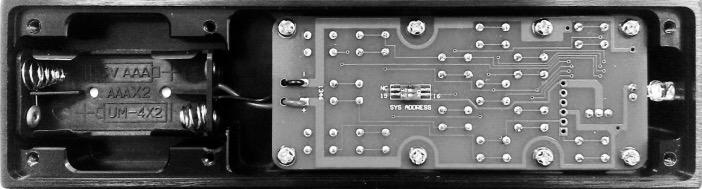
First you have to remove the 6 Phillips head screws on the bottom side of your Audionet Metal Remote Control RC 1 or RC 2 in order to change the batteries.
23
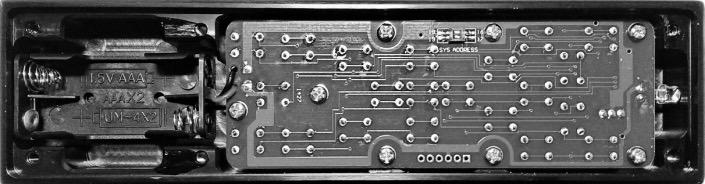
The battery compartment is aside the circuit board. Two batteries type 'AAA' or 'Micro' with a voltage of 1.5 V are needed.
Battery compartment

Important
• While inserting the batteries, please mind their orientation. The correct orientation is printed onto the bottom of the battery compartment.
7.3 Settings for Audionet WATT
Important
• The Audionet Metal Remote Control RC 1 is configured to control the WATT by factory default. You do not have to perform any additional configurations. The following section explains the correct setup for the WATT for the sake of completeness.
The Audionet Metal Remote Controls RC 1 and RC 2 have 6 keys each, which do control an Audionet (pre-)amplifier like the WATT. The next section 'Key assignment WATT' explains the function of these keys.
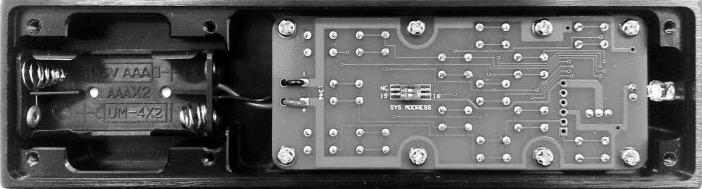
Depending on their type, Audionet (pre-)amplifiers use different system addresses for their remote control code. A DIP switch on the circuit board of the Audionet Metal Remote Control RC 1 or RC 2 selects the desired system address.
You have to open the remote control first in order to change the system address (compare section 'Changing the batteries' on page 23).
24
The DIP switch for selecting the system address of the Audionet Metal Remote Control RC 1 the is located here:
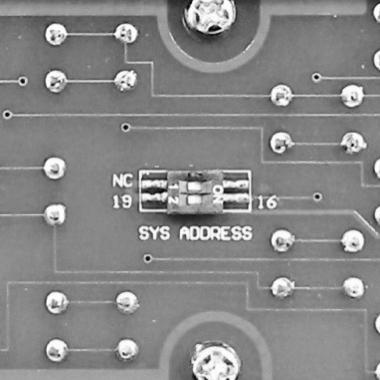
The DIP switch for selecting the system address and configuring a preamplifier of the Audionet Metal Remote Control RC 2 is the upper slider. It is located here:
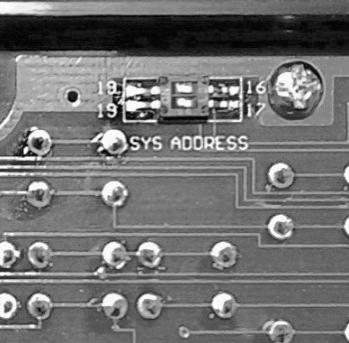
Set the DIP switch labelled 'SYS ADDRESS' in position '19' or '16' according to the following table:
25
Audionet preamplifier Adress PRE G2, PRE 1 G3, WATT, SAM G2, DNA, DNP, DNA 1 19 MAP 1 16
Note
• The Audionet Metal Remote Control is preconfigured to setting '19' of the DIP switch if not ordered explicitly otherwise.
• Older Audionet preamplifier models use the system address '16'.
• The Audionet Metal Remote Control RC 2 uses both slider switches of the DIP switch. The upper one of the two is responsible for configuring the preamplifier. Its left side is labelled '19' while the right side is lettered '16'.
26
8 Setup menu
To adjust the WATT to your preferences, please use the setup menu.
Navigate through the setup menu using the key and the volume controller on the front panel:
Press the key shortly to enter the setup menu. Whilst in the menu, a short key stroke enters a subsidiary menu, opens the currently marked menu item or confirms and saves the current menu option.
Hold down the key for longer than 2 seconds to go back to the superior menu or dismiss the current menu option without saving.
Volume controller Q
Turn the volume controller anti-clockwise to move the menu item marker one step upwards or to select a menu option.
Press the key to enter the setup menu. The display will show 3 lines of the current menu:









Turn the volume controller on the front panel to move the menu item marker to the desired menu item. To select a menu item, press the key shortly. A symbol to the right of each menu item denotes, if the item is a submenu or a menu option .
If you opened a menu option, use the volume controller to select the desired setting. Press the key shortly to confirm and save the selection. In case you would like to leave a (sub-)menu or dismiss a setting without saving, press the key for more than two seconds. The unit will return to the superior menu.
27
◄
Device
Menu item marker Menu item Symbol „submenu“ Symbol „menu option“ Menu position ► Global Setup
Factory Default Reset
Info 2 of 4
Note
• If you do not make any adjustments for longer than 12 seconds, the WATT will automatically leave the setup menu and return to normal operating mode.
• Whilst in the setup menu, the display brightness is set to 100% for better readability. The display brightness is automatically reset to its user selected level after leaving the setup menu.
• If you power down the WATT to stand-by mode, all settings are stored automatically in the non-volatile memory of the unit. Even after disconnecting from mains, the WATT will still remember your settings.
All options of the setup menu are explained in detail in the following.
8.1 Overview setup menu
Select Input
Global Setup
Headphones
Display
Balance Left/Right
AutoStart
AutoOff
By - Pass Channel
Phono Card
Serial Port
Channel Name
Volume Offset
Select desired input channel
Main setup menu
Headphones mode
Adjust display brightness
Adjust volume balance left/right
Set up automatic start-up mode
Set up automatic power down mode
Select input channel for By-Pass mode
Configure optional phono card
Set up serial control port
Edit name of input channel (max. 12 characters)
Adjust volume differences between input channels
Factory Default Reset Reset device to factory defaults
Device Info
28
Get information on device
8.2 Select Input
The menu item Select Input calls the same function as pressing the key on the front panel (refer to section 'Input selection' on page 20).
8.3 Global Setup
8.3.1 Headphones

Audionet Link active
Link setup ► SET HEADPHONES ◄

Title Headphones
Use the volume controller on the front panel to switch the headphones output and the Audionet Link output OUT 2 on or off
The symbols or in the display indicate, whether the speakers or the headphones output is active.
Headphones disabled
Audionet Link 2 active
Headphones active
Audionet Link 2 active
The headphones output HEADPHONES is switched off. The display indicates . The Audionet Link output OUT 2 is active.
The headphones output HEADPHONES is switched on. The display indicates . The Audionet Link output OUT 2 is active.
Headphones active
Audionet Link 2 disabled
29
The headphones output HEADPHONES is switched on. The display indicates . The Audionet Link output OUT 2 is de-activated. and
Headphones disabled
Tip
• If you connect an additional power amplifier (e.g. for bi-amping purposes) to the Audionet Link output OUT 2 of the WATT, it will get automatically switched off as soon as you select the headphones option Head phone s active, Audionet Link disabled Thus, you are able to enjoy music over your headphones and do not need to worry about the amplifier. In case you de-activate the headphones output by selecting the option Headphones disabled, Audio net Link active , the power amplifier is switched on automatically via Audionet Link, so you do play music through your speakers again.
8.3.2 Display
Brightness adjustment




Use the volume controller on the front panel to adjust the display to the desired brightness. For convenience, the display brightness will change immediately during setup.
Important
• Long-term usage of the display set to maximum brightness (setting 100%) may cause extended signs of wear resulting in a decay of contrast or brightness of individual dots in the display. Do not use the display with a brightness set higher than the factory default of 75% over a longer period of time!
30
Title Scale ► SET DISPLAY BRIGHTNESS ◄ ------------------ + Off 25% 50% 75% 100%
Note
• When the brightness set to Off , the display is only activated during setup or volume adjustments. It switches off automatically several seconds after the last user entry.
• The WATT activates the 'display saver' automatically after 10 minutes without any user entry.
• If the 'display saver' is active, the display only shows the number of the selected input channel and current volume level in the form of In 2 - 47dB The display brightness is always reduced to 25% and the location of the information text will change randomly every 12 seconds to prevent any 'burn-in' effect of the display.
• The 'display saver' is de-activated, and the display returns to its normal mode, as soon as any user entry is detected.
• The user cannot switch the automatic 'display saver' function off!
8.3.3 Balance Left/Right



Use the volume controller on the front panel to adjust the balance between left and right channel. You may shift the balance to the left or right in steps of 0.5 dB up to a maximum difference of 9 dB
- 9dB represents a maximum shift to the left.
0dB represents no balance shift at all
31
Balance shift Title Current balance setting in dB ► SET FRONT BALANCE ◄ ◄◄◄◄ + ►►►► 0.0dB
+9dB represents a maximum shift to the right.
Note
• WATT indicates a balance shift in normal operating mode by the corresponding icon in the display. Thus you are able to recognise, whether the balance was shifted at any time. The triangle in the icon points to the direction of the balance shift (refer to section 'Display' on page 19).

8.3.4 AutoStart
Title

AutoStart setting ► SET


Turn the volume controller on the front panel clockwise to activate the automatic power on function 'AutoStart'. Turn the volume controller anti-clockwise to disable the AutoStart function.
disabled
active
The AutoStart function is disabled. After connecting the WATT to mains, the unit enters into stand-by mode. You have to use the key on the front panel or the PRE key on the Audionet Metal Remote Control RC 1 or RC 2 to switch the unit into normal operating mode.
32
AUTO
◄
The AutoStart function is active. As soon as you connect the WATT to mains the unit starts up automatically to normal operating mode. Use this setting for timer controlled operations. disabled
START
AutoStart is
8.3.5 AutoOff
Title AutoOff
Turn the volume controller on the front panel clockwise to activate the automatic power off function 'AutoOff'. Turn the volume controller anti-clockwise to disable the AutoOff function.
disabled
The AutoOff function is disabled. You have to use the key on the front panel or the PRE key on the Audionet Metal Remote Control RC 1 or RC 2 to power the WATT down to Stand-By mode.
active The AutoOff function is active. After 20 minutes of inactivity, i.e. no control command was issued nor any audio signal was detected at the currently selected input channel during this period, the WATT will automatically power down to Stand-By mode to reduce energy consumption.
8.3.6 By-Pass Channel

Use the volume controller on the front panel to select the input channel you would like to use for the By-Pass mode.
33
setting ► SET AUTO OFF MODE ◄ AutoPowerOff is disabled Title By-Pass channel selection
► SET BY - PASS CHANNEL ◄ By - Pass mode disabled
Important
• First, you have to select the input channel that is dedicated to the By-Pass mode before you are able to use the By-Pass mode.
• For security reasons none of the input channels is selected for By-Pass mode by factory default (By - Pass Mode disabled ).
• You cannot select input IN 4 , ('P hono I nput ') as input for the ByPass mode.
The By-Pass mode is primarily intended to integrate the overwhelming sound quality of the WATT into an existing home cinema setup or to expand an existing excellent stereophonic system based on the WATT to a complete home cinema setup without missing the qualities of the WATT. To implement this kind of setup, please proceed as follows:
1. Connect you home cinema preamplifier according to its user's manual.
2. Do not connect its front channel Left and Right outputs to the power amplifier but to one of the free inputs , , respectively , , of the WATT
3. Use menu item By - Pass Channel at the setup menu of the WATT to select the input channel for By-Pass mode, which you just connected to the outputs Left and Right of the home cinema preamplifier.
4. Connect all high quality 2-channel sources to the remaining inputs of the WATT
5. Connect your DVD player to your home cinema preamplifier as usual.
Use the WATT to listen to high quality 2-chanel sources. If you would like to use your home cinema system, activate the By-Pass mode of the WATT and use your home cinema preamplifier as usual.
34
Important
• Please do first completely read this section on the special By-Pass mode function, before you start using it in order to prevent incorrect usage and possible damage to your audio system and/or hearing.
• No input channel is selected for the By-Pass mode as factory default. Use the menu item to select the desired input channel for the By-Pass mode.
The volume control of the WATT is by-passed as long as the By-Pass mode is active. The WATT passes the input signal to the outputs and amplifiers at its full level.
The special By-Pass mode function of your WATT is activated automatically as soon as you switch to the input channel dedicated to By-Pass mode in the setup menu item By - Pass Channel . The signal at the input channel selected for ByPass mode operations is passed through to the amplifiers and outputs of your WATT at the level of 0 dB (i.e. no change in volume level).
The special By-Pass mode function is switched off automatically as soon as you select a different input channel. The volume is therefore reset to its prior level.
Important
• Please check the correct connection and setup before you use the By-Pass mode for the first time. The input signal is passed through to the outputs and amplifiers at full level!
As soon as the By-Pass mode is activated, the WATT will ignore all control commands coming from the keys on the front panel or the remote control (exceptions see below!).
35
Important
There are only two possibilities to disable the By-Pass mode:
1. Select a different input channel. The WATT switches to the newly selected input channel, resetting the volume to its prior level.
2. Push the key on the front panel or the PRE key on the Audionet Metal Remote Control RC 1 or RC 2. The WATT switches to stand-by mode.
Note
• If you leave the By-Pass Mode by pushing the key on the front panel or the PRE key on the Audionet Metal Remote Control RC 1 or RC 2, this mode will be saved, i.e. if you switch on the WATT, the unit will switch to the last saved input channel selection and thus into By-Pass Mode.
• Input IN 4 , ('Phono Input ') is not available for By-Pass mode.
8.3.7 Phono Card
► SET PHONO INPUT
Phono Card installed
Phono Gain: 40dB
Phono Impedance: MM



Phono Card missing
Phono Card installed
Phono Gain: 40 - 70dB
Phono Impedance: MM/MC
Chose this setting if no phono card is installed to your WATT
Chose this setting if a phono card is installed to your WATT. Setup phono gain and impedance corresponding to your turntable pick up.
36
◄
impedance
Title Phono card is activated Input gain Pick up
Note
• Check out the technical information about your turntable and pick up system. Otherwise ask your local dealer for support.
8.3.8 Serial Port
Serial Port is active
disabled

Title Serial
The serial port is disabled. In this state, you are not able to control the WATT via the serial port (e.g. by a home automation system). Select this setting, if you do not want to control the WATT via the serial port.
active The serial port is active. Control your WATT via the serial port (e.g. by a home automation system).
Important
• If you would like to use the serial port RS232 for controlling the WATT, you have to enable the serial port (active ).
• Because the serial port is configured active, the power consumption of the WATT in stand-by mode will be higher.
• Disable the serial port if you do not wish to control the WATT via this interface (e.g. by a home automation system).
37
port setting ► SET SERIAL PORT MODE ◄
8.3.9 Channel Name
Title
► EDIT CHANNEL NAME ◄
Line Input 2 à IN 2 ▲
You can assign a fully user-definable name with a length of up to 12 characters to each of the input channels. The display shows the number of the currently selected input channel and the assigned channel name. The cursor ▲ marks the character which you now may alter.
Use the volume controller on the front panel to alter the character marked by the cursor ▲. Press the key to position the cursor to the right. The cursor warps back to the left start of the line after reaching the most right position. To finish editing the channel name press the key.
8.3.10 Volume Offset
► CHANNEL OFFSET ADJUST
Offset Level +0.0dB
Assigned channel name Input number Title Offset
You may adjust the volume level for each input channel separately to compensate differences between the input sources in a range of -9 dB to +9 dB in steps of 0.5 dB.
38
◄
8.4 Reset factory defaults
In order to reset the WATT to its factory defaults, open the setup menu and select the menu item Factory Default Reset . Confirm you selection by pressing the key
Turn clockwise to
Turn the volume controller on the front panel clockwise to confirm and to start the reset of the WATT to its factory default settings.
To return to the setup menu without any change instead, please press the key
Overview of factory defaults
39
Option Setting Select Input Line Input 2 - > IN 2 Headphones Headphones disabled Audionet Link active Display 75 % Balance Left/Right 0.0 dB AutoStart disabled AutoOff active By-Pass Channel not selected Phono Card missing Pickup Type: MM Gain : 40 dB Serial Port disabled Channel Name 1: Balanced In 2: Line Input 2 3: Line Input 3 4: Phono Input Volume Offset 0.0 dB ► RESET FACTORY DEFAULTS ◄
Settings
Reset All
8.5 Device Info
► Device Info
Device: WATT ID:N
Firmware: 01.00.0009
◄
Select the menu item Device Info to get information regarding the device name and the version of its firmware.
40
9 Protection system
Your Audionet WATT and your loudspeakers are protected by a complex protection circuitry. The display informs about the nature of the detected error in plain text in case of a malfunction:
Error messag
Possible cause
Overload Short circuit or defective speaker
Overheating Ventilation slots covered
High Frequency Defect source unit
DC Voltage
Exceeding DC voltage level at the output due to defective source unit
Power Failure (Temporary) breakdown of mains power
Even after powering down the WATT, the error message will still be visible in the display. Press the key on the front panel to enter stand-by mode.
Important
• Remove the cause of error prior to switching on the WATT again!
41
10 Security advice
Important
• Avoid packaging material, especially plastic bags, coming into children's hands!
• Only store and operate the unit in a dry room at a reasonable room temperature!
• Avoid moisture, any liquids, dirt or small objects of getting into the unit!
• Set the unit up in a sufficiently ventilated environment!
• Do not cover the unit!
• Do not open the unit. Unauthorised opening will void warranty!
• Do not short-circuit the outputs!
• While connecting or removing the WATT to or from sources and/or power/pre amplifiers, all units have to be switched off to prevent any damage of the WATT or the other connected units.
• Use a dry cloth for cleaning!
We do wish you many exciting listening experiences with your new Audionet device.
If you still have any questions, do not hesitate to ask your Audionet dealer or contact us directly.
42
11
Technical data
Type
Analog integrated stereo amplifier
Output power 2 x 167 W into 8 Ω
2 x 284 W into 4 Ω
2 x 443 W into 2 Ω
Frequency response 0.3 - 650,000 Hz (-3 dB)
Damping factor typ. 1,000 at 100 Hz
Harmonic distortion k2 typ. -101 dB, k3 typ. -107 dB, @1 kHz, 25 W / 4 Ω
THD+N < -98 dB @1 kHz, 100 W / 4 Ω
SNR > 106 dB (A-weighted)
Channel separation > 103 dB @ 1 kHz
Filtering capacitance 200,000 µF
Inputs
3 pairs RCA line, gold plated, Teflon insulted
1 pair XLR balanced, gold plated (Neutrik)
Input impedance Line input: 50 kΩ
XLR input: 7 kΩ
Outputs
2 pair Furutech 4 mm-jacks, Rhodium
1 pair RCA, gold-plated, Teflon insulated (Pre Out)
2 Audionet Link, optical (TosLink)
1 headphones socket (6.3 mm, stereo)
Mains 220..240 V or 110..120 V, 50..60 Hz
Power consumption < 1 W Stand by, typ. 900 W
43
Dimensions
Width: 430 mm
Height: 130 mm
Depth: 450 mm
Weight 22 5 kg
Finish Front: Brushed aluminium, 12 mm, C-32 (light bronze) anodized, text and icons engraved
Display: White
Cover: Brushed aluminium, 6 mm, C-32 (light bronze) anodized
Plates: Brushed aluminium, 12 mm, C-32 (light bronze) anodized
Chassis: Brushed aluminium, C-32 (light bronze) anodized, white printing
Features
Double mono setup of input, volume control and power amplifier section as well as power supply.
Separate power supply for digital and analog sections.
Non-disengageable DC servo, no capacitors in the signal path
By-Pass function (e.g. for integration into home cinema systems).
Audionet Link output for remote control of other Audionet components
Switchable headphones output.
Audionet Metal Remote Control RC 1 included.
Options - Phono card for MM/MC pick-ups
44
Errors and omissions excepted. Specifications and design are subject to changes without prior notice.
45
is a trademark of Idektron GmbH & Co KG
Engineered and produced by:
Idektron GmbH & Co. KG, Alboinstrasse 36-42, 12103 Berlin, Germany
www.audionet.de
contact@audionet.de
46