MOBILE ACTIVITY GUIDE
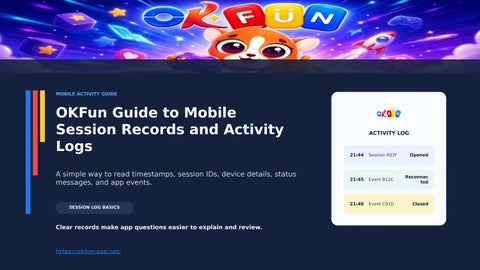
OKFun Guide to Mobile Session Records and Activity Logs A simple way to read timestamps, session IDs, device details, status messages, and app events.
SESSION LOG BASICS
Clear records make app questions easier to explain and review.
https://okfun-app.net/
ACTIVITY LOG
21:44
Session A83F
Opened
21:45
Event B12C
Reconnec ted
21:46
Event C91D
Closed
OKFUN / PRACTICAL GUIDE
S TA R T H E R E
Why Activity Logs Are Worth Checking
01
Activity logs give users a simple record of what happened inside an app session. They can show the time, device, app version, status, and session reference. Those details help when an app behaves differently than expected. The goal is not to study every tap or screen. A quick review can confirm when a session started, when a connection changed, and whether the app recorded an error. Clear details also make support requests easier to explain.
WHAT A QUICK REVIEW CAN SHOW
1
TIME Find when the session happened.
2
DEVICE See which phone was active.
3
STATUS Check what the app recorded.
Useful when an app session feels unclear — not for tracking every tap.
W H AT T O S C A N
Five Details Build a Useful Activity Record A useful activity record normally starts with five details: app area, date, time, device, and status. Some platforms also show an app version, session reference, or connection event. Together, those fields build a clear timeline. Read the log from oldest to newest when checking a full session. That order makes connection changes and status messages easier to follow. When several entries look similar, the timestamp and session ID become especially useful.
READ OLDEST → NEWEST
01
02
03
APP AREA
DATE
TIME
Which section was open?
Which day was recorded?
When was it logged?
04
05
DEVICE
STATUS
Which phone or browser?
What did the app report?
A clean sequence makes app events easier to follow. When entries look similar, the timestamp and session reference become more useful than a screen name alone. A clear activity page should keep these fields readable without forcing users through several menus.
OKFUN / PRACTICAL GUIDE
SESSION REFERENCE
Session IDs Work Like Reference Numbers A session ID is a unique reference linked to one app session or logged event. It works like a reference number for a specific activity record. Support teams can use it to locate the matching entry more quickly. Copy the complete session ID instead of shortening it. One missing character can point to the wrong record or return no match. When several events matter, keep each reference beside its date and time.
SESSION REFERENCE
A83F-B12C-91D7 App area: Activity • 21:45
SAVE THE FULL REFERENCE Keep the app area and time beside it for easier checking.
ONE MISSING CHARACTER CAN BREAK THE MATCH
OKFUN / PRACTICAL GUIDE
TIME CHECK
Timestamps Rebuild the Order of an App Session Timestamps help users rebuild the order of events during an app session. They matter most when several status changes happen close together. Always check whether the displayed time matches the phone clock. A timezone difference can make the right entry look incorrect at first. Users in the Philippines should compare the log time with the device time. That simple check helps separate a real mismatch from a clock setting issue.
APP SESSION TIMELINE 21:42
Session starts
21:44
App opens
21:45
Network changes
21:46
Status updates
21:48
App closes
TIP: Compare the log time with your phone clock and session start.
OKFUN / PRACTICAL GUIDE
SESSION FIELDS
Device, App Version, and Status Tell Different Stories Three fields often explain most app-session questions: device, app version, and status. The device identifies where the session happened. The app version shows which build was running at that time. The status explains what the system recorded, such as opened, paused, reconnected, or closed. These fields should be read together. One status line rarely explains the full session by itself.
1
2
3
DEVICE
APP VERSION
STATUS
Phone, browser, or device type.
Build running during the session.
Event recorded by the app.
Read all three fields together before judging one status line.
OKFUN / PRACTICAL GUIDE
CONNECTION EVENTS
Connection Changes Can Make Logs Look Different Connection changes can make activity logs look different from normal sessions. An app may record a pause when the phone switches between WiFi and mobile data. Another entry may appear when the connection returns. Users should check whether the log labels reconnection, background activity, or session recovery separately. A temporary connection change does not always mean the whole app session failed. The surrounding timestamps provide useful context.
WI-FI CHANGE
May create a brief pause.
APP SLEEP
RECONNECT
May create a background event.
A new status may appear later.
CHECK THE TIMESTAMPS BEFORE CALLING A CONNECTION CHANGE AN ERROR
OKFUN / PRACTICAL GUIDE
W H AT T O K E E P
Save the Right Details Before Asking for Support When an app issue needs support, save the useful details before refreshing pages repeatedly. Keep the app area, date, time, session ID, device, app version, and visible status. One clear screenshot can show the exact message. Do not share passwords, PINs, one-time codes, or unnecessary personal information. Crop unrelated details when possible. A short, organized report is easier to review than several unrelated screenshots.
SUPPORT DETAILS CHECKLIST ✓
APP AREA + TIME Identify the correct session.
✓
SESSION ID
✓
DEVICE + VERSIONShow the device and app build.
✓
ONE SCREENSHOT Capture the exact message.
Give the exact session reference.
NEVER INCLUDE PASSWORDS, PINS, OR ONE-TIME CODES
OKFUN / PRACTICAL GUIDE
KEEP CONTEXT
Activity Logs Are Useful, but They Have Limits Activity logs are useful evidence, but they do not explain everything by themselves. A record can show what the system logged, yet it may not capture every screen change, background task, or connection delay. Avoid treating one screenshot as proof of the technical cause. Compare the session ID, timestamp, device, app version, and status together. If those details still conflict, use the platform's official support route.
A LOG CAN SHOW
A LOG MAY NOT SHOW
• Session ID
• Every screen change
• Time and date • Device
≠
• Every background task • Offline activity
• App version • The full technical cause
• Status
Compare the full session before assuming the cause.
F I N A L TA K E A W AY
A 60-Second Review Routine
60
A quick review can take less than a minute after an unclear app session. First, open the activity record and find the correct session. Next, match the time and session ID. Then check the device, app version, and status. For readers using OKFun or similar mobile platforms, the useful habit is simple: read the record before guessing what happened. Clear session details make technical questions easier to explain and reduce unnecessary repeated checks.
Check the record first. Save details only when something still looks inconsistent.
https://okfun-app.net/
SECONDS
1
Find the session
2
Match time + session ID
3
Check device + status
4
Check app version
5
Save only if needed