Nighthawk App Setup Guide
Get your Nighthawk router connected in 8 simple steps. Follow this guide to download and configure the official NETGEAR app on your smartphone.

Get your Nighthawk router connected in 8 simple steps. Follow this guide to download and configure the official NETGEAR app on your smartphone.
Your Smartphone iPhone or Android devicethe app doesn't run on computers
Internet Connection WiFi or cellular data to download the app
NETGEAR Account
Existing account or create new one during setup
Works on both iPhone and Android devices. Make sure your phone is charged and ready.
Check Your Connection
Verify you have WiFi or cellular data. Avoid dead spotswe've seen too many failed installs in areas with poor signal.
iPhone Users
Open the App Store
Android Users
Open Google Play Store
Search for "Nighthawk app" in the search bar once you're in your device's app store.
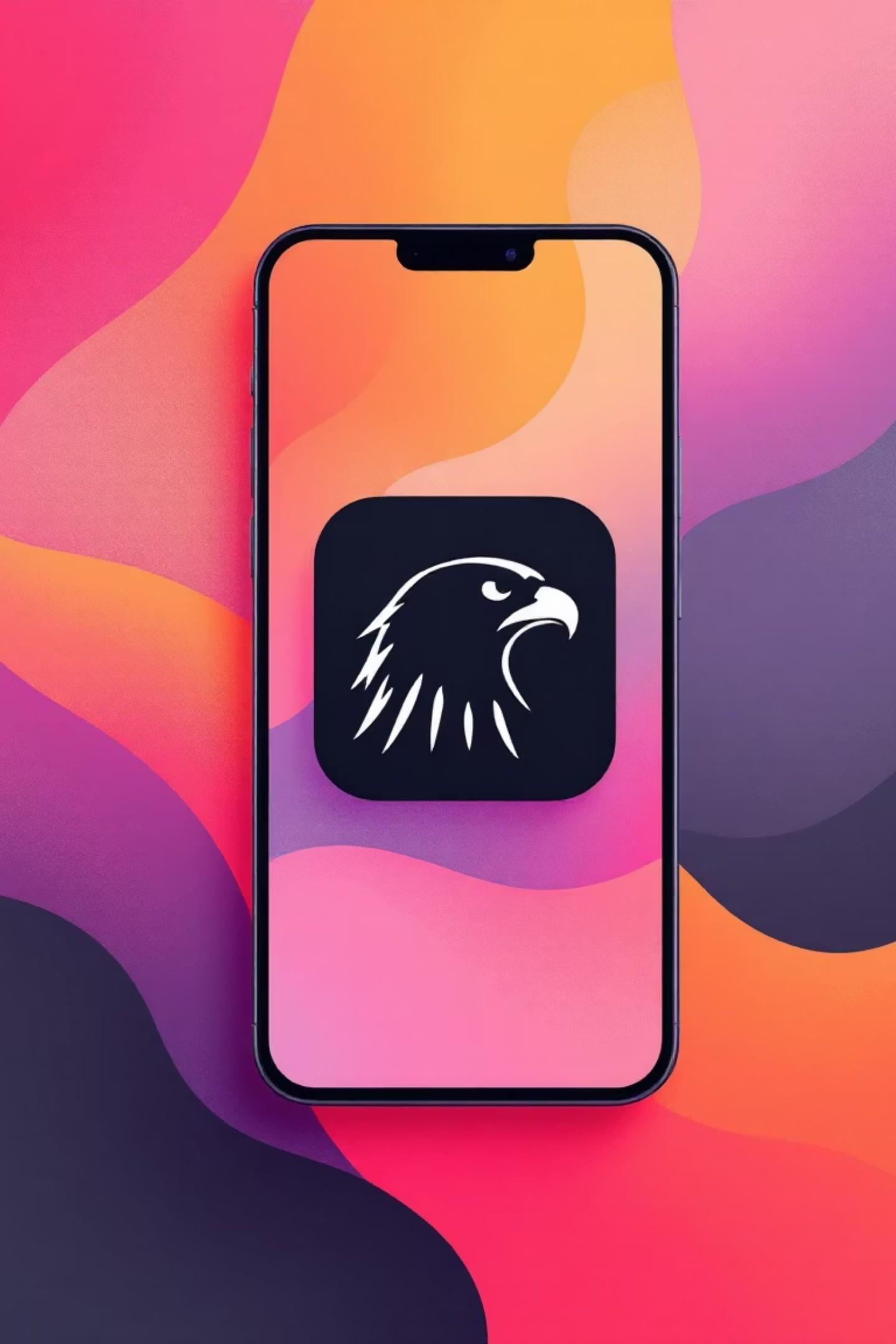

Important: Look for the official app from NETGEAR, Inc. - avoid look-alikes!
Official Publisher NETGEAR, Inc.
Logo Design Black and white with hawk symbol
01 Tap Download/Install
Hit the install button in your app store 02 Wait for Download Usually takes less than a minute unless WiFi is slow
03 Open the App Tap "Open" or find the icon on your home screen
First launch will request several permissions. Don't worry - these are necessary for the app to find and configure your


Location Access Helps locate nearby routers Notifications Alerts for network status Storage Save configuration settings
• Log in with existing NETGEAR account
• Create a new account during setup
After signing in, the app will automatically guide you through your Nighthawk router configuration process.

Your Nighthawk app is now installed and configured. The app will walk you through connecting your router and managing your network settings.




Email Support support@nighthawk-setup.net