WEBVIEW USER GUIDE
-- READY-TO-USE SALES APP FOR ALL OS & DEVICES
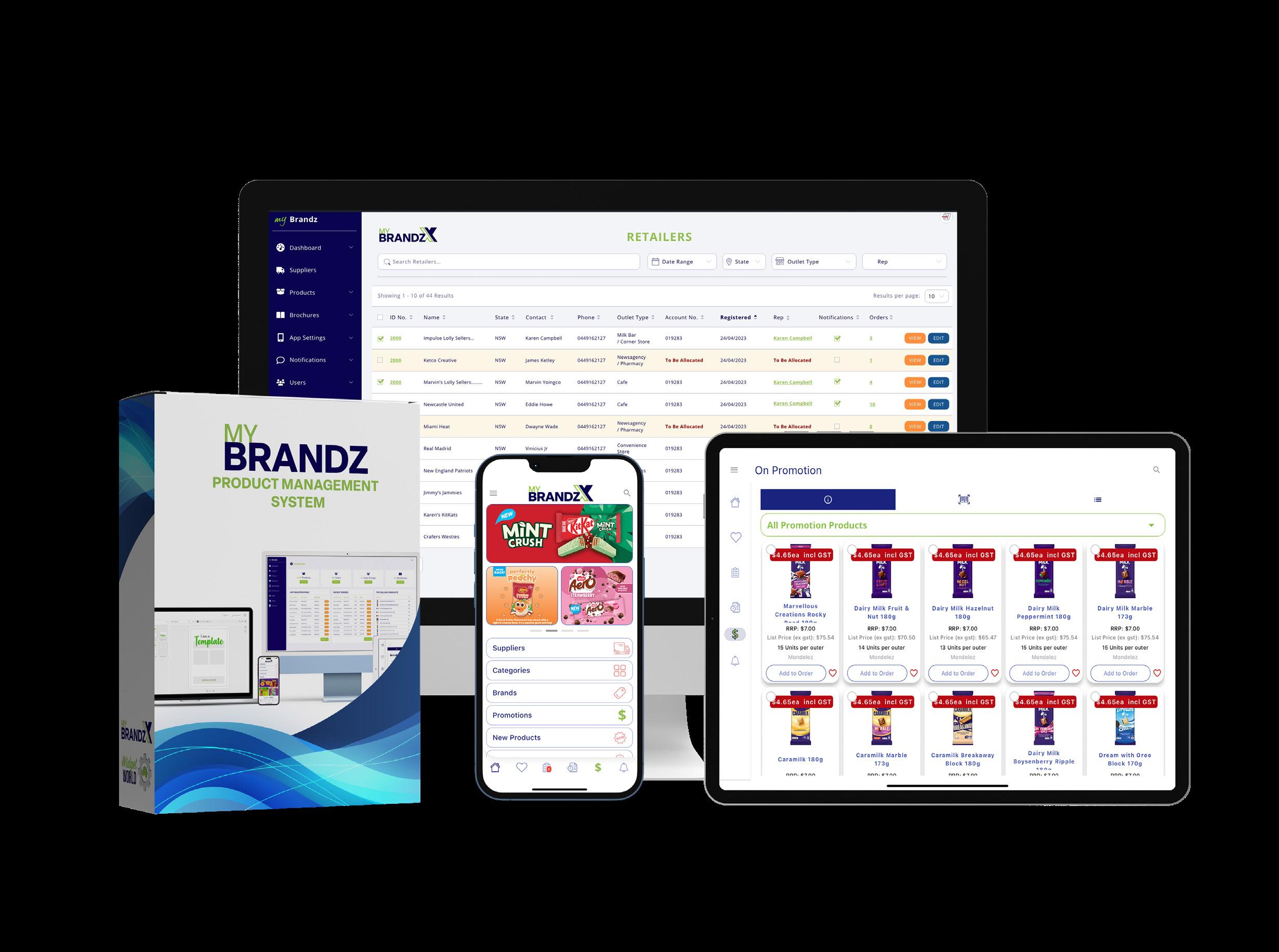
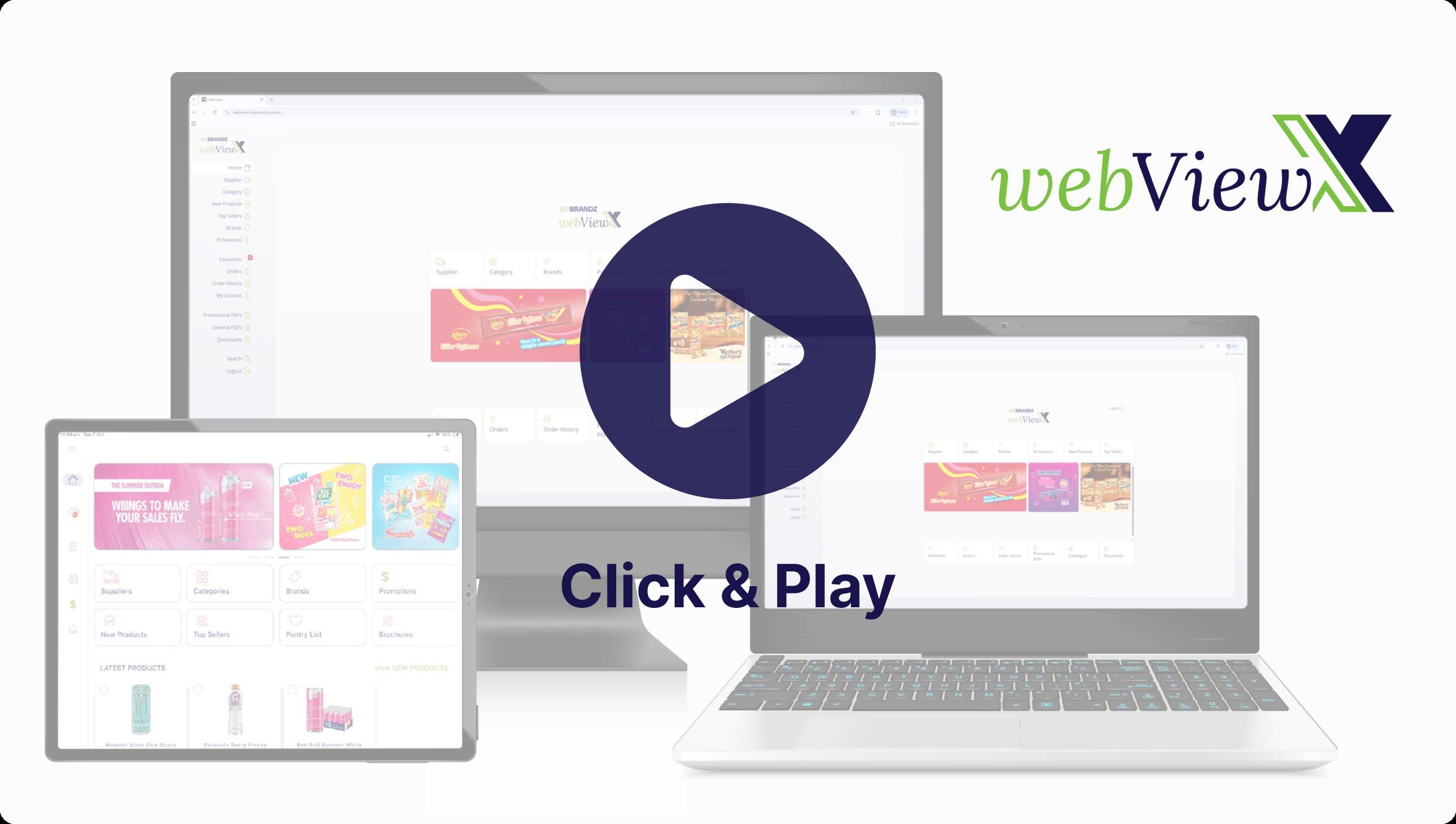
MyBrandz WebView provides the full functionality of the MyBrandzX sales application directly through a web browser, eliminating the need for software installation. This ready-to-use URL offers a seamless experience across all digital devices.
This handbook details the process for accessing the platform and utilizing its unique features, with a specific focus on the dedicated Product Image Download function available exclusively in WebView.
To access the WebView platform, navigate to https://webview.mybrandz.com.au/login. Use your existing MyBrandzX, MyBrandz HUB, or Widget World credentials to log in.
WEBVIEW USER GUIDE
VIEW PROMOTIONS, PRODUCTS & DOWNLOAD PRODUCT IMAGES
VIEW THE PRODUCTS IN WEBVIEW
-- PRODUCT PANEL
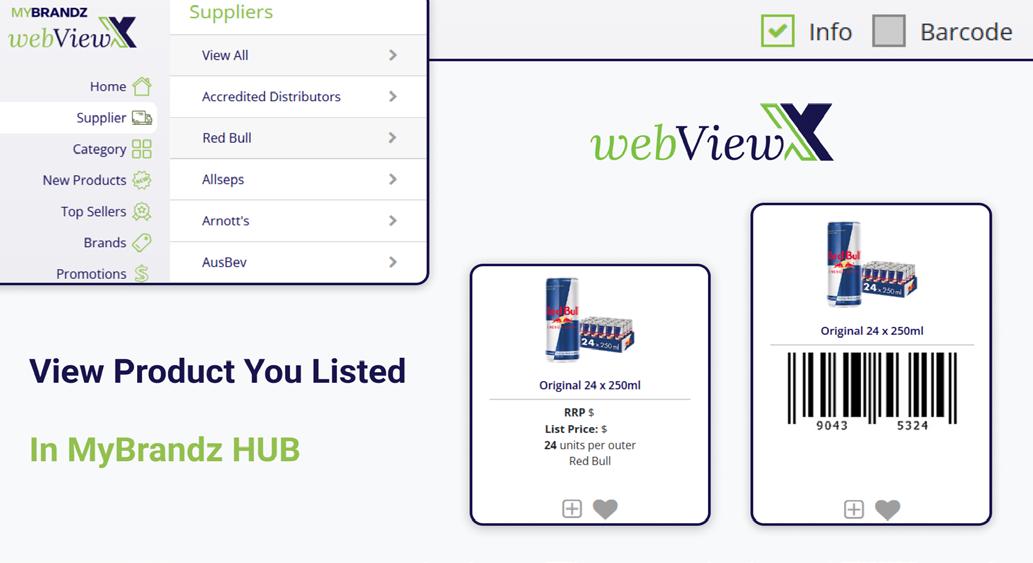
WebView provides direct access to the product catalogue you have loaded in MyBrandz Hub. For each product, you can view key details including the List Price, Recommended Retail Price (RRP), and units per outer.
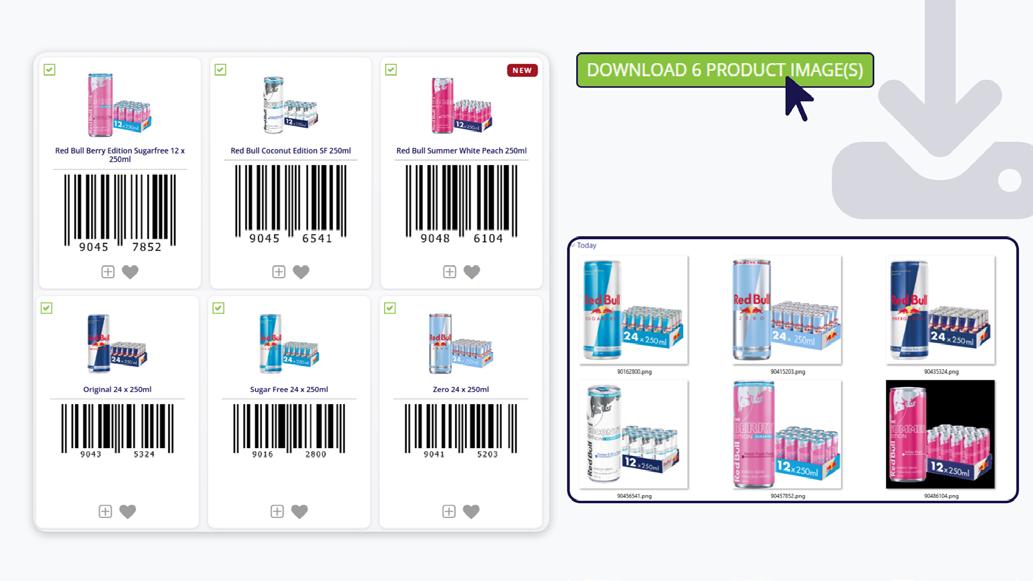
A key feature is the integrated Barcode View for all products. This allows retailers and field sales representatives to quickly scan items and place orders directly, streamlining the ordering process.
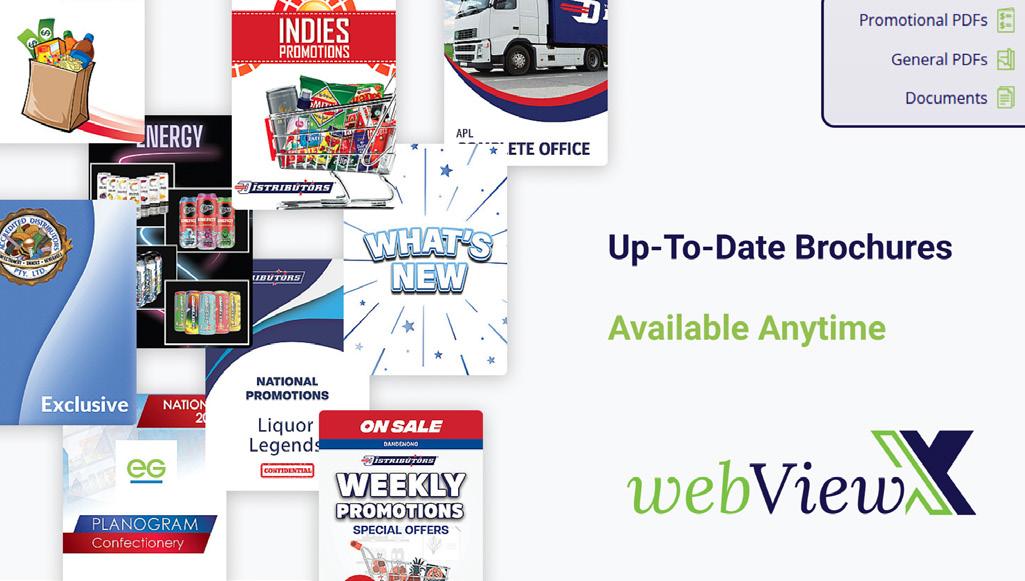
VIEW UPLOADED BROCHURE
UP-TO-DATE DEAL ON YOUR TAB
WebView provides a centralized document library, pulling in all PDFs uploaded to the MyBrandz Hub, ensure that all sales representatives have immediate access to the latest materials.
Available documents include, but are not limited to:
• Promotional Materials
• National Strategy Documents
• Internal Office Documents
Controlled Access: Supplier sales representatives can only view documents specific to their own supplier.
Custom Ordering: Administrators can set the display order for these documents directly within the MyBrandz Hub interface.
DOWNLOAD PRODUCT PICTURES
(ADMIN FEATURE)
LOCALISE PRODUCT ASSETS FOR MARKETING USAGE
As an Administrator in WebView, your product page view includes an exclusive tool for batch downloading product imagery.
• Access: Log in with an administrator account.
• Select: A checkbox appears on each product image. Click to select the images you need (up to 20 per session).
• Initiate: A “Download x Product images” button will appear. Click it.
• Process: The system compiles your selected images into a single ZIP file.
• Receive: The ZIP file automatically downloads to your computer