Solutions Manual for MATLAB
Programming for Engineers 7th Edition
by Chapman
ISBN: 9798214001531
Solution and Answer Guide: Chapman, MATLAB Programming for Engineers, 7e, CY2025, 9798214001531; Chapter 1:

by Chapman
ISBN: 9798214001531
Solution and Answer Guide: Chapman, MATLAB Programming for Engineers, 7e, CY2025, 9798214001531; Chapter 1:
Chapman, MATLAB Programming for Engineers, 7e, CY2025, 9798214001531; Chapter 1:
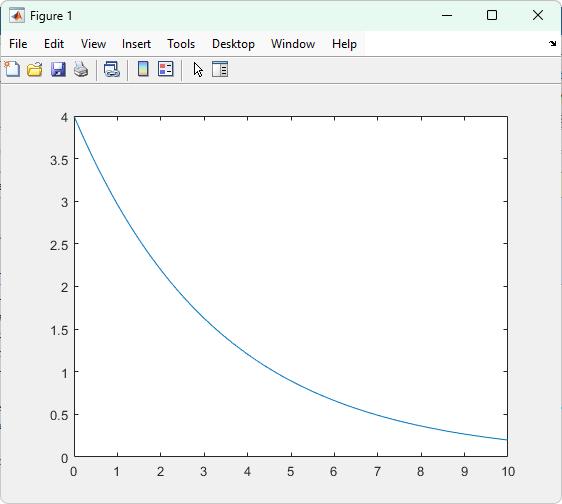
1.1 The following MATLAB statements plot the function
()4 x yxe = for the range 10 0 x . x = 0:0.1:10; y = 4 * exp( -0.3 * x); plot(x,y);
Use the MATLAB Edit/Debug Window to create a new empty script, type these statements into the script, and save the file with the name test1.m. Then, execute the program by typing the name test1 in the Command Window or clicking the Run button. What result do you get?
Solution
When these statements are executed, the results are as shown below:
Solution and Answer Guide:
1.2 Exercise 1.2 is a procedural exercise, and there is no solution in this Solutions Manual.
1.3 Exercise 1.3 is a procedural exercise, and there is no solution in this Solutions Manual.
1.4 Calculate the results of the following expressions using the MATLAB Command Window:
(a)
>> (1/(5^2) + 3/2*pi - 1)^(-3)
ans = 0.0189 (b) >> 2*pi - pi^0.5 ans = 4.5107
(c)
>> 1 + 1/2 + 1/2^2 + 1/3^3 + 1/2^4 ans = 1.8495
1.5 Suppose that u = 1 and v = 3. Evaluate the following expressions using the MATLAB Command Window:
(a) 4 3 u v (b) ( ) 2 2 2v uv + (c) 3 33 v vu
Solution and Answer Guide:
1.6
(d) 2 4 3 v
(e) 1 uv +
(f) 10log vu vu +
Solution
>> u=1; >> v=3;
>> (4*u) / (3*v)
ans = 0.4444
>> (2*v^-2) / (u+v)^2
ans = 0.0139
>> v^3/(v^3 - u^3)
ans = 1.0385
>> (4/3)*pi*v^2
ans = 37.6991
>> u*sqrt(v) + 1
ans = 2.7321
>> log10( (v+u) / (v-u) )
ans = 0.3010
Evaluate the expressions in Exercise 1.5 by creating a single script file that calculates and displays all six results. Execute the script file and observe the results.
Solution
An appropriate script file named test.m is shown below:
u = 1; v = 3;
(4*u) / (3*v)
(2*v^-2) / (u+v)^2
v^3/(v^3 - u^3)
(4/3)*pi*v^2
u*sqrt(v) + 1
log10( (v+u) / (v-u) )
When this file is executed, the results are;
Solution and Answer Guide:
>> test ans = 0.4444
ans = 0.0139
ans = 1.0385
ans = 37.6991
ans = 2.7321
ans = 0.3010
1.7 Suppose that x = 2 and y = –1. Evaluate the following expressions using MATLAB:
(a) 3 4 2x
(b) 3 4 2y
Note that MATLAB evaluates expressions with complex or imaginary answers transparently.
Solution (a)
>> (2 * x^3) ^ (1/4) ans = 2 (b)
>> (2 * y^3) ^ (1/4)
ans = 0.8409 + 0.8409i
1.8 The equation of an ellipse centered at the origin is:
22
22 1 xy ab += (0.1)
where a and b are distances from the center along the x and y axes, respectively. The area of this ellipse can be calculated from the equation
Solution and Answer Guide:
(0.2)
Use MATLAB as a calculator to calculate the area of an ellipse with a = 5 and b = 10.
Solution
The area of the ellipse with a = 5 and b = 10 is given below:
>> a = 5; >> b = 10; >> pi*a*b
ans = 157.0796
1.9 The circumference (perimeter) of an ellipse like the one defined in Figure 1.15 can be approximated by calculating an intermediate parameter h: ( ) ( ) 2 2 ab h ab = + (0 3)
The approximate circumference can be found from a, b, and h as: ( ) 3 1 1043 h Cab h
(0.4)
Create a script file that defines a and b, calculates h, and then calculates the final circumference. Assume that a and b are the same values as in the previous exercise.
Solution
An appropriate script file named calc_circumference.m is shown below:
% Calculate the circumference of an ellipse with axes
% a = 5 and b = 10
a = 5
b = 10
h = (a-b).^2 / (a+b).^2
circ = pi * (a+b) * (1+ (3*h)/(10+sqrt(4-3*h)))
When this file is executed, the results are:
Solution and Answer Guide:
>> calc_circumference
a = 5
b = 10 h = 0.1111
circ = 48.4422
1.10 Modify the script file circle_and_sphere.m created in Section 1.5.2 by removing the line “r = 5”, and save the script file with a new name. After this change, the script will only work if r is predefined in the Workspace before the script is executed. If r is set to a different value before the script is executed, then the calculations will be performed for a different radius. Take advantage of this fact to calculate the four circle and sphere parameters for radii of 1, 5, 10, and 20.
Solution
If we save the file as calc_circumference2.m and delete the line r = 6, the resulting file is:
% Calculate the area and circumference of a circle
% of radius r, and the volume and surface area of a
% sphere of radius r
area_circle = pi * r^2
circumference_circle = 2 * pi * r
volume_sphere = 4 / 3 * pi * r^3
area_sphere = 4 * pi * r^2
When this file is executed, the results are;
>> r = 1
r = 1
>> circle_and_sphere2
area_circle = 3.1416
circumference_circle = 6.2832
volume_sphere = 4.1888
area_sphere =
Solution and Answer Guide:
12.5664
>> r = 5
r = 5
>> circle_and_sphere2
area_circle = 78.5398
circumference_circle = 31.4159
volume_sphere = 523.5988
area_sphere = 314.1593
>> r = 10
r = 10
>> circle_and_sphere2
area_circle = 314.1593
circumference_circle = 62.8319
volume_sphere = 4.1888e+03
area_sphere = 1.2566e+03
>> r = 20
r = 20
>> circle_and_sphere2
area_circle = 1.2566e+03
circumference_circle = 125.6637
volume_sphere = 3.3510e+04
area_sphere = 5.0265e+03
1.11 Type the following MATLAB statements into the Command Window:
4 * 5
a = ans * pi b = ans / pi ans
What are the results in a, b, and ans? What is the final value saved in ans? Why was that value retained during the subsequent calculations?
Solution and Answer Guide:
The values are a = 62.8319, b = 6.3662, and ans = 20. After the line ‘4 * 5’ is executed, the variable ans contains 20. When the next two lines are executed, the value 20 stored in ans is used in the calculations. Since those calculations are assigned to variables a and b respectively, the value in ans is not changed by those lines. Therefore, it is still 20 when it is printed out at the end.
Use the MATLAB Help Browser to find the command required to show MATLAB’s current directory. What is the current directory when MATLAB starts up?
Solution
The required command to determine the current directory is pwd. The default directory when my installation of MATLAB starts is
>> pwd ans = C:\Users\schapman\Documents\MATLAB
The current directory on startup will be different on your computer, because your user name will be different.
Use the MATLAB Help Browser to find out how to create a new directory from within MATLAB. Then, create a new directory called mynewdir under the current directory. Add the new directory to the top of MATLAB’s path.
Solution
The required command to create a new directory is mkdir. The command to add the directory to the path is addpath. The directory can be created and added to the path with the statements
>> mkdir('mynewdir');
>> addpath('mynewdir');
Alternately, both jobs can be performed using the Path Tool (pathtool).
Change the current directory to mynewdir. Then open an Edit/Debug Window and add the following lines:
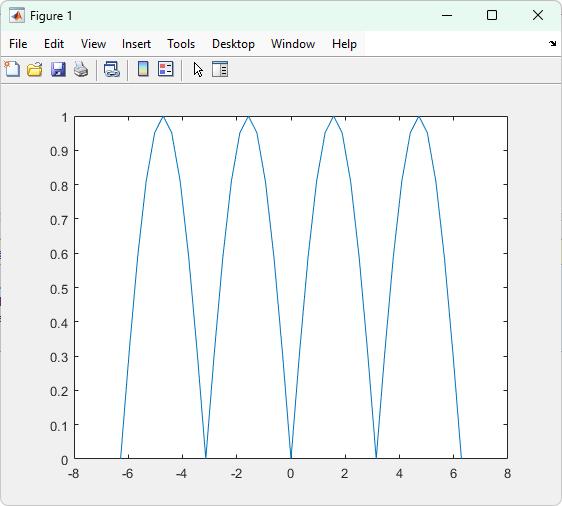
% Create an input array from –2*pi to 2*pi t = -2*pi:pi/10:2*pi;
% Calculate |sin(t)| x = abs(sin(t));
% Plot result plot(t,x);
Solution and Answer Guide:
Save the file with the name test2.m, and execute it by typing test2 in the Command Window. What happens?
Solution
When file test2.m is executed, the results are the plot shown below:
Close the Figure Window, and change back to the original directory that MATLAB started up in. Next, type “test2” in the Command Window. What happens, and why?
Solution
When test2 is typed into the Command Window, file test2.m is executed, even though it is not in the current directory, because it is in the MATLAB search path. The results are identical to before.
Solution and Answer Guide: