Scan above or Enter below
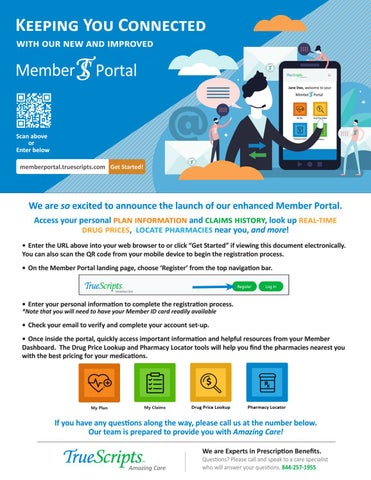
We are so excited to announce the launch of our enhanced Member Portal. Access your personal plan information and claims history, look up real-time drug prices, locate pharmacies near you, and more! • Enter the URL above into your web browser to or click “Get Started” if viewing this document electronically. You can also scan the QR code from your mobile device to begin the registration process. • On the Member Portal landing page, choose ‘Register’ from the top navigation bar.
• Enter your personal information to complete the registration process. *Note that you will need to have your Member ID card readily available
• Check your email to verify and complete your account set-up. • Once inside the portal, quickly access important information and helpful resources from your Member Dashboard. The Drug Price Lookup and Pharmacy Locator tools will help you find the pharmacies nearest you with the best pricing for your medications.
If you have any questions along the way, please call us at the number below. Our team is prepared to provide you with Amazing Care! We are Experts in Prescription Benefits.
Questions? Please call and speak to a care specialist who will answer your questions. 844-257-1955
Bookmarking Your Member Portal to the Home Screen of Your Android Access your Member Portal (and other frequently visited sites) with a single tap by saving it to the home screen of your mobile device. To get started, follow the steps below.
1
2
1. From your Android device, launch Google Chrome and enter the URL of the website for which you wish to create a shortcut. In this example, we will use www.truescripts.com.
2. Tap the vertical ellipses ( the screen.
) in the upper right-hand corner of
3
3. From the list of options, tap Add to Home Screen.
4. When this screen appears you can type a name for your site link. This will be the title that appears beneath its icon on your Home Screen. When you are done, tap Add. 5. A new screen will appear that allows you to place the icon automatically or choose where to place it. Tap Add or Add Automatically to place the new icon on your Android device’s Home Screen wherever space is available.
4
6. Return to your Home Screen to find your new icon.
For any questions or concerns regarding your TrueScripts Member Portal, please call our Member Care Team at 1-844-257-1955. We will be happy to provide you with assistance and Amazing Care.
5
Bookmarking Your Member Portal to the Home Screen of Your iPhone
Access your Member Portal (and other frequently visited sites) with a single tap by saving it to the home screen of your mobile device. To get started, follow the steps below.
1
1. From your iPhone or iPad, open the Safari web browser and enter the URL of the website for which you wish to create a shortcut. In this example, we will use www.truescripts.com.
2. Tap the Share icon (the square with an arrow pointing out of it) at the bottom of the screen.
2
3. Scroll down to the list of actions and tap Add to Home Screen. (If you don’t see the action, scroll to the bottom and tap Edit Actions, then tap Add next to the Add to Home Screen action. After that, you’ll be able to select it from the Share screen.)
3 4
4. When this screen appears, you can type a name for your site link. This will be the title that appears beneath its icon on your Home screen. When you are done, tap Add in the top-right corner of the screen.
5. Your new website shortcut will appear as an icon in the next available space on your device’s Home Screen. To move it like you would any other app, tap and hold its icon, then tap Edit Home Screen, and you’ll be able to drag it to your desired location. When you’ve placed it where you want it, tap Done.
For any questions or concerns regarding your TrueScripts Member Portal, please call our Member Care Team at 1-844-257-1955. We will be happy to provide you with assistance and Amazing Care.
5 TrueScripts