Guide to ZOOM Meetings
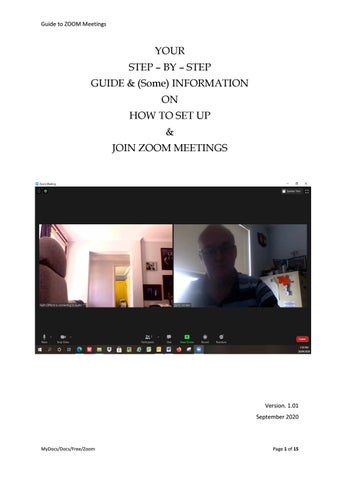
YOUR STEP – BY – STEP GUIDE & (Some) INFORMATION ON HOW TO SET UP & JOIN ZOOM MEETINGS
Version. 1.01 September 2020
MyDocs/Docs/Free/Zoom
Page 1 of 15
Guide to ZOOM Meetings
Contents Intent/Aim of this Booklet ...................................................................................................................... 3 What is ZOOM ......................................................................................................................................... 3 How to Get Started ................................................................................................................................. 3 Step by Step ........................................................................................................................................ 3 Decide on which Account for ZOOM .................................................................................................. 3 Computer Setup .................................................................................................................................. 3 How to Join a ZOOM Meeting ................................................................................................................. 6 Explanation of Invitation (Email)......................................................................................................... 6 Full Email Notice ............................................................................................................................. 6 Hidden Info ..................................................................................................................................... 6 Abridged Invite ................................................................................................................................ 7 Accessing via link............................................................................................................................. 7 ZOOM Login .................................................................................................................................... 7 Entering the Meeting (Computer) ...................................................................................................... 8 Additional information...................................................................................................................... 10 IPhone Basic Setup ................................................................................................................................ 11 Join a Zoom Meeting (iPhone) .............................................................................................................. 13
MyDocs/Docs/Free/Zoom
Page 2 of 15
Guide to ZOOM Meetings – Basic Setup
Intent/Aim of this Booklet I have completed this booklet in the hope that the meetings held by Lodges and the District Panel will attract more Brethren. This booklet is to give you a ‘Step-by-Step’ Guide that will help you set up your device so you are able to join in to a ZOOM Meeting. Did I mention it’s FREE???? I would like to thank Sergio Migliaccio for providing assistance with this guide
What is ZOOM Basically, at a Glance,
Zoom is a FREE web-based video conferencing tool that with the aid of either of the following, o
Mobile phone
o
Laptop,
o
iPad, or
o
Personal (Desktop) Computer
A person is able to meet other users online, with or without video. Zoom users can choose to record sessions and share or comment on one another’s screens. Zoom offers quality video, audio, and a wireless screen-sharing performance across several devices. Did I mention its FREE????
How to Get Started Step by Step What you need is a Computer that either has an internal camera or that you can fit a ‘webcam’ and microphone to.
Decide on which Account for ZOOM 1) Create your Account – you have several choices; a) You can have a FREE account, unless you Plan on ‘Hosting’ outside of Freemasonry, this is possibly the plan to use; i)
This will let you Host up to 100 people (do you really want that many people you know inside your PC at once?)
ii) 40 minute MAXIMUM for group meetings iii) Unlimited 1 on 1 meetings.
Computer Setup Let’s get started, all you need to set up your account is follow the ‘Step by Step’ on the following pages.
MyDocs/Docs/Free/Zoom
Page 3 of 15
Guide to ZOOM Meetings – Basic Setup
Step 1. a. Copy this link https://zoom.us into the ‘Address Bar” of your Internet Search Engine and then ‘click’ ENTER
Step 2.
You should now see this screen ‘Click’ - Sign Up Its Free
Step 3. You now have this screen a. Fill in your birth details b. When you have completed
c. ‘Click’ on Continue
MyDocs/Docs/Free/Zoom
Page 4 of 15
Guide to ZOOM Meetings – Basic Setup
Step 4. a. Fill in i.
your Email Address
ii.
Captcha Code
iii.
‘Click’ Sign Up
NB: The Captcha Code will be different each time you log in
CONGRATULATIONS You now have a ZOOM Account !!!!!!
MyDocs/Docs/Free/Zoom
Page 5 of 15
Guide to ZOOM Meetings – Basic Setup
How to Join a ZOOM Meeting Normally your host will send you an email with all of the details of the intended meeting. The details will have the following information (We will look at a few pics explaining them shortly);
Name of the Host Topic/Description Time/Date A Link to Join the Meeting Meeting ID Passcode
Explanation of Invitation (Email) Full Email Notice You may receive an email, it may look like this. This may, at first, seem to be a load of gobbldedook, don’t stress. There is a hidden message with the key bits of info for you to join a meeting
Hidden Info Basically all you need to know to access the meeting is the following Link to Join Meeting ID Passcode Hint – Write the Meeting ID and Passcode on a bit of paper
MyDocs/Docs/Free/Zoom
Page 6 of 15
Guide to ZOOM Meetings – Basic Setup
Abridged Invite If you have a nice Host he may already have deleted the ‘bumph’ that isn’t important’ See the next pic for an explanation
Essentially it has all the info that you need to join in a meeting
Link to Join Meeting ID Passcode Did you write the ID and Passcode down?? Accessing via link Once you have the email, there isn’t any need to open it to join the meeting. Follow these steps; Click on the link to join ZOOM Meeting o If it didn’t open, copy the link (blue bit) and paste it in to the ‘Address Bar’ on your Internet Search engine (you know where it is) o ‘Click’ on Enter Key You will now get a new ‘Screen’ (see below) ZOOM Login ‘Click’ on ‘download and run Zoom
MyDocs/Docs/Free/Zoom
Page 7 of 15
Guide to ZOOM Meetings – Basic Setup
Entering the Meeting (Computer) You will more than likely get A New Screen Actually, it’s the same but with a difference You will see a bit down in the left corner, it’s the command bit, tells the pc to open ZOOM
‘Click’ on Open File
Sometimes, depending on your PC, it may be in one of the other corners?
New Screen If the meeting hasn’t started or the Host hasn’t let you in yet You can “fine tune” your ZOOM ‘Click’ on the ‘Test Computer Audio Button’
MyDocs/Docs/Free/Zoom
Page 8 of 15
Guide to ZOOM Meetings – Basic Setup
New Screen This is the ‘Fine Tune’ bit Have a look at the;
Video, and
Audio
This lets you choose/optimise the way you are seen and heard And see and hear
New Screen (MAYBE) DON’T PANIC If the screen opens to this. You need to turn your ‘Video’ ON
There are a few new Buttons on the ‘ZOOM Options Bar’
On the far Left you will see
A Microphone This controls who can hear you.its either ALL or NONE
Video Camera Same as above, its either ALL or NONE. In this case no-one can see you ‘Click’ on the red line
MyDocs/Docs/Free/Zoom
Page 9 of 15
Guide to ZOOM Meetings – Basic Setup
Additional information – this may come in handy during your ZOOM Meeting Sound (Mute)
Video, same as sound
A ‘Click’ turns it ON/OFF
A ‘Click’ turns ON/OFF
Participants The number lets you know there are (in this case) 2 participants
Chat When you ‘Click’ on this screen, another screen will open. If you don’t see the ‘Chat Screen’ The Host may have turned it off. Hosts Choice
If either the Sound or Video is turned ‘OFF’, there will be a RED line through the Microphone or Video
By the way, you are now ‘ZOOMING’ Congratulations MyDocs/Docs/Free/Zoom
Page 10 of 15
Guide to ZOOM Meetings – iPhone Basic Setup
IPhone Basic Setup First we need to set your phone up so you have access to ZOOM. The only requirement, it needs to be an iPhone to gain Video and Audio
1. First you will need to download the ZOOM App This is done through the App Store Application on your iPhone 2. ‘Tap’ on the ‘App Icon
3. A new screen opens 4. On the bottom “Right” of your phone (normally) you should see a little ‘magnifying glass’ 5. Open this by “tapping” with a finger
MyDocs/Docs/Free/Zoom
Page 11 of 15
Guide to ZOOM Meetings – iPhone Basic Setup
6. Another new “screen” 7. “Type” ZOOM in the “Search Bar” (Top of the phone screen)
8. After you have typed ZOOM 9. “Tap” “Search” (On the bottom right of your screen)
10. Another new screen will appear there will be a list of things with the word “ZOOM” in it 11. “Tap” on ZOOM App for iPhone
12. Another ‘New Screen” there will be a ‘list’ (pictures) of ZOOM applications 13. Find the one that is titled “ZOOM Cloud Meetings” 14. On your list it will have the word “GET”
MyDocs/Docs/Free/Zoom
Page 12 of 15
Guide to ZOOM Meetings – iPhone Basic Setup
15. When the “ZOOM App” has downloaded onto your phone, instead of the word “GET” appearing on your phone, the word “OPEN” will appear
Now that you have to ZOOM App ready to go, if you would like some assistance ant to test it out before our meeting, call me or send an email, I will set up a test meeting for you and we can go through it until you are confident in the following steps
Join a Zoom Meeting (iPhone) You have now completed the ‘Technical Bit” To “Join” a meeting a few things need to be completed so you can interact successfully, see below
Have a look at the icons on your phone. Somewhere on one of your phone screen screens you will now see a new icon for the ZOOM
MyDocs/Docs/Free/Zoom
Page 13 of 15
Guide to ZOOM Meetings – iPhone Basic Setup
The following page/s will show you how to join a meeting, stay with me… stay with me….almost finished 1. Prior to a meeting your host will send you an email. It will have the following; a. Join Zoom Meeting https://us02web.zoom.us/j/85920302481?pwd=ZnBsaXNjNWdkNnBkUXE3SHh6MG hkUT09 b. A ‘Meeting ID’ 859 2030 2481 (example) , and c. A ‘Pass Code’ 039206 This set of info will be used to look for our meeting The next bit opens your meeting
MANUALLY JOIN MEETING 1. “Tap” on the ZOOM Icon on the phone screen
2. New Screen Note there are several options on the top of the screen 3. “Tap” Join Meeting
MyDocs/Docs/Free/Zoom
Page 14 of 15
Guide to ZOOM Meetings – iPhone Basic Setup
You are now asked for the Meeting ID and a bit of additional info;
4. Type in the ID from the email
5. Also ‘Type’ your name
6. After you have typed the info
7. “Tap” on the blue bat where it displays “Join” Note: there are a couple of “Buttons” on the screen, a. Don’t Connect to Audio, and b. Turn Off My Video LEAVE them in “Shadow” (Off Mode”)
Another new screen you have joined the meeting. When the “Host” commences it will open automatically. You now have to ensure your audio is on, ‘Tap’ on the Join Audio’ and select your option, and Show your face (if you choose to) a. ‘Tap’ the picture of the Movie Camera to remove the line, you are now seen
MyDocs/Docs/Free/Zoom
Page 15 of 15
District 113 South East Mornington Peninsula District Organisation Structure District Coordinator VWBro. John Fraser PGIW fvdistrict113@gmail.com
Deputy District Coordinator WBro. Frank Bennett PGStdB fbi_007@me.com
District Secretary/Treasurer WBro. Barry Hodder raybar@bigpond.net.au
District Medical Officer Bro. Dr. Mohan Kamalanathan mkamalanathan@hotmail.com
District Almoner Bro. Dave Kelly qonos01@gmail.com
Education Officer WBro. Jerry Spilliotis GStwd jerry@meg.net.au
Major Events & Fund Raising WBro. Colin Rimmington crimojustice@yahoo.com
Inspector of Workings (South) VWBro. Rex Roolker PGIW rexroolker@gmail.com
Inspector of Workings (North) WBro. Bill Gardiner PJGD bygardiner@optusnet.com.au
MAP Training Coordinators WBro.Iain Taylor PJGD perble@bigpond.net.au WBro. Wayne Mills wfrm@bigpond.com
Chairman New Member Interview Panel (North) WBro. Frank Bennett PGStdB fbi_007@me.com
Chairman New Member Interview Panel (South) WBro. Ross Dolbel PJGD rossdolbel@gmail.com
Contact Point South Eastern Masonic Centre WBro. Giorgio Migliaccio secretary@semc.org.au
Contact Point Baxter Masonic Centre WBro. Rick Saville frankstonlodge217@gmail.com
Liaison Officer United Grand Lodge of Mark Master Masons RWBro. Ken Coleman PDGM kicoleman1@bigpond.com
Liaison Officer Supreme Holy Royal Arch Chapter of Victoria REmComp Peter Godson PGJ peter.godson.53@gmail.com
Masonic IT & Softwarte Applications FMV - Salesforce (Secretary Lodge Meeting Reports) ZOOM - Computer & iPhone set up WBro. Barry Hodder