
How to Use the eBook - Student
This document contains a walkthrough of a variety of features within the eBook, such as annotations, text-to-speech, and bookmarking. It is intended to show students how to make the most of the eBook’s capabilities. Please note: eBook features and asset types will vary by title.
1. eBooks may be available as a standalone product launched directly from either within your user account or from within your Navigate course by clicking on an eBook chapter link.
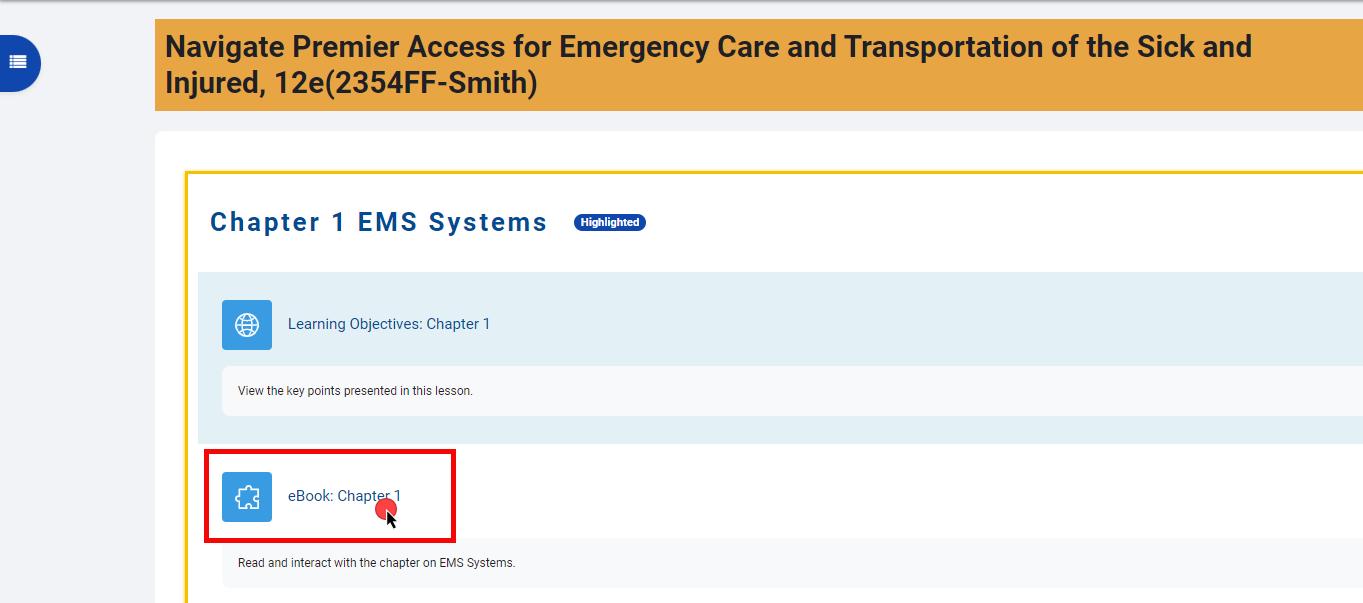
2. To open the eBook from within your Navigate course, navigate to the chapter you would like to open and click on the chapter’s eBook link.
3. The first page of the selected chapter will load in a new tab within your web browser. If this is your first time opening the eBook, take a moment to explore and learn about the features available using the tour overlay.
Technical Support: www.jblearning.com/techsupport | support@jblearning.com | 1-978-443-5000 | M-F 8:30am – 8:00pm
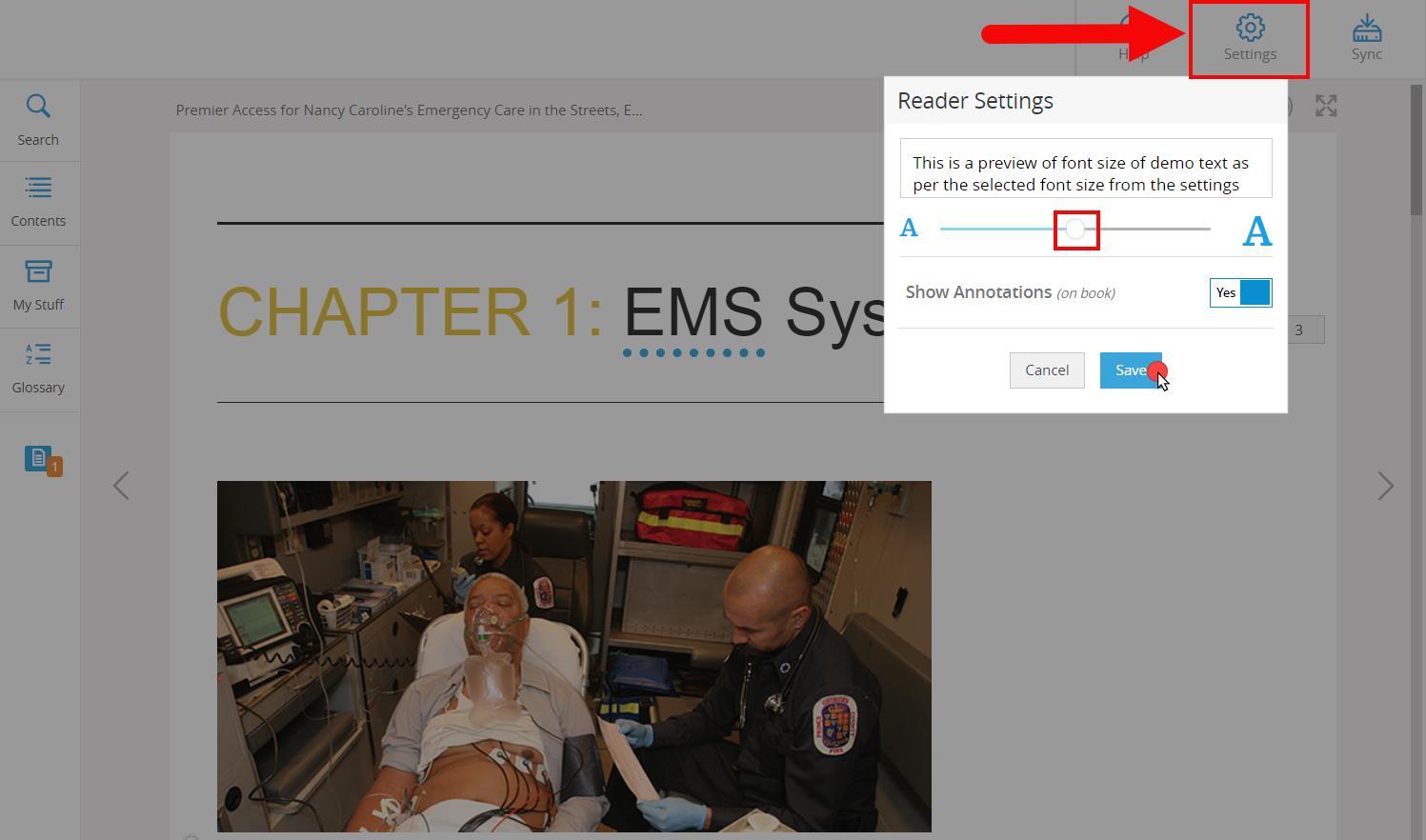
4. The Settings button provides the option to expand or reduce text size to suit your reading preference. To toggle the text size, click and drag the button on the scale left or right while viewing the text size in the preview section provided, then click Save to apply the adjusted size.

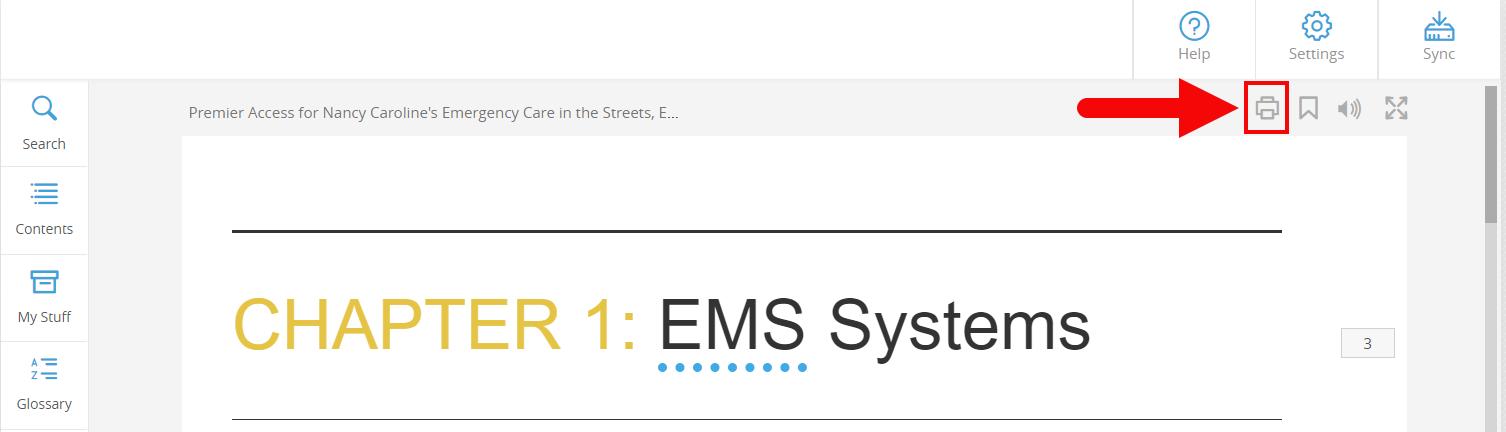
5. The Print button may be used to print the desired pages of the chapter section you are viewing.
Technical Support: www.jblearning.com/techsupport | support@jblearning.com | 1-978-443-5000 | M-F 8:30am – 8:00pm
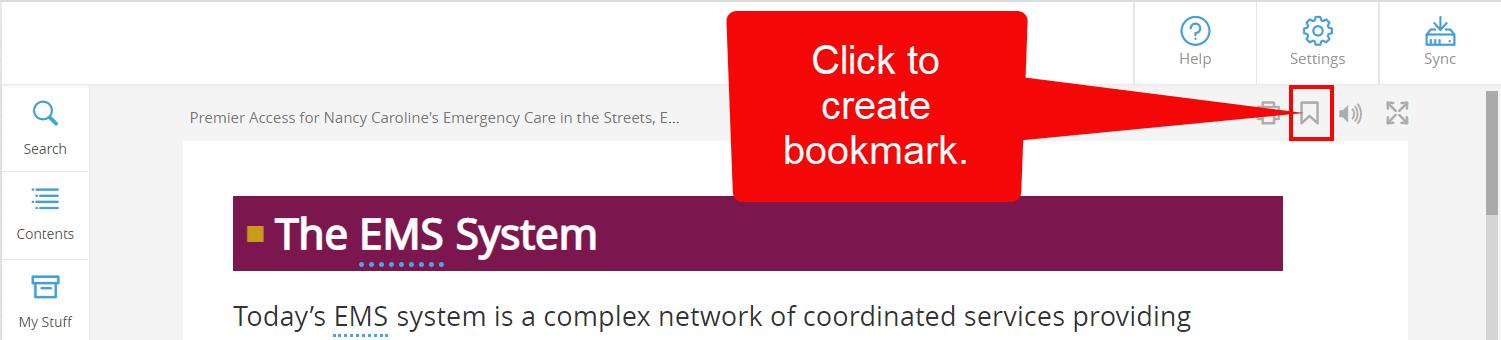
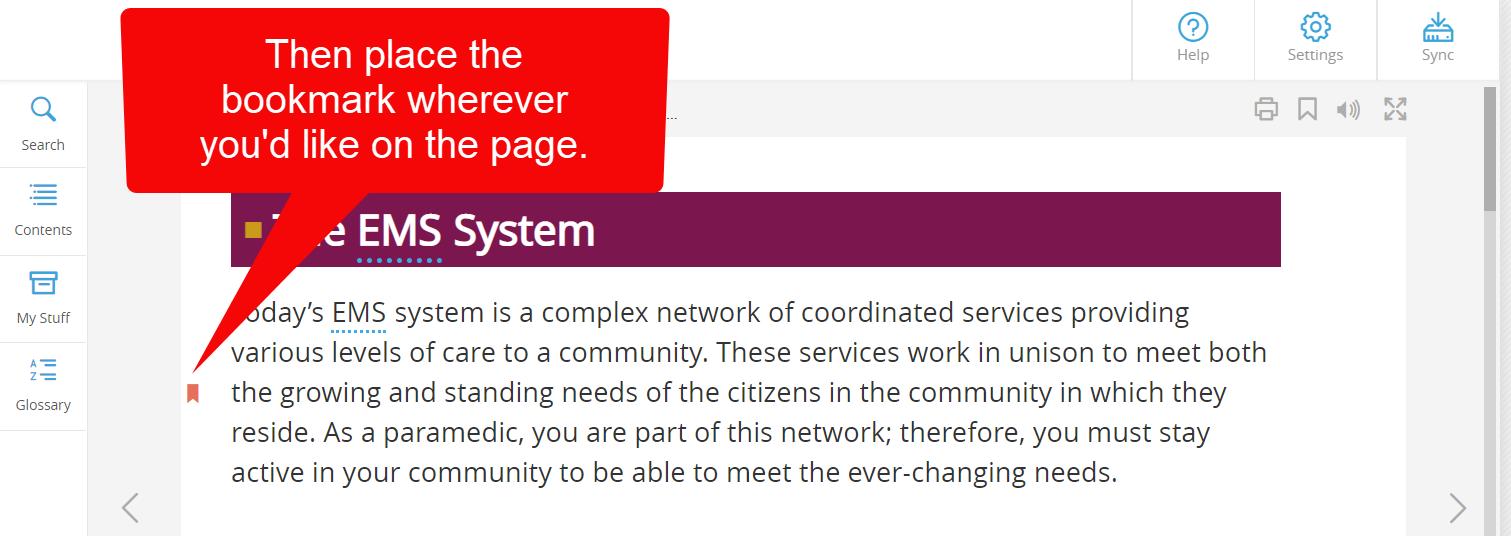
6. The Bookmark button is a tool used to save a reference point on the page, providing you with a quick link to return to the exact location that you choose. To create a bookmark, click the bookmark button first and then click on the desired location of the page to apply it.
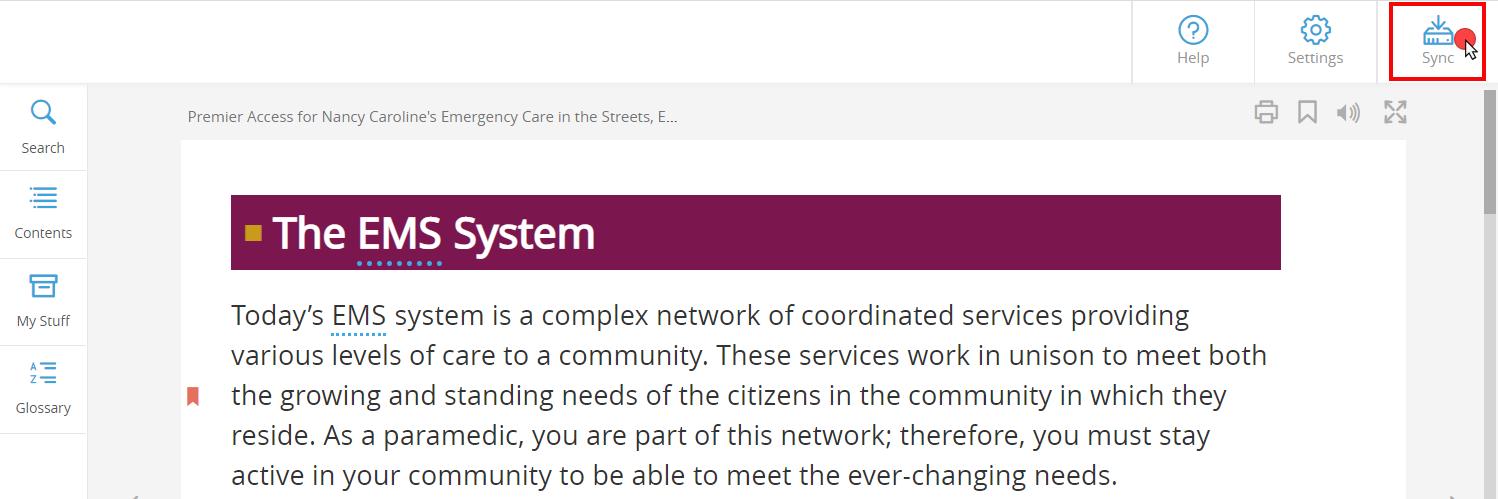
7. Next, click the Sync button at the top right of the page to save your progress. It is a recommended best practice to click Sync after creating any bookmarks or annotations as you read the eBook.
Technical Support: www.jblearning.com/techsupport | support@jblearning.com | 1-978-443-5000 | M-F 8:30am – 8:00pm

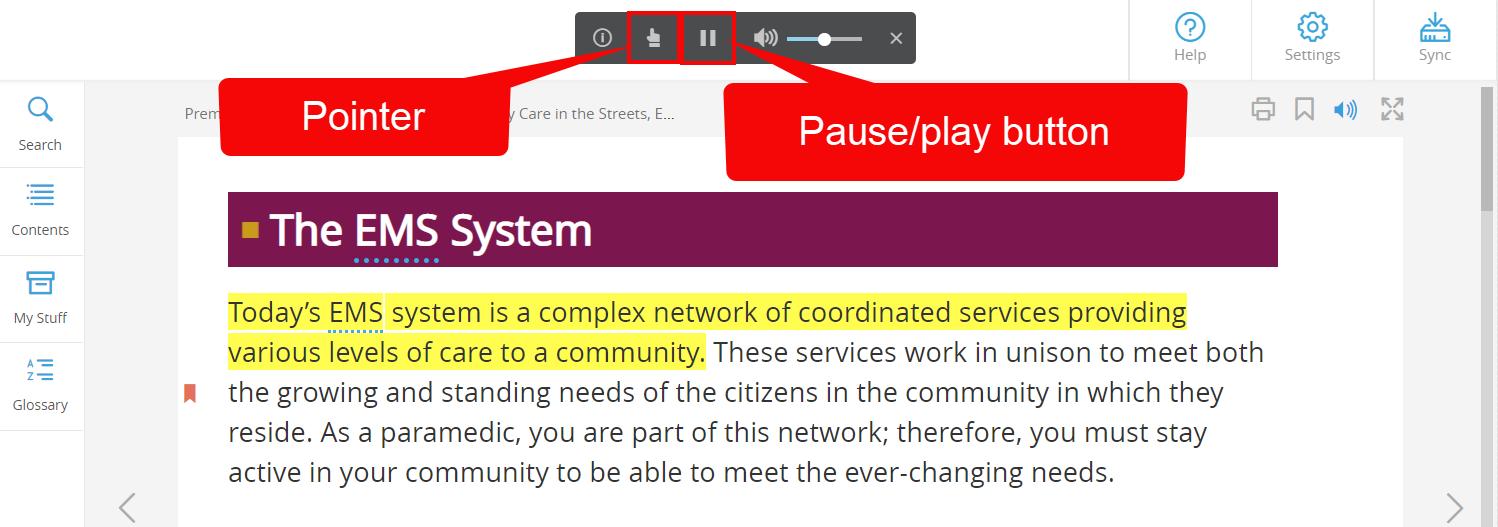
8. The Listen button will enable the eBook screen-reader and highlight text as it is read aloud.
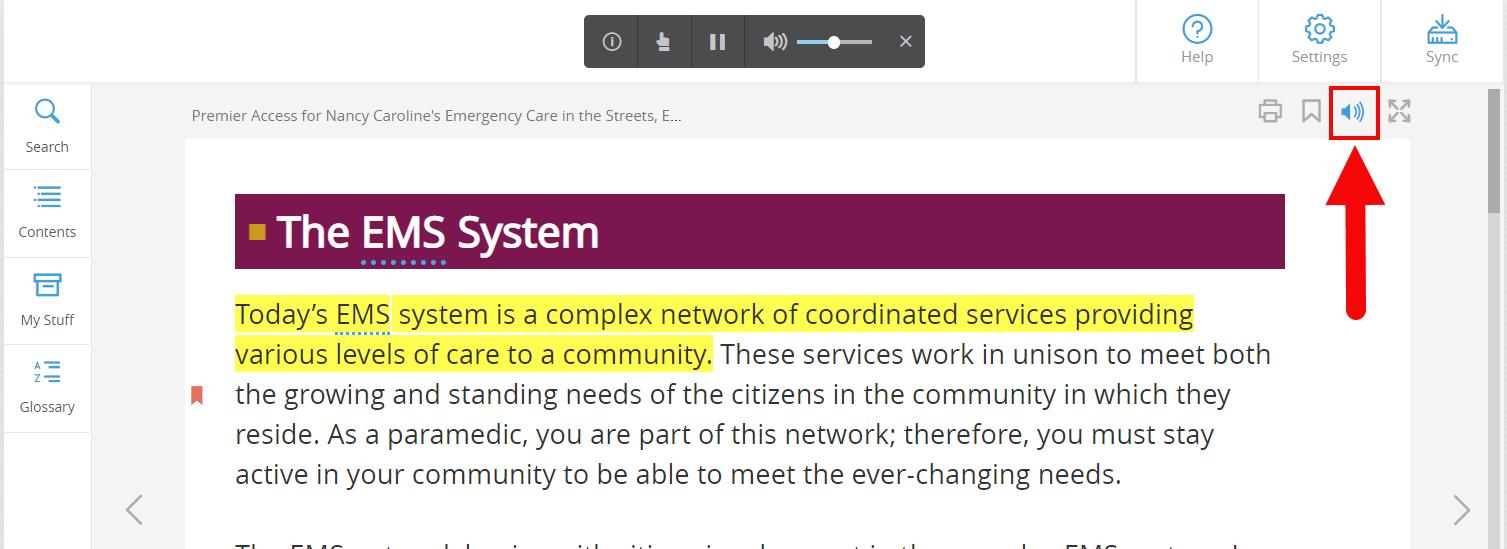
9. You may pause the reading at any time using the Text-to-speech toolbar displayed at the top of the page. You may select the Pointer button within the toolbar and then click on a specific sentence for it to be read aloud.

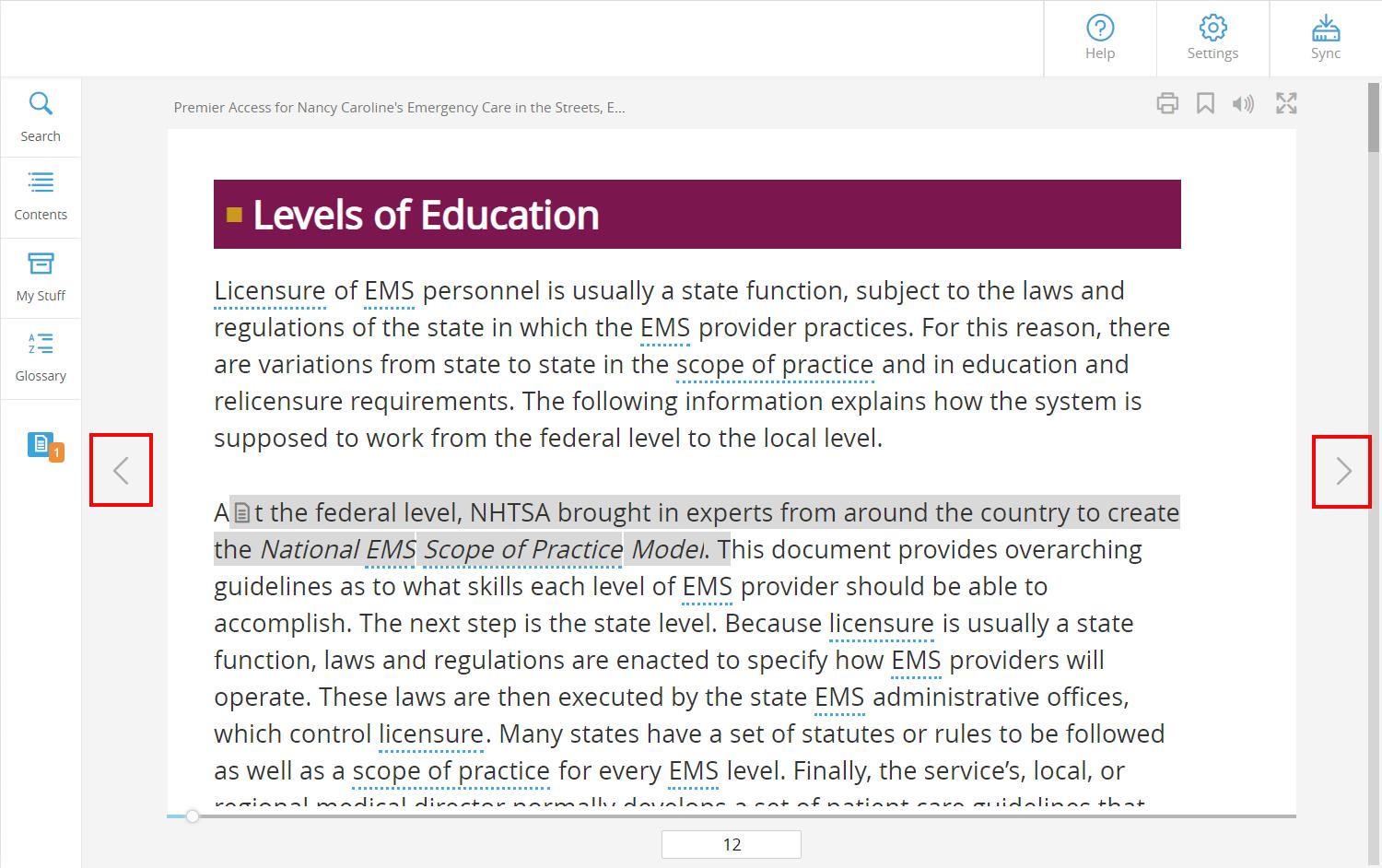
10.Use the Arrow buttons to the left and right of the page to navigate from page to page.
Technical Support: www.jblearning.com/techsupport | support@jblearning.com | 1-978-443-5000 | M-F 8:30am – 8:00pm
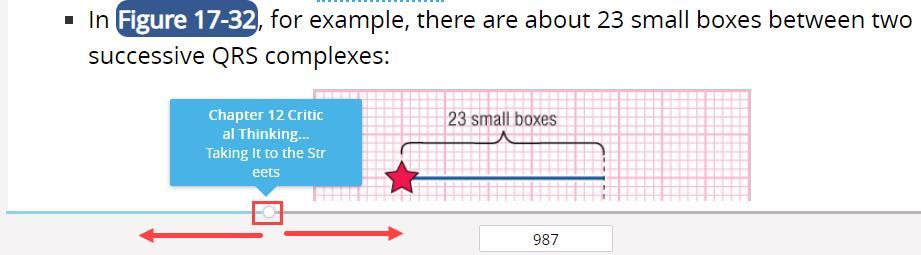
11.Alternatively, you may use the Scrollbar at the bottom of the page to jump to any desired section of the eBook and refer to the scrollbar as an indicator of your progress.
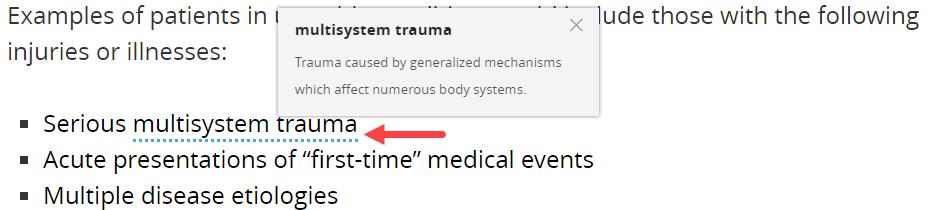
12. As you read, you may encounter underlined glossary terms within the text. You may click on the terms to view their definition in a resulting popup window.
Technical Support: www.jblearning.com/techsupport | support@jblearning.com | 1-978-443-5000 | M-F 8:30am – 8:00pm
13.Highlighting any section of text with your cursor will prompt an Annotation Toolbar to open, which may be used to highlight the text or to create written or recorded audio notes.
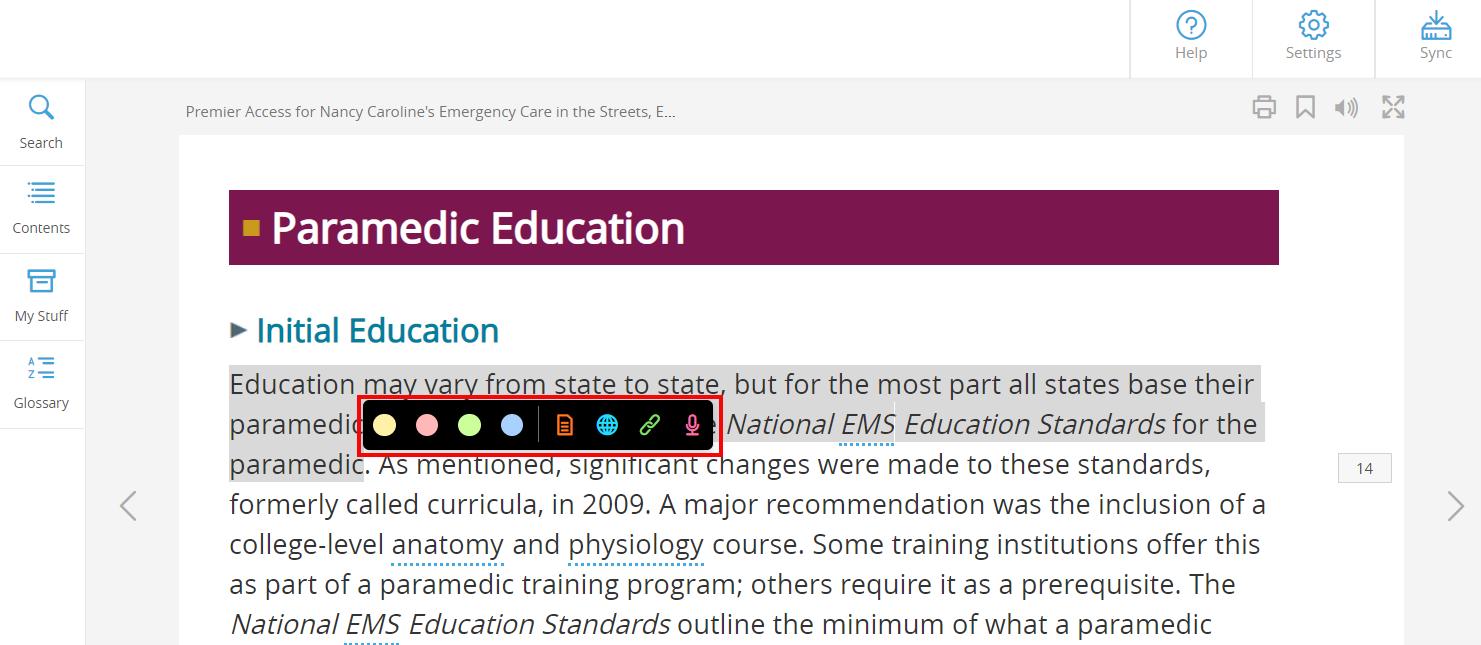
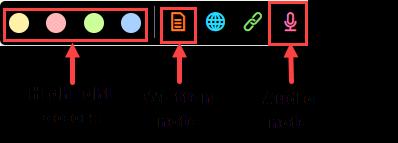
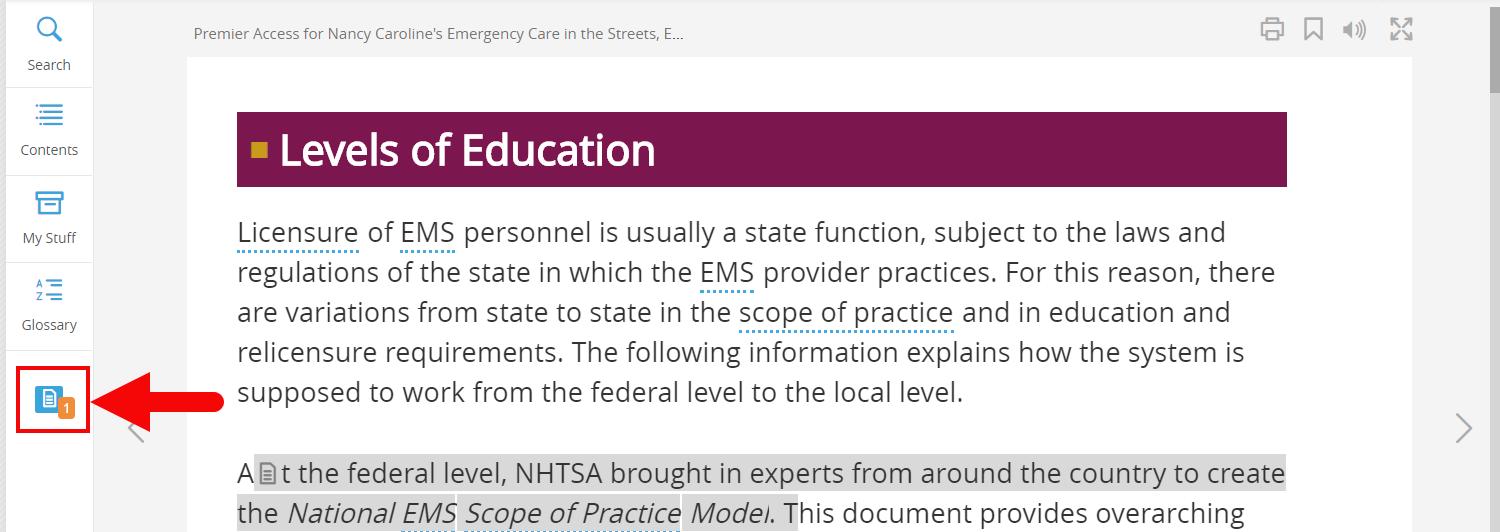
14.When you leave a note, the selected text will highlight in grey and display a notation icon at the beginning of the section. This shows that a note is available to review for the highlighted text. A
Technical Support: www.jblearning.com/techsupport | support@jblearning.com | 1-978-443-5000 | M-F 8:30am – 8:00pm
note icon at the bottom of the left-hand toolbar will reveal the presence and number of notes created on a given page.
15.After creating annotations and before closing the eBook, it is important to click the Sync button at the top right of the page to ensure all changes are saved for your next session.

Technical Support: www.jblearning.com/techsupport | support@jblearning.com | 1-978-443-5000 | M-F 8:30am – 8:00pm
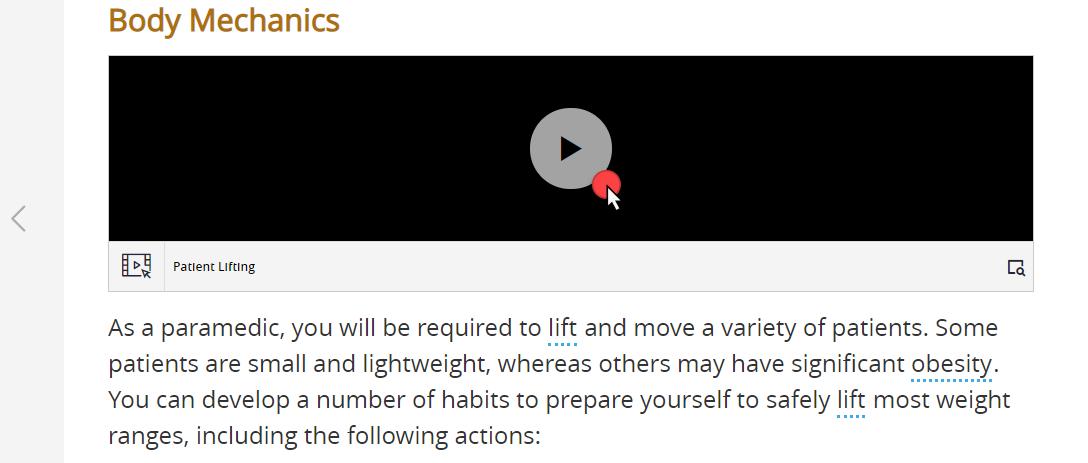
16.All supporting media resources, such as images, videos, animations, and audio clips, are embedded in-line with the text where applicable and may be launched or played with a click of your mouse.
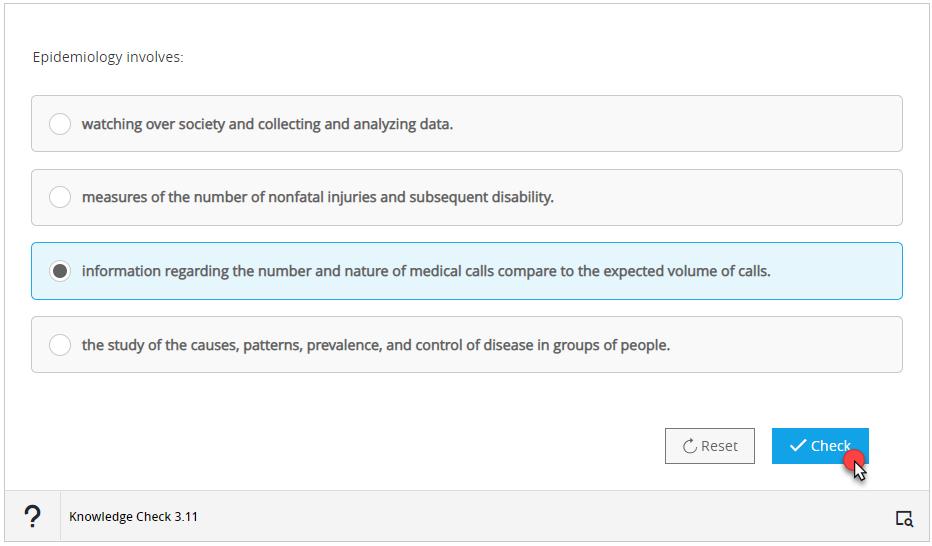
17.Concluding chapter sections in select titles include Knowledge Check questions, which may be used to self-evaluate your reading comprehension. Knowledge Checks are not graded and may be attempted an unlimited number of times.
Technical Support: www.jblearning.com/techsupport | support@jblearning.com | 1-978-443-5000 | M-F 8:30am – 8:00pm
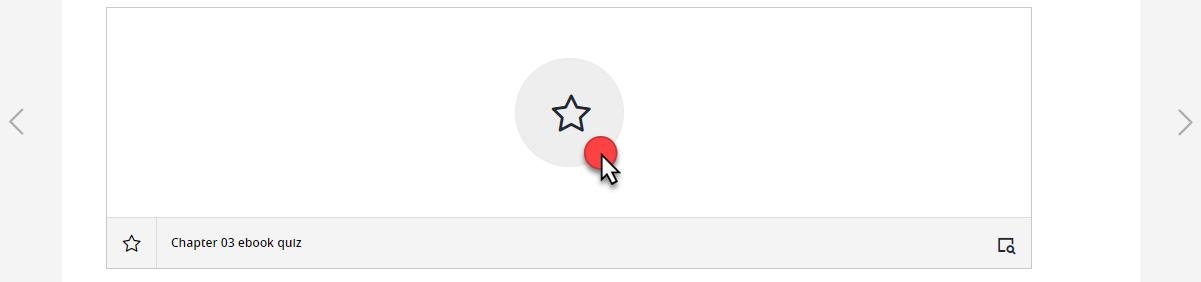
18.At the end of each chapter in select titles is a comprehensive eBook Quiz, which allows 5 attempts total, the highest of which will be reported to the Navigate Gradebook.
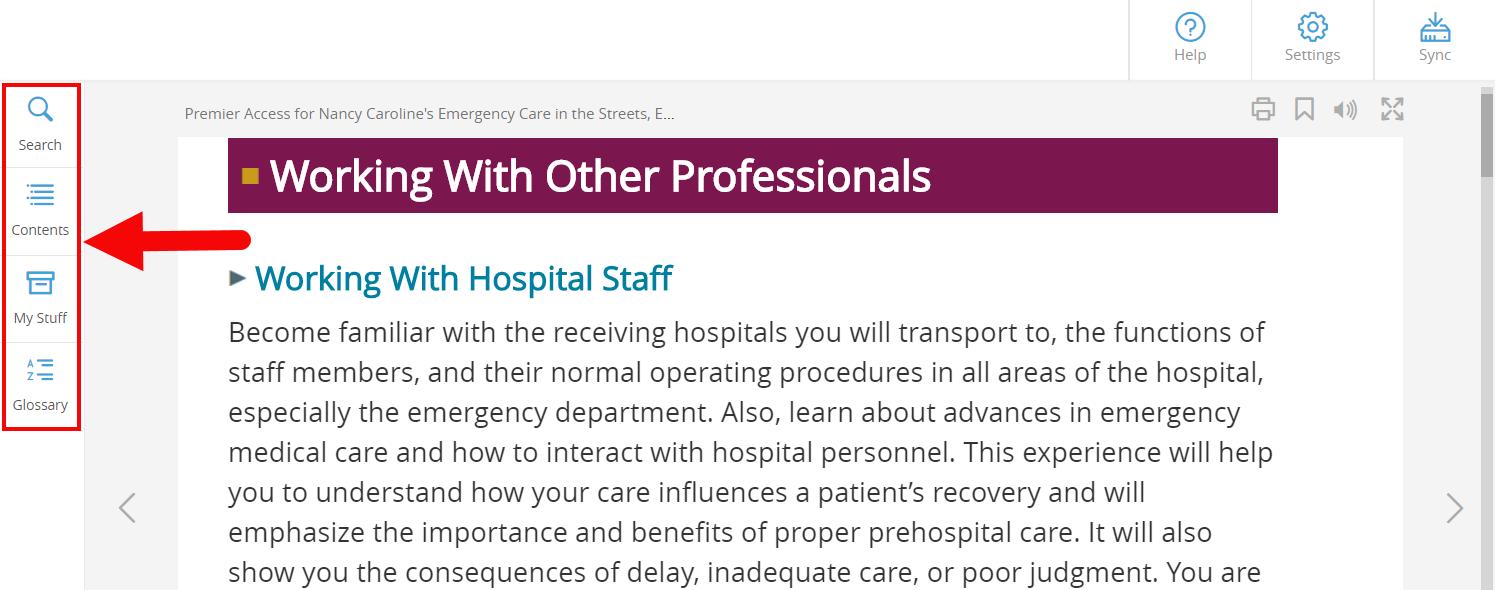
19.The left side of the page hosts additional navigation tools.
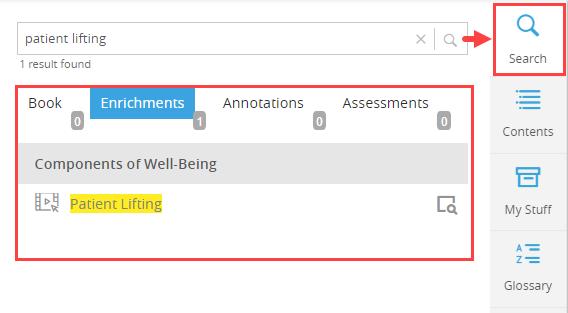
20.The Search option may be used to locate keywords found in the eBook text, media, your annotations, or quizzes when applicable.
Technical Support: www.jblearning.com/techsupport | support@jblearning.com | 1-978-443-5000 | M-F 8:30am – 8:00pm
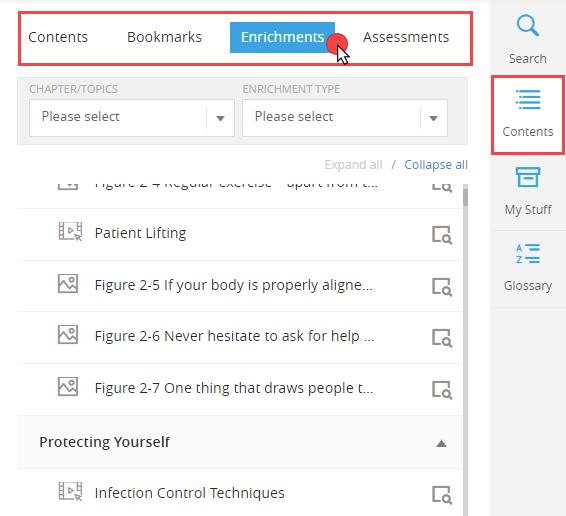
21.Under the Contents tab, you may use the interactive Table of Contents to jump to any section of the eBook. You will also find other subtabs here cataloging your bookmarks, eBook enrichments, such as videos and animations, and assessments where applicable.
Technical Support: www.jblearning.com/techsupport | support@jblearning.com | 1-978-443-5000 | M-F 8:30am – 8:00pm
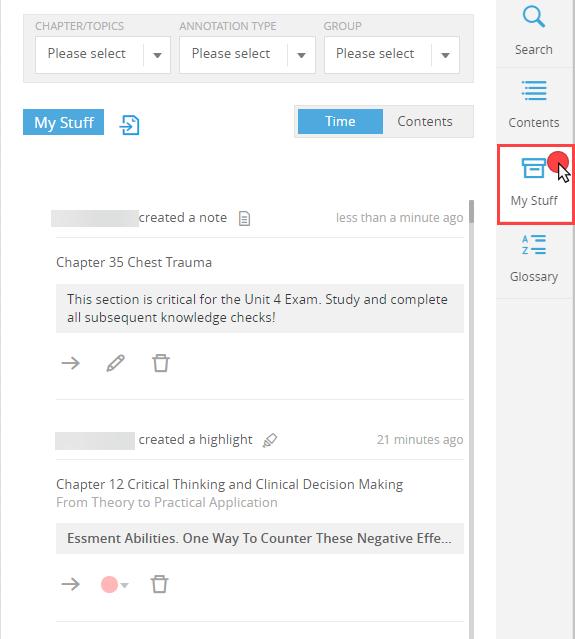
22.The My Stuff tab provides a catalogue of all your annotations created to date, including all highlights and notes taken. These may be browsed and clicked on to jump directly to them. You may also delete or edit your annotations from this tab as needed.

Technical Support: www.jblearning.com/techsupport | support@jblearning.com | 1-978-443-5000 | M-F 8:30am – 8:00pm
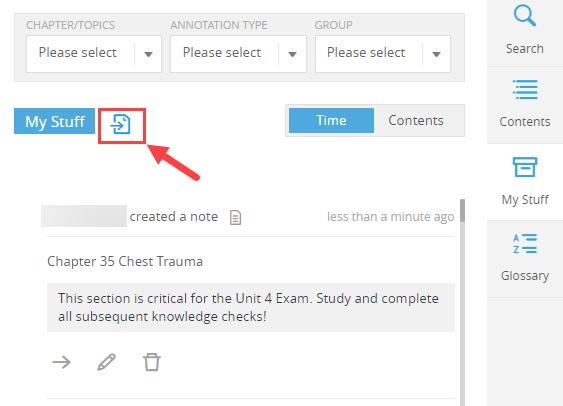
23.All annotations can be exported to an external document by clicking the Export button within the My Stuff tab. The file can be saved to your computer and/or printed.
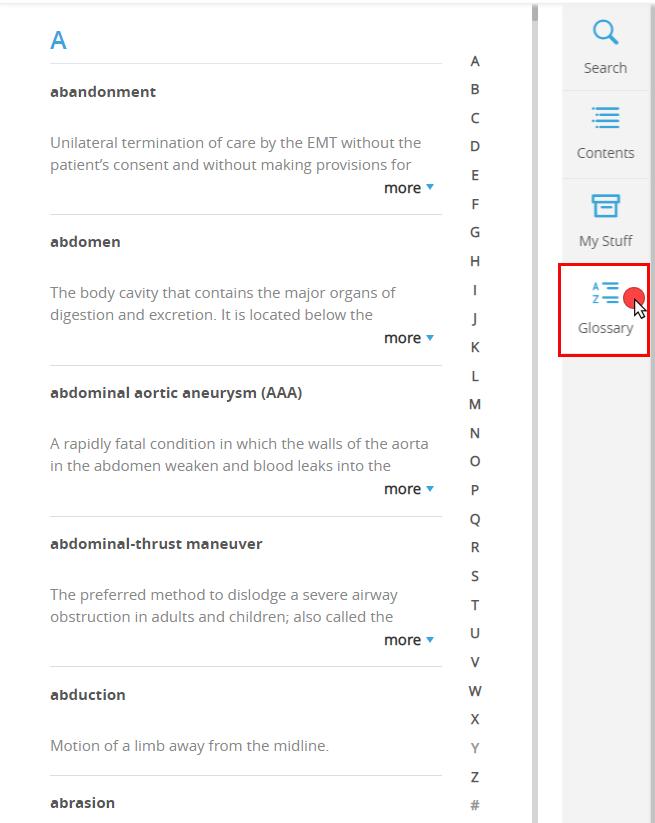
24.Finally, the Glossary button can be clicked to open the eBook glossary to review the definitions of all key terms identified in the text.
Technical Support: www.jblearning.com/techsupport | support@jblearning.com | 1-978-443-5000 | M-F 8:30am – 8:00pm
Technical Support: www.jblearning.com/techsupport | support@jblearning.com | 1-978-443-5000 | M-F 8:30am – 8:00pm