



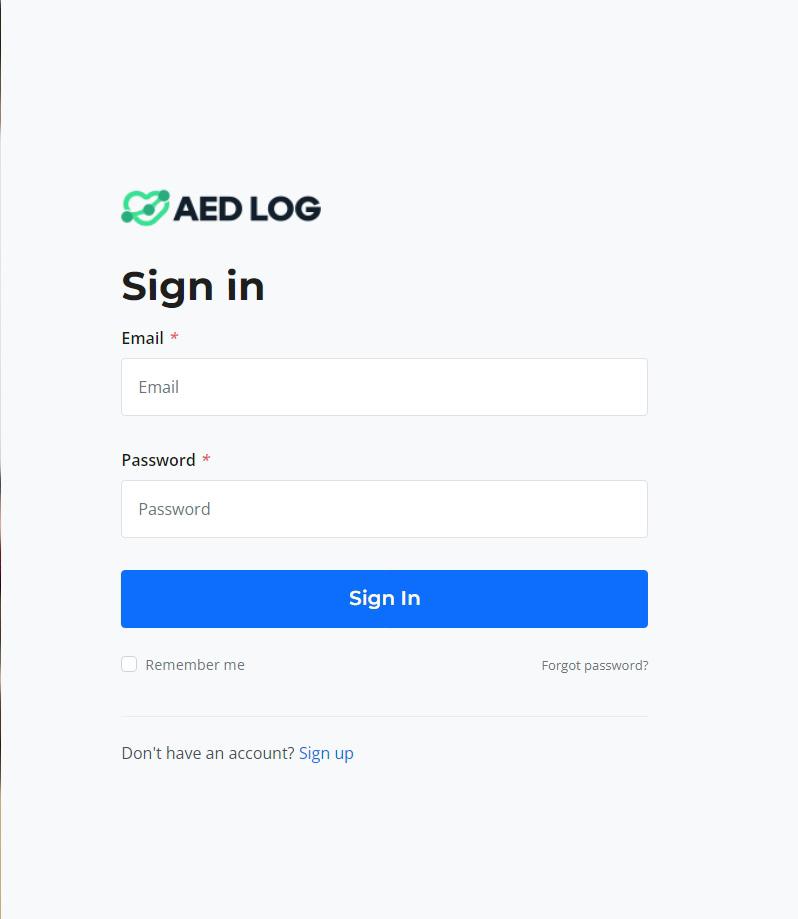
To begin using AED Log, access your dashboard by logging in here: Login to AED Log

Your user-friendly account is set up with all the necessary tools to track, manage, and maintain your AEDs efficiently.


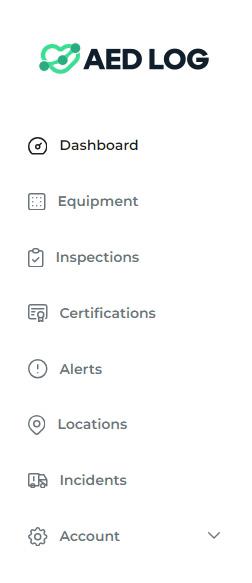
To add a new AED, go to the left side of your dashboard and select "Equipment".
Make sure that you select "AEDs" and not "Pads & Batteries".

Then, click "Add AED" to add a new AED.
Next, you will be brought to this page. This is where you will enter the information for your new AED.
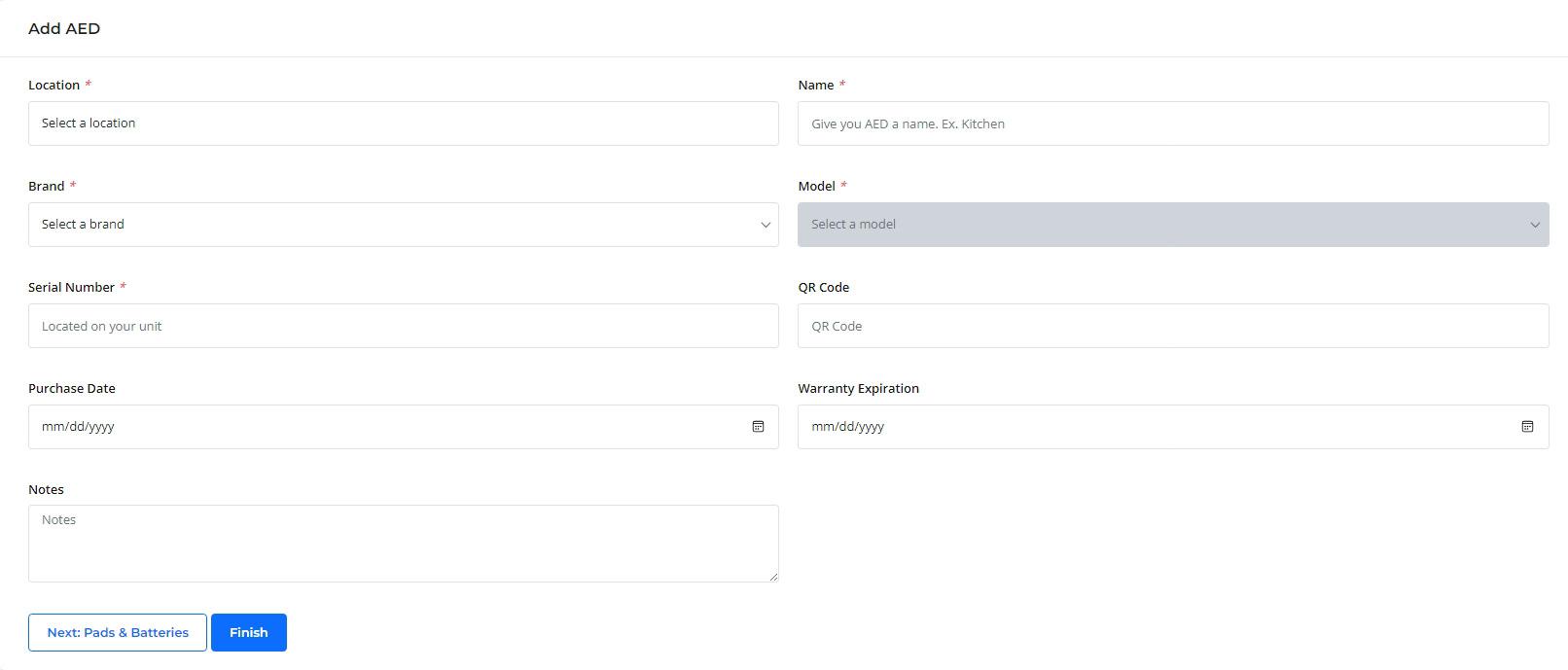

Steps to add an AED:
1. Under Location, find your building name.
2. Name the AED. When you name your AED, it should indicate where the AED can be located within the building (i.e. main entrance, office #, 3rd floor breakroom, etc.)
3. Select the brand of the AED.
4. Select the model of the AED.
5. Enter the Serial Number located on your AED unit.
6. Click "Next: Pads & Batteries"

After clicking "Next: Pads & Batteries", you will be brought to this page where you can enter your Pads & Batteries.
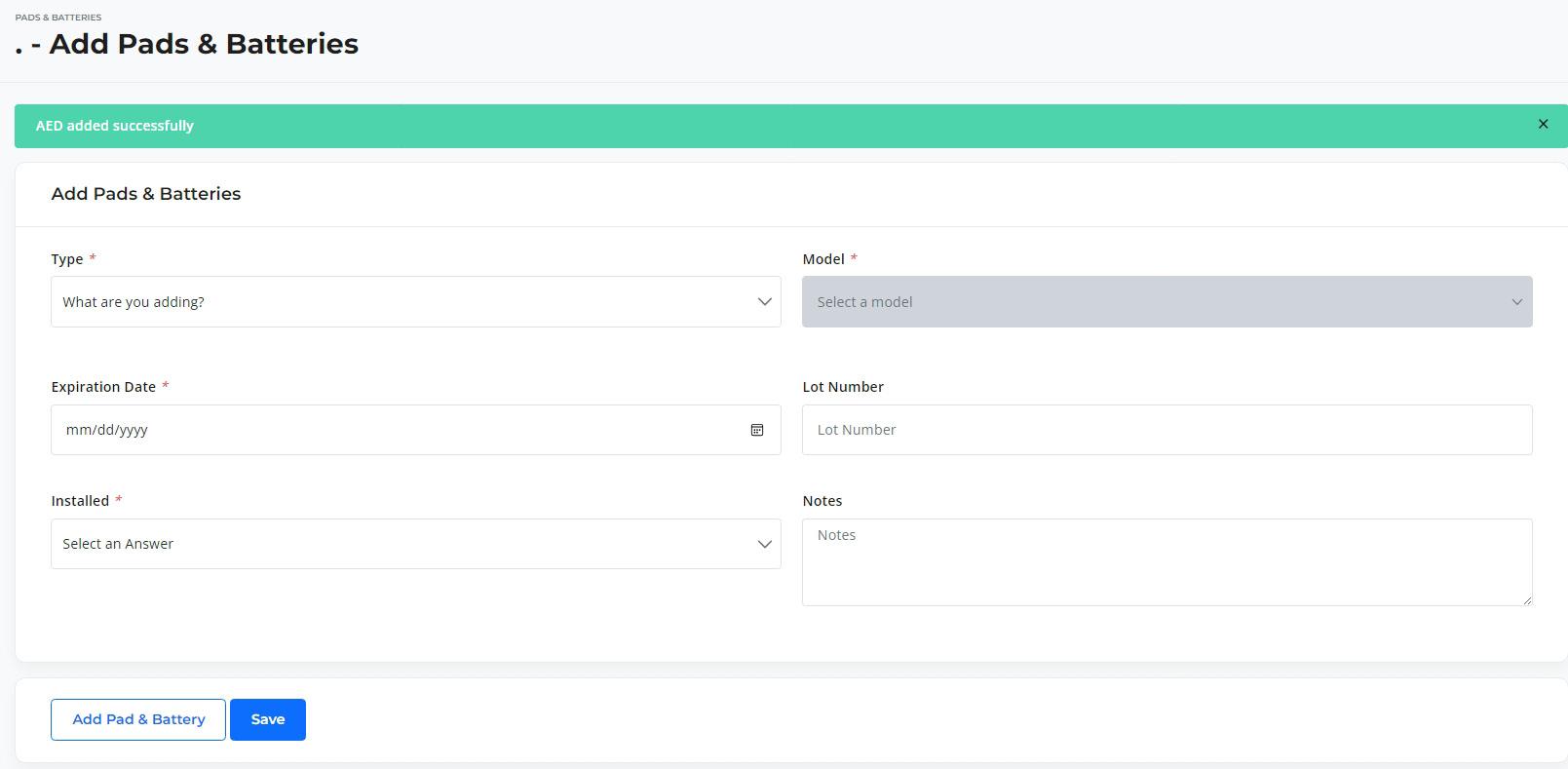
1. Type: select "Pads"
2. Select the model of the Pads.
3. Enter the Expiration Date of the Pads, typically found on Pads packaging.
4. Click "Yes" or "No" to confirm if this particular set of Pads was installed into the AED.
5. Click "Add Pad & Battery" to add your Battery.
After clicking "Add Pad & Battery", another table of information will pop up for you to add batteries.

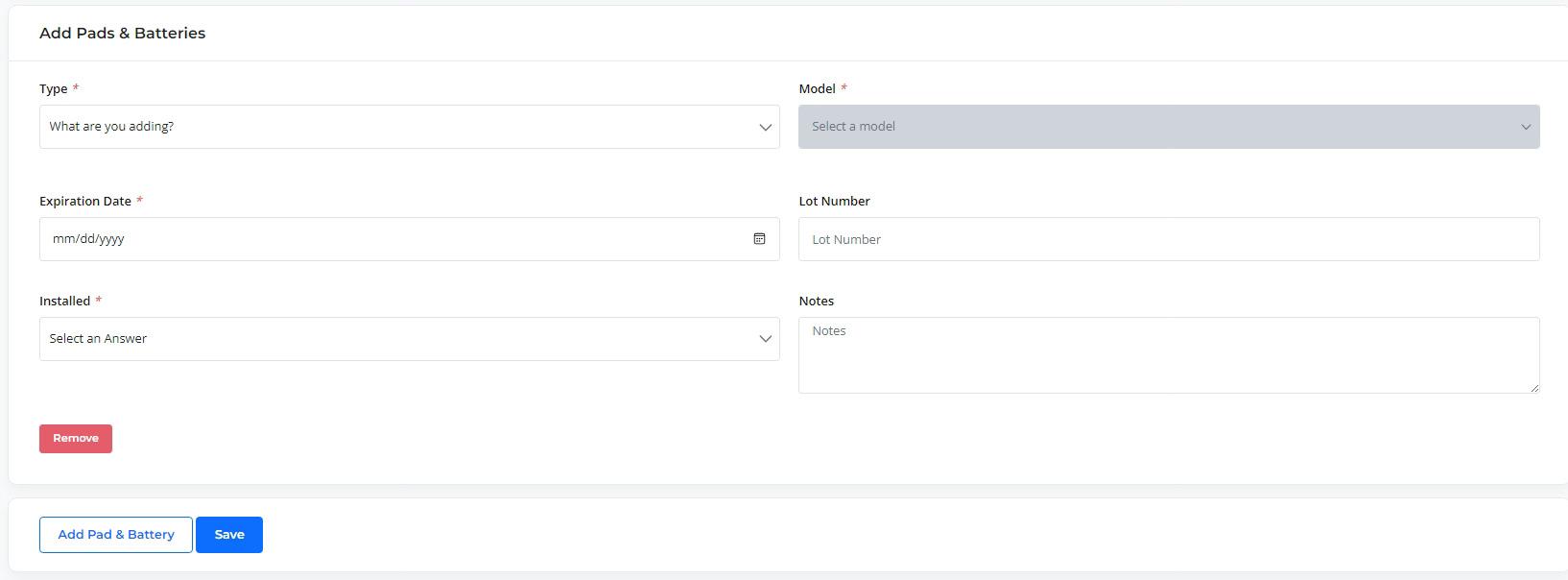
Steps to add Batteries:
1. Type: select "Battery"
2. Select the model of the Battery.
3. Enter the Expiration Date of the Battery.
4. Click "Yes" or "No" to confirm if this particular Battery was installed into the AED.
5. Click "Save" to complete.


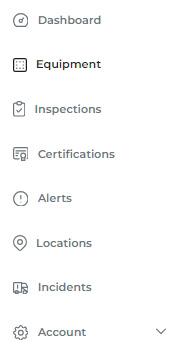
To replace expired items, go to the left side of the webpage and select "Equipment".
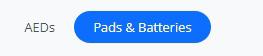
Make sure you select "Pads & Batteries"
In the search bar, search for your AED. You can do this by searching for your building name, building number, or AED.
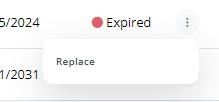
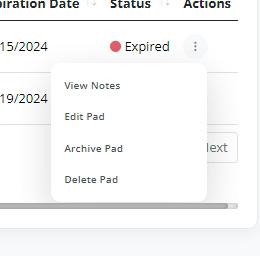
After finding your AED, click the 3 dots beside "Expired" and select "Replace".
After selecting "Replace", you should see a table of information under "Pads & Batteries".
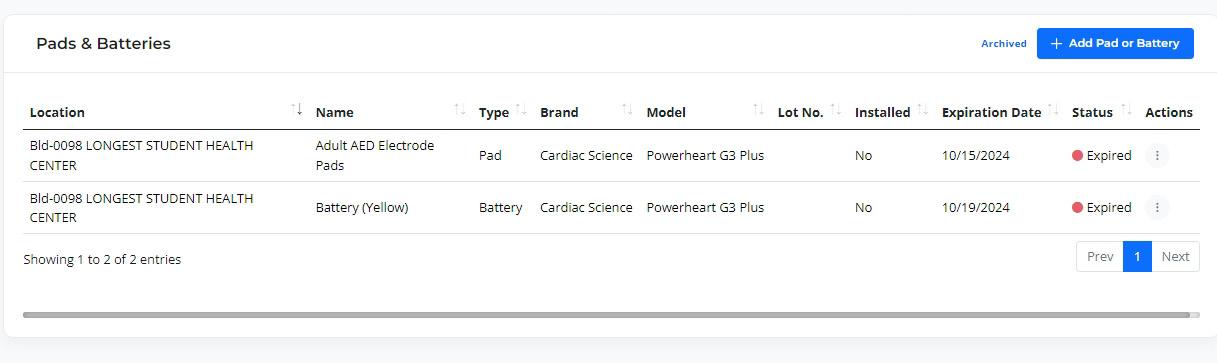
To the right of your expired Pads or Battery, select the 3 dots and choose "Edit Pad" or "Edit Battery" depending on which expired item you are replacing.

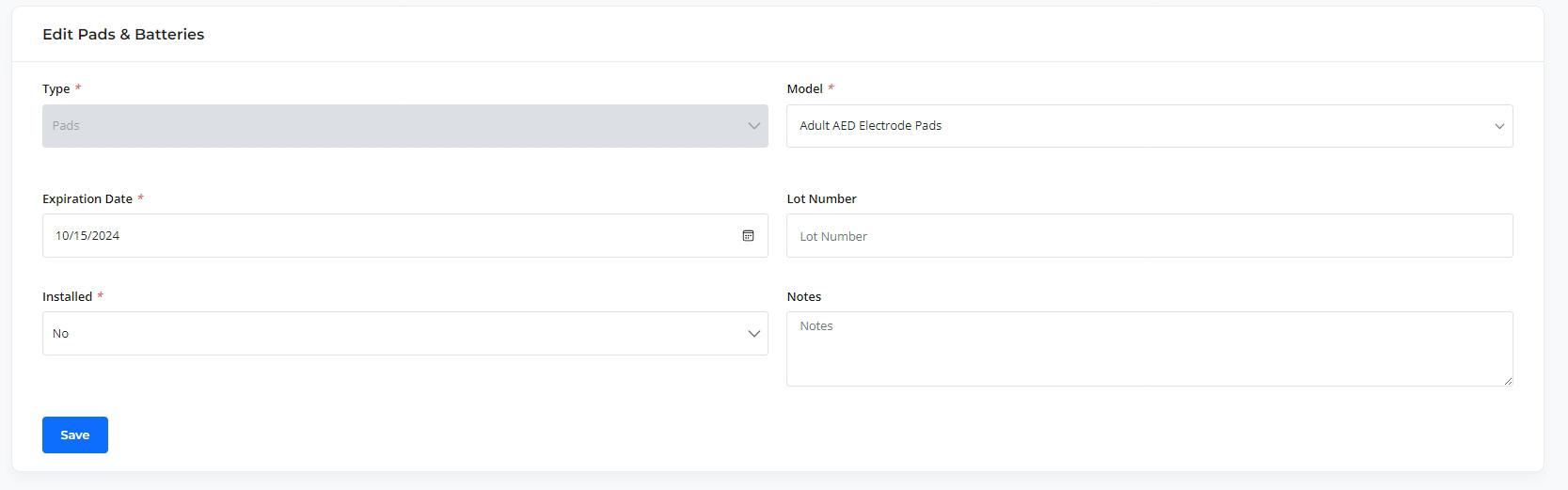
Steps to Replace Expired Pads or Battery:
1. Update Expiration Date
2. Click "Save" to complete. This process works the same for replacing expired Pads or Batteries.

To complete your monthly AED Inspection, go to the left side of the webpage and select "Inspections".
To the right of the search bar, click "Add Inspection".
Find the AED for your inspection under "Select Location AED".
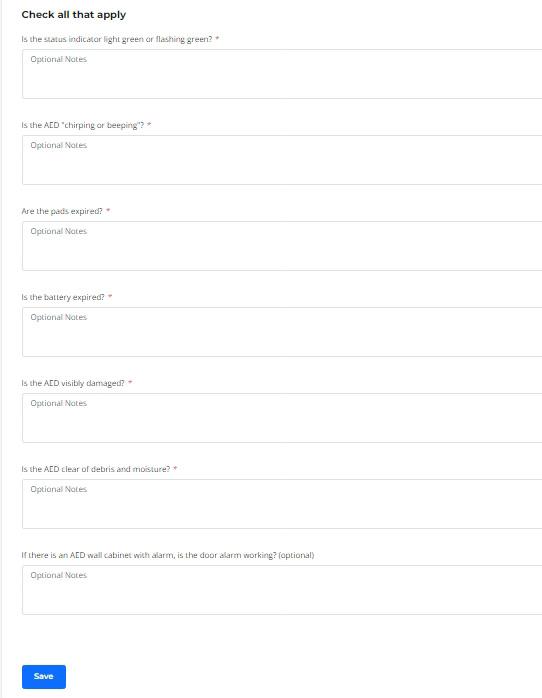
Answer all of the following questions about your AED. Then click "Save" to complete the monthly AED Inspection.



To add a Certification, go to the left side of the webpage and select "Certifications".
To the right of the search bar click "Add Certification".

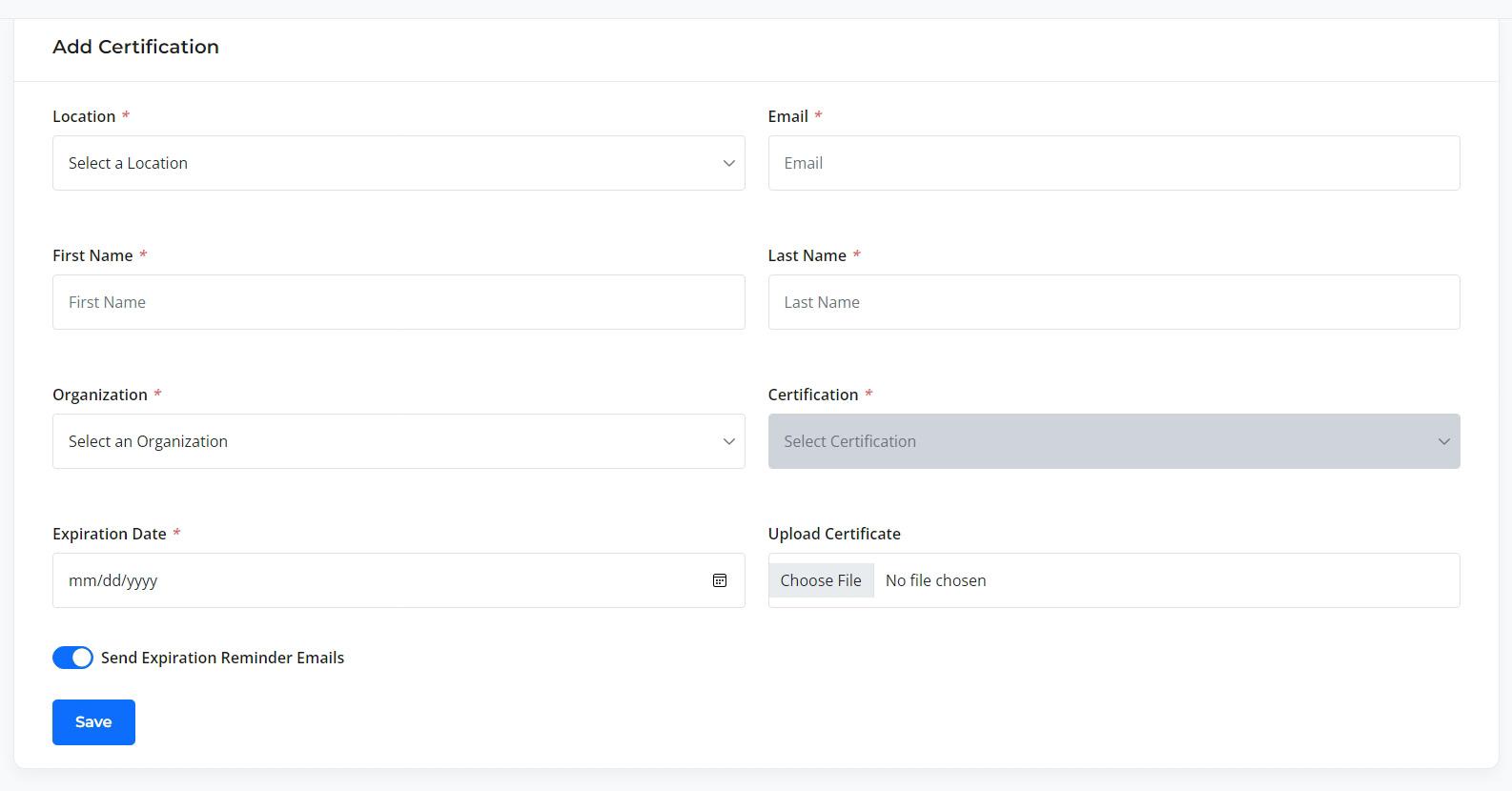
Steps to add a Certification:
1. Under Email, put the email of the specific employee that the certification is being recorded under.
2. Enter First and Last name of the same specific employee.
3. Select the Organization that is providing the certification.
4. Select the specific type of Certification.
5. Add the Certifications Expiration Date.
6. You have the option to upload the Certificate.

7. Make sure that "Send Expiration Reminder Emails" is turned on.
8. CLick "Save" to complete.








DEFIBTECH
Lifeline
Lifeline Auto
Lifeline View

ZOLL
Plus
Pro
AED Plus Fully Automatic AED 3

CARDIAC SCIENCE
Powerheart G3 Plus
Powerheart G3 Pro
PHILIPS
HeartStart OnSite
HeartStart FRx
HeartStart FR2
HeartStart FR3

Powerheart G5


PHYSIO-CONTROL
Lifepak CR Plus
Lifepak 1000
Lifepak Express


Lifepak CR2
10 AVIVE