To delight in God’s love through inspired learning Mission Statement
To provide an education for excellence within a Biblical Christian worldview.
Digital Learning Vision
Oxley Christian College will use ICT to enrich student learning, enable the development of key 21st Century skills and enhance teaching practice. Our Digital Learning Program will ensure students are made aware of the ethical, health, safety, and legal obligations associated with the use of a range of technology tools.
Educational Philosophy – Building 21st Century Skills
The 1:1 Digital Learning Program provides every student access to their own computer in a wireless environment at the College, allowing teachers to integrate technology into their curriculum. The 1:1 Digital Learning Program aims to motivate students to learn by immersing them in the digital tools they use in their everyday lives and to develop their 21st Century Skills, enabling them to be better prepared for the ever-evolving world.
The key skills required, and those that are strongly developed by the 1:1 Digital Learning Program are:
• Critical Thinking – enables students to think effectively and test and question ideas, examining them from different angles.
• Digital Literacy – enables students to understand and develop skills to use technology to research ideas, express their thoughts, design and create.
• Collaboration – fosters teamwork by encouraging students to share responsibilities, support one another, and work effectively within team-oriented environments.
• Communication – enables students to communicate effectively through a range of digital and non-digital media.
• Problem Solving – enables students to find solutions, complete tasks and design products with initiative.
• Love of Learning – enables students to have an interest and capacity to continue learning throughout their entire life.
The 1:1 Digital Learning Program Cycle
Devices are renewed every three years (twice for the life of the student in Secondary School, starting in Year 7). This is in line with the device's extended warranty offer. If a student enters the College in Year 8 or 9, they will be provided the opportunity to purchase a device matching their cohort, then join the next 3-year cycle. The student will be given the option to pay the remaining value of a device used for at least 2 years if they wish to keep it.
This program is an integral part of learning at Oxley Christian College. Student learning will require access to the College network and resources, which can only be provided through updated and secure software and hardware. From 2027, at the end of each device's three-year period, the College will offer the option to purchase a new device via a managed portal.
The main advantages of this offer are:
• Hot swap/loan capability (more information on Page 10)
• Relationship with provider
• Consistency of platform across the College
Using the Device at School
The device is a purposeful educational tool that will complement student learning in the classroom. During classes, the teacher will instruct when and how the device is to be used. In some subjects, the device may only be used occasionally, whereas in other subjects, it may be used almost every lesson.
It is expected that students will comply with the following rules during all classes. Many of the following rules are also explained in more detail in the Section on ‘Inappropriate Use’.
Prior to Class
Prior to class, students must:
1. Make sure their device is brought to school fully charged every morning.
2. Inform ICT Helpdesk of any hardware, software, or network technical difficulties, as soon as possible, either before school, during recess or lunch, or after school. During class is not an appropriate time, unless instructed to do so by the teacher.
During Class
During class, students must not:
1. Operate their device unless instructed to do so by their teacher, including when the teacher is talking or giving instruction.
2. Visit any irrelevant websites during any research related learning task.
3. Send any form of electronic messages (email, chat, or social media) to one another.
4. Check their email, unless instructed to do so by their teacher.
5. Use their device for any non-classwork related activities, e.g. playing games, social media, etc.
6. Take photos or videos of anyone in the classroom, unless specifically instructed to do so by their teacher.
7. Listen to music or other forms of media, unless instructed to do so by their teacher.
8. Use their device to finish work for other subjects, unless permission has been given by their teacher.
Any breach of these rules will result in consequences as outlined in the section on ‘Managing Suspected Inappropriate Use’.
Outside of the Classroom
There may be educational learning activities when the device is required outside of the classroom. Specific instructions will be given by the teacher leading the out of classroom activity. As a general rule, the same expectations apply to out of classroom activities as in the classroom.
Using the Device at Home
Using the Internet Safely at Home
Students are encouraged to use their school-issued devices to support learning beyond the classroom, including completing set tasks and engaging in independent study at home.
Devices should be fully charged at home each day, as the College is unable to provide charging facilities during class time.
Many learning tasks can be completed offline at any time. Where an internet connection is available at home, students may access online learning resources and College systems in the same manner as they do at school. The College’s web filtering system (SOPHOS Xstream Protection) continues to apply when devices are used off-site, providing consistent online safety controls. As a result, additional home internet filtering software is not required. Parents and carers are responsible for supporting and supervising their child’s appropriate use of the device at home in line with the College’s Secondary School Student ICT Acceptable Use Agreement.
Parents
Parents play a central role in their child’s learning using the device. The following expectations should ensure the safe and efficient use of the student device while at home:
1. The device should be used in a central and communal place in the house and should not be used in a private place, such as a bedroom.
2. Parents should spend time with their child, asking them to show how they have been using the device, including the online places they are visiting.
3. Parents should discuss strategies with their child if an issue arises due to an online event. These strategies may include informing the parent, not becoming involved in the online issue, and leaving the site straight away.
4. Time limits should be set for device usage.
5. Australia introduced new social media age restriction laws in 2025, requiring all major platforms to prevent under 16 year olds from holding accounts. Students are reminded that Australian law now places restrictions on the use of social media platforms by people under 16 years of age. Students must use all online platforms responsibly, respectfully, and safely.
6. Cyberbullying, harassment, sharing inappropriate images or content, recording others without permission, or damaging the reputation of others or the school may result in disciplinary action and may breach Australian law.
7. Parents should reinforce stranger-danger warnings and encourage their child to be cautious about who they trust online. Private information should not be shared online.
8. All passwords, MFA badge and PIN should be kept private. The sharing of passwords / MFA PIN is not an excuse for inappropriate use of a student account.
9. Any online profiles should be set to ‘private’ to ensure the student’s personal information is kept safe.
10. Parents should avoid using the removal of the learning device as a punishment.
Technical assistance can be sought from a College ICT Technician for issues relating to both school and home (e.g. advice for installing a printer at home).
Oxley 1:1 Digital Learning Program Responsibilities
Overview
Students have responsibilities in relation to the use of their device. Each student using the device at school agrees that they are responsible for their actions, or the actions of others using their account on the network. Users understand that all aspects of the use of ICT will be monitored and that teachers and ICT administration are authorised to view files, usage logs, or equipment for either maintenance or authorised monitoring. Any breach of these basic requirements could result in costs involved in repair/replacement being payable, accounts being suspended, or other disciplinary consequences.
Student Responsibilities
To be an effective educational tool, students will be responsible to ensure that the device:
• Is brought to school each day fully charged;
• No food or drink should be near the HP Laptop/Microsoft Surface devices.
• Use care when inserting cables, cords, and any removable storage devices into the device
• Use a the bag and/or protective case assigned by the College to store the device.
• Please do not lift or carry the device by the screen as this can cause damage to the screen or hinge. Always close the device before carrying.
• Do not use liquid to clean the device. Use a dry, soft, lint-free cloth to clean the device
• Please do not leave the device in heated areas for extended periods of time (such as a hot car).
• Place the HP Laptop on a flat, stable surface when in use.
Inappropriate Use
Student devices are used to support teaching, learning, collaboration, creativity, and teach responsible digital citizenship. Device use must never disrupt learning, compromise student wellbeing, or place students, staff, or the College at risk.
The College recognises that unrestricted access to games, social media, messaging platforms, artificial intelligence tools, and online entertainment can significantly impact student learning, attention, wellbeing, and cybersafety. Clear expectations therefore apply to all student device use on College grounds and during College activities.
At no time may students:
• Use devices during recess, lunchtime, assemblies, or in outdoor areas unless expressly permitted by a staff member or within designated supervised learning spaces
• Play games or access entertainment applications unless specifically authorised by a teacher for educational purposes
• Access or use social media platforms during school hours unless approved for a specific educational activity. Australian legislation introduced in 2025 requires major social media platforms to prevent access for users under 16 years of age. Students must comply with all applicable Australian laws relating to online conduct, privacy, cyberbullying, image sharing, and digital communications.
• Engage in cyberbullying, harassment, threatening behaviour, impersonation, discriminatory conduct, or the sharing of offensive, inappropriate, defamatory, or harmful content through any digital platform, messaging service, artificial intelligence tool, or online service
• Create, possess, store, generate, or distribute inappropriate images, videos, audio recordings, deepfake content, or AI-generated material involving students, staff, or members of the community
• Photograph, video record, or audio record students, staff, classrooms, meetings, or College activities without the explicit permission of the supervising staff member and the knowledge and consent of those being recorded.
• Store or distribute images, recordings, or content that portrays students or staff in a humiliating, offensive, unsafe, discriminatory, or defamatory manner. Any such material must be deleted immediately when directed by College staff.
• Use personal email accounts, anonymous messaging platforms, encrypted communication applications, or unauthorised collaboration tools instead of approved College communication systems for school-related activities
• Attempt to bypass, disable, or interfere with College cyber security measures, internet filtering, monitoring systems, authentication controls, or network protections, including through VPNs, proxy services, hotspots, tethering, or unauthorised wireless access points.
• Use artificial intelligence platforms or digital tools to cheat, plagiarise, generate academic work dishonestly, impersonate others, or breach academic integrity requirements
• Access, store, transmit, or share material that is illegal, offensive, violent, discriminatory, sexually explicit, extremist, or otherwise inappropriate within a school environment
• Listen to music, stream media, or watch videos during class time or between scheduled learning sessions unless authorised by a teacher for educational purposes
• Use chat platforms, instant messaging services, online gaming chats, or live-streaming services during school hours unless specifically approved for learning activities
• Print or use College ICT resources for non-educational or excessive personal purposes
• Allow another student to use their device, account credentials, passwords, or authenticated College services
• Use devices in any manner that compromises the safety, wellbeing, privacy, reputation, or learning environment of the College community
• Deliberately introduce malware, viruses, or any other harmful code, or take actions intended to damage, disrupt, or compromise hardware, software, or network security
All device use on the College network will be monitored, logged, and reviewed in accordance with College ICT policies, cyber safety obligations, and applicable Australian laws. Breaches of this policy may result in disciplinary action, restriction of ICT access, parent notification, suspension of network privileges, or referral to external authorities where required.
Cyberbullying and Harassment
Oxley Christian College takes cyber safety and cyberbullying very seriously. It is essential that all members of the College community are aware of, and adhere to, the College’s Anti-Bullying Policy. The Anti-Bullying Policy and our Student Management Policy can be found on the Oxley Parent Portal. A summary of these expectations is also clearly outlined in the student diary.
Cyberbullying, through the use of computers, devices and other mobile devices, is prohibited. Students should report all incidents of bullying, harassment and inappropriate material (either on or off campus) to their teacher or Coordinator.
Inappropriate Material
Students may occasionally encounter online content that is inappropriate or unintended. If this occurs, students must immediately close the content and, if on school grounds, inform their teacher or supervising staff member as soon as practicable.
Inappropriate content includes, but is not limited to:
• Material that is discriminatory, hateful, or offensive towards individuals or groups based on attributes such as race, religion, gender, sexual orientation, disability, or cultural background
• Websites or content related to gambling or betting.
• Content depicting, promoting, or encouraging violence or harm
• Pornographic, sexually explicit, or sexually suggestive material.
• Language that is obscene, abusive, or otherwise inappropriate for a school environment, including implied or abbreviated forms of such language.
Managing Suspected Inappropriate Use and Breaking of Rules
By bringing the device to school, the student and the family of the student are specifically permitting the College to:
• Confiscate the device at any time without argument and hold over night, if required (resulting in more limited learning opportunities for the student)
• View all content on the device, including all photographs, images and recordings.
• Delete photographs, images and recordings from the device
• Delete apps from the device (e.g. games, social media).
• Direct the student to show staff any files or sites they have been viewing on any device.
These actions will only occur where a staff member has a concern about the use or misuse of the device. The College will continue to treat any bullying, or any inappropriate use of class time, through the normal implementation of our discipline policy and procedures, which (for example) may include restricted use of the device and/or detentions, or other disciplinary measure. Repeated breaches of the rules will be dealt with more seriously. In serious cases, the enrolment of the student at Oxley may be reviewed and relevant matters may be referred to the police.
Other Expectations
Password Responsibilities
Students are responsible for maintaining the security of all credentials, including passwords, multi-factor authentication (MFA) methods, PINs, and security keys.
Music and Other Media Files
Students are permitted to have music and media files on their device. Any such files must be legally owned.
Web Browser
The College supports Microsoft Edge and Google Chrome as its approved standard web browsers to ensure security, compatibility, and effective network management. The use or installation of other web browsers is not permitted on College devices or networks.
Peer-to-Peer (P2P) and Unauthorised Networking Tools
To protect network security and comply with copyright and cybersecurity obligations, the installation or use of Peerto-Peer (P2P) file-sharing applications, torrent clients, or similar technologies is strictly prohibited. This includes (but is not limited to) tools such as BitTorrent clients and other unauthorised file -sharing software or services that may:
• Bypass network security controls
• Facilitate illegal downloading or distribution of content
• Introduce security risks such as malware or data breaches.
Any attempt to install, access, or use such tools may result in disciplinary action and loss of network privileges.
Using the Device (General Operation)
The College strongly recommends that the device is used for educational purposes only.
The College holds administrative rights and the relevant passwords. This prevents students from installing software which does not support their education. If additional software is required, the College will be responsible for the installation.
Basic Maintenance
Touchscreen Care
Scratches, finger grease, dust, chemicals, and ultraviolet light can affect the performance of the touchscreen. To help protect the screen:
• Clean frequently. The touchscreen has been coated to make it easier to clean. Students don’t need to rub hard to remove fingerprints or oily spots. To avoid scratches, use a soft, lint-free cloth to gently wipe the screen. Dampen the cloth with water or a lens cleaner, but don’t apply liquids directly to the device. Don’t use window cleaner or other chemical cleaners on the device.
• Keep it covered. Close the cover while on the move, or not using the device.
• Keep it out of the sun. Do not leave the device in direct sunlight for an extended period of time. Ultraviolet light and excessive heat can damage the screen.
Keyboard Care
The Touch or Type Cover requires minimal care to function well.
• To clean the keyboard, wipe with a lint-free cloth, dampened in mild soap and water. Don’t apply liquids directly to the device. The keyboard can be cleaned frequently.
Power Cord Care
Power cords, like any other metal wire or cable, can be weakened or damaged if repeatedly twisted or bent in the same spot. To look after the power cord:
• Avoid twisting or pinching the power cord.
• Don’t wrap the power cord too tightly, especially around the power pack. Instead, try to wrap it using loose coils, rather than tight angles.
• Inspect the power cord regularly, especially where it joins the power pack.
Battery Use And Charging
It takes between 2-3 hours to fully charge the device battery. It can take longer if the device is used for powerintensive activities, like gaming and video streaming (which should not be the case, as the College stipulates this device will be used solely for education purposes). The battery doesn’t need to be empty or low before recharge, i.e. recharge the battery at any time. However, it’s best to let the battery run to below 10 percent at least once per month before it is recharged. If the device’s battery is found to be defective during the warranty period, it is covered under the standard device warranty.
Treatment Of The Device
To achieve the 3-year lifespan for the device, it is paramount that the device is used and treated with care. The touch screen on the device is made of glass. This glass could break, if the device is dropped on a hard surface, or receives a significant impact. Do not touch or attempt to remove any chipped or broken glass. Cracked or chipped glass, due to misuse or abuse, is not covered under the product’s warranty.
Transport Of The Device
In order to reduce the potential risk of damage during transit, the device should always be secured and protected properly.
Warranty
Do not attempt to take the device apart, open, service, or modify the product, accessories, or power supply. Doing so could present the risk of electric shock, or other hazard. Any evidence of any attempt to open and/or modify the device, including any peeling, puncturing, or removal of any of the labels, will void the warranty.
3 Year Microsoft Advanced Replacement Warranty Extension with Accidental Damage & Handling Protection Coverage
Surface Pro devices come with protection (warranty) from hardware defects or malfunctions to three full years. Covered accessories include the Dux Cover, Type Cover, power supply cords and device pens. This is transferable with device ownership. Accidental damage protection (up to 2 claims per device). In the case of hardware issues, a warranty replacement ‘hot swap’ device will be provided at the College, replacing the damaged one. This will ensure minimal downtime for the device and student learning.
3 Year HP 3-Year Onsite Warranty with Accidental Damage Protection
HP Accidental Damage Protection (ADP) is a mandatory requirement for all student devices purchased through the College's Student Device Program. Parents and carers are required to purchase the 3-year HP ADP with the device to ensure students are protected against accidental damage throughout the life of the program.
The HP ADP includes three (3) accidental damage claims over the 3-year coverage period. This protection covers the device, charger, and stylus, with $0 excess payable for each approved claim. If a parent or carer chooses not to purchase the mandatory HP ADP, the College will not accept responsibility for any accidental damage, and all repair or replacement costs for the device, charger, stylus, or any other accessories will be the responsibility of the parent or carer.
Once the three ADP claims have been used, any further accidental damage will be the responsibility of the family, and repair and/or replacement costs will apply based on the extent of the damage. If a charger or stylus is accidentally damaged, it is covered under HP ADP; however, this will count as one of the student's three ADP claims. Parents and carers may choose to either:
- Lodge an ADP claim for the damaged charger or stylus; or
- Purchase a replacement charger or stylus through the LWT Student Device Program Portal, preserving their remaining ADP claims for future device damage. While a replacement charger or stylus is being purchased and delivered, the College will provide a loan charger and/or stylus, subject to availability.
Note: Parents should consider taking out insurance cover, through their own insurance company or agent, for the device, covering potential risks not covered by the Microsoft Advanced Replacement Warranty Extension with Accidental Damage & Handling Protection Coverage. For example, theft or other loss of the device. Some insurers may permit the device to be covered under a home contents policy.
Data Backups
Every student is provided with 1 TB of online storage, “OneDrive for Business”, with their Office 365 subscription. Documents may be saved to the “OneDrive for Business” folder on the device and they will sync to “OneDrive for Business” on the cloud whenever an internet connection is available. The copy in the cloud is available from any web-connected device, including iOS and Android devices. The copy in the cloud will also double up as backup for hot swap purposes. It is crucial that a healthy sync connection is maintained.
System Updates
Microsoft releases important updates to improve Windows and Office software security and reliability, system and hardware updates (firmware updates) to help improve the stability and performance of device. It is a requirement that these updates be applied to the device as soon as possible. These updates will be made available via the Office365/Azure Subscription.
Ergonomic Guidelines
Posture
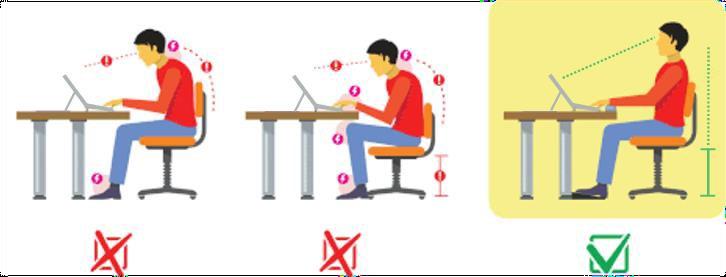
While devices can make our lives more mobile, convenient and fun, they can also take a significant toll on our bodies. Head, neck and shoulder posture is important when using a device and the following should be considered when using a device at home and at school.
1. Eyes should be looking as straight ahead as possible, not up or down on great angles.
2. Arms should be at a 90-degree angle.
3. Wrists should be in a neutral position when using your keyboard. They shouldn’t be flexed, or deviated sideways, up, or down.
4. Connecting the device to an external monitor (if available) will also assist with better posture
Use of the device in awkward positions is not recommended. The following positions should be avoided: sitting on the bed, kneeling, sitting cross legged, lying on a side, slouching while seated, or sitting with the device on knees.
Managing Screen Time
Screen time refers to the amount of time a user spends on a device to access on-screen activities. There are limits as to the amount of time everyone should spend online, but the amounts and the rules for screen time vary by age. Video conferencing and social interactions using video do not count towards screen time. Suggested screen times (excluding video conferencing) are based on the recommendations from the Australian Parents Council and the Australian Government who recommend that 5-17year-old non-school screen time should be less than 2 hours per day. Students can very easily find themselves completely immersed in some screen time activities, such as online socialising and gaming, which can negatively impact their ability to negotiate their online learning.
Rest Breaks
It is recommended that when using the device in a sustained manner, a break of 5 minutes is taken, approximately every 20-30 minutes. During these rest breaks, students should stretch their neck, shoulders, arms and body and conduct simple eye exercise to prevent eye strain.
Lighting
Sufficient lighting should be available at all times when using the device. Additional lighting may be needed in some home environments. Glare on the screen should be avoided