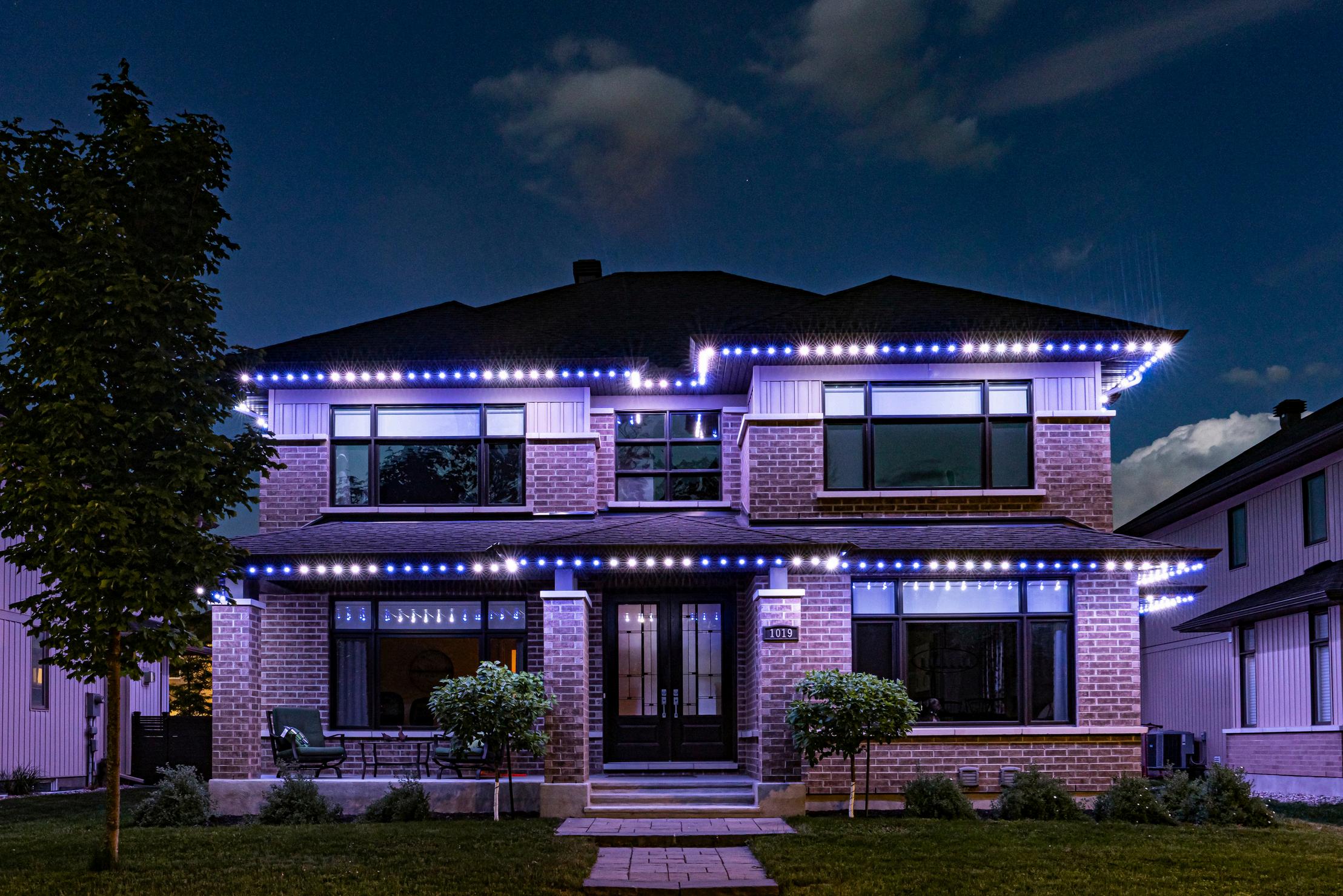

Welcome to your new Celebright lighting experience! Your system is beautifully installed and ready to light up your home. This guide walks you through connecting your system, navigating the app, and getting the most our of every feature
Support Phone ClientPortal
support@liftlighting.ca 5198084510(callortext) lift-lightingmoxieappcom
Your installtion team will usually handle this. If not, you can follow these steps:
1. Connect your phone’s WiFi to the controler’s access point - it will apear as CelebrightXXXX.
2 A captive page will open allowing you to select “Find a Network” If not, open a web browser and navigate to 192.168.4.1
3 Tap LAN from the menu
4.Tap Scan for Networks, select your WiFi and enter your password
Download the ‘Celebright Cloud’ app from the Apple App Store or the Google Play Store

1.Open the app andRegisterfor a new account
2.Tap +AddDevice
3 Enter your device’s DeviceIDand DeviceToken (or scan the QR code on your ID card)
4.Give your device a name, then tap AddDevice
5 Your home screen will now display your device(s) and their status Swipe down to refresh if needed
Tip:Allappfeaturesarealsoavailabledesktop/laptopcomputer athttps://app.celebright.ca/-loginwiththesameemailandpassword
Before you start, here’s a quick referance for the icons you’ll see throughout the app.
Your Device Card (Home Screen)


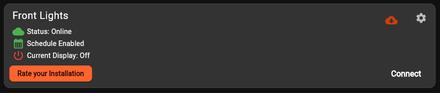
Status: Online - Connected to the Celebright Cloud Server
Schedule Enabled - Your scheduled events will turn on as programmed
Schedule Disabled - Your scheduled events will not turn on
Current Display: Off - lights are currently off
Current Display: On - Will say which setting your lights are displaying
A new Firmware Update is available for download
Bottom Navigation Bar (On Selected System)


Create - Design custom colour , bulb layout , or pattern

My Scenes - access your saved light display


Events - Manage your schedule and Sports Triggers
While Using the App
Top Right Corner

Sleep Timer - Activates when lights are manually turned on Tap to Edit
Power Icon - Green: Lights are on. Tap for power menu: Resume Schedule, Turn Off, Set Sleep Timer
Power Icon - Red: Lights are off Tap to turn on, resuming the last selected light display
Schedule - Green: Events are enabled and will turn on as scheduled
Schedule - Red: Events are disabled and will turn not turn on
Throughout the App

Main Menu - Devices, Settings, Sign Out, Local Network
Vertical Ellipsis - view info, edit, share, or delete scenes
Save - saves current display to My Scenes under the Create Tab
Use the navigation bar at the bottom of the app to move between 3 main sections: Create, MyScenesandEvents
Tap Create in the navigation bar to design a custom look. You’ll be prompted to choose one of three options:
Colour - set all bulbs to a solid colour using the colour wheel or quick presets like Bright White (BW), Warm White (WW), Red, Green, or Blue. Adjust brightness with the slider and save favourite colours by long-pressing a numbered swatch (1-5)
Bulbs - control individual bulbs for a fully custom look. Set your active colour from the colour swatch at the top then tap a bulb to apply it; tap again to clear it
Pattern - choose animated patterns and effects. Customize brightness, speed, density, colour palette, direction and smooth gradients.
Tip:Saveanycolour,bulblayout,orpatternasasceneusingtheSaveiconinthetop rightcorner. You’llfinditagaininstantlyinMyScenes
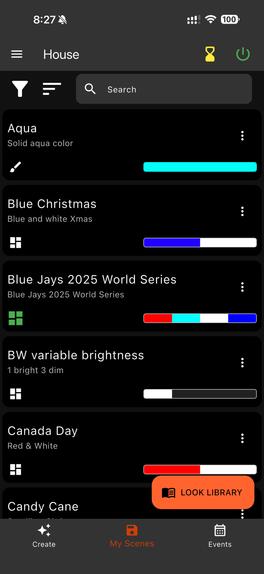
My Scenes stores all your saved light displays for quick, one-tap access Any light displays saved to My Scenes can also be scheduled to run automatically - just select the scene when setting up a scheduled event under the Events tab
Tap the scene name to activate it on your home
Tap the vertical ellipsis ( ) to view info, edit, share or delete
Tap LookLibrary to browse thousands of community-created scenes - preview, download, and share your own
Whenever you manually activate your lights - by exploring options under Create, selecting a scene from My Scenes, or previewing from the Look Library - the Sleep Timer is automatically triggered Manually turning the lights on will override any scheduled events
The Sleep Timer defaults to 4 hours When it ends:
If you have a scheduled event active, lights will return to that scheduled setting
If there is no scheduled event, the lights will turn off
Note:Manually activating your lights temporarily overrides any active scheduled event for the duration of the Sleep Timer
Look for the yellow hourglass icon in the top right corner of the app, next to the power icon
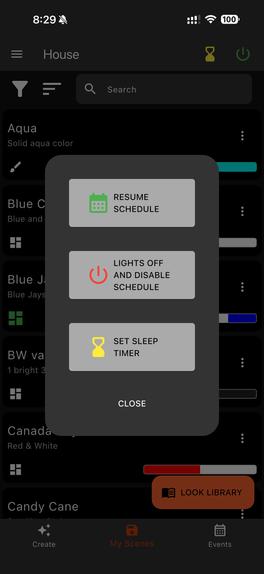
Tap the power icon (top right) to open the power menu You’ll see 3 options:
ResumeSchedule- cancels the manual override and returns you lights to your scheduled settings immediately.
LightsOffandDisableSchedule - turns the lights off and turns off any scheduled events you have programmed.
SetSleepTimer - let’s you choose a custom duration for how long the lights stay on before turning off automatically
Note:You can also edit the Sleep Timer duration at any time while it is active - tap the yellow hourglass icon in the top right corner, then select Edit
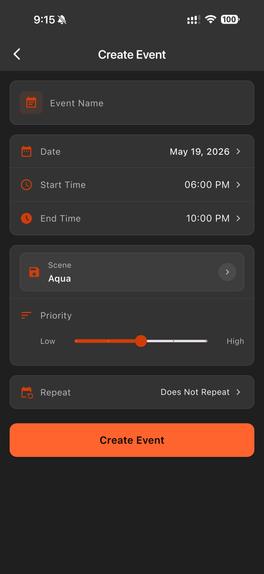
Set your lights to turn on and off automatically Schedules run in the background even when your phone is not connected.
1.Tap Events in the navigation bar at the bottom of the app
2.Tap the Plus(+) icon in the bottom right - this opens 2 options: Events and Sports Triggers. Select NewEvent.
3. Enter an EventNameto help you identify it later
4.Set your Date,StartTime,andEndTime.
5 Tap Sceneto choose the look you’d like displayedgives you the menu from your My Scenes list
6 Use the Priority slider to set how this event ranks if it overlaps with another scheduled event.
7.Tap Repeat to set the event to recur daily, weekly, monthly, annually or on specific days and Apply.
8.Tap CreateEventto save your new scheduled scene.
To edit or delete an event, tap it from your schedule list at any time.
Switch between Calendar and List view using the toggle at the top of the Schedule screen.
Tip:UseDawnandDusktimerstoautomaticallyadjuston/offtimeswiththesunset anddaylightsavings
Show your team pride automatically Sports triggers sync your outdoor lights to live game action in nearly real time - every time your team scores, your home reacts.
1.Tap Events in the navigation bar at the bottom of the app.
2 Tap the Plus(+) icon in the bottom right - this opens 2 options: Schedule and Sports Triggers. Select New SportsTriggers.
3.Select your League from the list shown. Available leagues include NHL, NFL, MLB, NBA, NCAAF, NCAAB, and CFL.
4.Select your Team from the list.
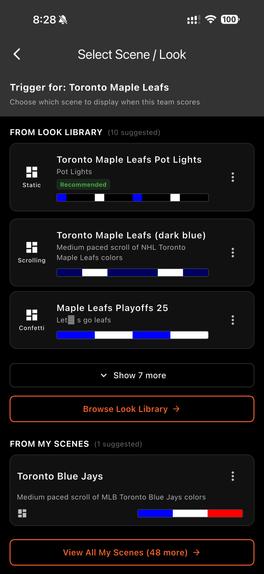
5 Choose a Scene/Lookto display when your team scores - the app will suggest team-themed options from the look Library and your saved scenes
6.Set your Duration - choose how long your lights celebrate after each score (5 seconds, up to 1 hour
7.Tap CreateTrigger
Tip:Connect your Celebright system with IFTTT to sync with your favourite sports team’s calendar and never miss setting your lights for game day - then use Sports Triggers for a special display every time they score!
Zones allow you to divide your Celebright lighting system into separate sections, each with its own colour, pattern, and brightness - all controlled from a single app Run holiday colours on the front of your home, while keeping a warm white glow in the backyard, or create completely different displays for different areas of your home, all at the same time.
Setting up Zones requires accessing your system’s device settings, so it’s a little more involved than the everyday app controls If you’d like help, Lift Lighting offers one-on-one app review sessions where we will walk you through the setup process from start to finish right on site For full setup instructions and walkthrough video, visit your client portal
Connect your Celebright system to your smart home for hands-free voice control and powerful automated routines.
Link Celebright to Google Home or Alexa to control your lights with simple voice comnandsadjust colours, turn lights on or off; set up videos are available in your client portal
Connect your Celebright system to IFTTT to create powerful automations using hundreds of apps, devices and services IFTTT works on a simple principle: “if this happens, then that action follows.
Here are some examples of what you can set up: Turn your lights on automatically when you arrive home using location services Trigger a preset scene when your Ring doorbell detects motion Sync with your favourite sports team’s calendar so your lights are ready for every game day - then pair it with Sports Triggers for a score celebration display
To get started, download the free IFTTT app, search for Celebright, and connect your account Set up videos are available in your client portal
Tip:Connect your Celebright system with IFTTT to sync with your favourite sports team’s calendar and never miss setting your lights for game day - then use Sports Triggers for a special display ever time they score!
HowdoIknowifafirmwareupdateisavailable?
If a firmware update is available for your system, you’ll see an orange cloud with a down arrow on your device card on the app home screen (next to the gear icon) Tap it to download and install the update. We recommend keeping your firmware up to date to ensure you access to the latest features and improvements.
Mylightsareshowingasoffline. WhatshouldIdo?
If there have been no changes to your home WiFi: Power cycle your controller by unplugging it for 30 seconds and plugging it back in Power cycle your modem by unplugging it for 30 seconds and plugging it back in. If the issue persists, follow the WIFi connection steps on page 1, or contact us at support@liftlighting ca or 519 808 4510
IupdatedmyWiFipassword/switchedinternetproviders. HowdoIreconnect?
Connect your device to the WiFi network Celebright-XXXX access point This network does not have internet and is used just to access the settings of your device. For systems on Firmware 2.04 and newer, a captive page will open. Select Find Networks. From the list of available networks, select your WiFi and enterthe password
Lift Lighting
10825 Sunset Road Talbotville, ON N5P 3T2
General Inbox: hello@liftlighting.ca
Support: support@liftlighting.ca
Phone (call/text) 519 808 4510
Website: www.liftlighting.ca