
Thank you for Downloading MB-280 exam PDF Demo
You can also try our MB-280 practice exam software
Download Free Demo
https://www.trendycerts.com/MB-280.html
Version: 4.2
Question: 1
You need to ensure the active stage of the business process flow is visible in a view on the Pet table that you share with the founder.
Which two actions should you perform to meet the founder's requirements? Each correct answer presents a complete solution. (Choose two.)
NOTE: Each correct selection is worth one point.
A. Create a new column on the Pet table and use a cloud flow to write the active stage from the Onboard new pet table to the new column
B. Create a new column on the Onboard new pet table and use a cloud flow to write the active stage from the Pet table to the new column.
C. Using the Active Pets view, edit the columns to add the new columns, save the edited view as a new view, and then share the view with the owner.
D. Using the My Pets view, edit the columns to add the new columns, save the edited view as a new view, and then share the view with the owner.
Answer: AC
Explanation:
To display the active stage of the business process flow (BPF) in the Pet table view, the active stage must be stored in a column within the Pet table. Since the Onboard new pet BPF is linked to the Pet table, a cloud flow can be used to fetch the active stage from the BPF and write it into a newly created column on the Pet table.
Once the data is available in the Pet table, the next step is to modify an existing view. Since the Active Pets view is already being used in the system, modifying this view by adding the newly created column ensures that the relevant data is visible. Saving the edited view as a new one and sharing it with the founder completes the requirement.
Question: 2
You need to satisfy the founder's requirements for displaying the custom image within the app.
Where should you upload the image?
A. An image column
B. A file column
C. An icon control
D. A web resource
Answer: D
Explanation:
To display a custom image (such as an .svg file) as an icon for a table in a model-driven app, the image should be uploaded as a web resource in Dynamics 365. Web resources are used to store images, scripts, and other assets that can be referenced within the application.
Once uploaded as a web resource, the image can be set as the table icon in the customization settings of the Pet table.
Question: 3
HOTSPOT
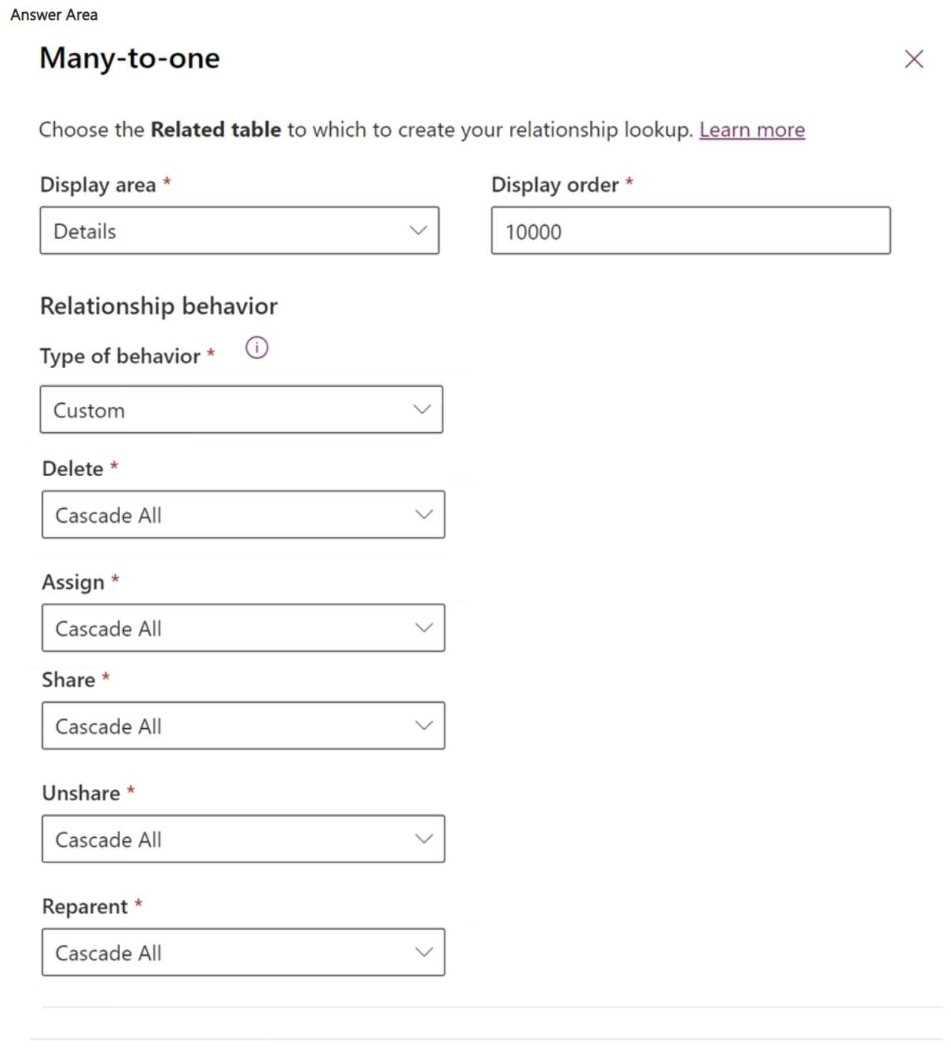
You are updating the current relationship behavior of the primary owner (Contact) to pet relationship.
You need to ensure the case study requirements are met.
Which two options must be changed? To answer, select the appropriate options in the answer area.
NOTE: Each correct selection is worth one point.
Answer:
Explanation:
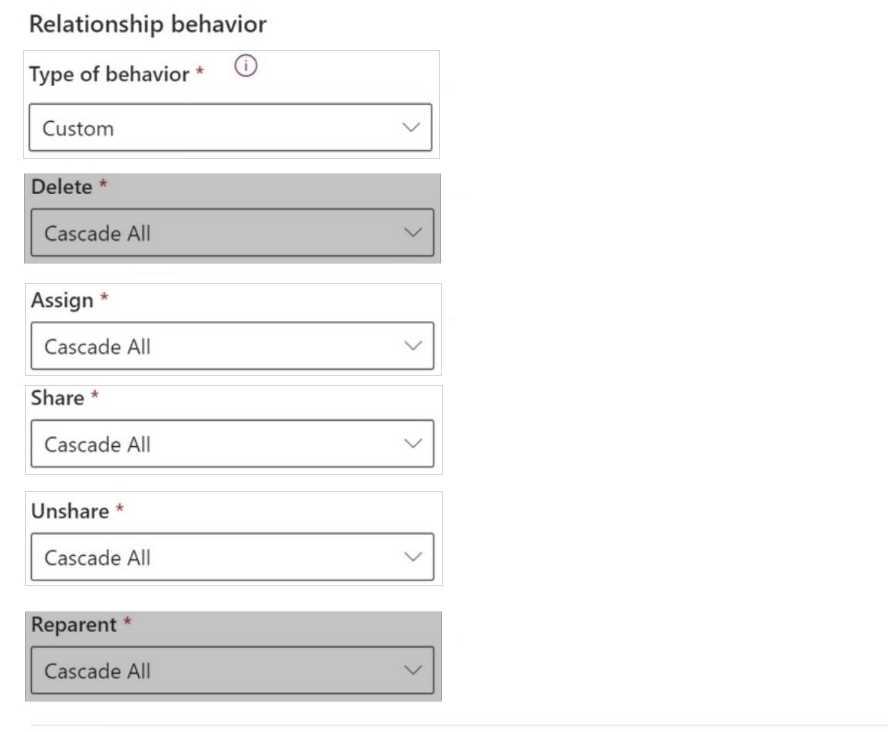
Delete: Currently set to "Cascade All," which is causing the issue of deleting the pet records when the Contact record is deleted. This should be changed to "Restrict" to prevent deletion if related Pet records exist.
Reparent: Since any active bookings should be updated when the Pet's primary owner is reassigned, the Reparent option should be set to "Cascade Active" instead of "Cascade All" to ensure that only active bookings are updated, not inactive ones.
Question: 4
HOTSPOT
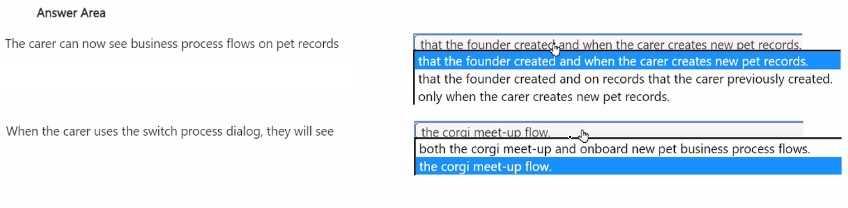
The founder has edited the Salesperson security role to allow the carer to use the Corgi meet-up business process flow, as shown in the following
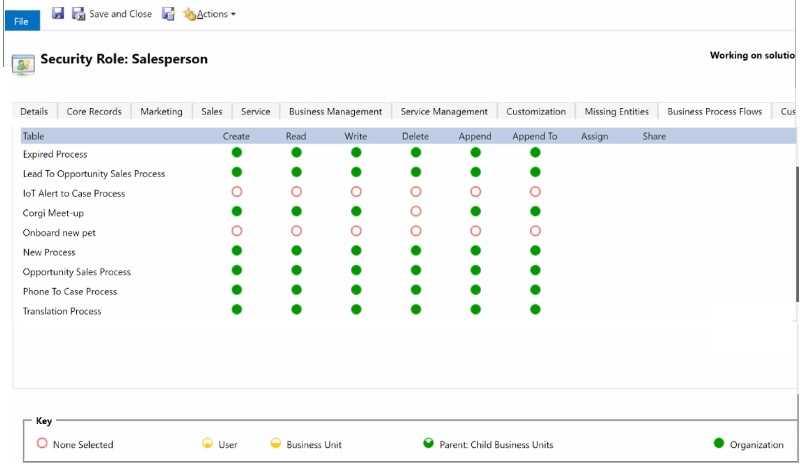
Use the drop-down menus to select the answer choice that completes each statement based on the information presented in the exhibit. NOTE: Each correct selection is worth one point.
Answer:
Explanation:

The configurations in the Salesperson security role will determine the access and visibility the carer has to the "Corgi meet-up" business process flow. The carer should be able to view and interact with specific business process flows on the Pet records based on the permissions configured by the founder.
Business Process Flow Access Configuration:
The image shows that the "Salesperson" security role has the "Create," "Read," "Write," "Delete," "Append," and "Append To" permissions set for the "Corgi meet-up" process.
The green circle indicates permissions at the Organization level, meaning the carer can access all records associated with the "Corgi meet-up" business process flow across the entire organization.
Visibility of Business Process Flows on Pet Records:
Since the carer has these permissions at the Organization level, they will be able to see all business process flows related to pet records that have been set up by the founder.
In this case, the answer provided in the image indicates that the carer will be able to see business process flows that were created by both the founder and new flows initiated by the carer themselves on the Pet records.
Switch Process Dialog Visibility:
The switch process dialog will allow the carer to select from multiple business process flows that are applicable to a given record.
According to the selection options provided, if both the "Corgi meet-up" and the "Onboard new pet" flows are available, and they are configured to be accessible by the Salesperson role, the carer should be able to see both flows when using the switch process dialog. This aligns with the provided answer choices, which indicate that both flows are visible when switching.
Reference from Microsoft Documentation:
Microsoft’s official documentation on configuring Security Roles in Dynamics 365 provides detailed guidance on setting permissions for different entities and processes. More information can be found in the Dynamics 365 security model documentation: Manage security, users, and teams For Business Process Flow configurations, including permissions and visibility settings, refer to the guide on Create a business process flow in Dynamics 365
This setup ensures that the carer has the appropriate level of access to perform their duties, specifically in handling pet records and business processes like the "Corgi meet-up." If you have further questions or need more details on this configuration, feel free to ask!
Question: 5
You need to configure search to ensure the administrators can find all records which reference Corgis. Which action must you perform?
A. Within system settings, select up to 10 relevant tables.
B. Within the solution, ensure all relevant tables are indexed.
C. For all relevant tables, ensure that the Can enable sync to external search index setting is False.
D. Add columns to be searched to the Lookup view for each relevant table.
Answer: B
Explanation:
To enable comprehensive search capabilities for administrators to find all records referencing specific terms (such as “Corgis”), it is essential to ensure that all relevant tables are indexed. In Dynamics 365, configuring search functionality for specific tables involves setting up the tables to be searchable, which can be done by indexing them within the solution. Indexing relevant tables makes them accessible in the search feature and ensures all fields within those tables can be searched, allowing for quick retrieval of records that reference specific terms. System settings (Option A) is limited to selecting up to 10 tables and is more about quick search rather than full indexing. The sync to external search index setting (Option C) is for integration with external search tools and does not directly impact internal search capabilities. Adding columns to the Lookup view (Option D) affects how lookups work but does not influence fulltext search results.
Reference from Microsoft Documentation: For configuring search indexing, refer to Configure relevance search in Dynamics 365 for more information on indexing tables to enhance search capabilities.
Thank You for trying MB-280 PDF Demo
To try our MB-280 practice exam software visit link below
https://www.trendycerts.com/MB-280.html
Start Your MB-280 Preparation
Use Coupon “SAVE50” for extra 50% discount on the purchase of Practice Test Software. Test your MB-280 preparation with actual exam questions.